Declarations in the GoSkills Course Builder let learners confirm that they’ve read, understood, and agreed to a statement by signing it as part of their course.
They’re useful for policy sign-offs, compliance acknowledgments, safety procedures, and other situations where learners need to formally confirm their understanding or agreement.
How to add a declaration to a course
- Open your course in the GoSkills Course Builder.
- Go to the Course outline section.
- Click Add to course and select Declaration.
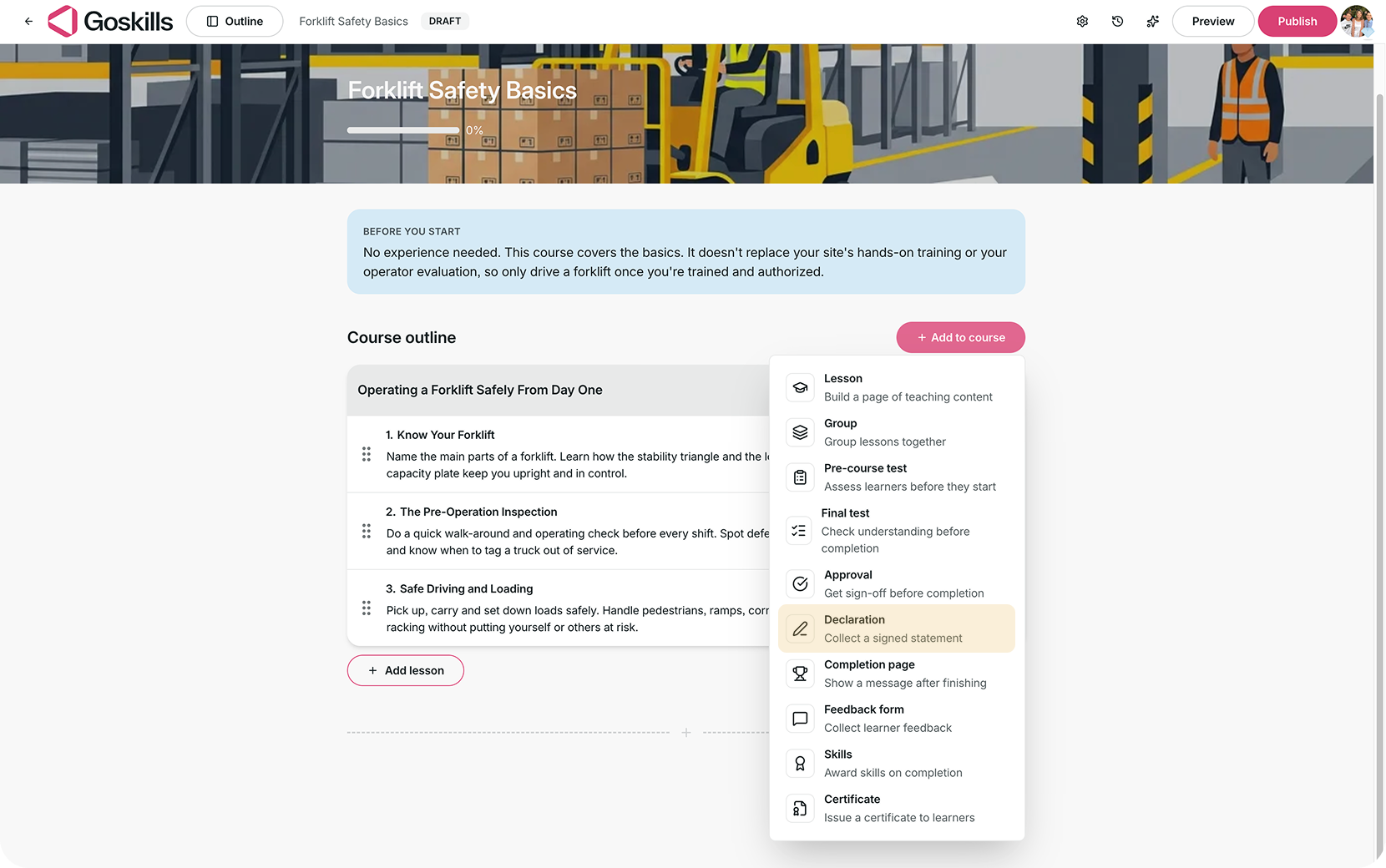
- A new declaration block will appear in your course outline.

Edit your declaration
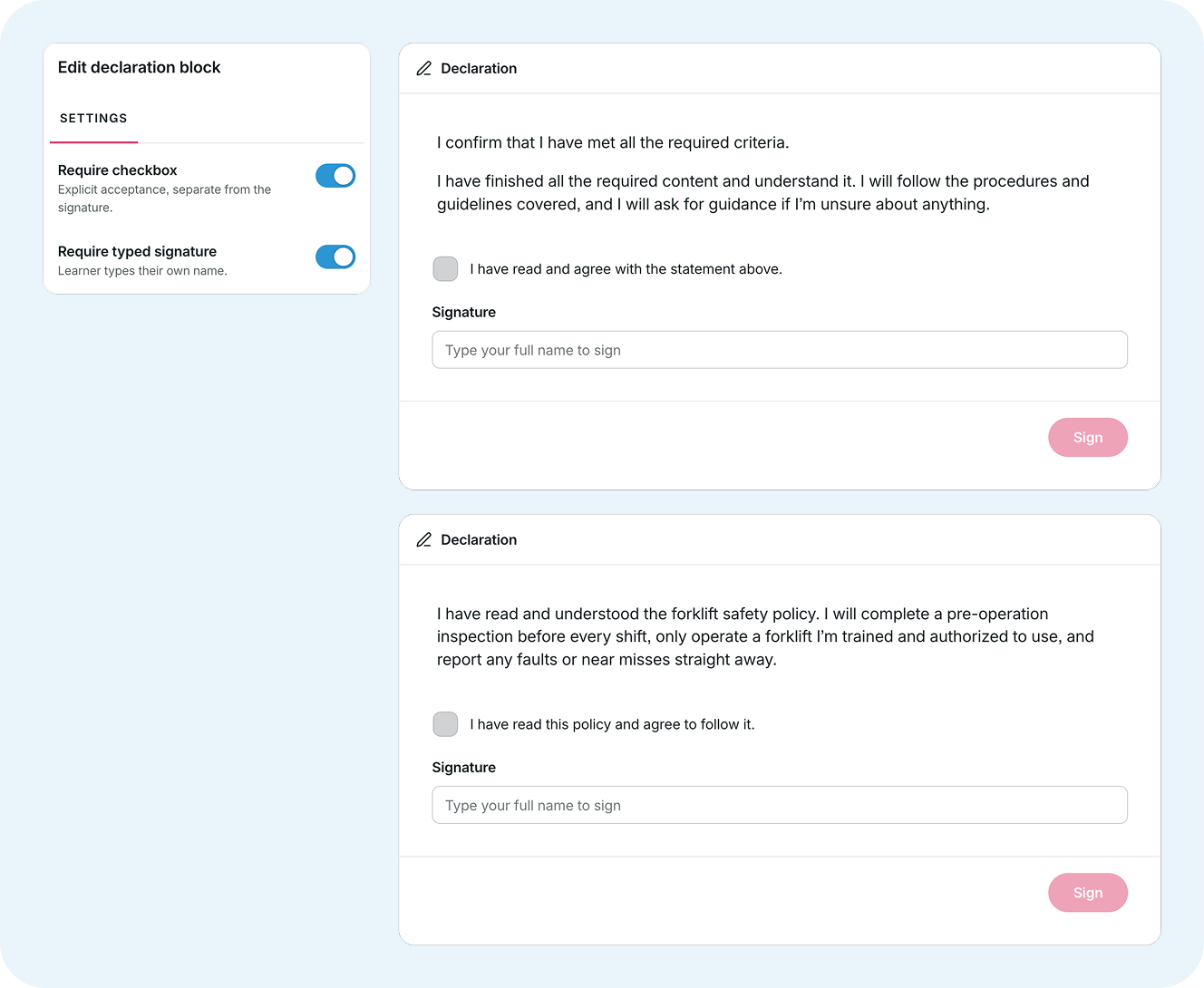
The declaration comes with a default statement that you can edit to match your training requirements.
- Click Add content in the Declaration block in your course outline.
- Edit the default statement to explain what learners are acknowledging or agreeing to.
- If you’re using a checkbox, customize the checkbox text to match your statement.
For example, a workplace safety declaration might say:
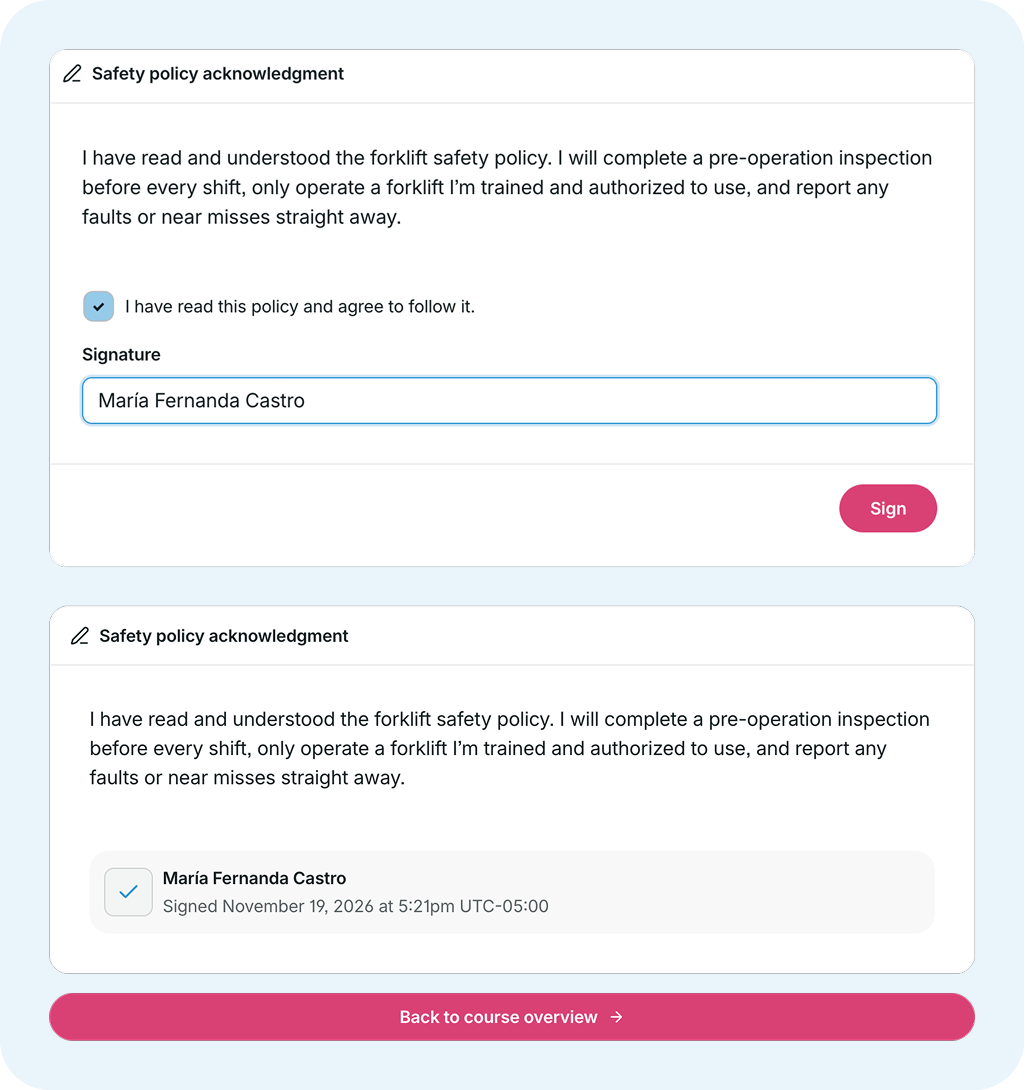
“I have read and understood the forklift safety policy. I will complete a pre-operation inspection before every shift, only operate a forklift I’m trained and authorized to use, and report any faults or near misses straight away.”
The checkbox could then say:
“I have read this policy and agree to follow it.”
You can also rename the declaration as it appears in the course outline.

Configure declaration settings
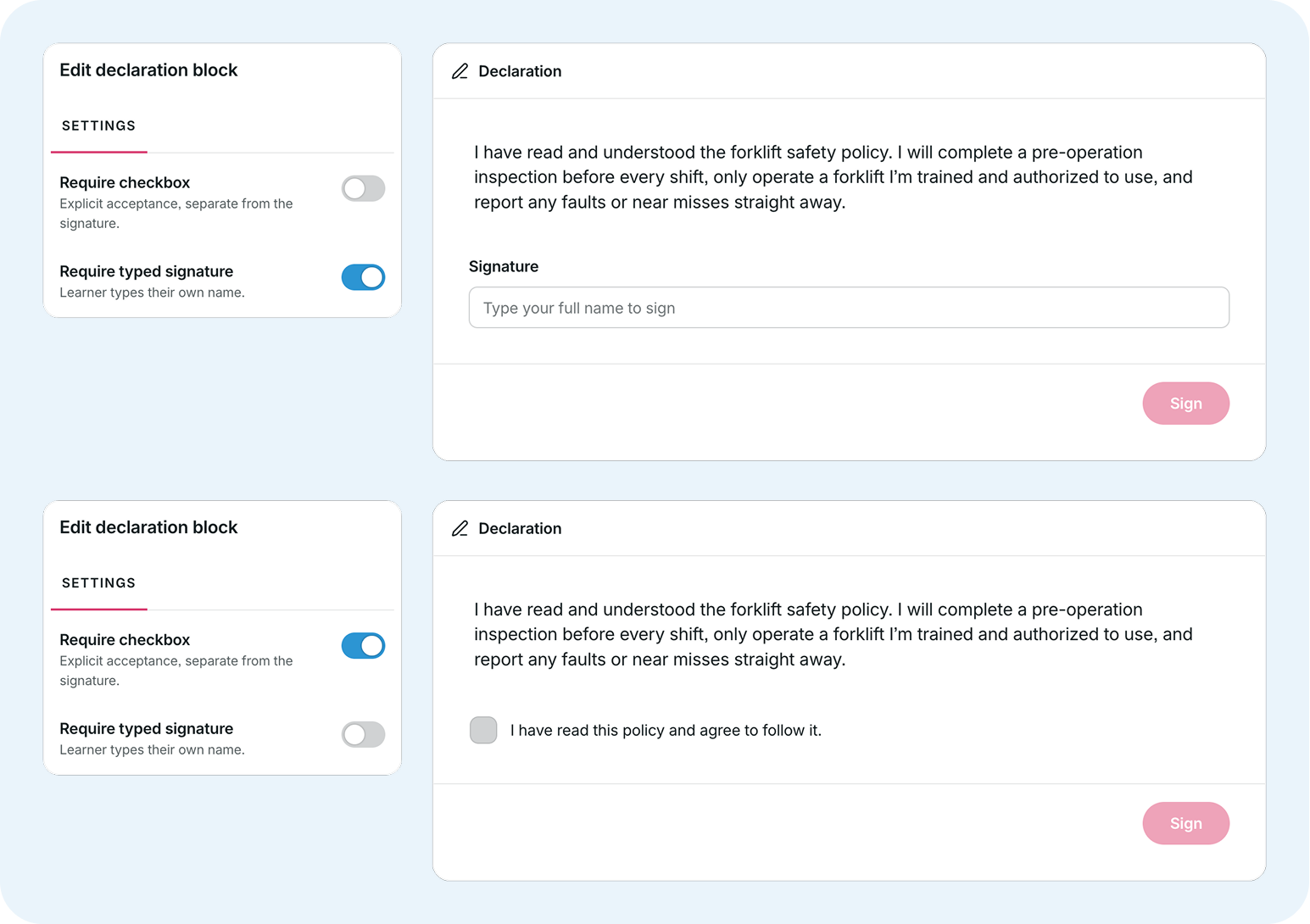
In the declaration editor, you’ll find two options under Settings. Both are enabled by default.
- Require checkbox: Learners must tick a checkbox to confirm their agreement.
- Require typed signature: Learners must type their full name to sign the declaration.
You can enable either option individually or keep both enabled, depending on your requirements.
How learners sign a declaration
To sign a declaration, learners:
- Open the declaration by clicking Start.

- Read the statement.
- Tick the agreement checkbox, if required.
- Enter their full name, if a typed signature is required.
- Click Sign to submit their declaration.
Once signed, the declaration displays the learner’s name and the date and time it was signed.
Track declarations in reports
Learners must sign every declaration in a course before the course can be marked as complete.
If you update a declaration after learners have signed it, their signatures still count.
You can track declarations in the following reports:
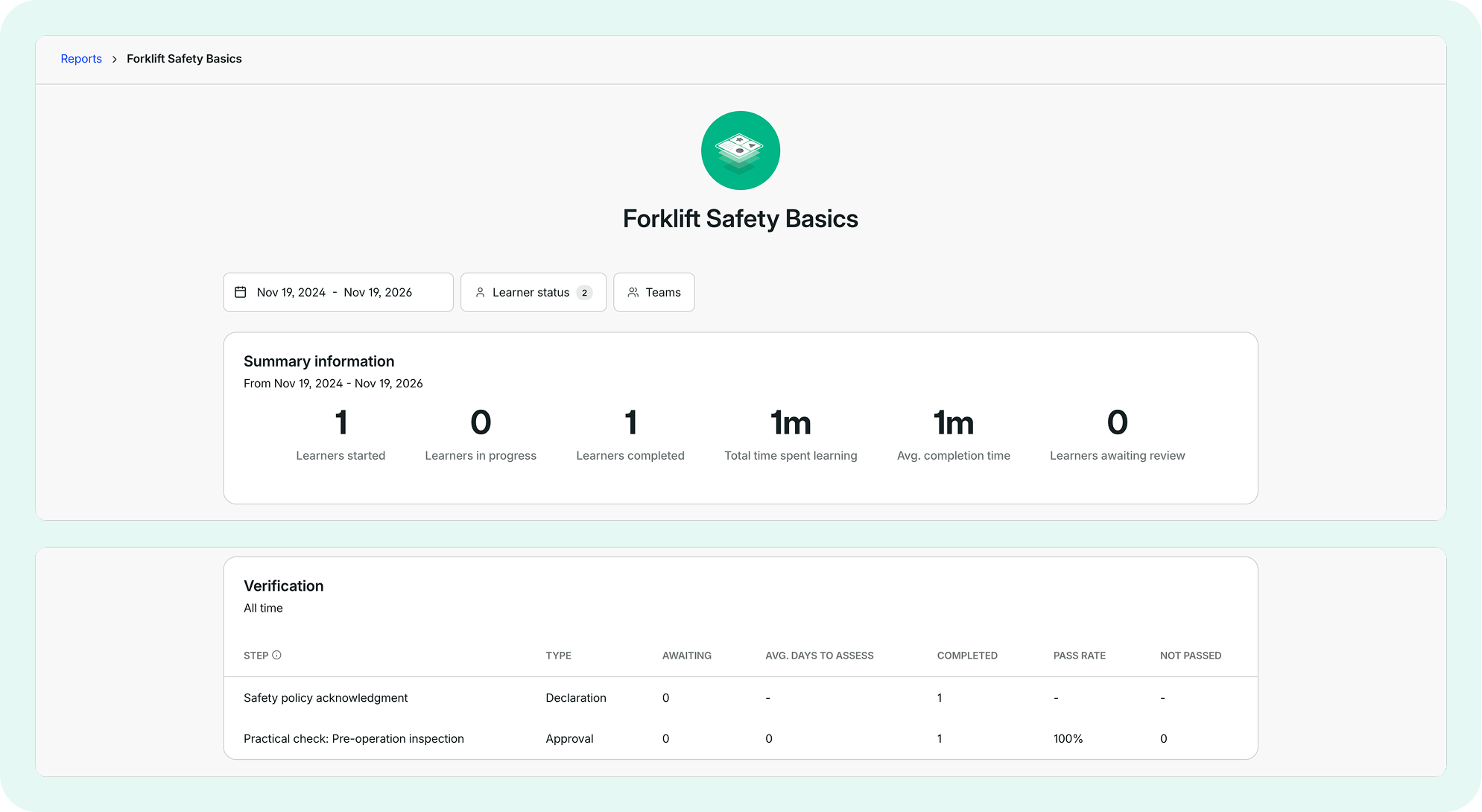
Course report
The Verification section lists each declaration and approval in a course, along with learners’ progress on each.
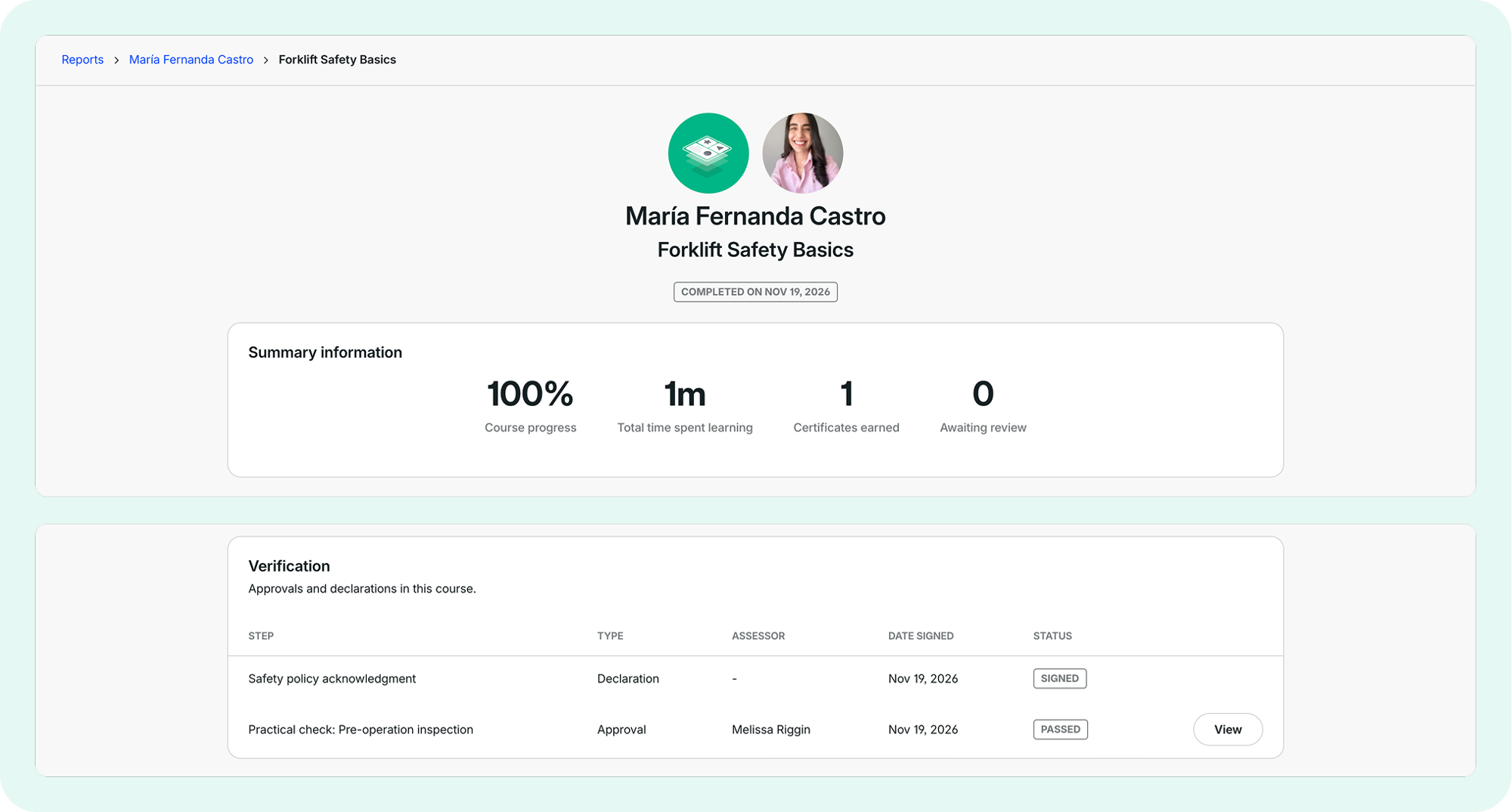
Learner course report
The Verification section shows the learner’s status for each declaration, including the signing date.
Learner report
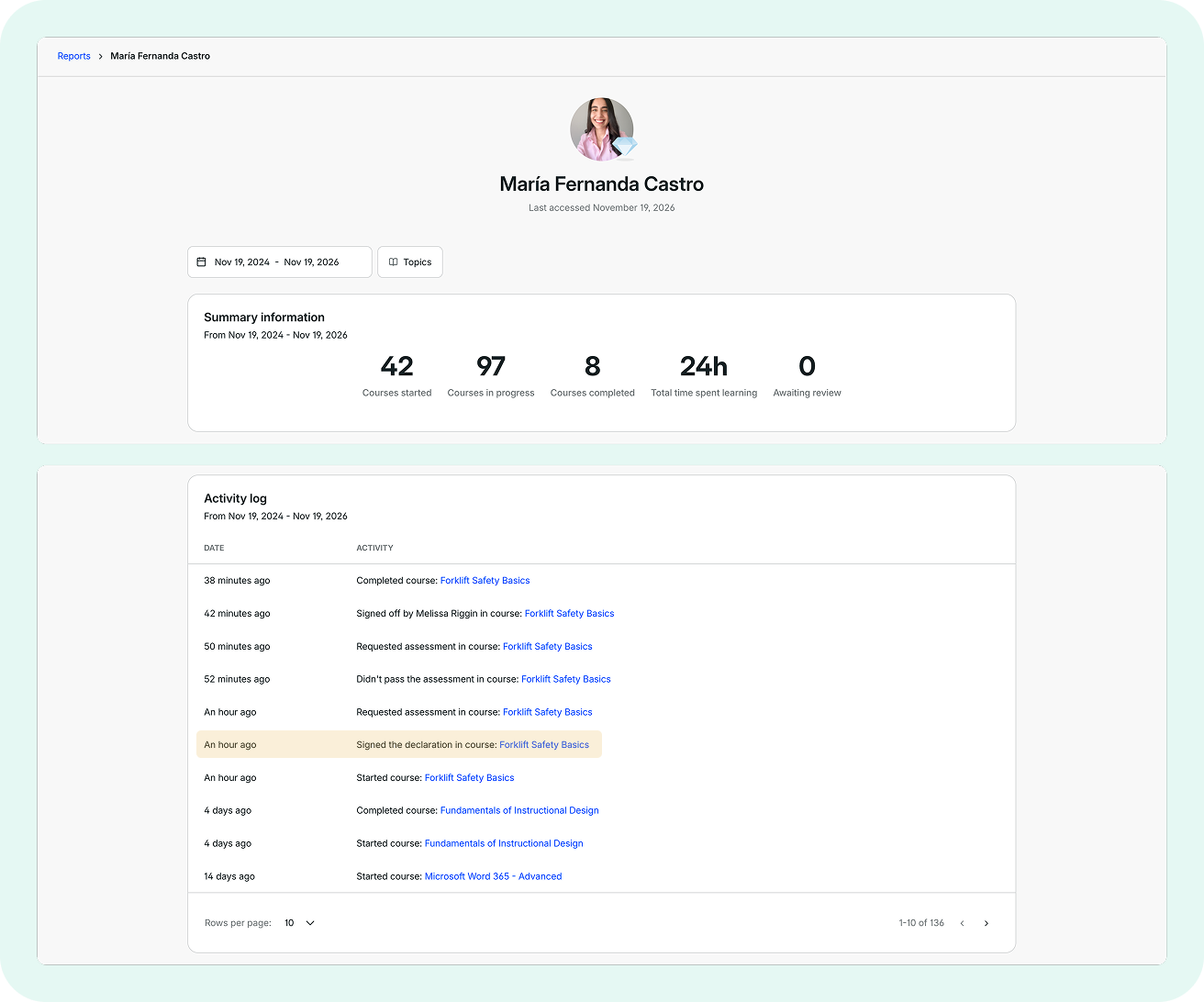
The Activity log records when a learner signs a declaration.