
Approvals in the GoSkills Course Builder let you verify a learner’s skills before they complete a course.
They’re useful for on-the-job skills checks, practical assessments, and other situations where a learner needs to demonstrate their abilities and receive sign-off from an assessor.
How to add an approval to a course
- Open your course in the GoSkills Course Builder.
- Go to the Course outline section.
- Click Add to course and select Approval.
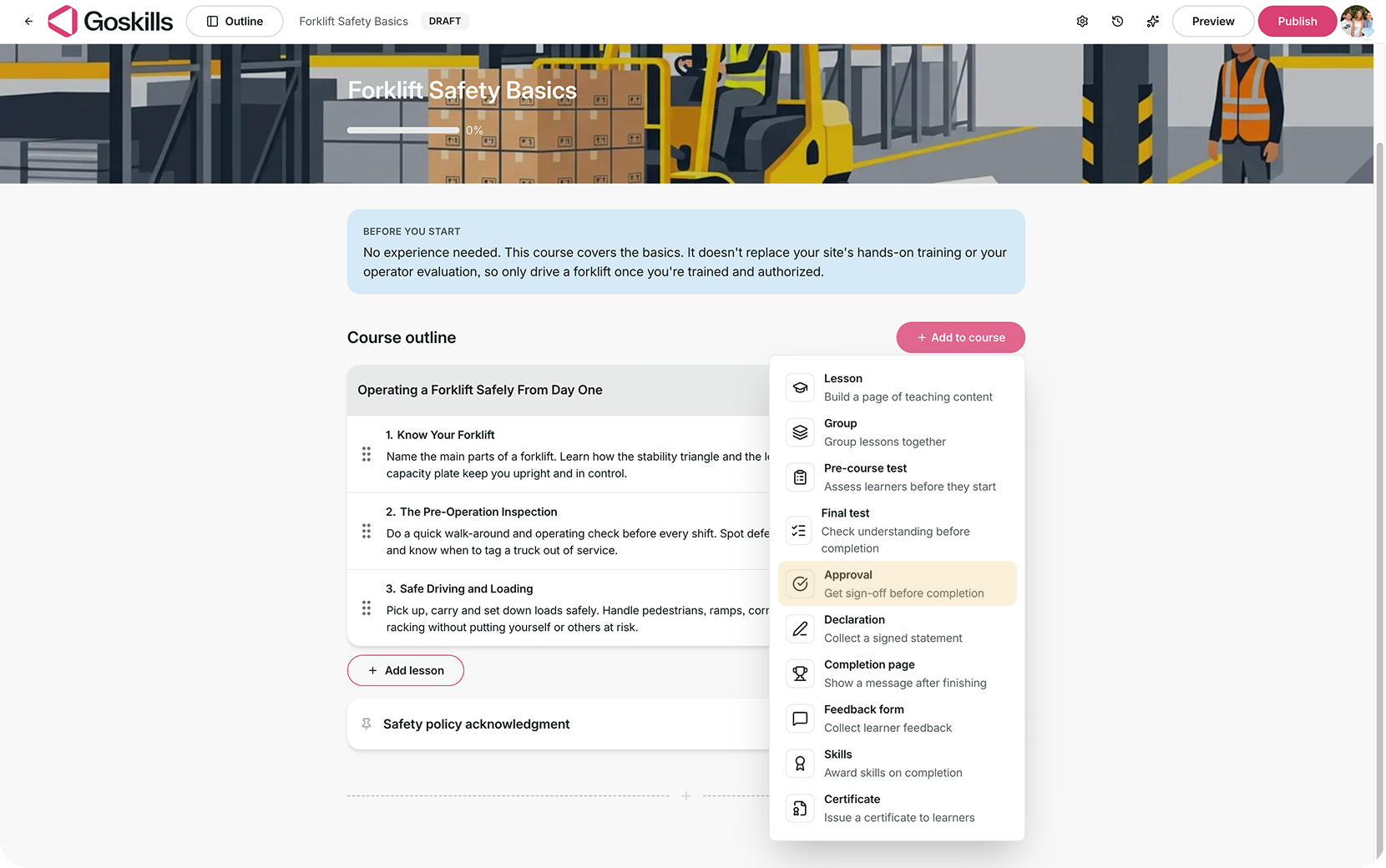
Configure approval settings
In the Approval settings window, choose your assessor and configure the assessment requirements.
The following options are available:
- Assessor: Select at least one person who can assess the learner.
- Instructions for assessor: Explain what the assessor should check, such as observing a practical task or reviewing a learner’s work.
- Outcome recorded: Choose Pass/fail to record whether the learner passed, or Feedback only to review their work without grading.
- Require signature: Require the assessor to type their name when signing off. When approved, the learner’s course page will show “Signed off.”
- Allow private notes: Let assessors add notes that are only visible to assessors and admins. These notes are also included in reports.
By default, Pass/fail is selected, Require signature is enabled, and Allow private notes is disabled.
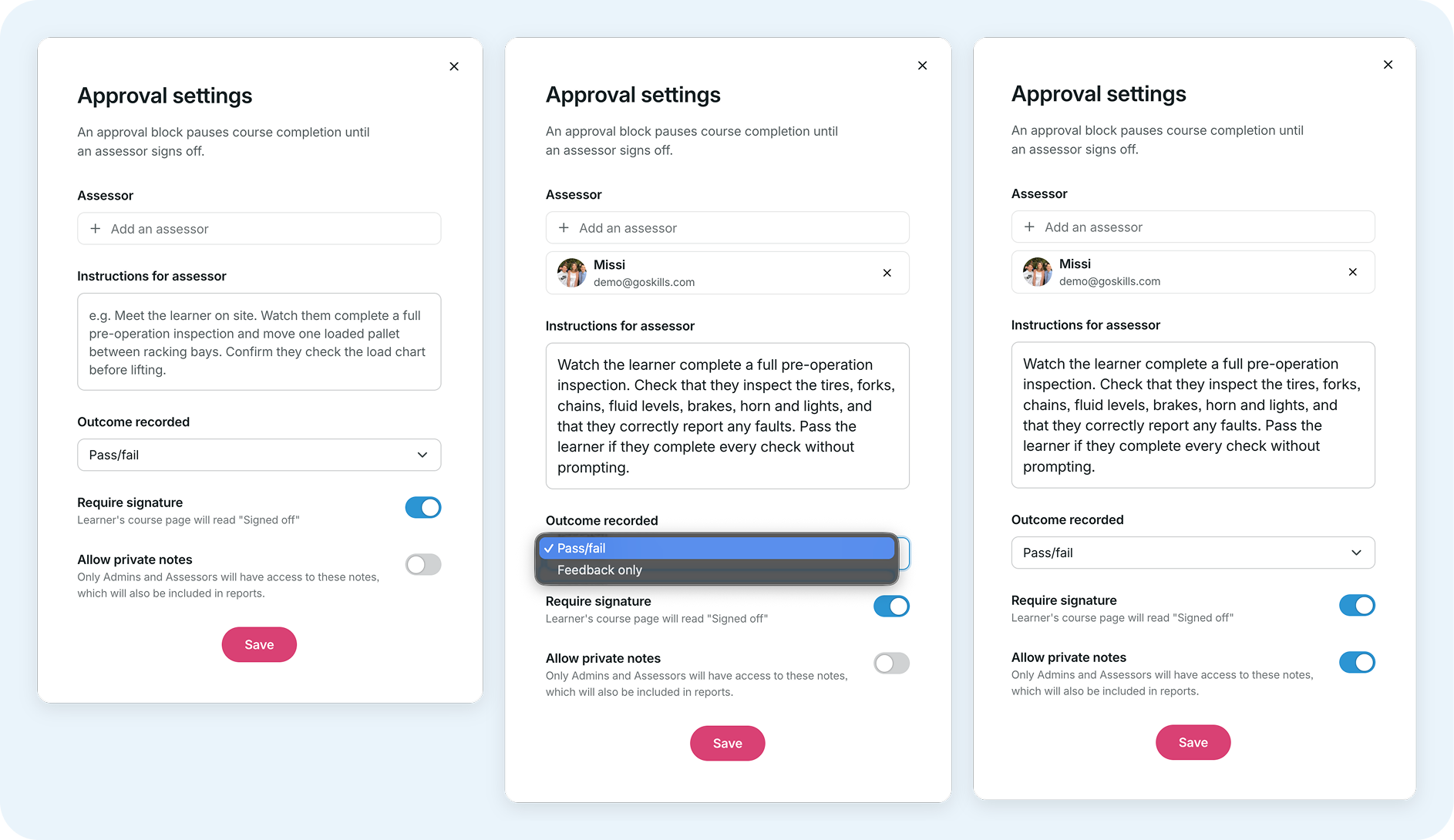
Once you’ve configured the settings, click Save to add the approval to your course.
Edit an approval
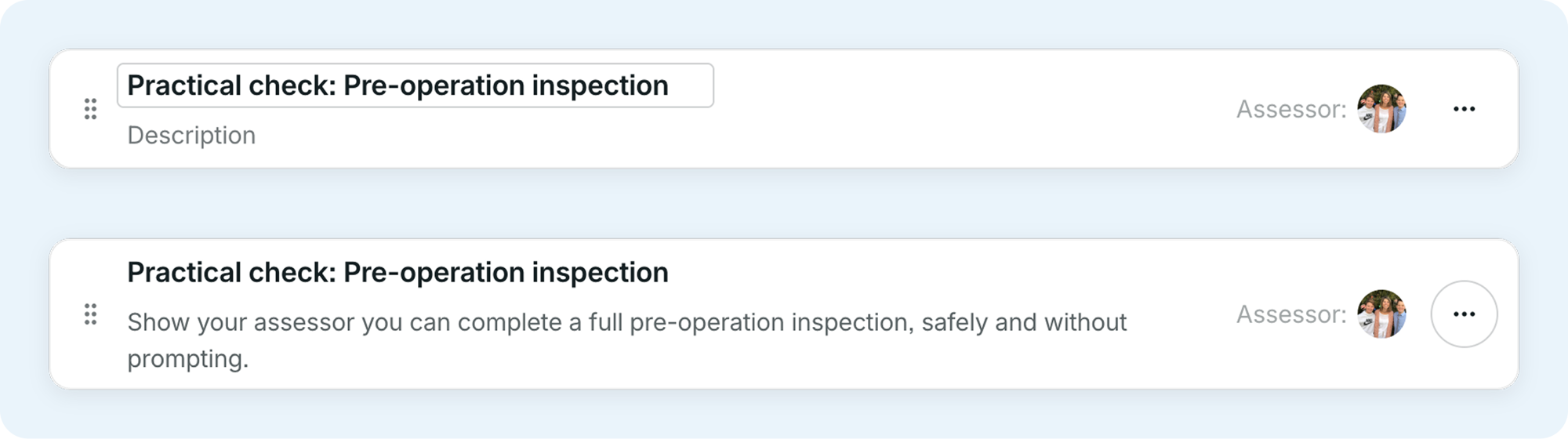
Once you’ve added an approval, you can rename it and add a description that learners will see in their course outline.
For example, a forklift safety course might include an approval called “Practical check: Pre-operation inspection” with the description:
“Show your assessor you can complete a full pre-operation inspection, safely and without prompting.”
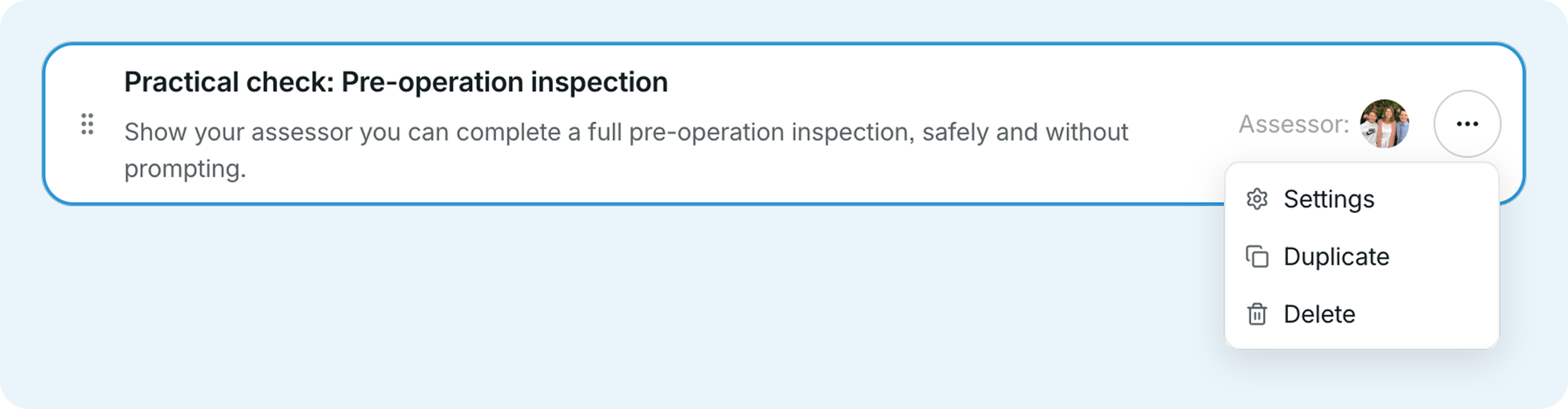
To update the settings later, click the three-dot menu (⋯) on the approval block and select Settings.
For learners: Request an assessment
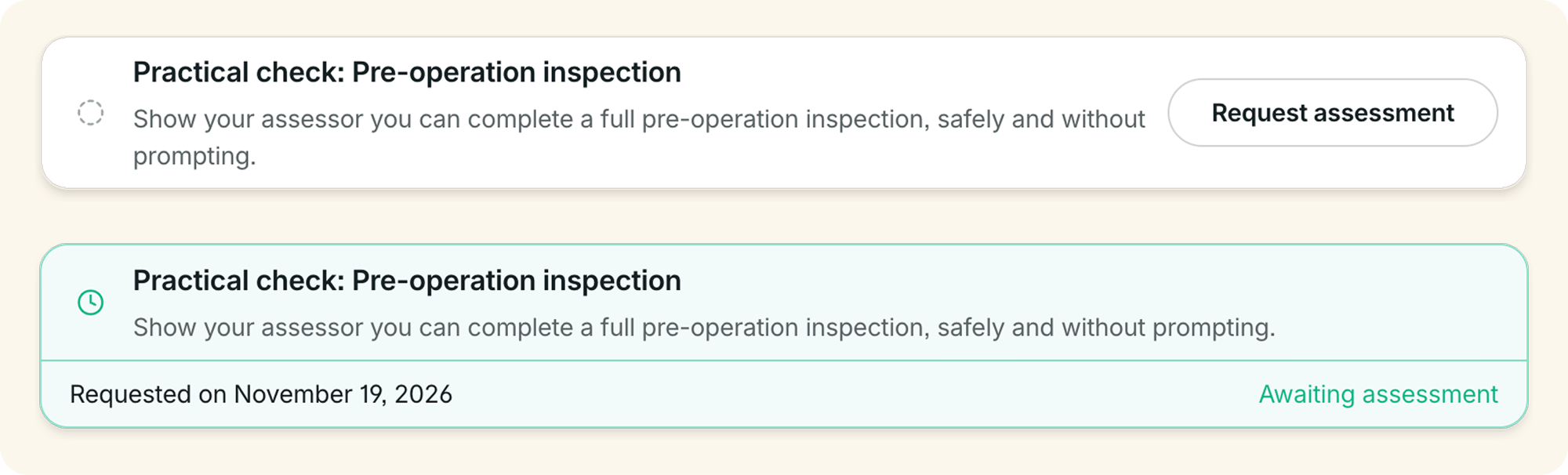
When learners reach an approval, they’ll see it as a step in their course outline.
To request an assessment:
- Find the approval in the course outline.
- Click Request assessment.
- The approval will show Awaiting assessment until an assessor reviews the request.
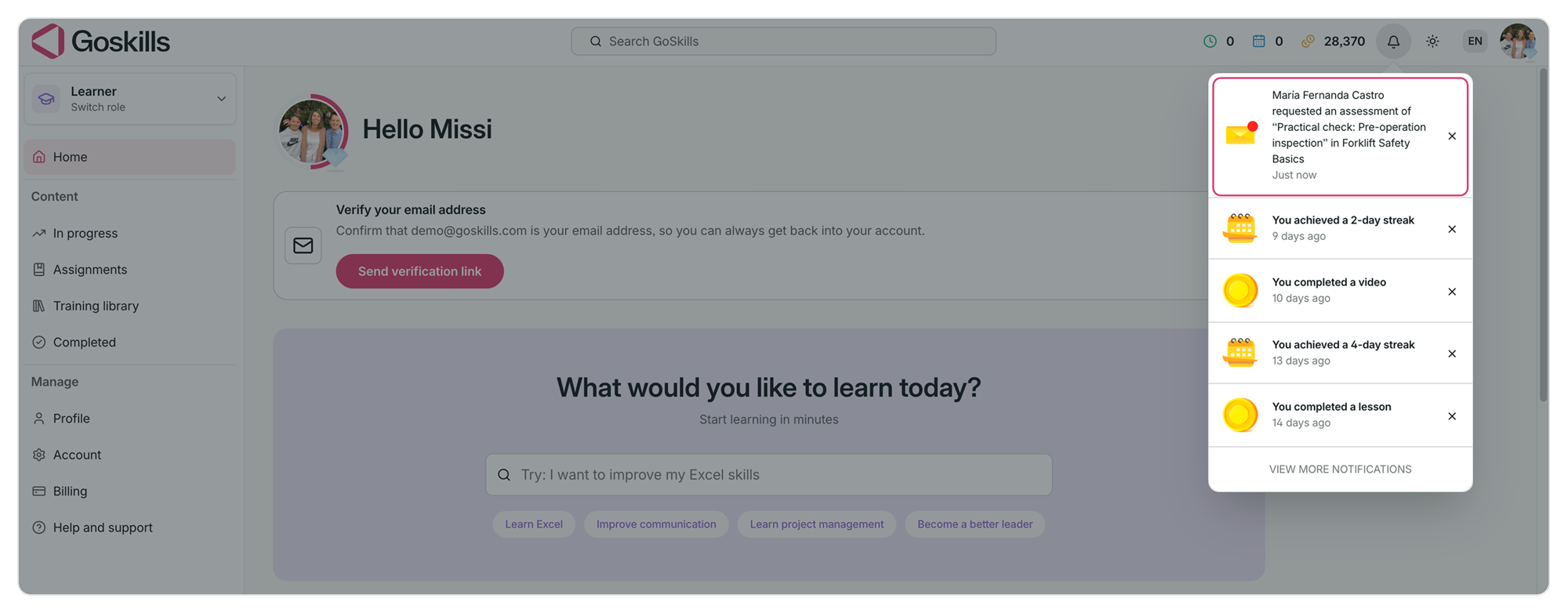
Once the assessor submits the assessment, learners receive a notification with the outcome.
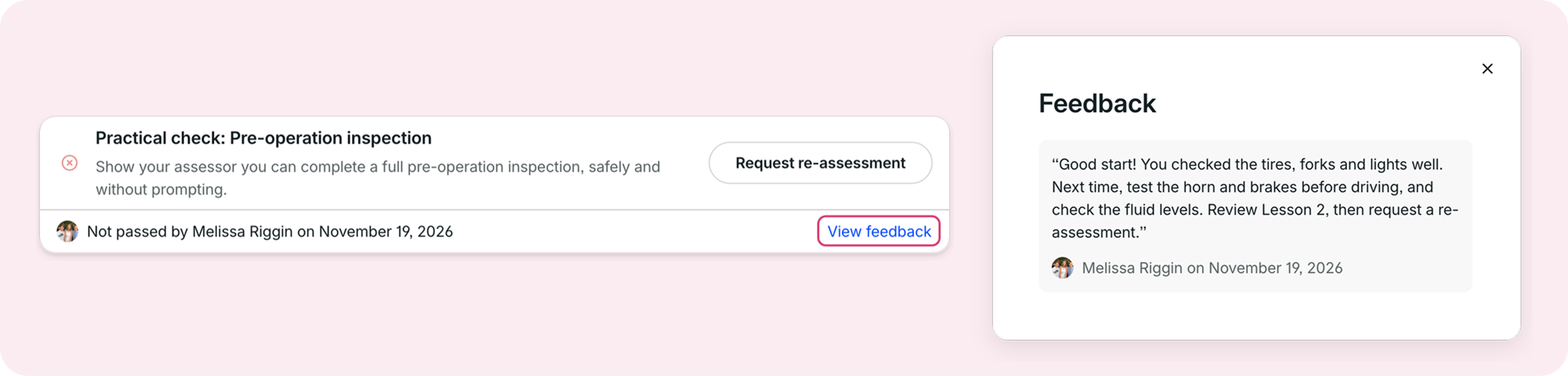
If they didn’t pass, they can:
- Click View feedback to read the assessor’s comments.
- Review the feedback and prepare to try again.
- Click Request re-assessment to submit another request.
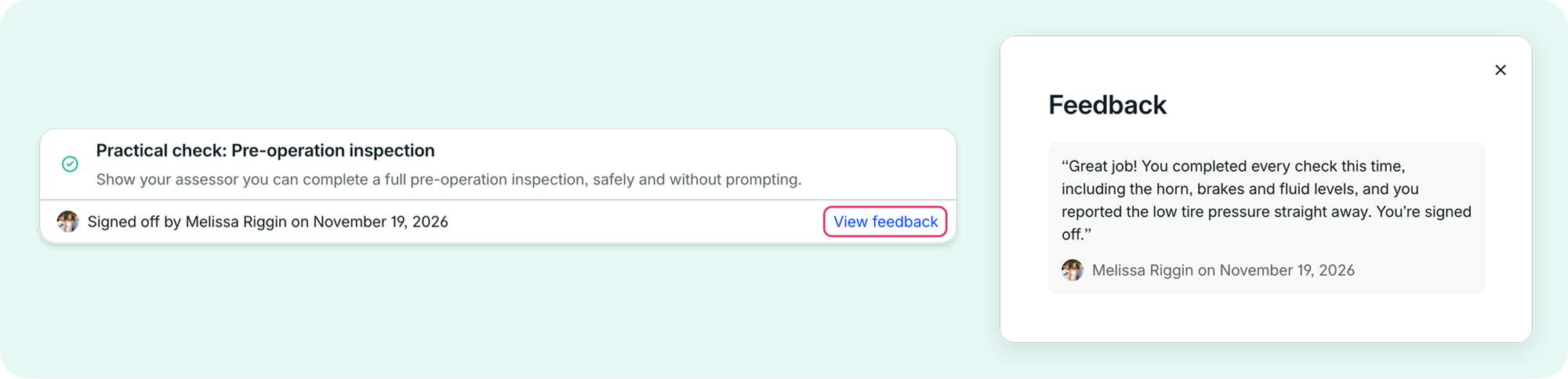
If they pass, the approval displays who signed them off and when. Learners can also click View feedback to read the assessor’s comments.
For assessors: Review and sign off learners
Anyone assigned as an assessor on a course will have access to an Approvals page in the sidebar.
When a learner requests an assessment, their assigned assessors receive a notification.
[Screenshot 6: Notification showing a new assessment request]
Review assessment requests
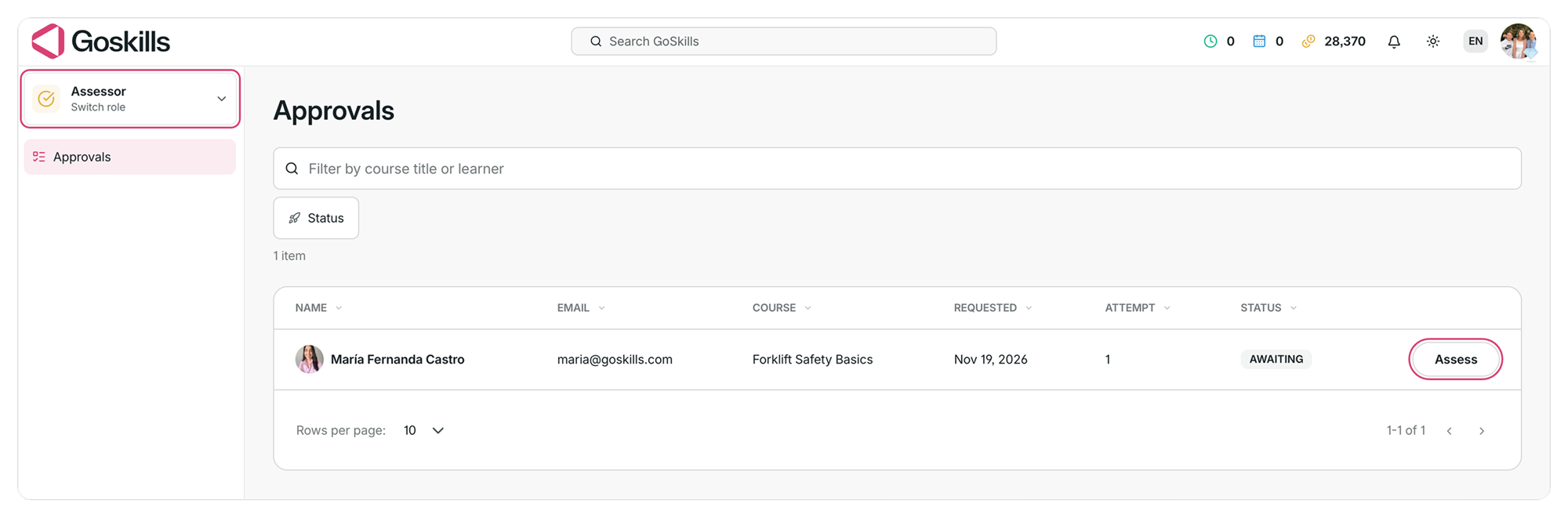
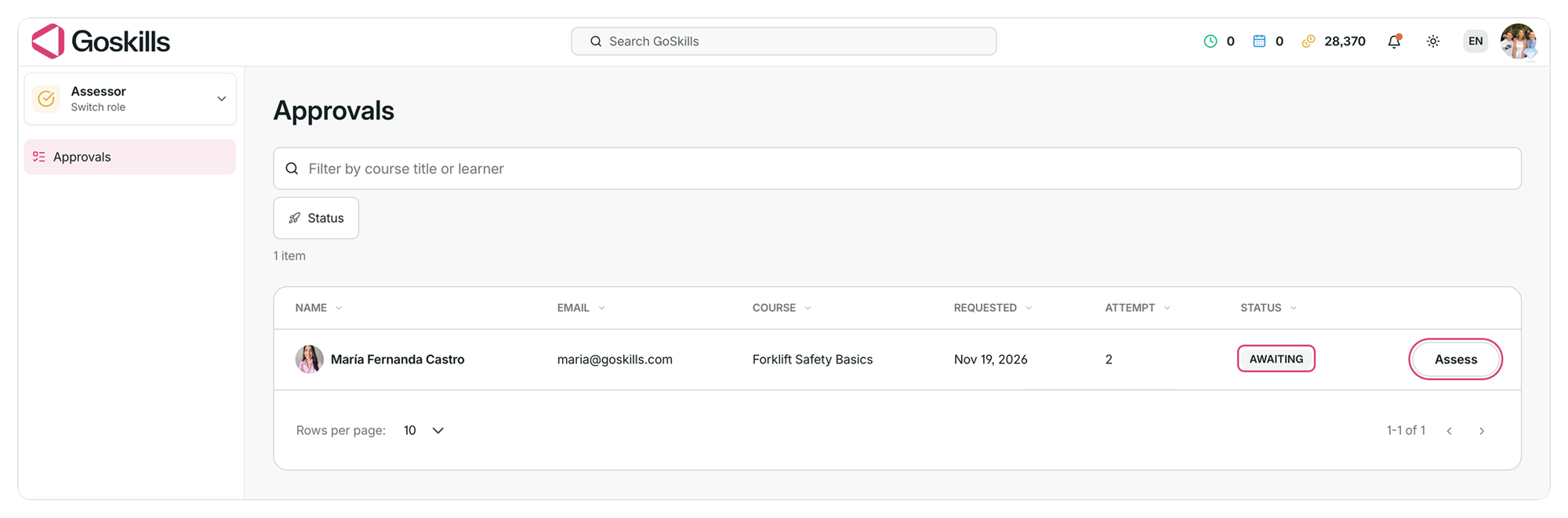
- Switch to the Assessor role.
- Open Approvals from the sidebar.
- Find the learner’s request and click Assess.
You can search for requests by course title or learner, or use the Status filter to find requests that are Awaiting, Passed, Not passed, or Signed off.
Submit an assessment
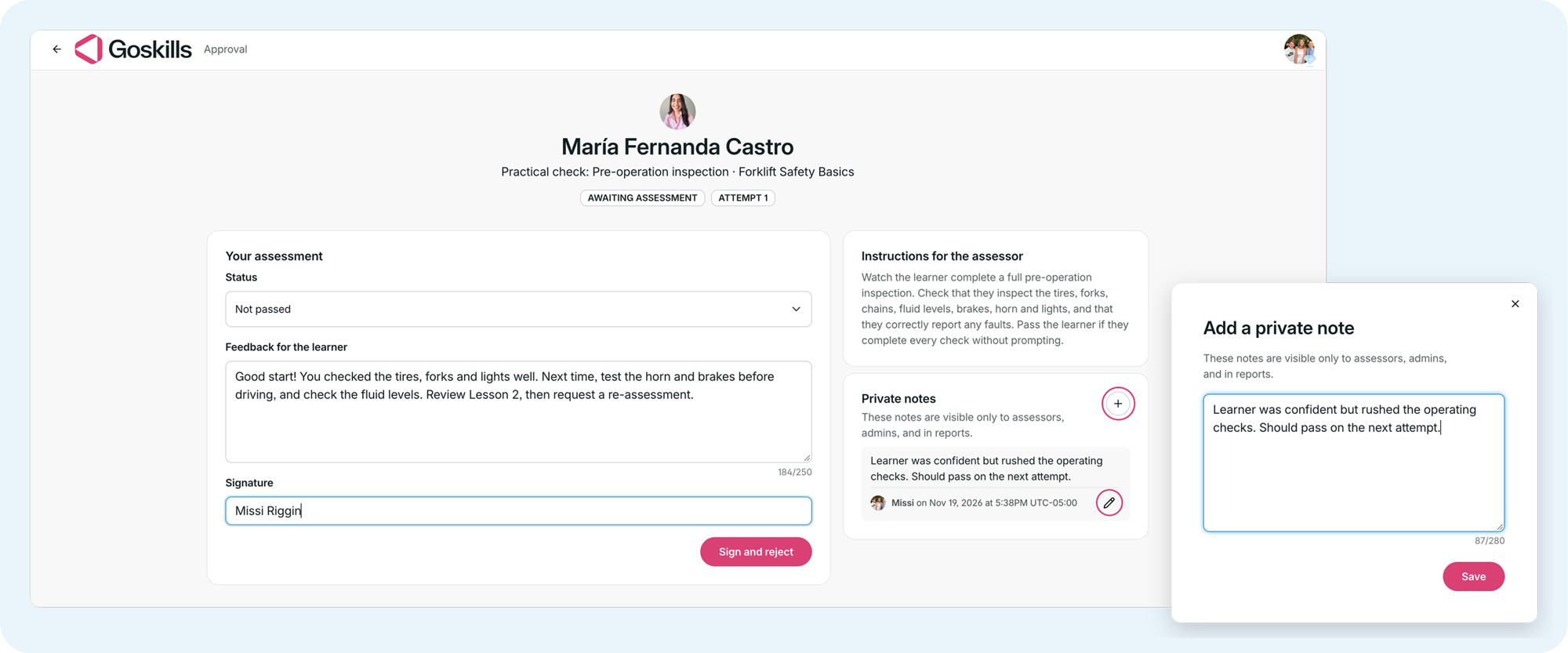
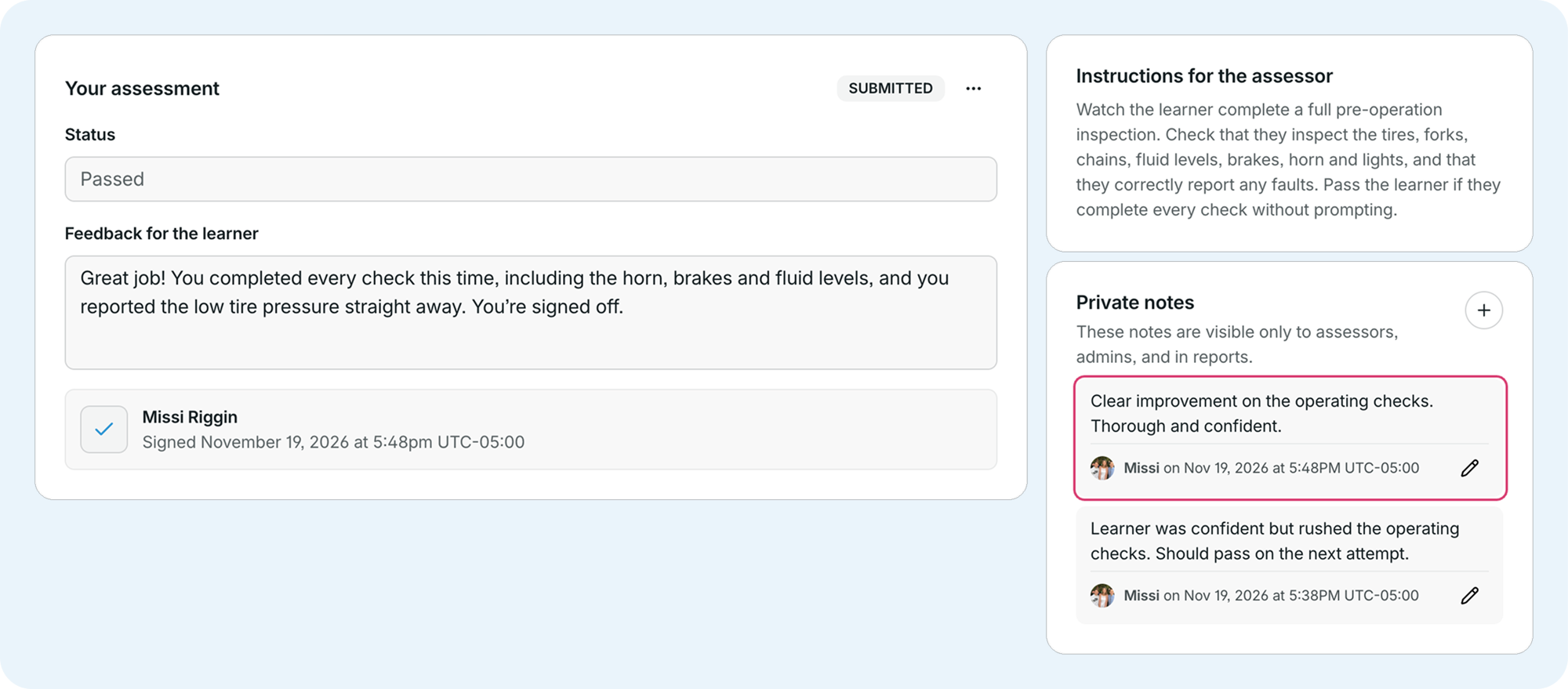
When you open a request, you’ll see the learner’s details and the instructions provided by the course creator.
For a pass/fail assessment:
- Review the instructions and assess the learner’s skills.
- Under Status, select Passed or Not passed.
- Add comments under Feedback for the learner (up to 250 characters).
- If enabled, add any Private notes for other assessors or admins.
- Enter your name in the Signature field, if required.
- Click Sign and approve or Sign and reject to submit the assessment.
The button changes automatically based on the selected status: Sign and approve for Passed, or Sign and reject for Not passed.
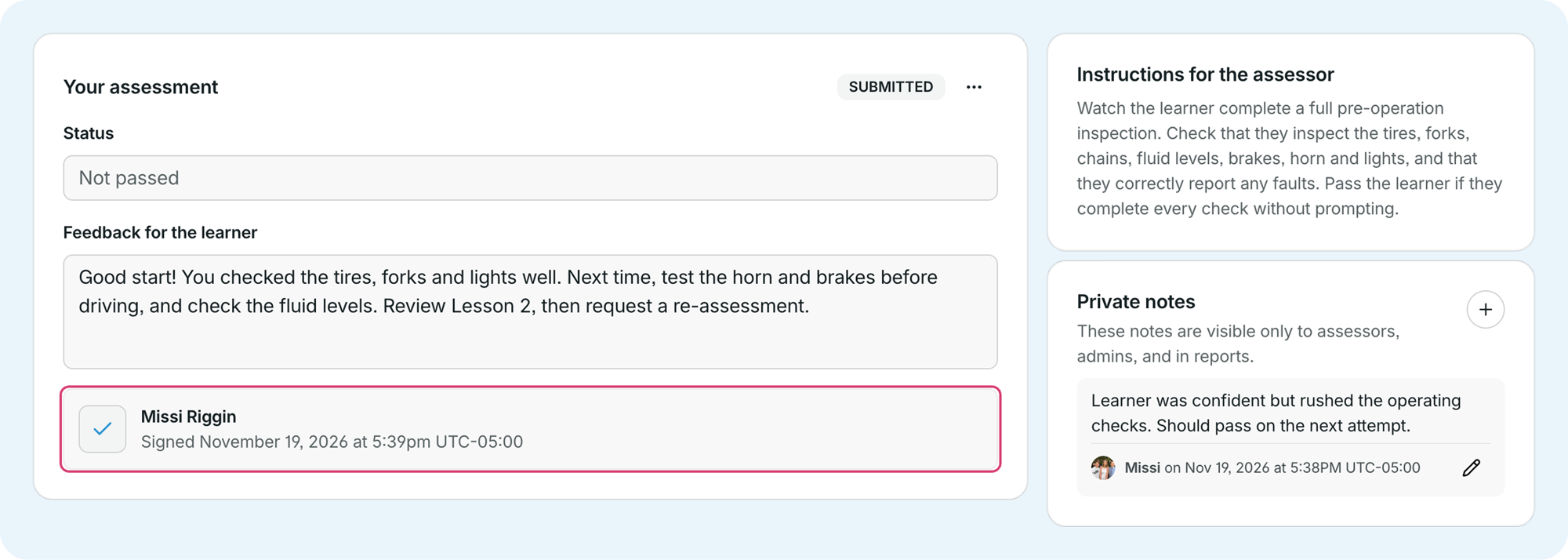
Once submitted, the assessment shows the recorded outcome, feedback, and signature.
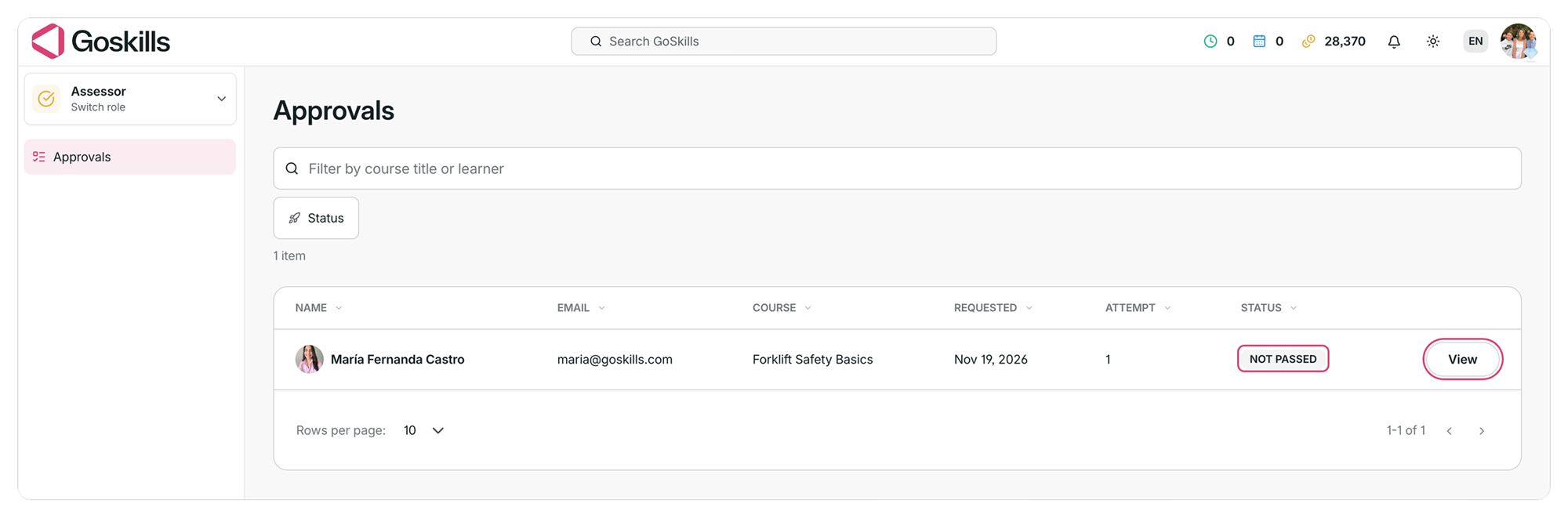
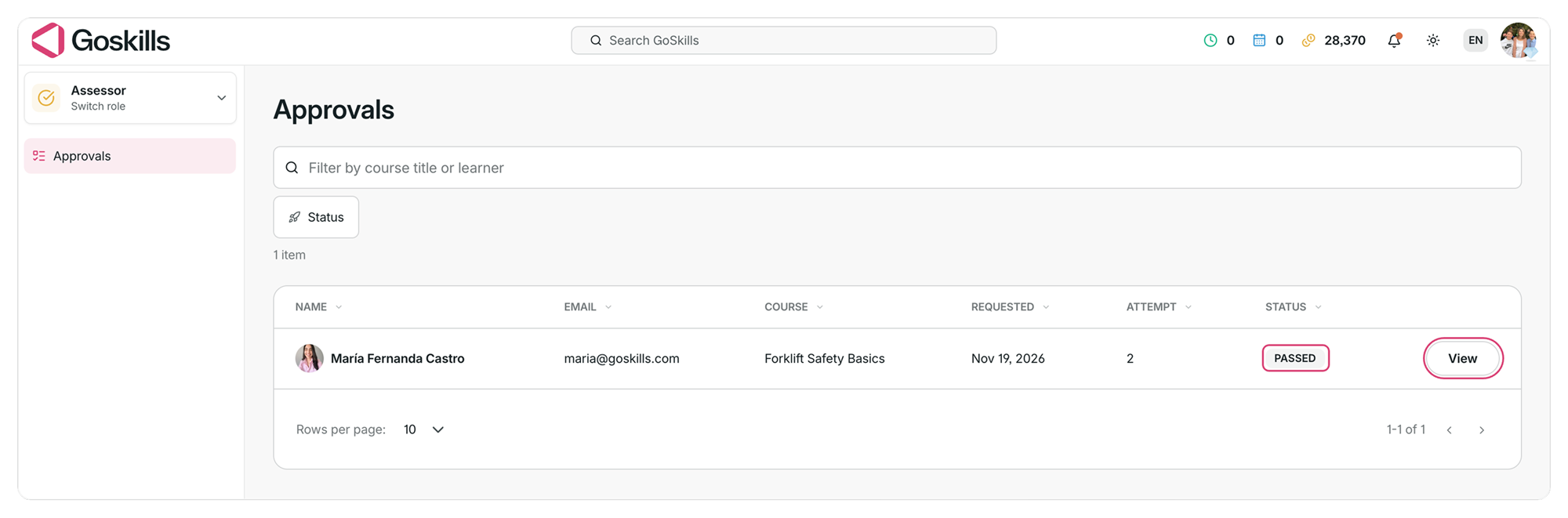
The request’s status is also updated on the Approvals page.
Review re-assessment requests
If a learner doesn’t pass, they can request another assessment.
Each request has an attempt number, so you can distinguish between the original assessment and any subsequent attempts.
Assessors can review the new attempt, provide feedback, and record a new outcome using the same process.
Previous private notes remain available for reference.
Once approved, the request’s status changes to Passed on the Approvals page.
For admins: Correct an assessment
Organization admins can edit an assessment after it’s been submitted, including the outcome, feedback, and signature.
If an admin changes the assessment outcome, the learner receives a notification.
Changes to the outcome can also affect course completion:
- Changing to Passed: This can complete the course and issue a certificate if all other requirements have been met.
- Changing to Not passed: If the assessment was previously passed, the course becomes incomplete again, and its certificate is removed.
Track approvals in reports
Approvals are included in GoSkills reports, making it easier to track assessment progress and completion.
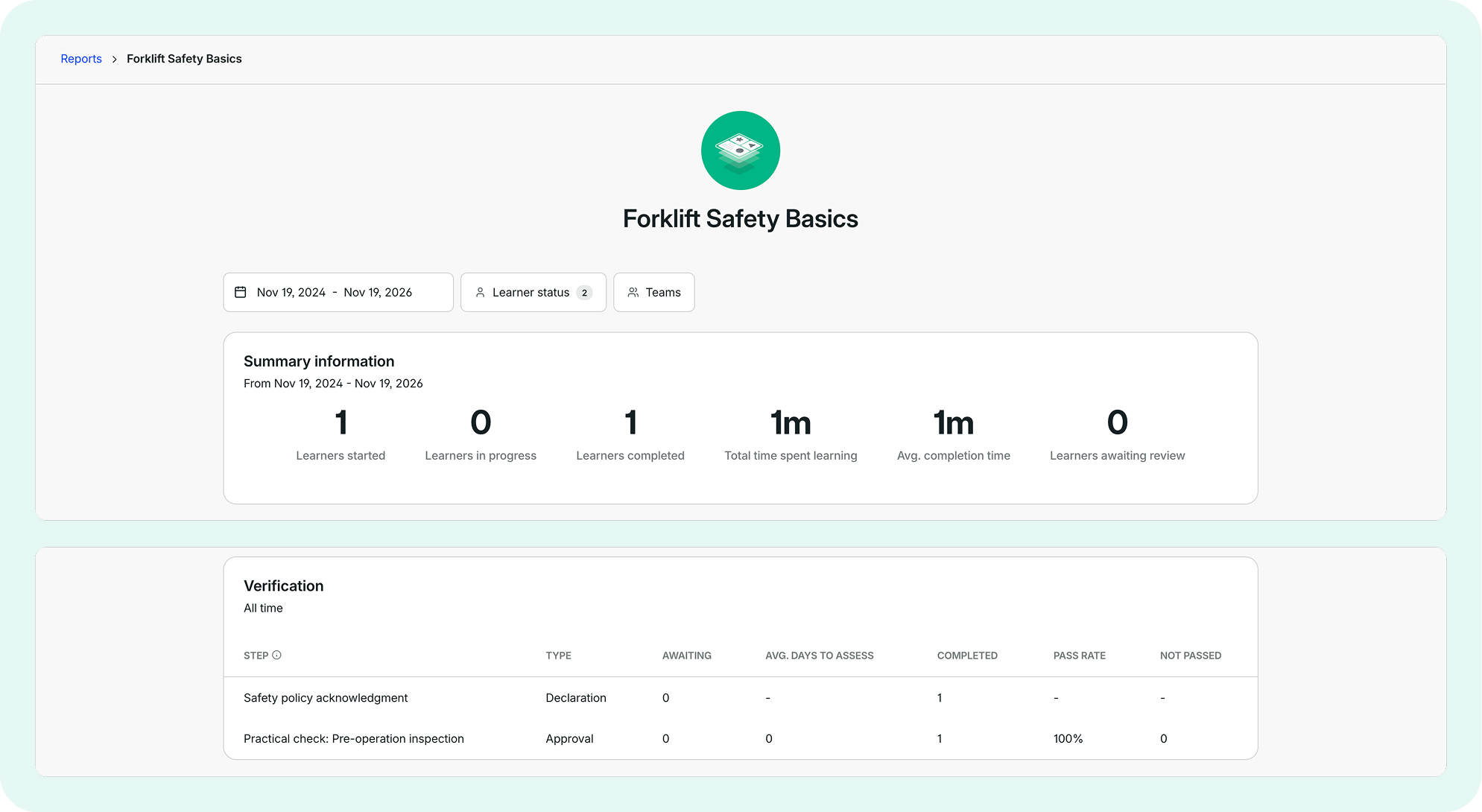
Course report
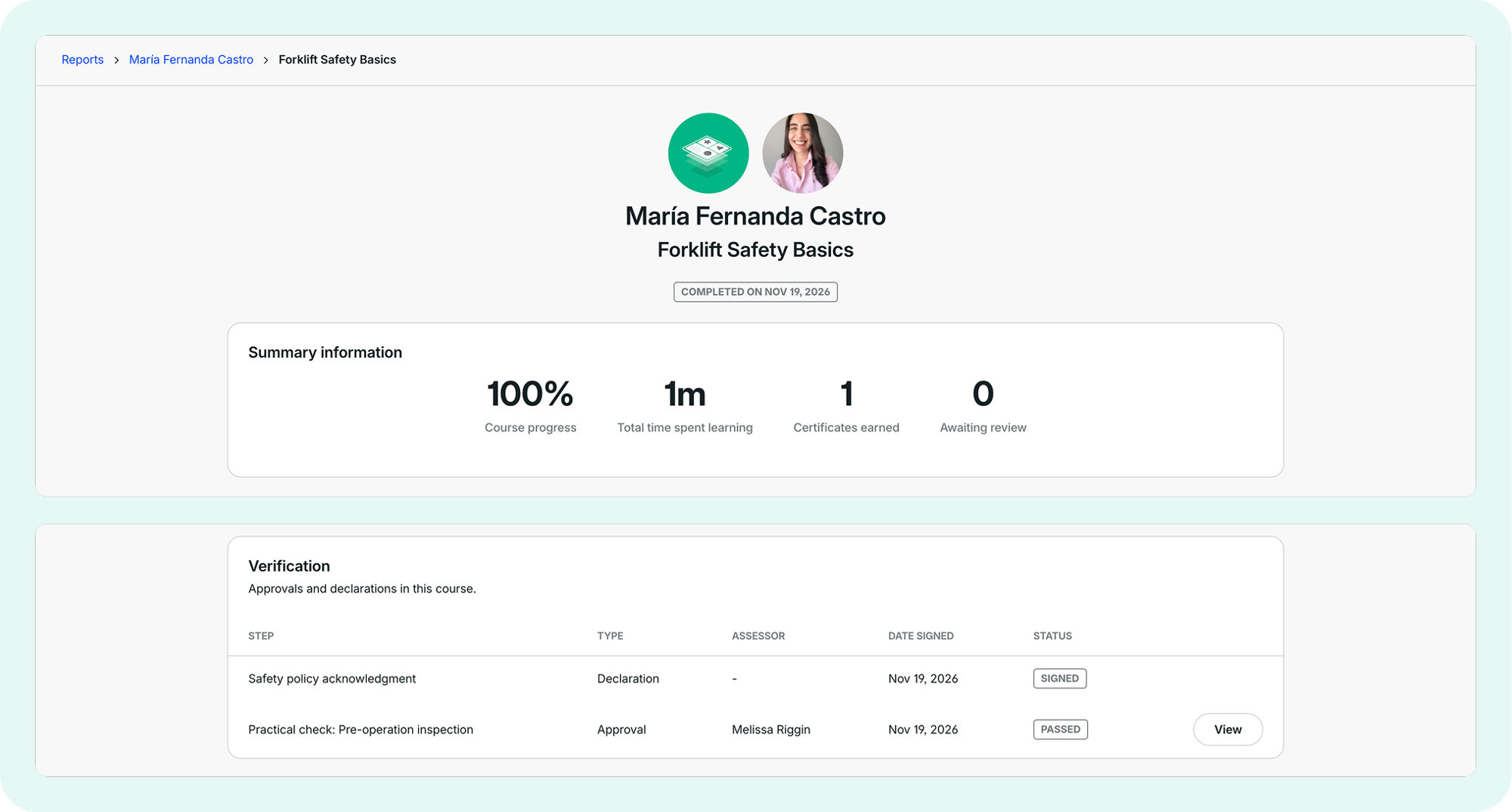
The Verification section lists all declarations and approvals in a course, along with learners’ progress and assessment results.
Learner course report
The Verification section shows each approval’s status, the assessor, and the date it was signed.
Learner report
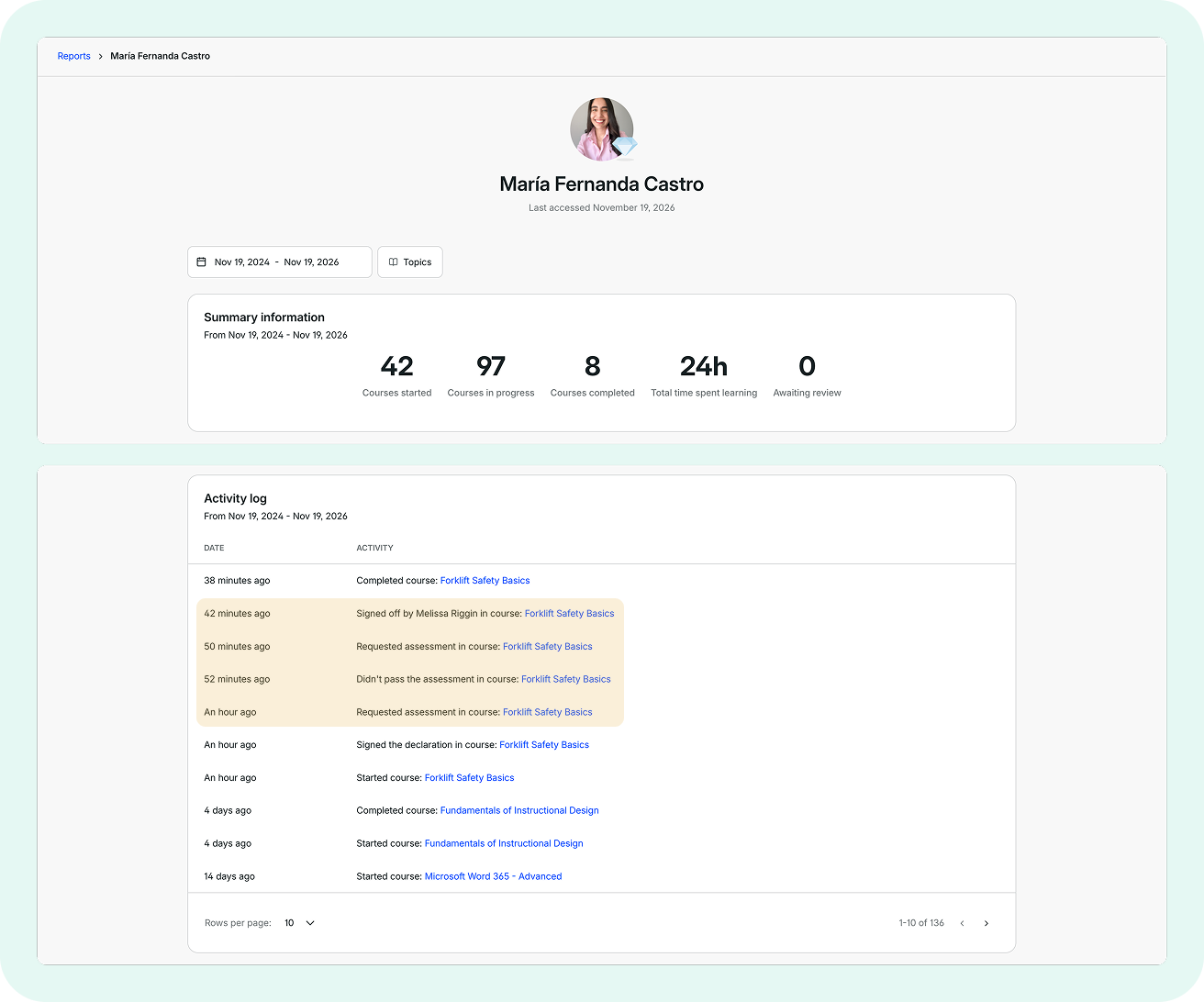
The Activity log records assessment requests, outcomes, and sign-offs for each learner.
Good to know
- Approvals are required for course completion. A learner must pass (or be reviewed on) every approval in the course before it can be marked as complete.
- Only assigned assessors can submit the initial assessment. Organization admins can make corrections after an assessment has been submitted.
- Feedback-only approvals don’t record a pass or fail. When this option is selected, the learner’s course page shows “Reviewed by” instead of “Passed by” or “Signed off by.”