
If your organization is on the Platinum plan, administrators can duplicate courses from the GoSkills library, including Madecraft courses, and turn them into custom courses for their organization.
This is useful when you want to start with existing course content but tailor it to your learners. For example, a school, academy, or staffing agency might find a course useful overall but want to remove lessons that aren’t relevant to their learners or add content of their own.
When a course is duplicated, it is saved as a draft custom course that creators in your organization can edit and publish.
How to duplicate a course
- From the left-hand menu, go to Training library.
- Find the GoSkills or Madecraft course you’d like to duplicate.
- Open the three-dot menu on the course card.
- Select Duplicate.
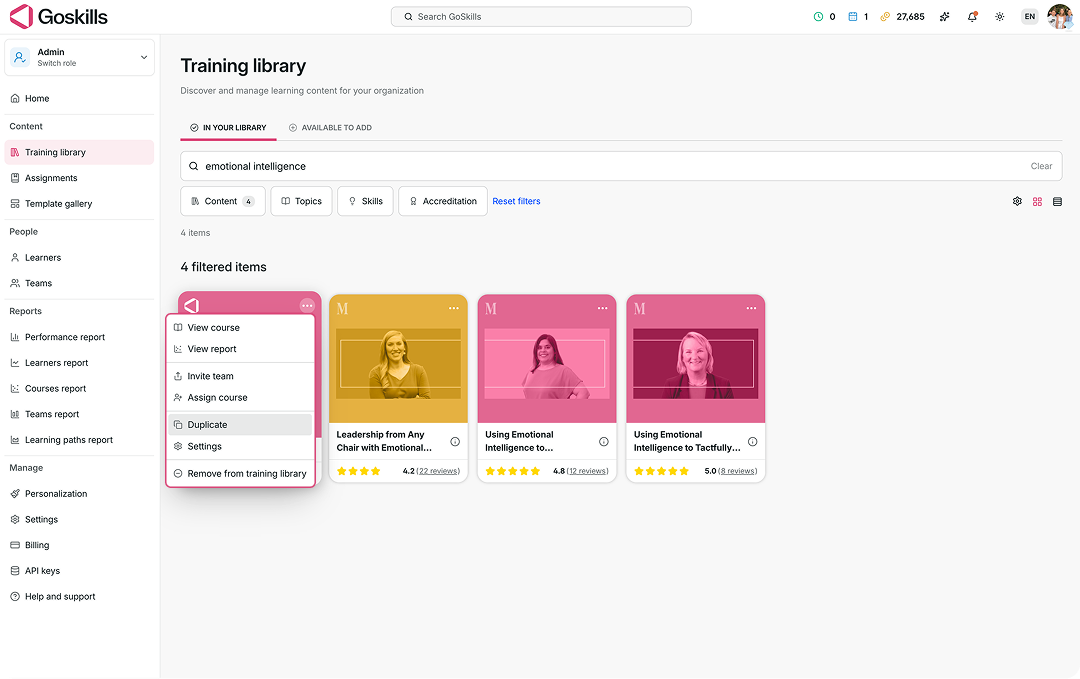
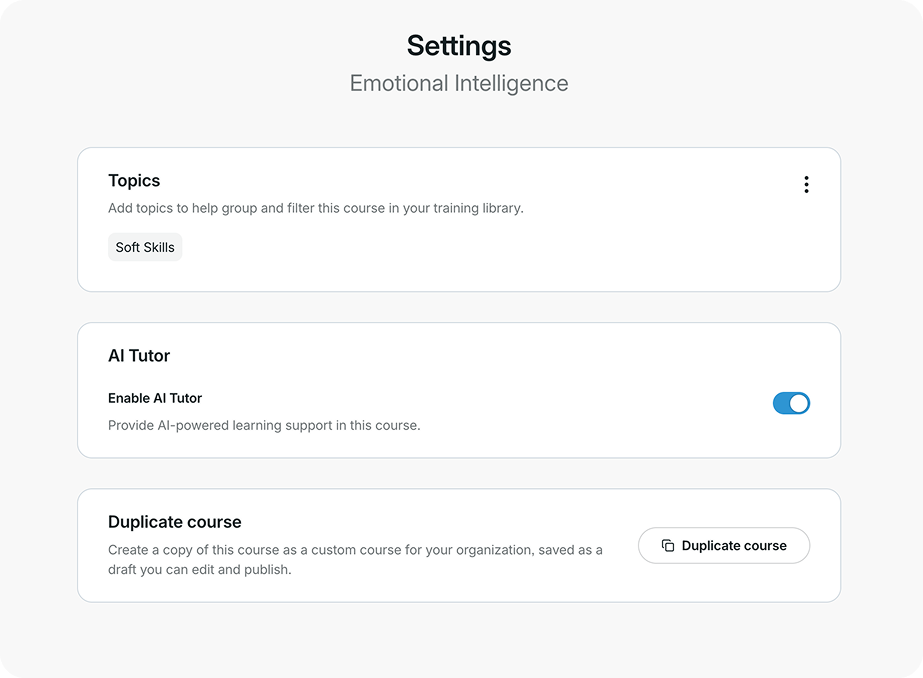
You can also duplicate a course by selecting Settings from the same menu, then clicking Duplicate course on the settings page.
Choose a title for the duplicated course
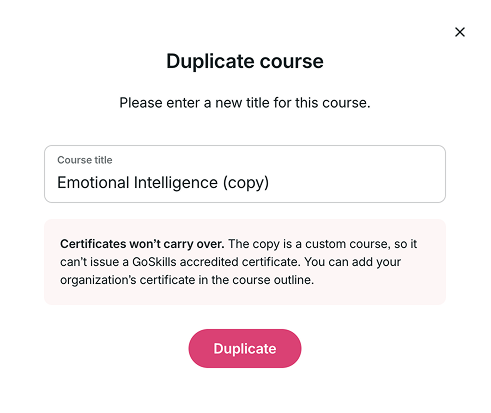
After clicking Duplicate, a pop-up window will appear.
- Enter a new title for the duplicated course.
- Click Duplicate to create the copy.
Please note that certificates won’t carry over. Because the duplicated version becomes a custom course, it cannot issue a GoSkills-accredited certificate. However, you can add your organization’s own certificate in the course outline.
Find and edit your duplicated course
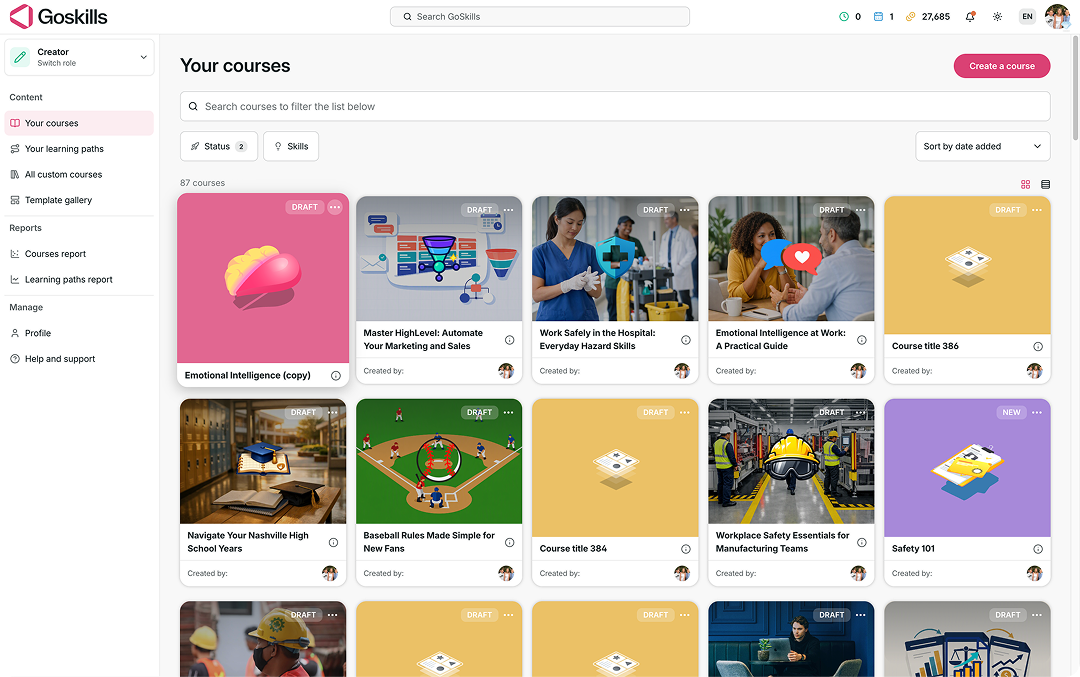
Once the course has been duplicated, switch to the Creator role.
- Go to Your courses.
- Find the duplicated course in your course list.
The course will appear as a draft, ready to be edited like any other custom course.
Customize the course
You can now update the duplicated course in the same way you would edit any other custom course.
For example, you can:
- Remove lessons that don’t apply to your learners
- Update or refine course content
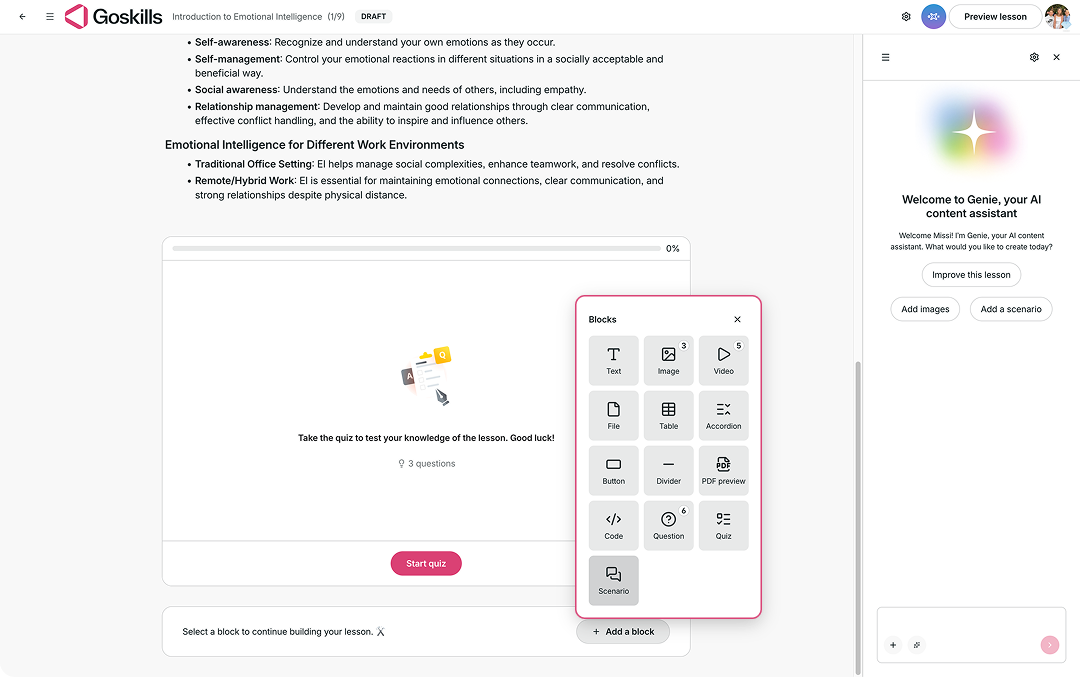
- Use Genie to help add or improve content
- Add interactive blocks such as images, files, tables, quizzes, or scenario blocks
Scenario blocks can be especially useful if you want to add AI-powered role-play or practice activities to the course.
Update course settings and publish
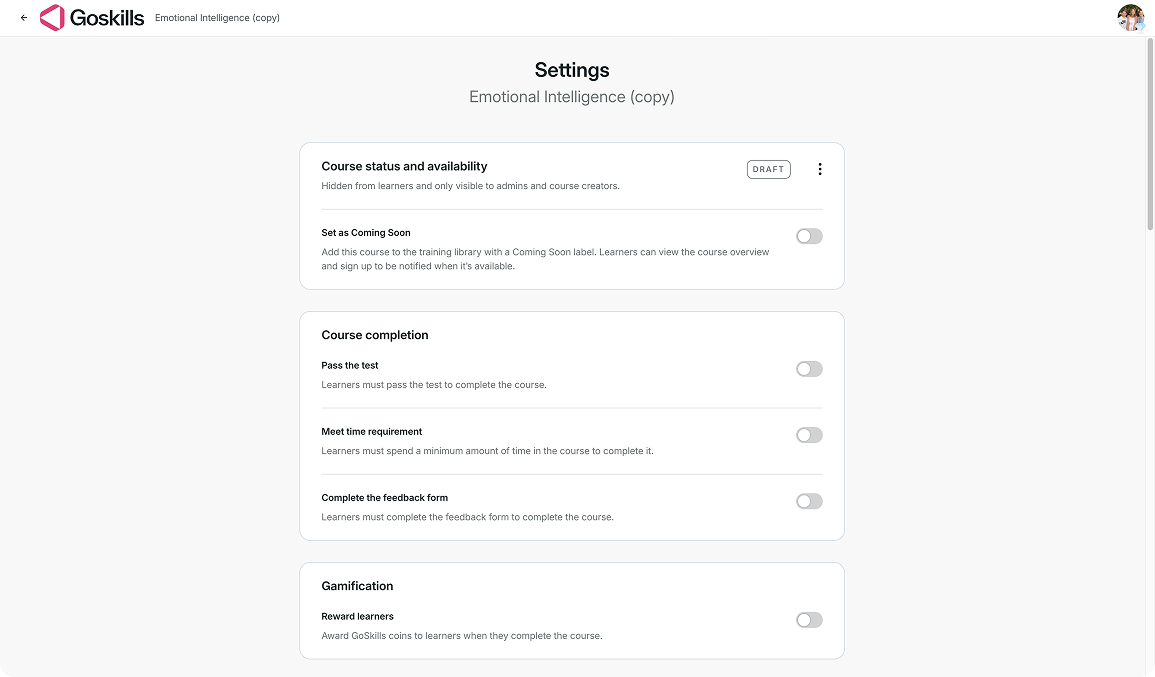
You can also customize the course settings by clicking the settings icon in the top-right corner of the course editor.
From there, you can adjust options such as:
- Course availability
- Completion requirements
- Feedback form requirements
- Gamification settings
- Initial and final test settings
- Skills and topics used to tag the course
Once everything looks right, you can publish the course and start using it in your organization.
A few things to keep in mind
- Duplicated courses are saved as custom courses in your organization.
- GoSkills-accredited certificates do not carry over to duplicated courses.
- For organizations on the Platinum plan, duplicated courses will appear in reports just like other custom courses.
If you need more help, contact our support team at support@goskills.com.