
Scenario blocks give learners a chance to put what they’ve learned into practice through AI-powered interaction.
Instead of only reading or watching lesson content, learners can work through a Q&A scenario with the AI Tutor or practice a conversation through Roleplay with an AI character. At the end, they receive personalized feedback on how they performed.
Scenarios are grounded in your lesson content, helping learners practice the skills and concepts they’ve just learned. They can be especially useful for training that involves problem-solving, decision-making, leadership, communication, conflict resolution, customer service, compliance, onboarding, and other real-world workplace situations.
How to add a Scenario block
To add a Scenario to an existing lesson:
- Switch to Creator mode from the left-hand navigation bar and open your course in the Course Builder.
- Go to Lessons and select the lesson you want to edit.
- Click Add a block and select Scenario.
- Click Create scenario.
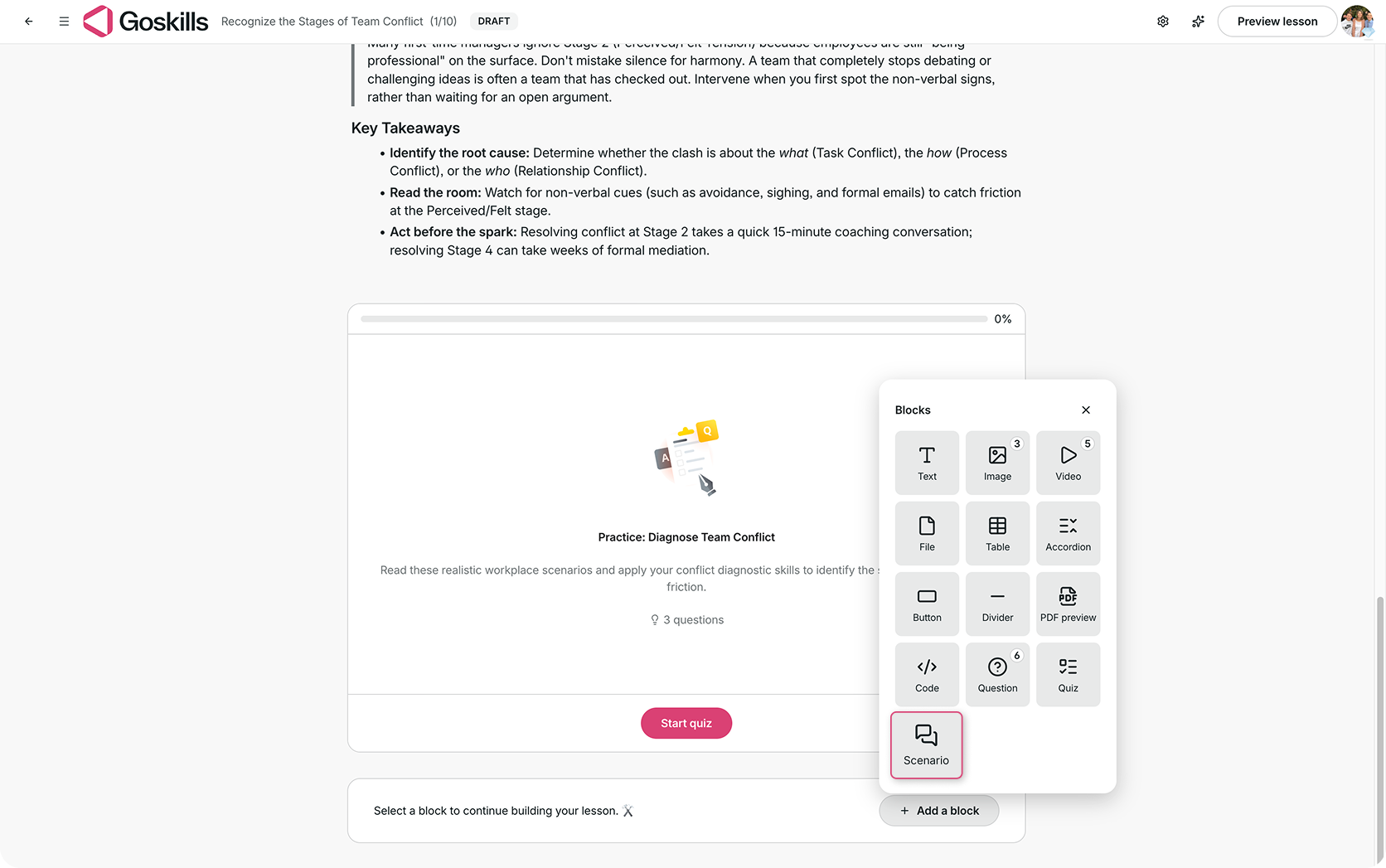
From here, you can create your Scenario in two ways:
- Generate based on lesson: Let Genie use your existing lesson content to generate a Scenario for you.
- Build it yourself: Describe the situation you want learners to practice, and Genie will use your prompt to generate the Scenario details.
Whichever option you choose, you can review and edit the generated content before publishing your lesson.
Note: Genie can also automatically add a Scenario block when generating lesson content if it determines that a Scenario is appropriate. You can review and edit the Scenario before publishing.
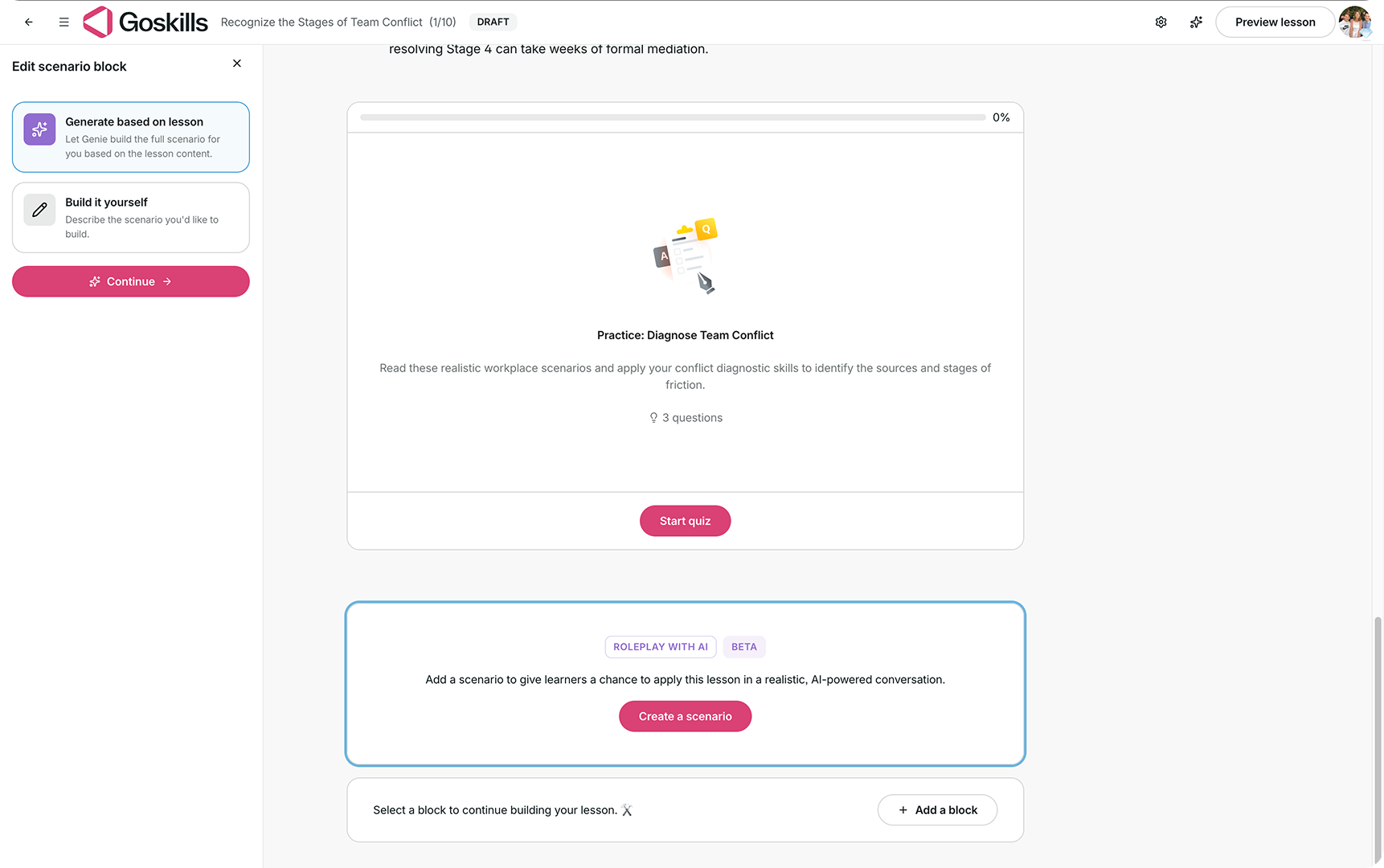
Choose between Q&A and Roleplay
When building a Scenario yourself, you can choose between two types of AI-powered practice.
Q&A
With Q&A, the AI Tutor asks learners targeted questions based on the lesson. It checks their responses, provides feedback, and can ask follow-up questions to help them work through the scenario.
Q&A works well when learners need to apply knowledge, analyze a situation, or think through a problem on their own.
Roleplay
With Roleplay, learners practice through a live conversation with an AI-generated character, such as a customer, colleague, or manager.
The character stays in role and responds to the learner as the conversation develops, making Roleplay particularly useful for practicing interpersonal skills and realistic workplace situations.
Learners can interact with both Q&A and Roleplay Scenarios using text or voice.
Customize your Scenario
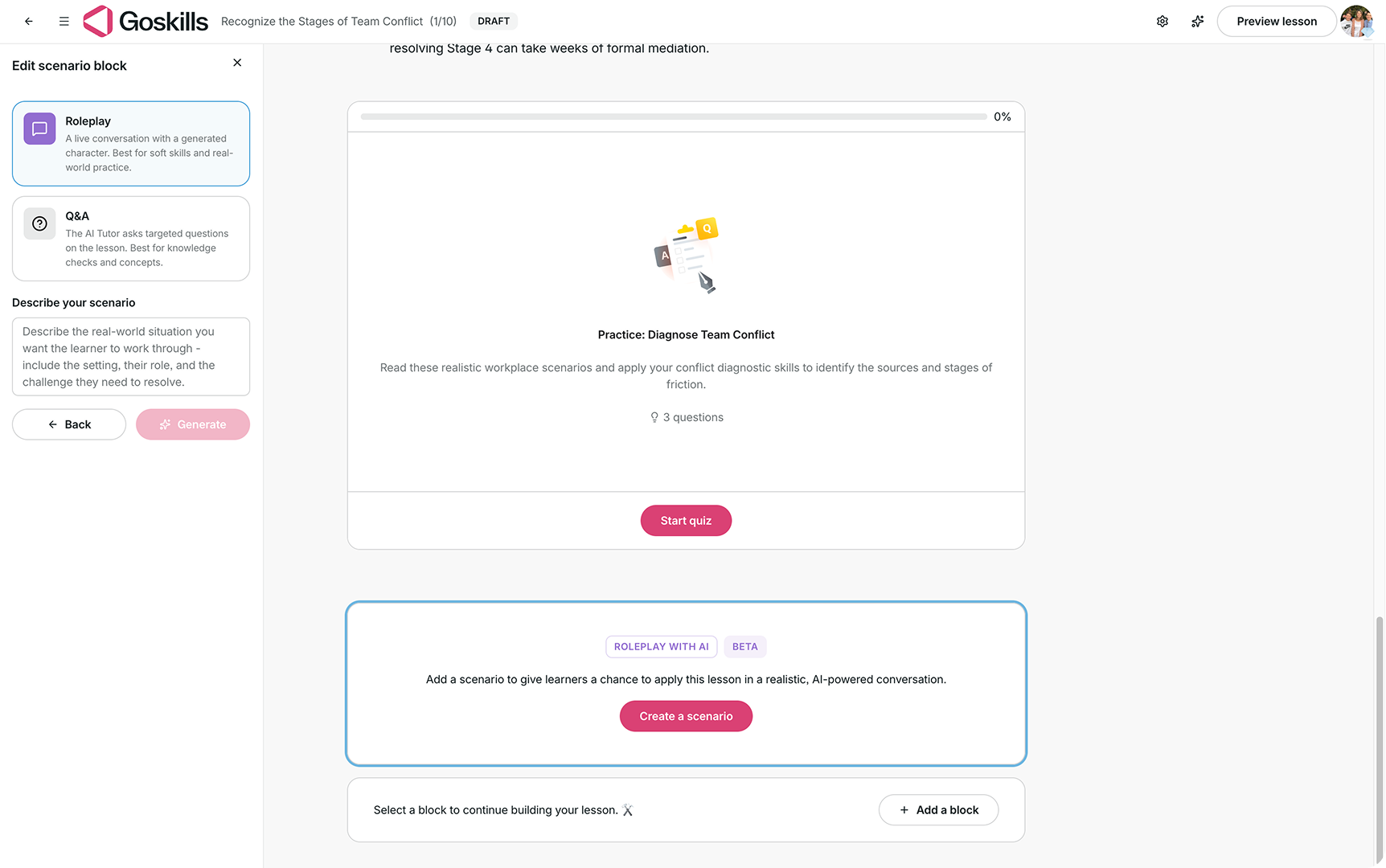
Before publishing, you can review and customize the details Genie generates for your Scenario.
Depending on the Scenario type, these can include:
- Title: The name learners see on the Scenario block.
- Description: A short introduction learners see before starting.
- Scenario context: Background information the AI uses to understand the situation and learner’s role. Learners do not see this directly.
- Participant role: The role the learner plays in the Scenario.
- Learning objectives: The skills or knowledge learners will practice.
- Evaluation criteria: The criteria the AI uses to evaluate learner performance. Learners do not see these criteria.
- Feedback style: Available for Q&A Scenarios and determines how the AI Tutor guides learners when they need help.
- Character: Available for Roleplay Scenarios and includes details such as the AI character’s name, personality, and opening line.
Choose a Q&A feedback style
When creating a Q&A Scenario, you can choose how the AI Tutor responds when a learner needs help:
- Socratic: Uses follow-up questions and hints to guide learners toward the answer rather than giving it to them directly. This works well for concepts, leadership, and communication skills.
- Explicit: Clearly explains the correct answer before moving on. This works well for compliance, technical topics, and subjects with a clear correct answer.
- Encouraging: Starts with what the learner did well before addressing gaps with gentle guidance. This works well for onboarding and confidence-building.
Preview your Scenario
Before publishing your lesson, you can test the Scenario yourself.
Click Preview to experience the Scenario as a learner would. You can work through the interaction, see how the AI responds, and then return to the editor to adjust the Scenario details if needed.
You can update the title, description, learning objectives, evaluation criteria, character details, feedback style, and other Scenario settings before making the lesson available to learners.
What learners experience
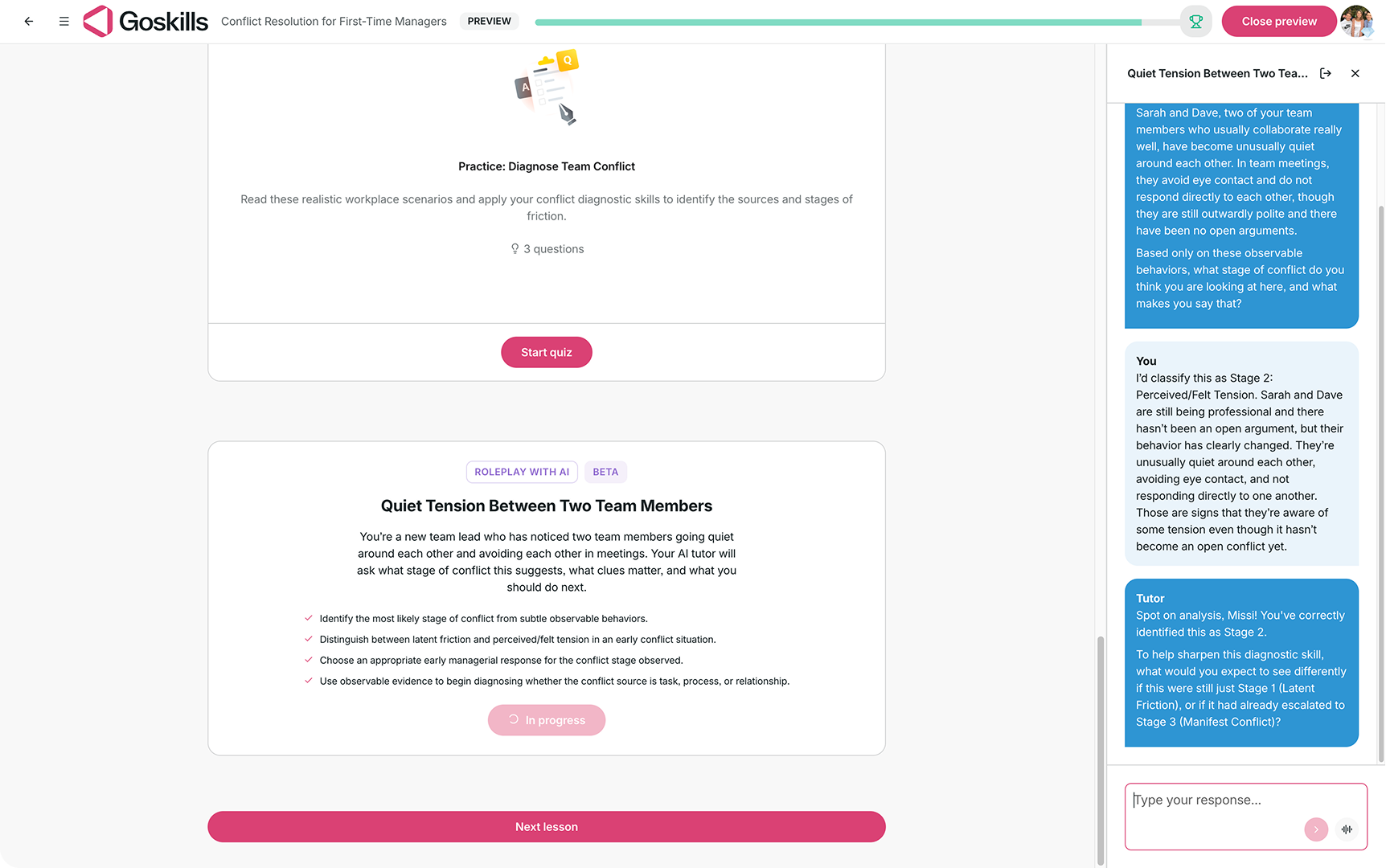
When learners reach a Scenario block, they’ll see the Scenario title, description, and learning objectives, along with the option to start the activity.
During the Scenario, learners can choose to type their responses or use their microphone to speak.
In a Q&A Scenario, the AI Tutor guides the learner through targeted questions and follow-ups. In a Roleplay Scenario, the learner interacts directly with an AI character as the conversation develops.
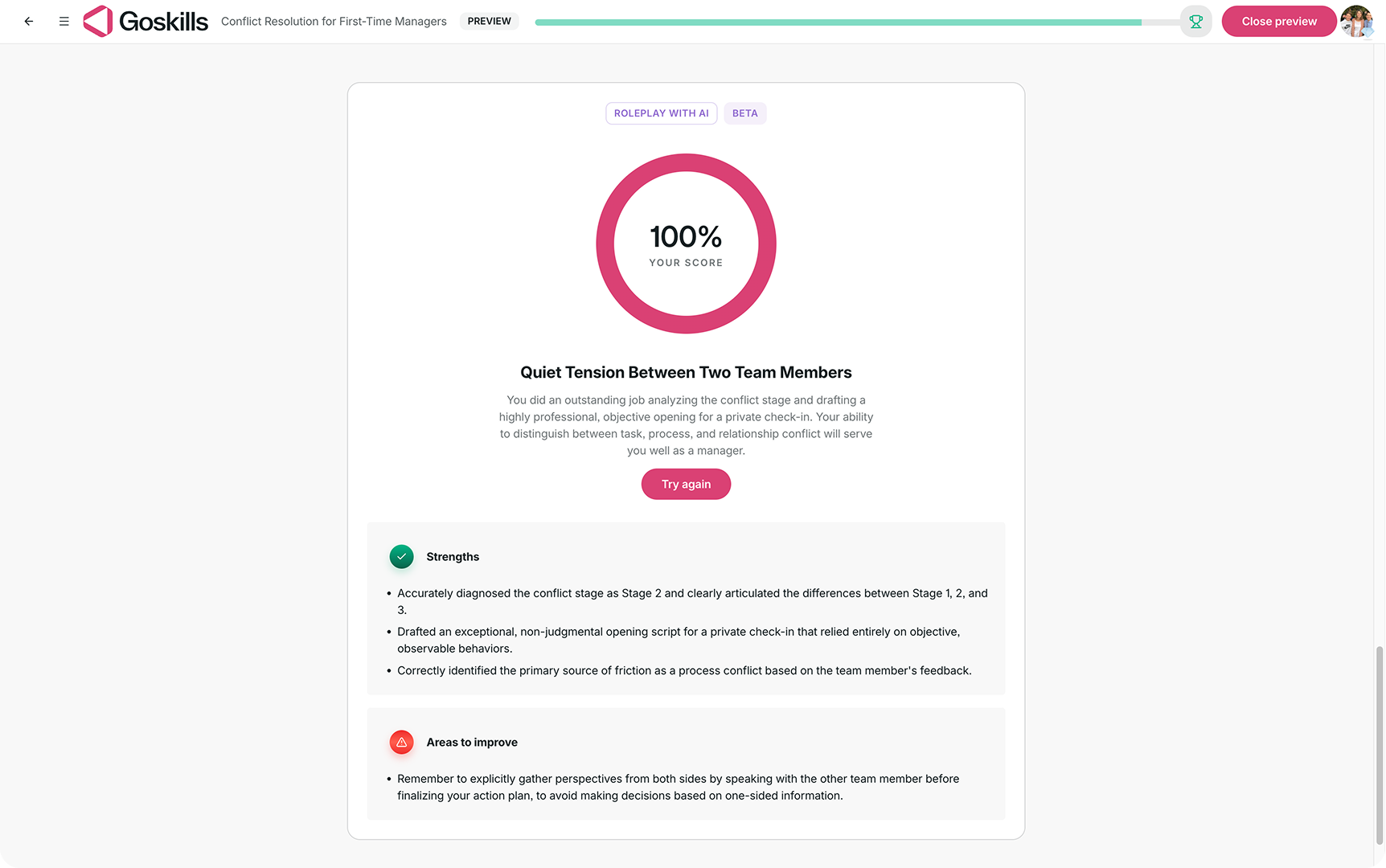
At the end of the Scenario, learners receive:
- An overall score based on the evaluation criteria they met.
- Their strengths, highlighting what they did well.
- Areas to improve, with specific feedback on what they could do differently next time.
Learners can also select Try again to restart the Scenario and continue practicing.
Review Scenario performance in reports
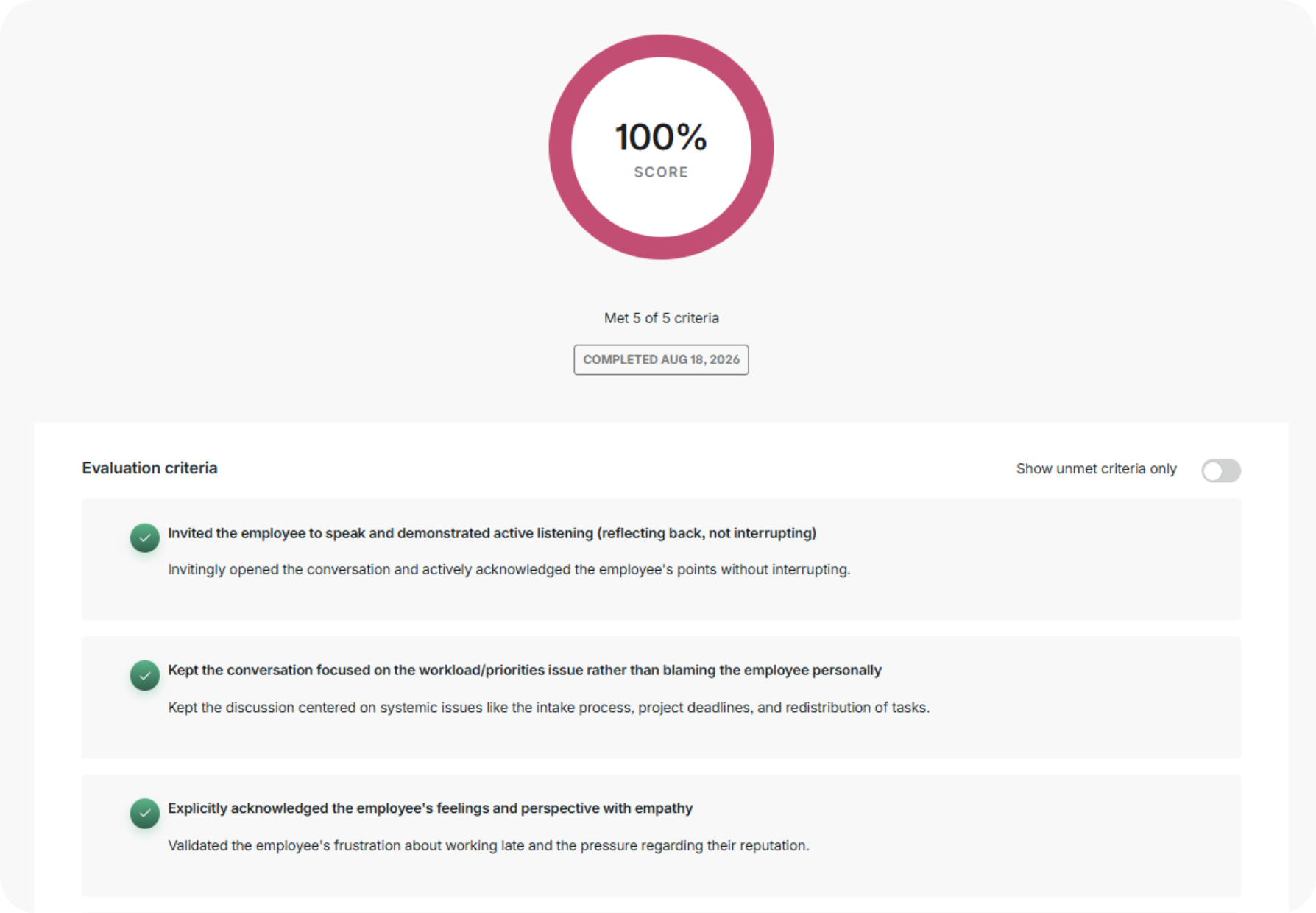
Admins can review how learners perform in Scenarios through GoSkills reports.
For each learner attempt, admins can see the attempt and its outcome, which evaluation criteria the learner met or did not meet, and feedback for each criterion.
This makes it easier to identify where learners are succeeding and where they may need additional practice.
Use Scenario blocks in other languages
Scenario blocks support multiple languages. If lesson content is written in another language, such as Spanish, the Scenario can be generated and played in that language as well.
Voice mode supports 20+ languages, making Scenario blocks useful for multilingual training and language-learning activities where learners can practice realistic conversations.
Turn AI-powered learning on or off
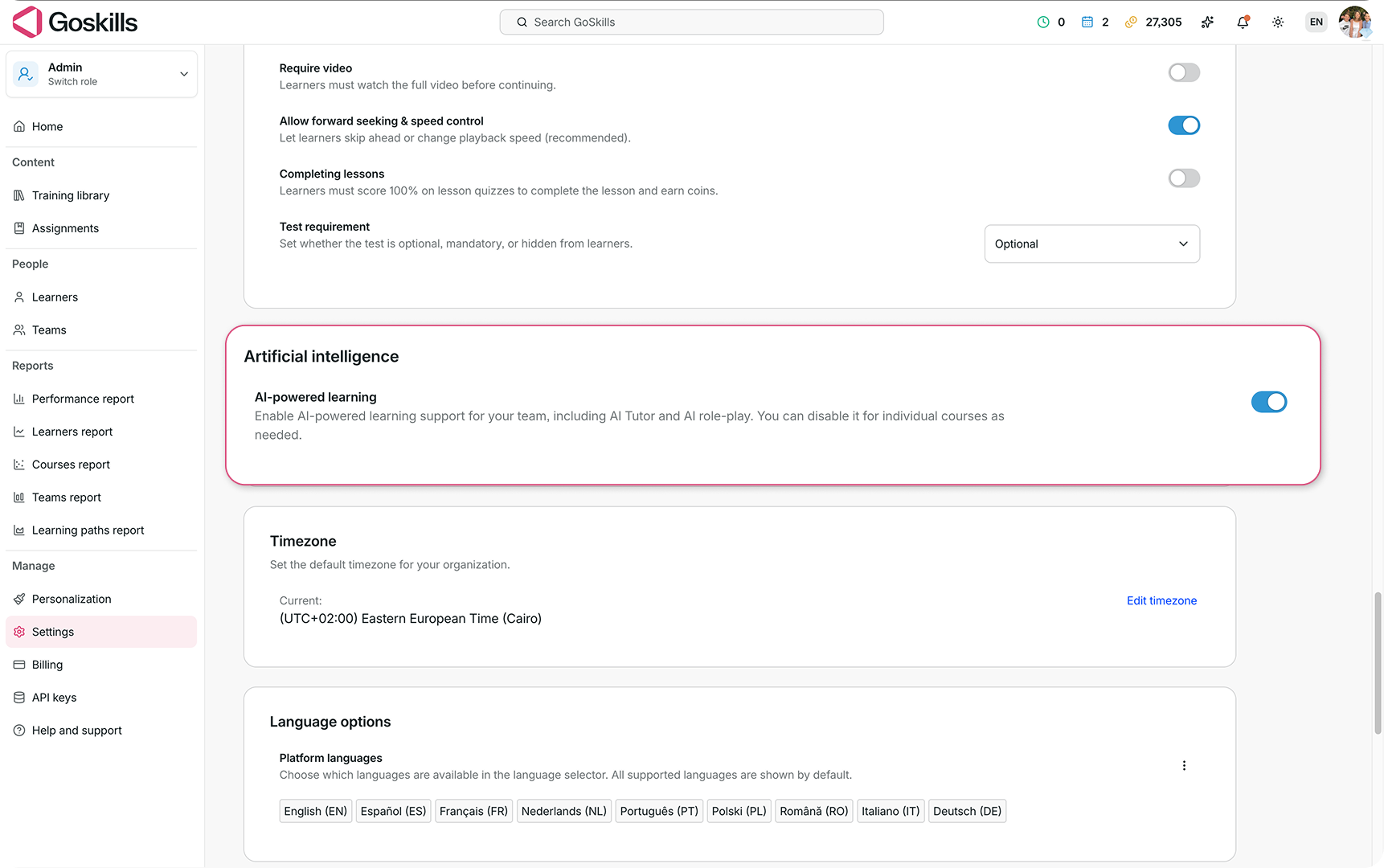
Scenario blocks are part of GoSkills’ AI-powered learning features.
Admins can manage access under Settings > Artificial intelligence. AI-powered learning can be turned off entirely or disabled for individual courses as needed.
When AI-powered learning is enabled, course creators can add Scenario blocks and learners can complete them.
Need help?
If you have any questions about Scenario blocks or need help setting them up, contact the GoSkills Support team at support@goskills.com.