
The Uncover block in the GoSkills Course Builder lets you hide information behind an interactive cover that learners can reveal. It’s useful for presenting questions, scenarios, or challenges that encourage learners to think before discovering the answer or explanation.
You can also choose how learners uncover the hidden content, from a simple tap to a scratch-card interaction.
How to add an Uncover block to a lesson
- Open your course in the Course Builder and go to the lesson where you want to add the block.
- Click Add a block, then select Uncover under Interactive.
- Your Uncover block will appear with sample content that you can customize.
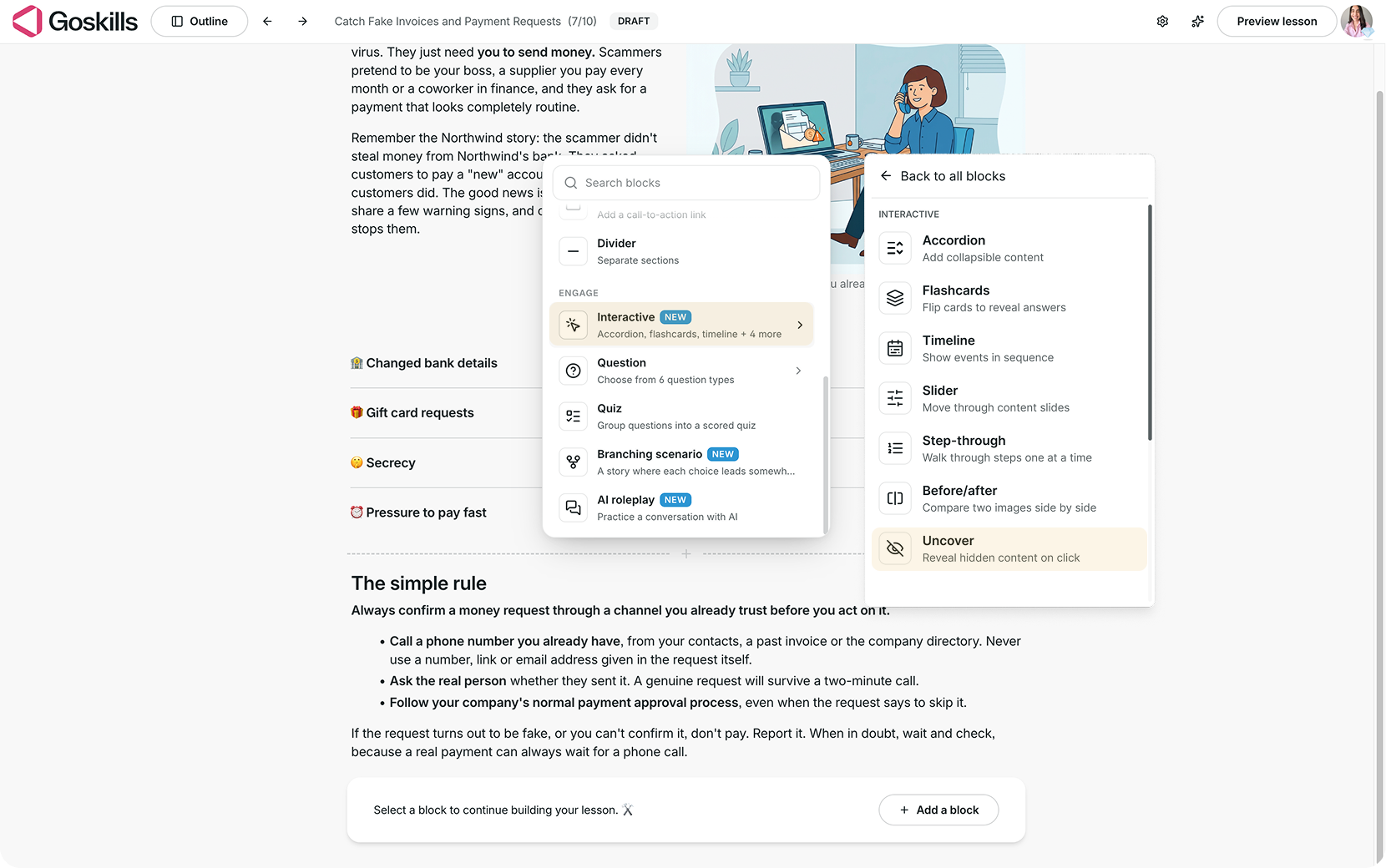
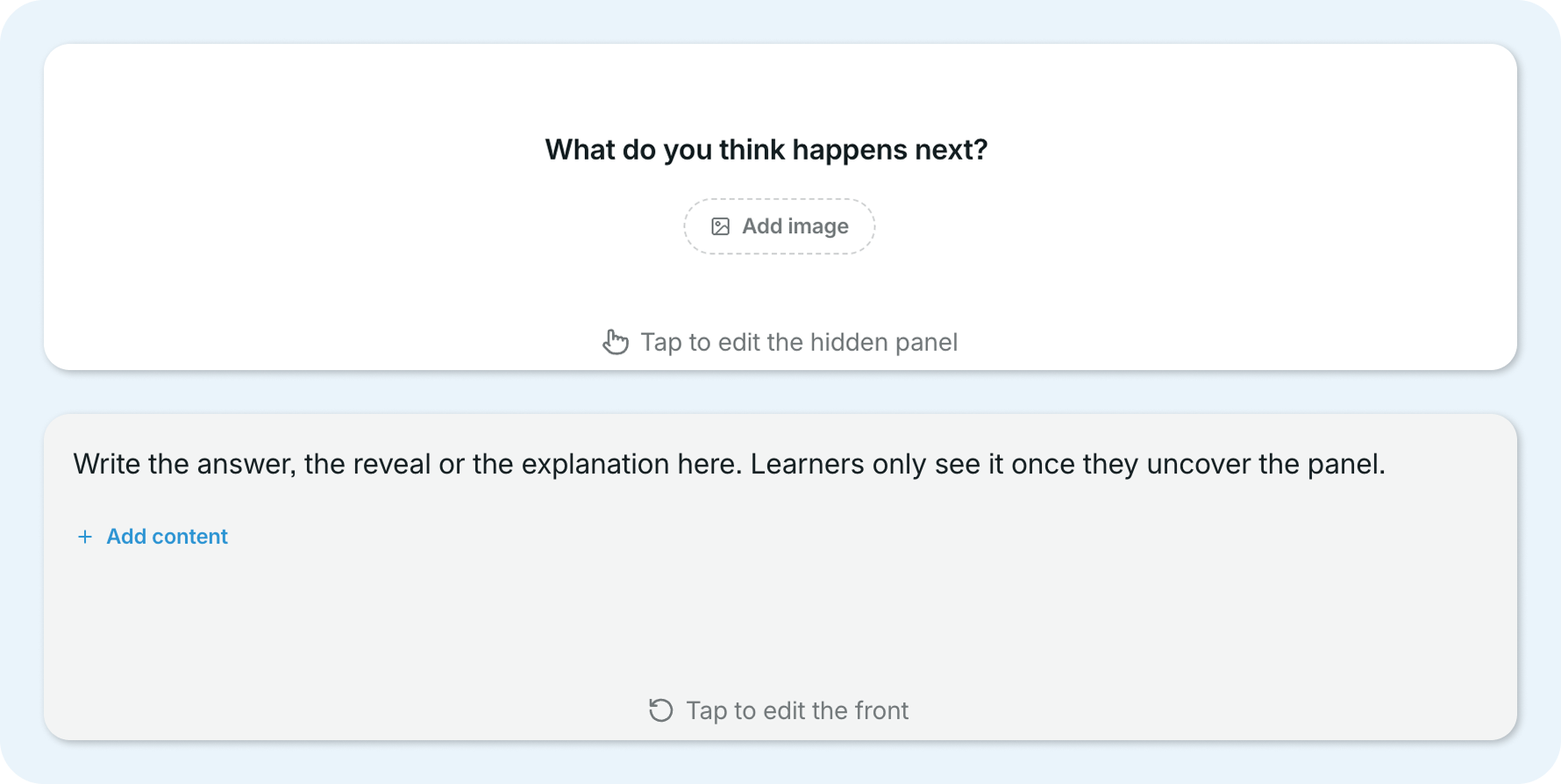
The block has two parts: a cover that learners see first and a hidden panel containing the information they’ll uncover.
Edit the cover and hidden panel
Select your Uncover block and click Edit to open the editor.
From the Content tab, you can customize:
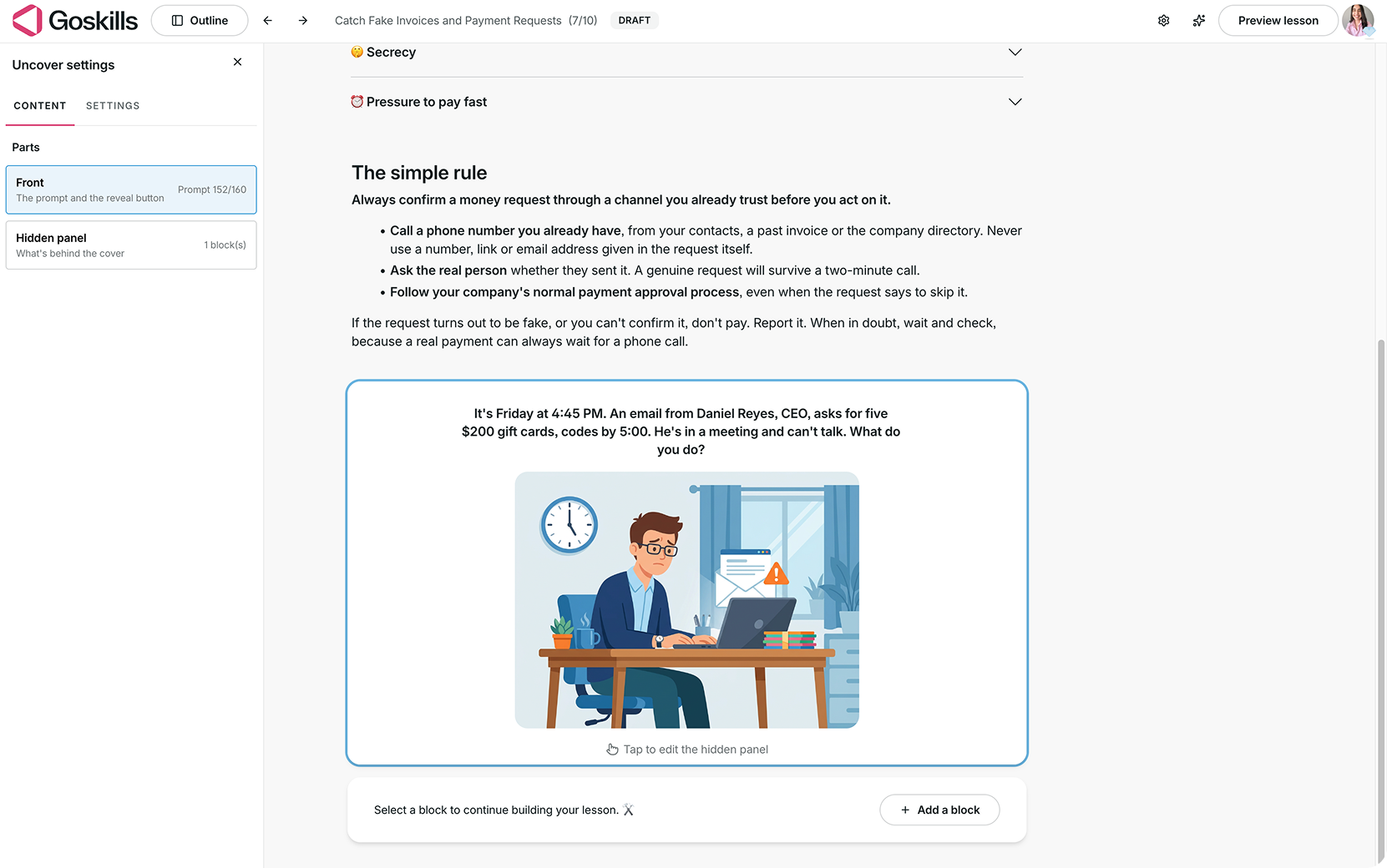
- Cover: Add a prompt or question (up to 160 characters) that learners see first. You can also include an image.
- Hidden panel: Add the answer, explanation, or supporting information that learners discover when they uncover the panel.
For example, in a fraud awareness course, you could present a suspicious gift card request on the cover and reveal the appropriate response on the hidden panel.
Prefer to let Genie do it? Genie, GoSkills’ AI course creator, can generate an Uncover block for you and may add one automatically when it identifies a good fit for your lesson.
Customize the hidden panel
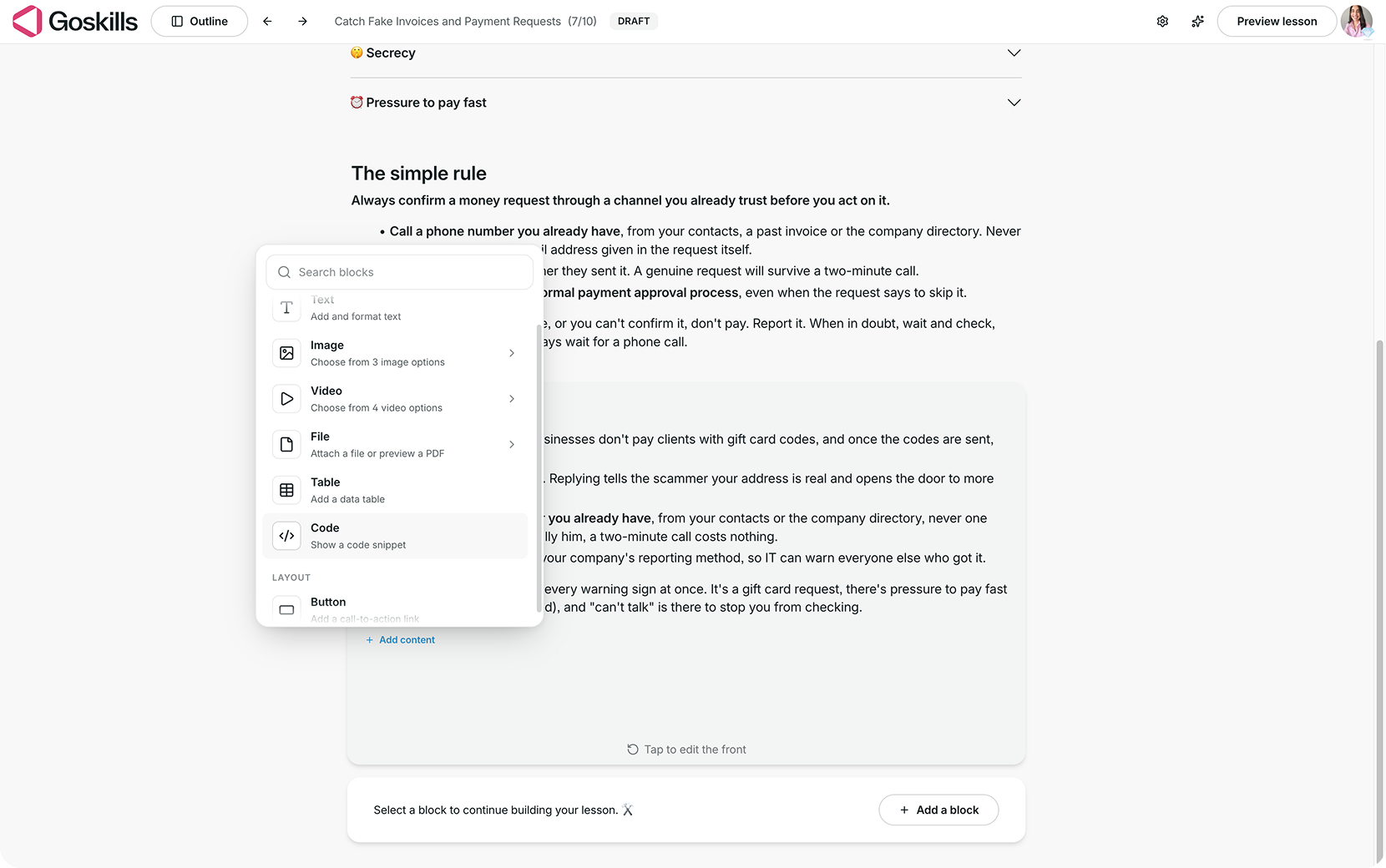
You can edit and format text inside the hidden panel to highlight important information. Select a text block, then click the pencil icon to edit it or adjust its settings, including background color and padding.
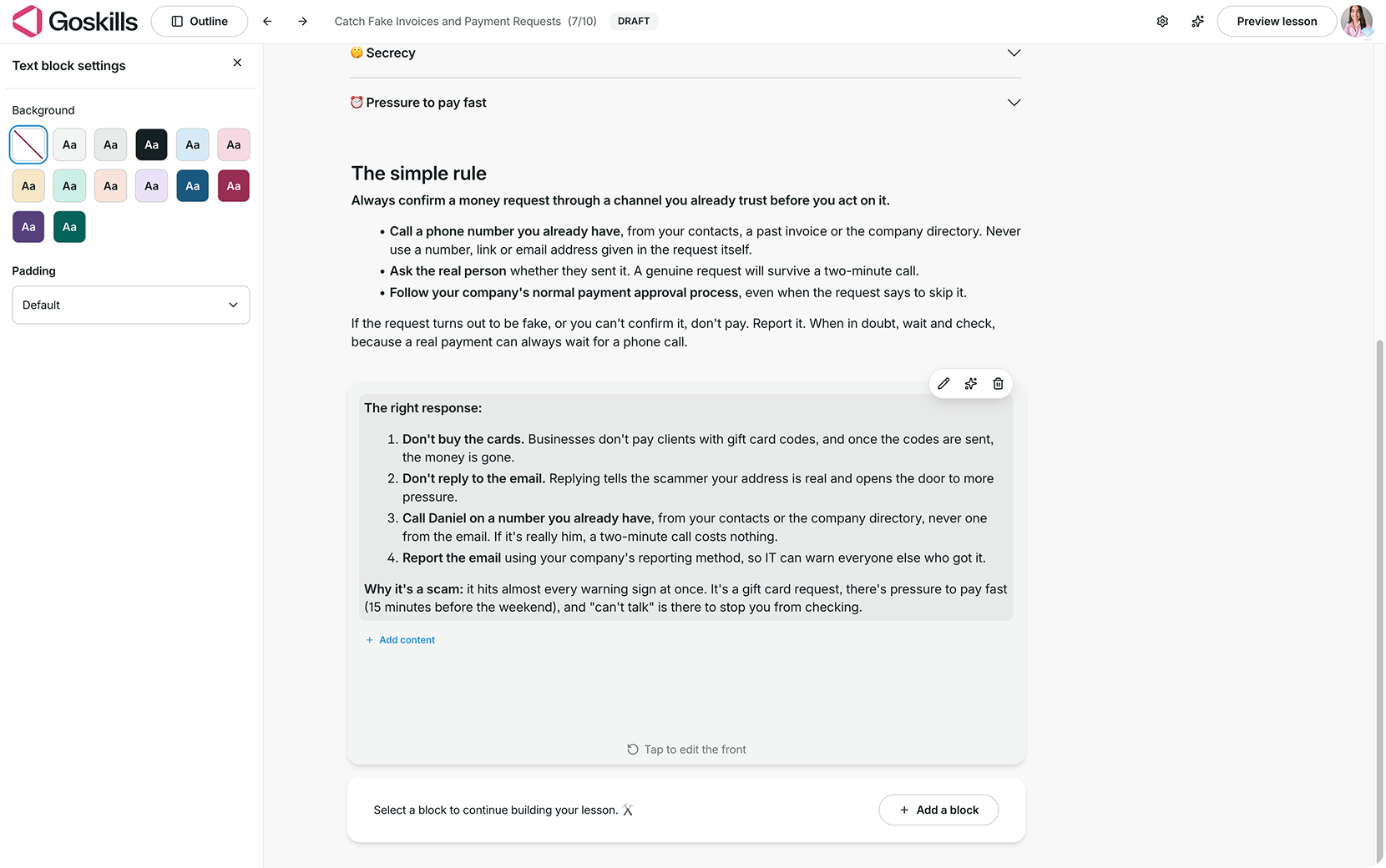
You can also click Add content inside the hidden panel to insert images, videos, files, tables, code, and more.
Adjust your Uncover settings
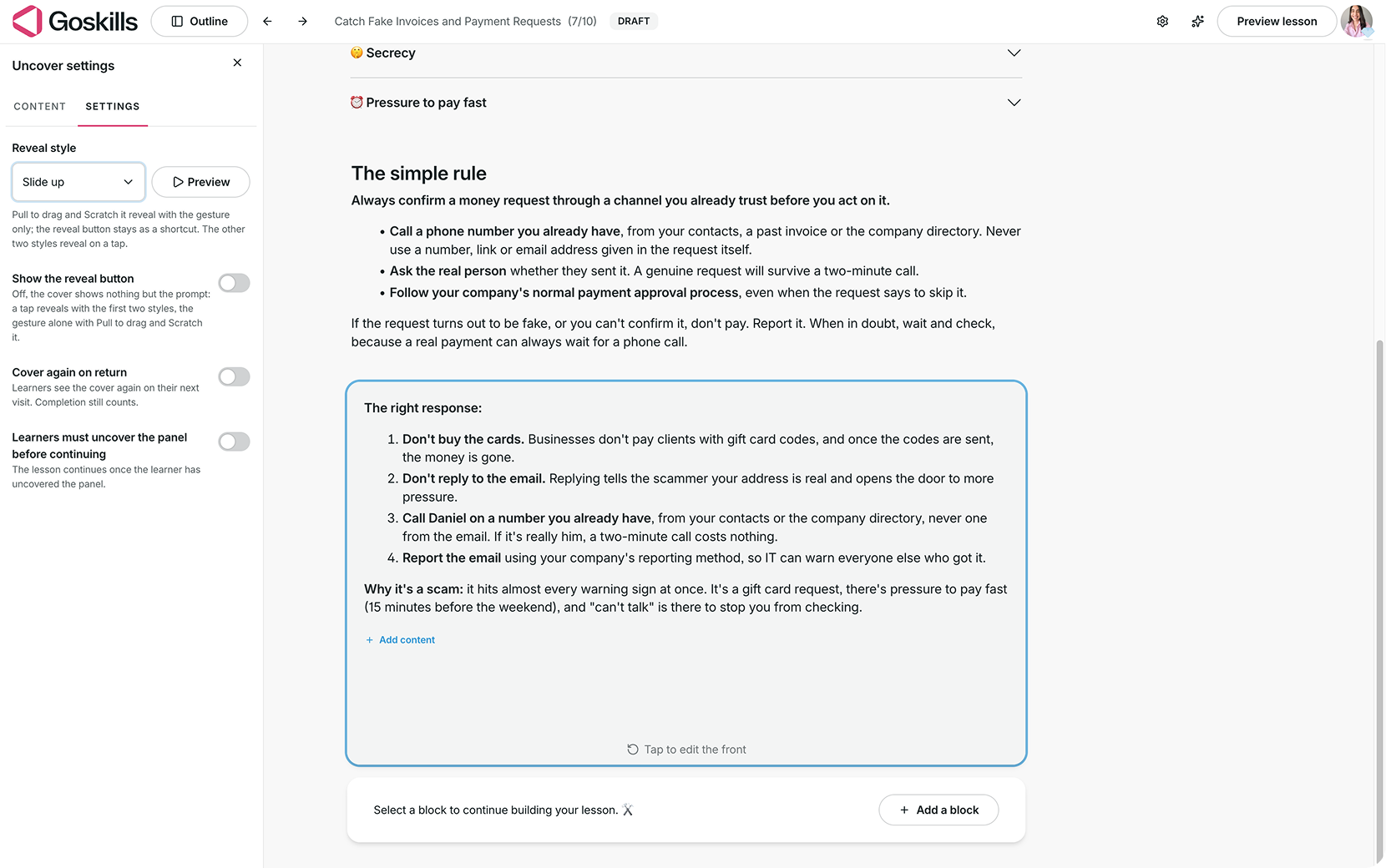
Select your Uncover block, click Edit, and open the Settings tab to customize how learners reveal the content.
You’ll find the following options:
- Reveal style: Choose how learners uncover the hidden panel:
- Fade: Learners tap the cover, and it fades away.
- Slide up: Learners tap the cover, and it slides away.
- Pull to drag: Learners drag the cover off.
- Scratch it: Learners scratch the cover away, like a scratch card.
- Show the reveal button: Display a button learners can use to reveal the hidden content. When turned off, learners interact directly with the cover using the selected reveal style.
- Cover again on return: Show the cover again when learners revisit the block. Their previous completion still counts.
- Learners must uncover the panel before continuing: Require learners to reveal the hidden content before proceeding in the lesson.
You can also click Preview next to the Reveal style setting to see how the selected interaction works.
What does an Uncover block look like to learners?
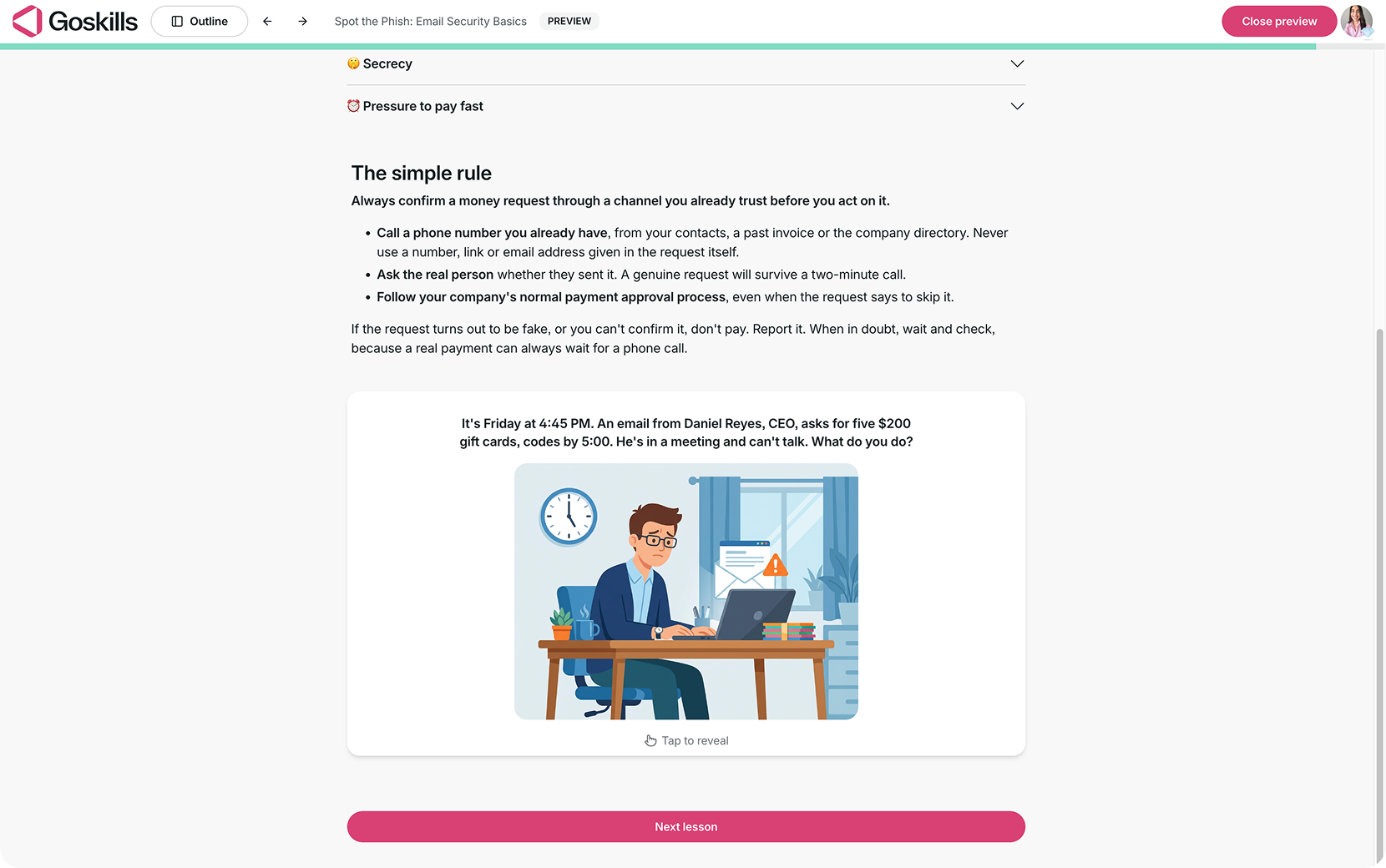
Learners initially see the cover, which can include a question, prompt, or image. They interact with it to reveal the information hidden underneath.
For example, in a fraud awareness course, learners might encounter a scenario where someone claiming to be the CEO urgently requests gift cards. Before revealing the answer, they can consider how they would respond.
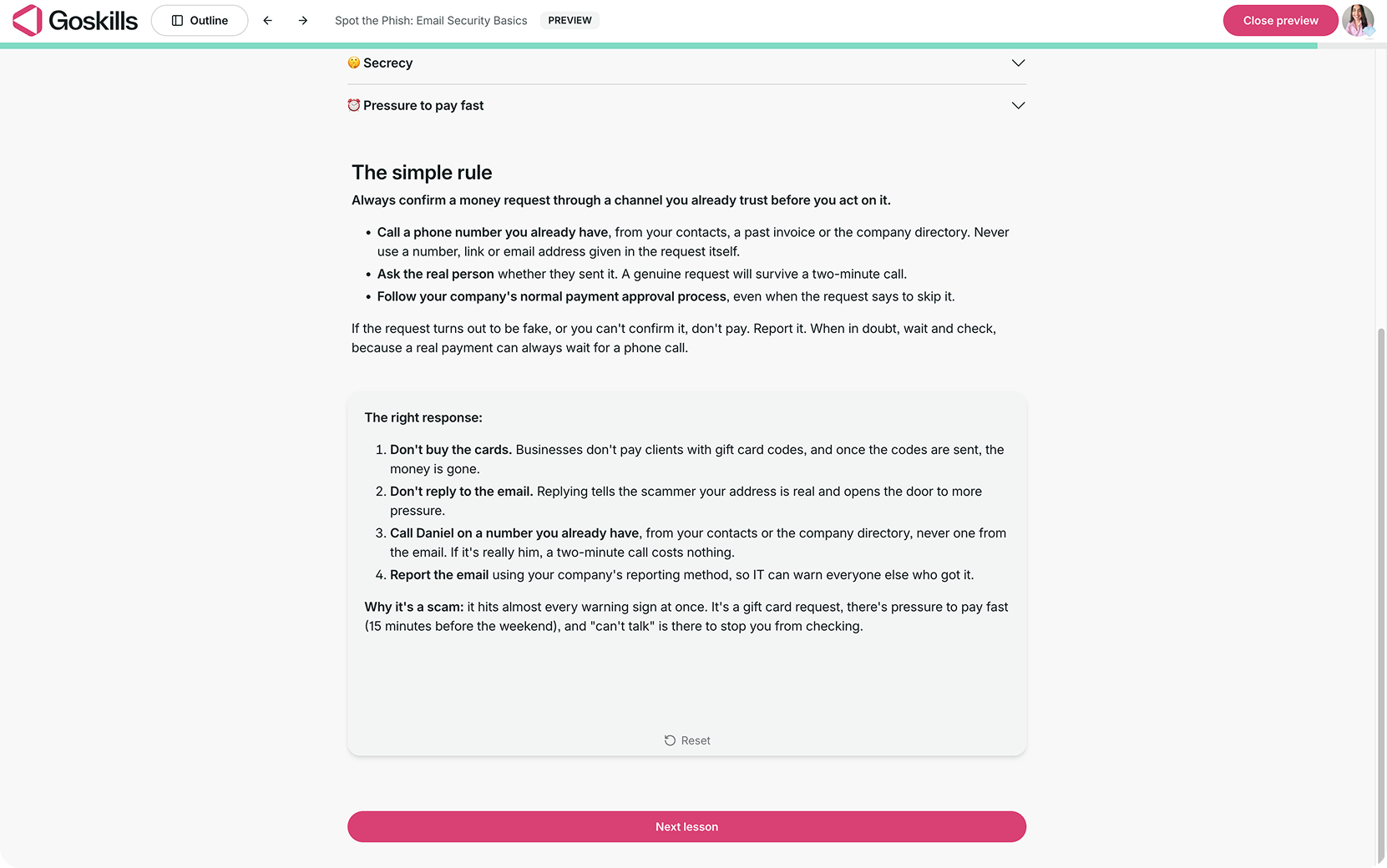
Once learners uncover the panel, they’ll see the answer or explanation you’ve provided.
If you’ve turned on Learners must uncover the panel before continuing, learners need to reveal it before they can proceed.
When should you use an Uncover block?
Uncover blocks work best when you want learners to pause, consider a question or situation, and then reveal additional information. Here are a few ways to use them in your courses:
- Employee onboarding: Ask a fun question about your company, such as how many countries the team works from, and reveal the answer.
- Compliance training: Present a workplace scenario and reveal the appropriate response based on company policies.
- Customer service training: Introduce a challenging customer interaction and reveal an example of an effective response.
- Decision-making training: Present a workplace dilemma and reveal the potential consequences or considerations behind a decision.
Tip: Use the cover to spark curiosity or encourage reflection. Keep the hidden content focused on a clear takeaway that helps learners understand the answer or reasoning behind it.