
The Accordion block in the GoSkills Course Builder helps you organize lesson content into expandable sections. Learners select each heading to reveal what’s inside, keeping lessons tidy and easy to navigate.
It’s particularly useful when you have several related topics to cover and don’t want to show everything at once.
How to add an Accordion block to a lesson
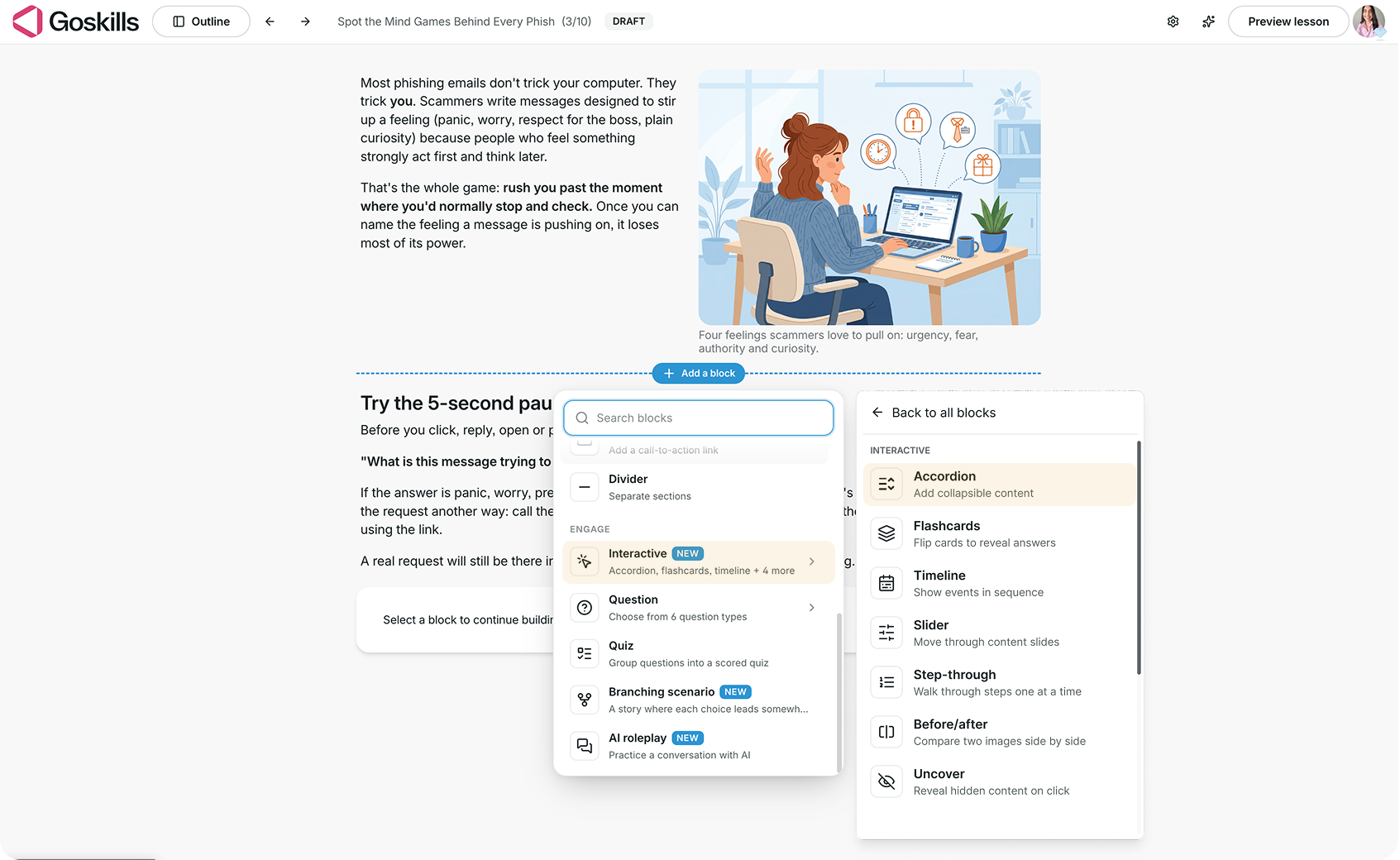
- Open your course in the Course Builder and go to the lesson where you want to add the block.
- Click Add a block, then select Accordion under Interactive.
- Select the Accordion block and click Edit to customize its content.
Add and edit accordion items
Each accordion item has a heading and expandable content.
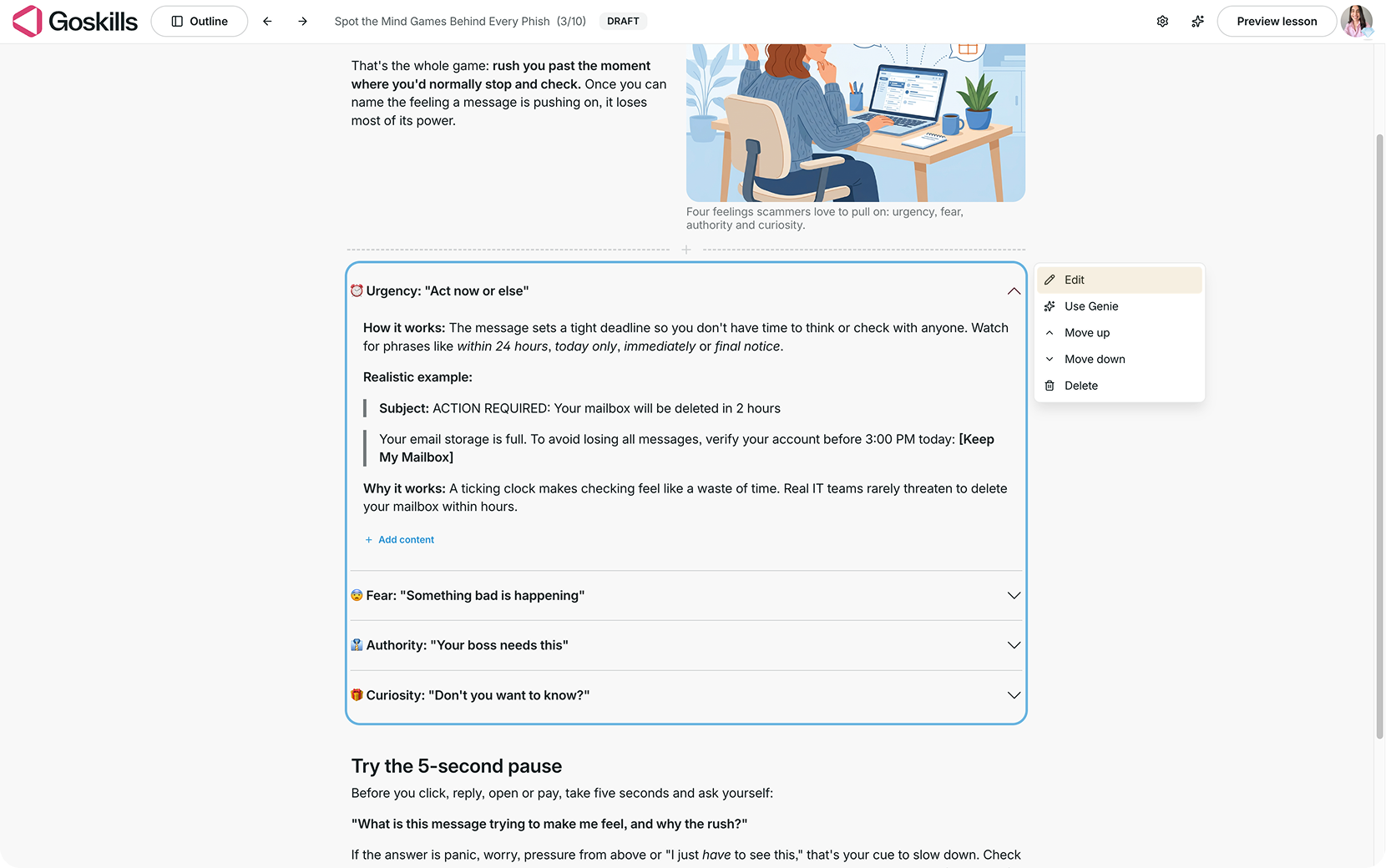
Select the Accordion block to see its options, including Edit, Use Genie, Move up, Move down, and Delete. These actions apply to the entire block.
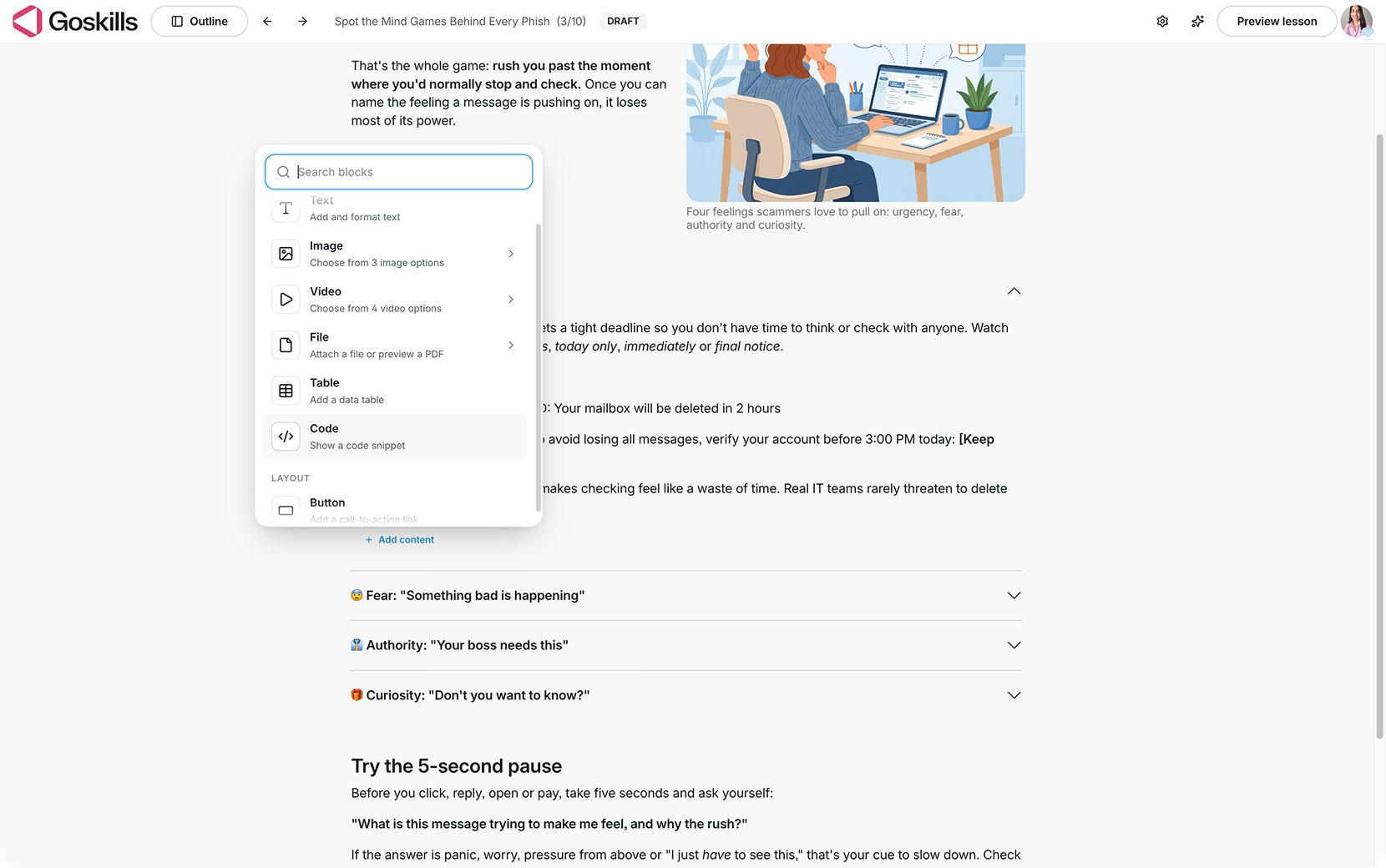
Within an expanded accordion item, click Add content to insert text, images, videos, files, tables, code, and more.
This lets you include examples and supporting materials without cluttering the main lesson.
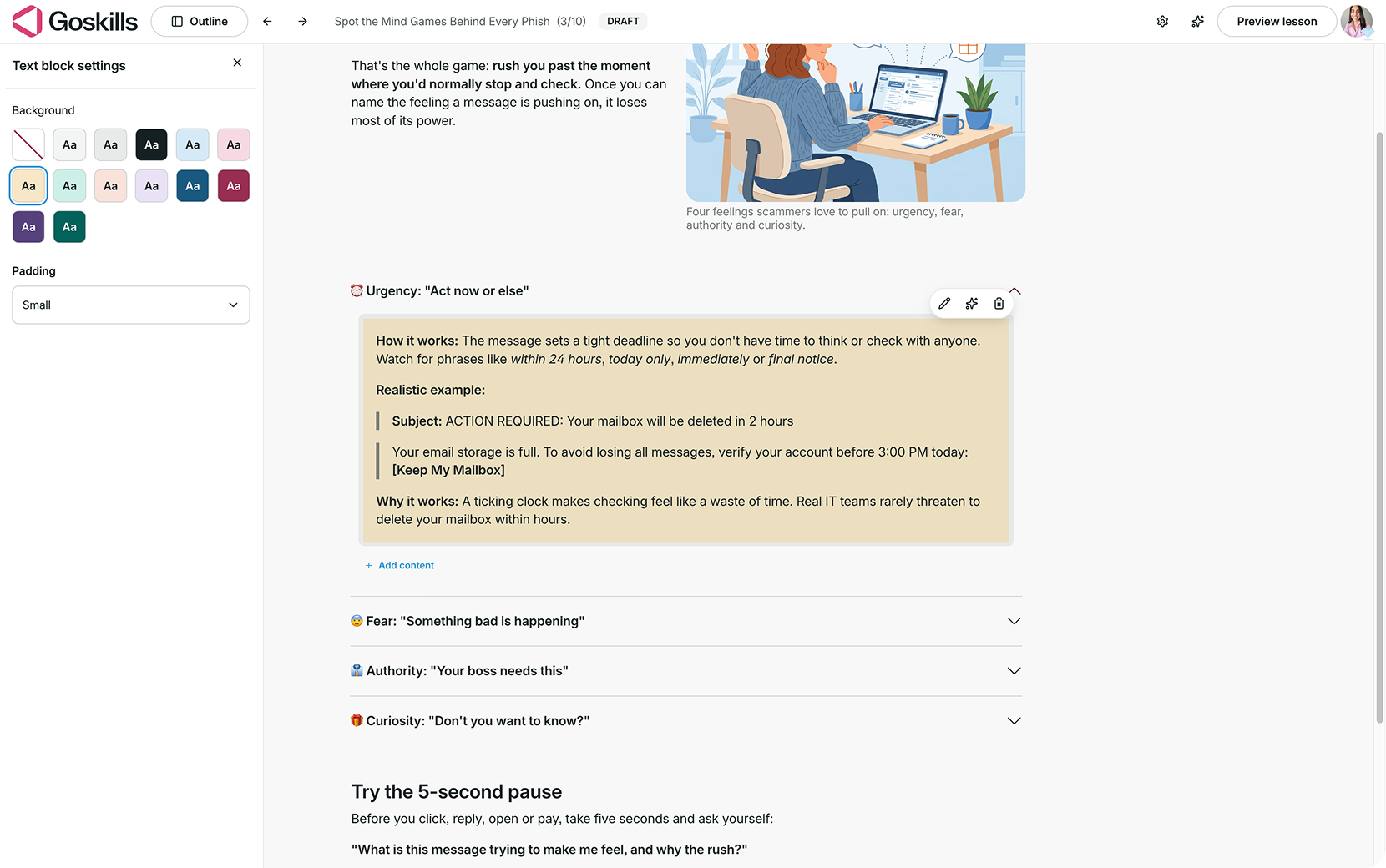
You can also customize individual text blocks. Select a text block within an expanded item, then click the pencil icon to edit it.
In Text block settings, you can change the background color and adjust the padding to control the spacing around your text.
Prefer to let Genie do it? Genie, GoSkills’ AI course creator, can generate an Accordion block for you and may add one automatically when it identifies a good fit for your lesson.
Adjust your Accordion settings
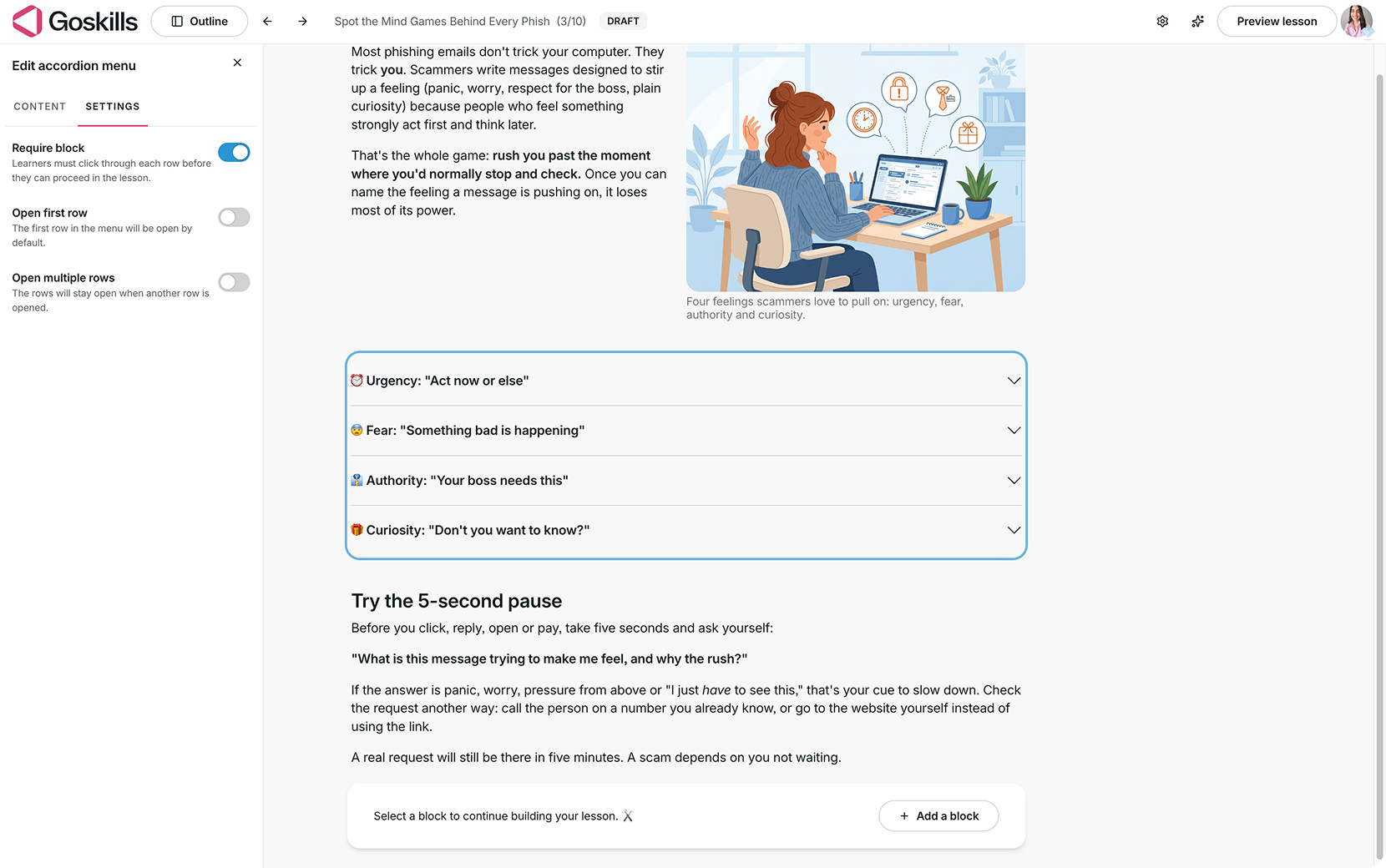
Select your Accordion block, click Edit, and open the Settings tab to customize how learners interact with it.
You’ll find the following options:
- Require block: Learners must open every accordion row before they can proceed in the lesson.
- Open first row: Display the first accordion item expanded by default.
- Open multiple rows: Allow learners to keep multiple items expanded at once.
What does an Accordion block look like to learners?
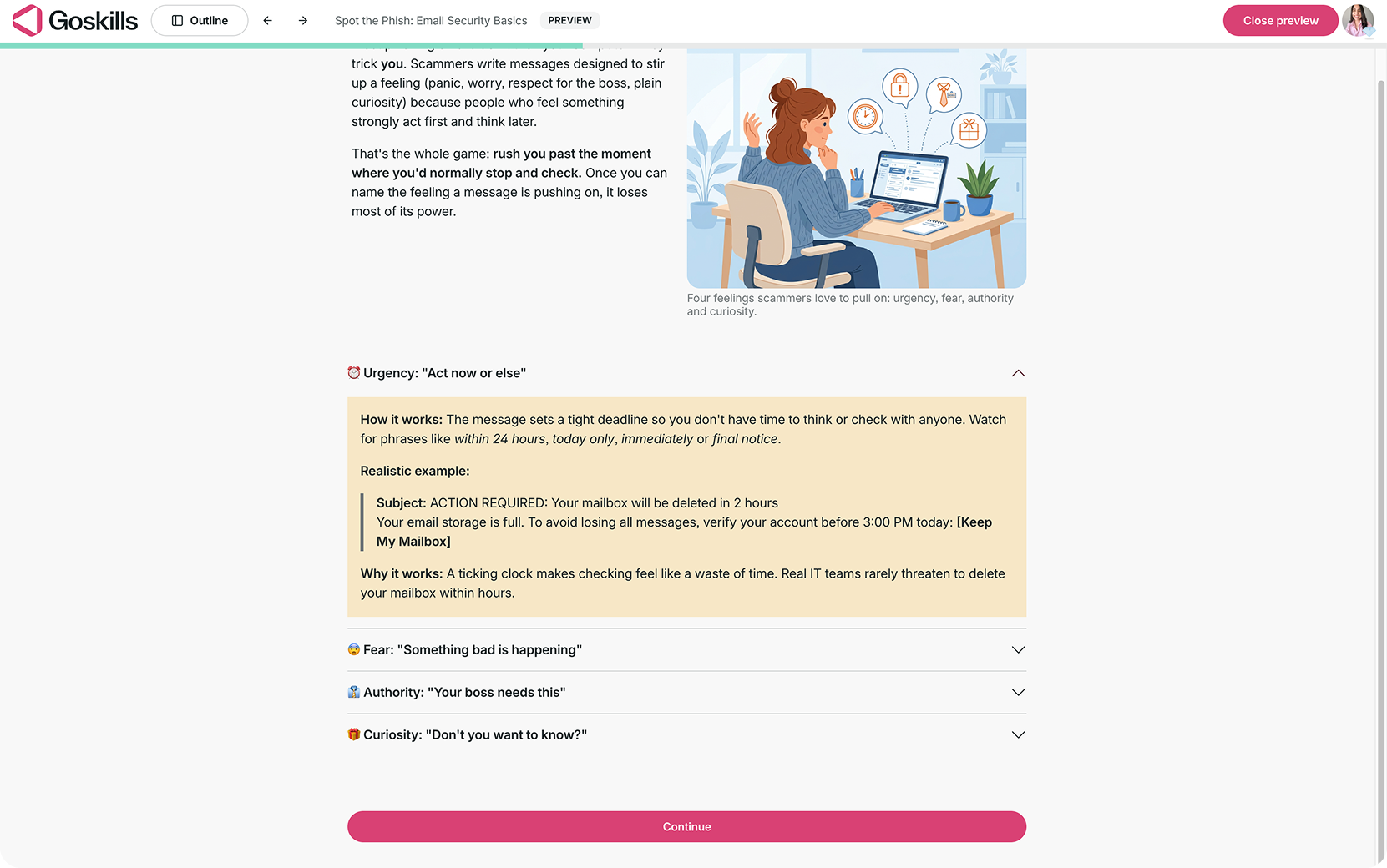
Learners see a list of headings they can expand to explore each topic. By default, opening one item closes the others, helping learners focus on one topic at a time. If Open multiple rows is enabled, they can keep several sections expanded.
For example, in a cybersecurity awareness course, an Accordion block can introduce four tactics commonly used in phishing emails: urgency, fear, authority, and curiosity. Instead of reading all four explanations at once, learners can explore each tactic individually.
When learners expand an item, they see its full content. In this example, opening Urgency reveals an explanation of the tactic, a realistic phishing email, and why the tactic works.
When should you use an Accordion block?
Accordion blocks work best when learners need to explore several related topics that each make sense on their own. Here are a few ways to use them in your courses:
- Cybersecurity training: Explain common phishing tactics, with realistic examples learners can reveal one by one.
- Compliance training: Break down a policy into sections learners can explore individually.
- Employee onboarding: Organize common questions about company policies, benefits, or workplace procedures.
- Software training: Introduce different tools or features, with instructions and examples for each.
Tip: Keep headings short and descriptive so learners know what they’ll find inside. Focus on one topic per item, and avoid hiding essential instructions that every learner needs to see.