
The Slider block in the GoSkills Course Builder lets you present information along an interactive scale. Learners drag a handle between two endpoints to explore different levels or scenarios, with the content changing as they move through each zone.
It’s particularly useful for comparing risk levels, demonstrating progression, or helping learners understand how information changes across a range.
How to add a Slider block to a lesson
- Open your course in the Course Builder and go to the lesson where you want to add a slider.
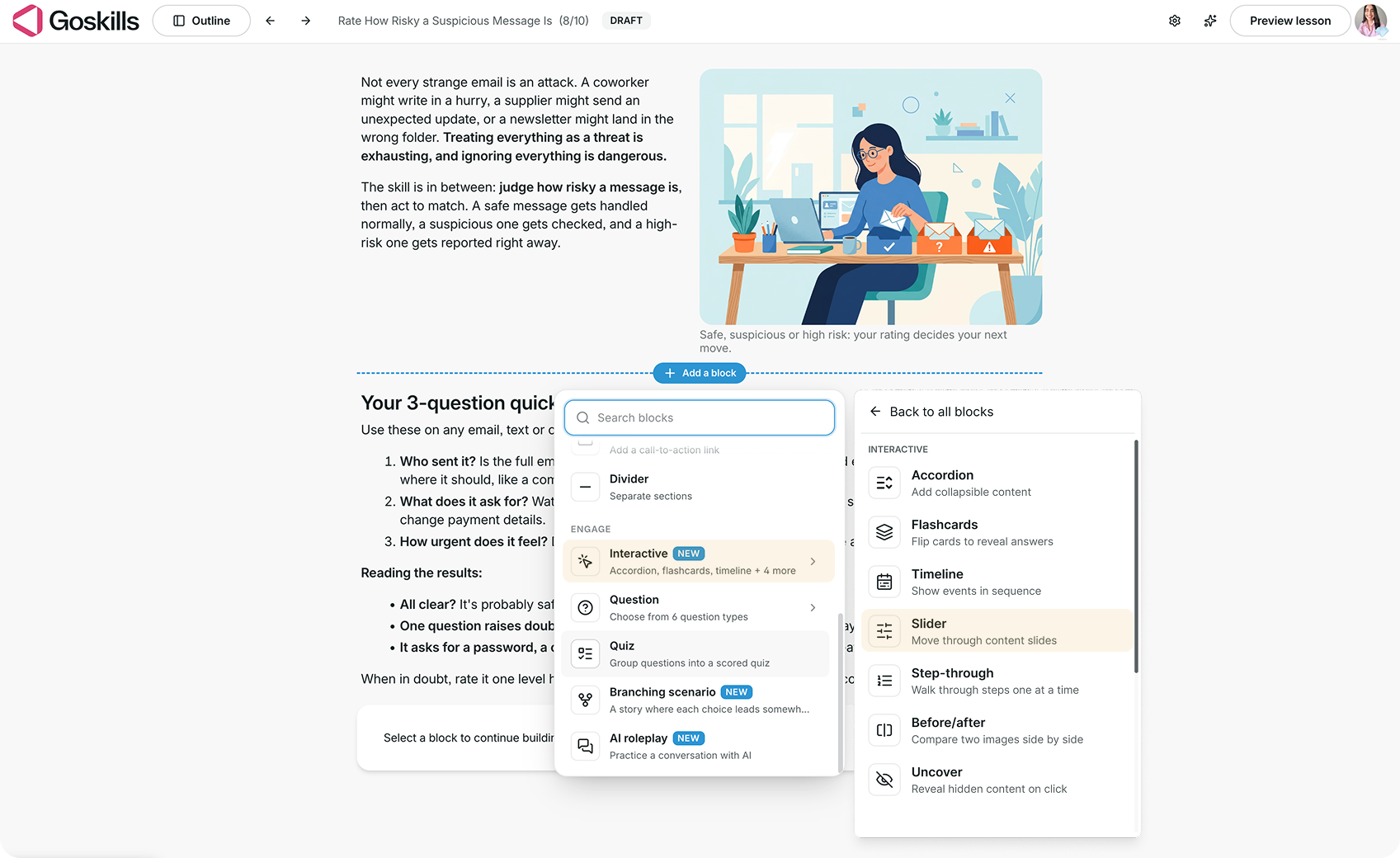
- Click Add a block, then select Slider under Interactive.
- Your Slider block will appear with sample zones that you can customize.
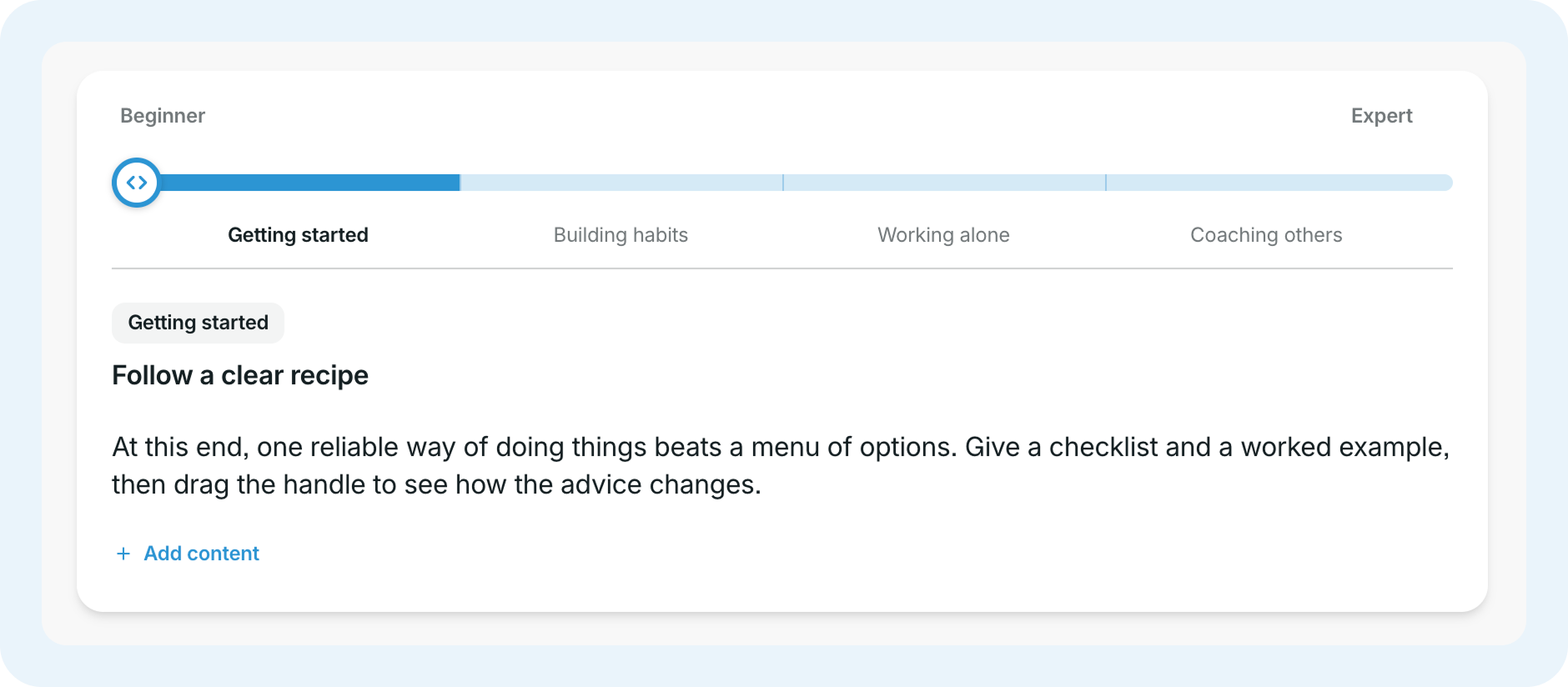
The slider has two endpoints, such as “Beginner” and “Expert,” with different zones in between. Each zone can display its own label, title, and supporting content.
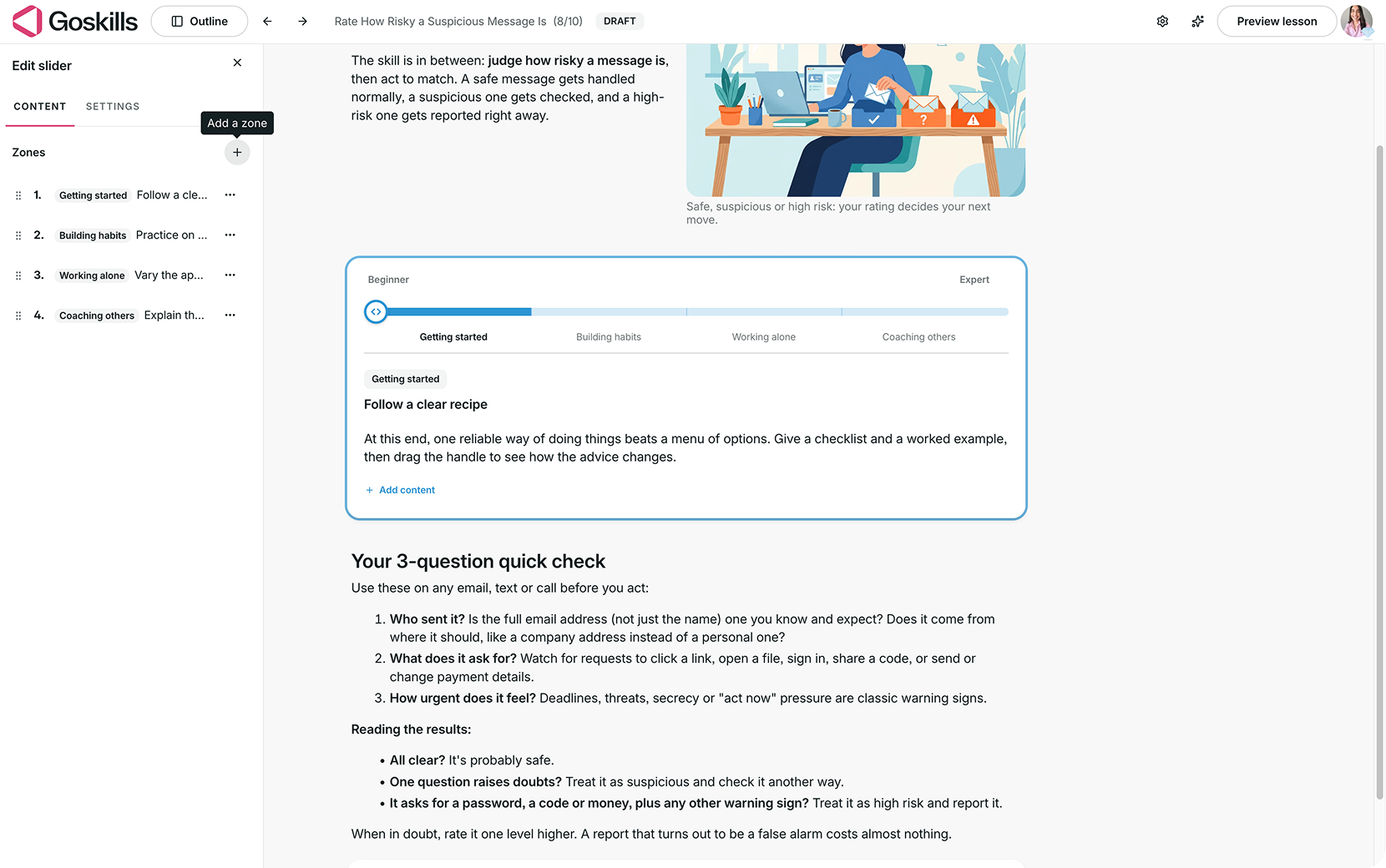
Add and edit zones on your slider
Select your Slider block and click Edit to open the editor.
From the Content tab, you can:
- Add zones using the + icon next to Zones.
- Edit each zone to customize its label, title, and supporting content.
- Reorder zones by dragging them into your preferred sequence.
Each zone represents a different point along the scale. For example, a risk assessment slider could move from low-risk situations to more serious threats.
Create a Slider block with Genie
Genie, GoSkills’ AI course creator, can generate a Slider block for your lesson.
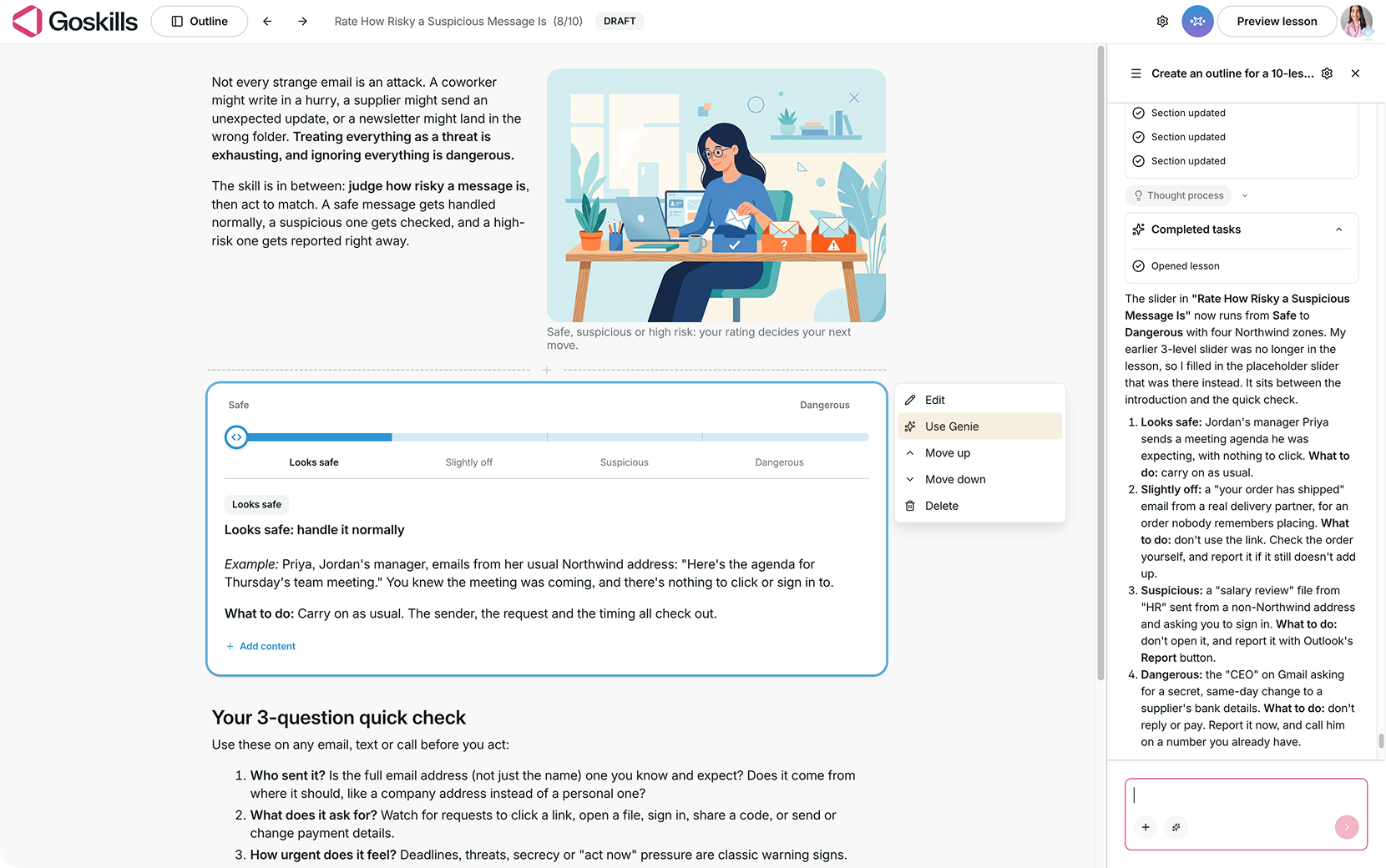
Select your Slider block, click Use Genie, and describe the scale you’d like to create. For example, you could ask for four levels of phishing risk, from messages that look safe to dangerous requests that should be reported immediately.
Genie may also add a Slider automatically when it identifies content that’s suitable for exploring different levels or scenarios.
Customize the content inside each zone
You can edit and format the content within each zone to highlight important information.
Select a text block, then click the pencil icon to edit it or adjust its settings, including background color and padding.
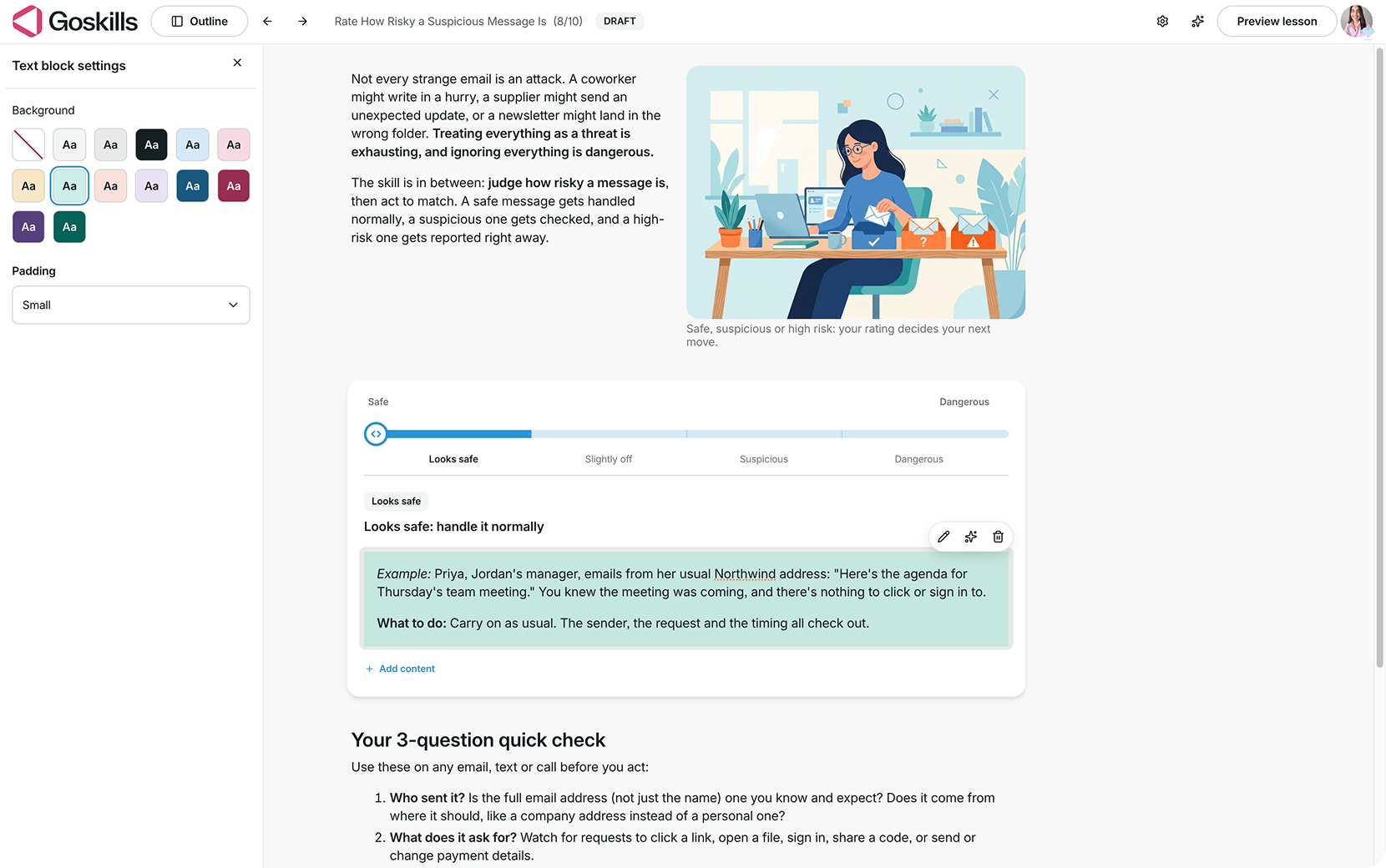
You can also click Add content inside a zone to insert images, videos, files, tables, code, and more.
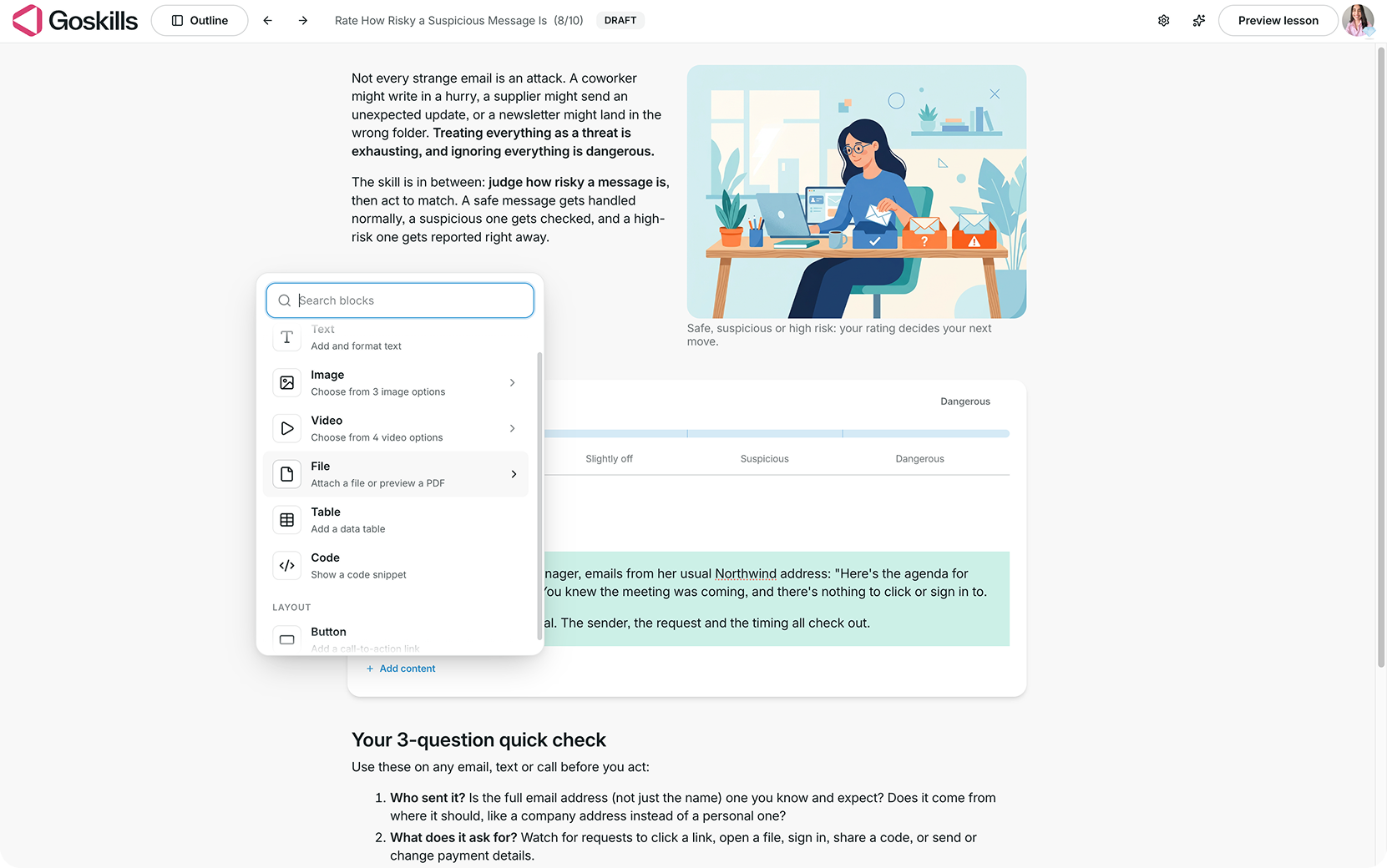
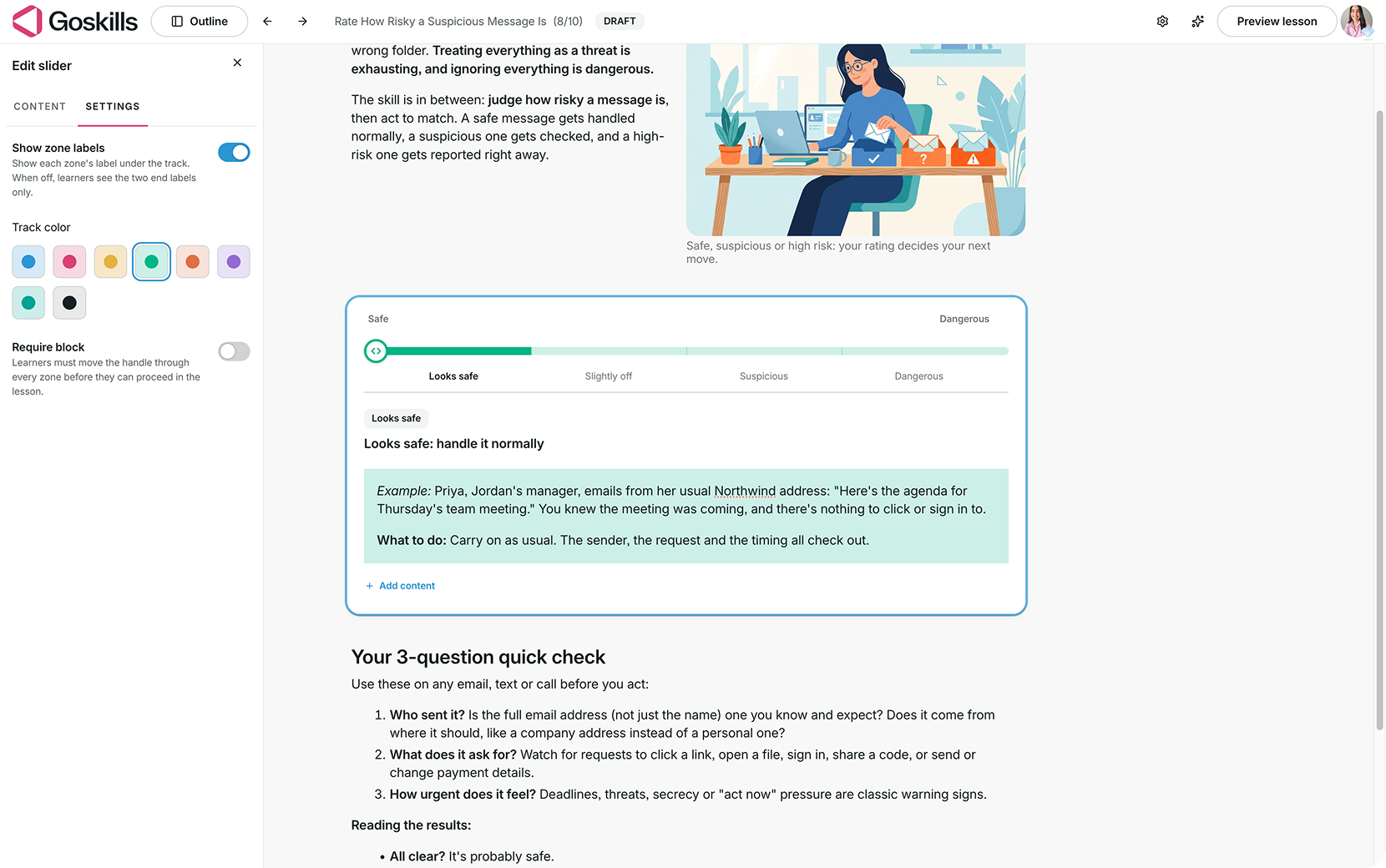
Adjust your Slider settings
Select your Slider block, click Edit, and open the Settings tab.
You’ll find the following options:
- Show zone labels: Display each zone’s label beneath the slider track. When turned off, learners only see the two endpoint labels.
- Track color: Choose a color for the slider track.
- Require block: Require learners to move the handle through every zone before they can proceed in the lesson.
What does a Slider block look like to learners?
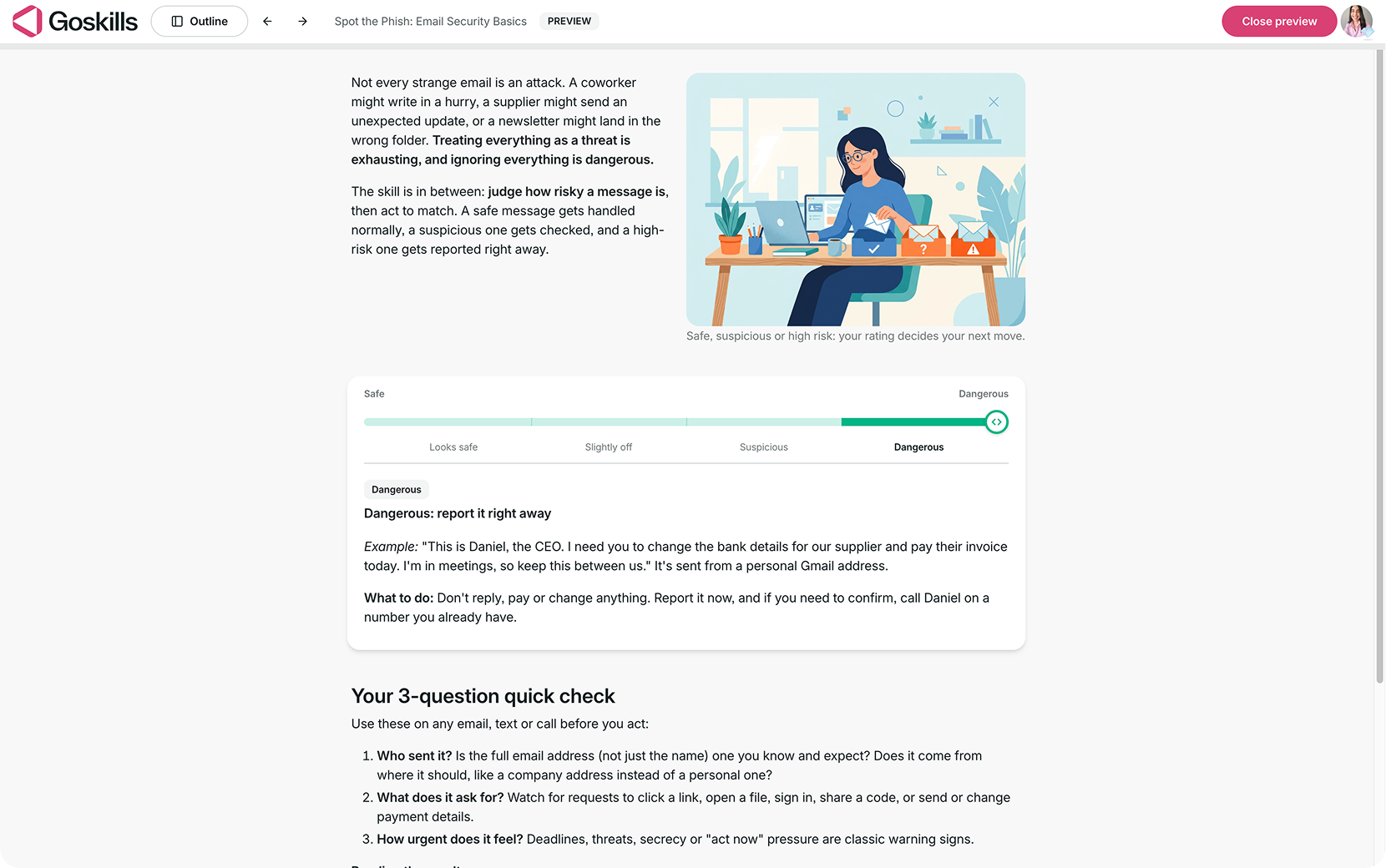
Learners see a horizontal slider with two endpoints. By dragging the handle along the track, they can explore different zones, each with its own information displayed below.
For example, in a cybersecurity awareness course, a slider could help learners distinguish between four levels of phishing risk: Looks safe, Slightly off, Suspicious, and Dangerous.
As learners move the handle, the content changes to explain each risk level, provide an example, and suggest the appropriate action.
If Require block is enabled, learners must move through every zone before they can proceed in the lesson.
When should you use a Slider block?
Slider blocks work best when learners need to explore a range of possibilities, compare different levels, or understand how recommendations change depending on a situation. Here are a few ways to use them in your courses:
- Compliance training: Explore different levels of risk, from minor concerns to serious violations that require immediate action.
- Leadership development: Show how management approaches might change depending on an employee's experience or level of independence.
- Customer service training: Help support teams understand different levels of issue severity and the appropriate response for each.
- Workplace safety training: Illustrate how hazard severity affects the precautions employees should take.
Tip: Choose clear endpoint labels and make each zone meaningfully different. Keep the content focused so learners can easily understand what changes as they move along the scale.