
Interactive blocks in the GoSkills Course Builder let you create lessons where learners can explore, reveal, and interact with content instead of simply reading through it.
Whether you’re explaining a process, comparing examples, or helping learners recall information, there’s an interactive block to suit your training needs.
How to add interactive blocks to a lesson
- Open your course in the Course Builder and go to the lesson where you want to add an interactive block.
- Click Add a block, then select Interactive.
- Choose the block you’d like to add and customize its content.
You can also use Genie, GoSkills’ AI course creator, to generate interactive blocks for you. Genie may also add them automatically when it identifies a good fit for your lesson.
Explore the seven interactive blocks
Accordion
Organize related information into expandable sections that learners can open individually. Accordion blocks are useful for presenting FAQs, explaining policies, or breaking down complex topics without overwhelming learners with too much information at once.
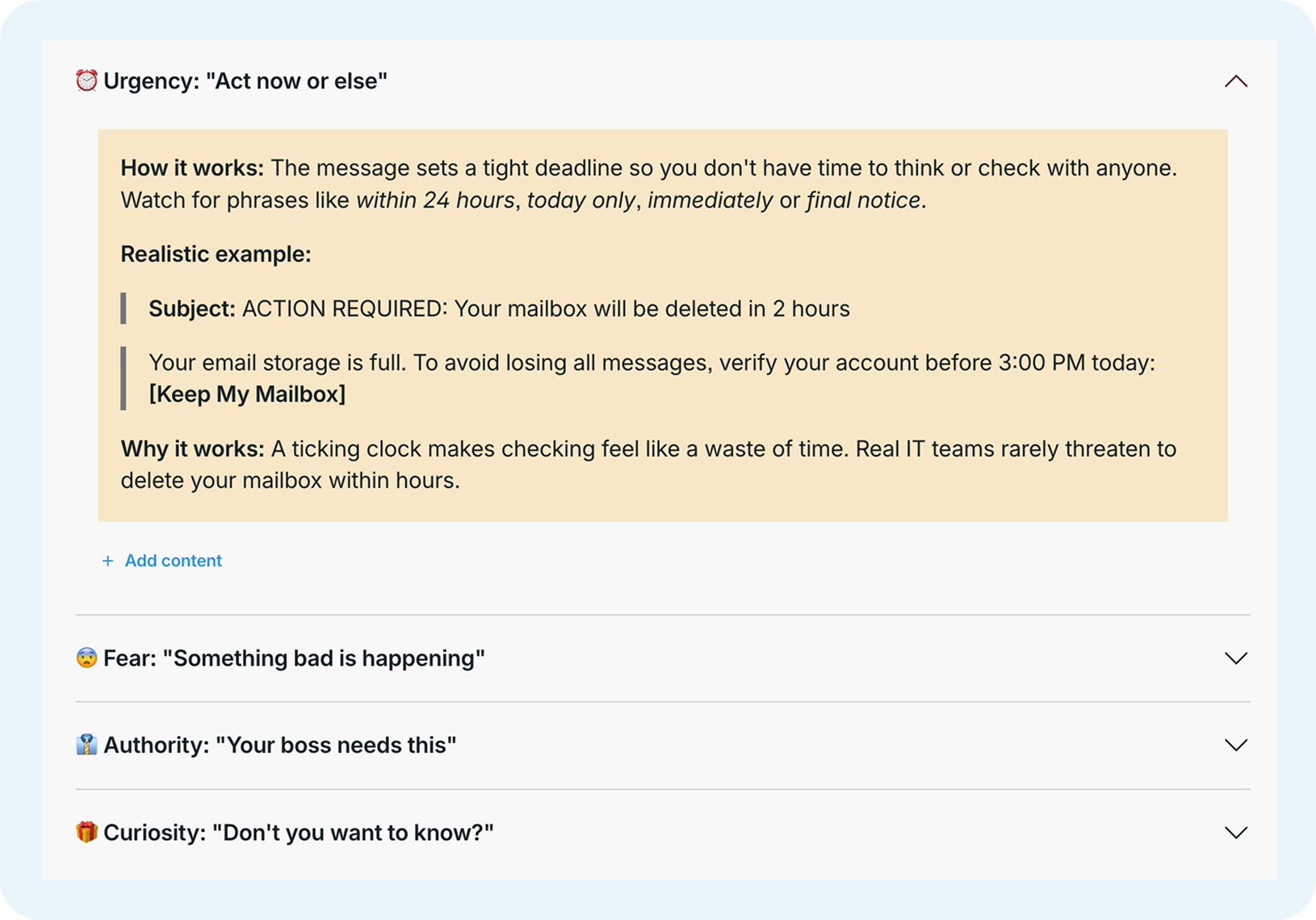
Learn more: How to Use the Accordion Block in GoSkills
Flashcards
Create cards with a question, term, or image on the front and an answer or explanation on the back. Learners flip each card to check their knowledge, making Flashcards useful for memorizing key terms, reviewing concepts, or reinforcing important information.
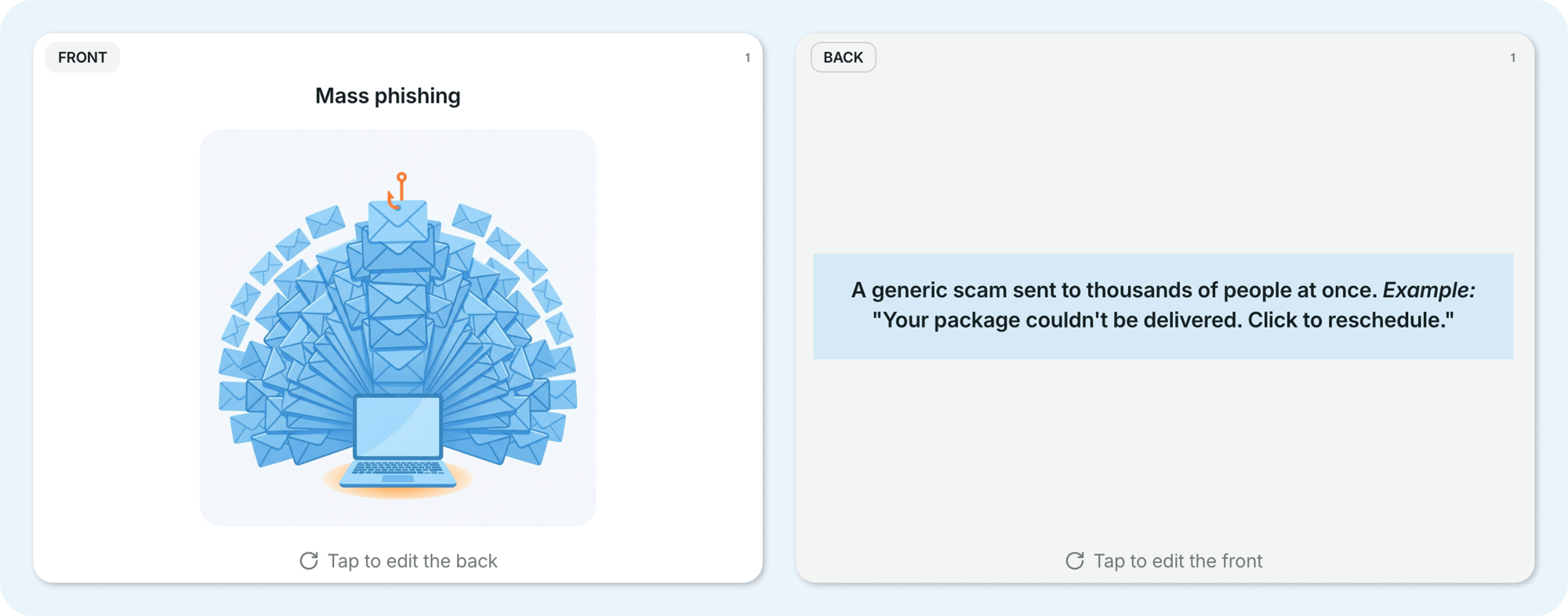
Learn more: How to Use the Flashcards Block in GoSkills
Timeline
Present events, milestones, or stages in a sequence that learners can explore. Timeline blocks work well for showing how a process unfolds, illustrating historical events, or explaining project phases and important milestones.
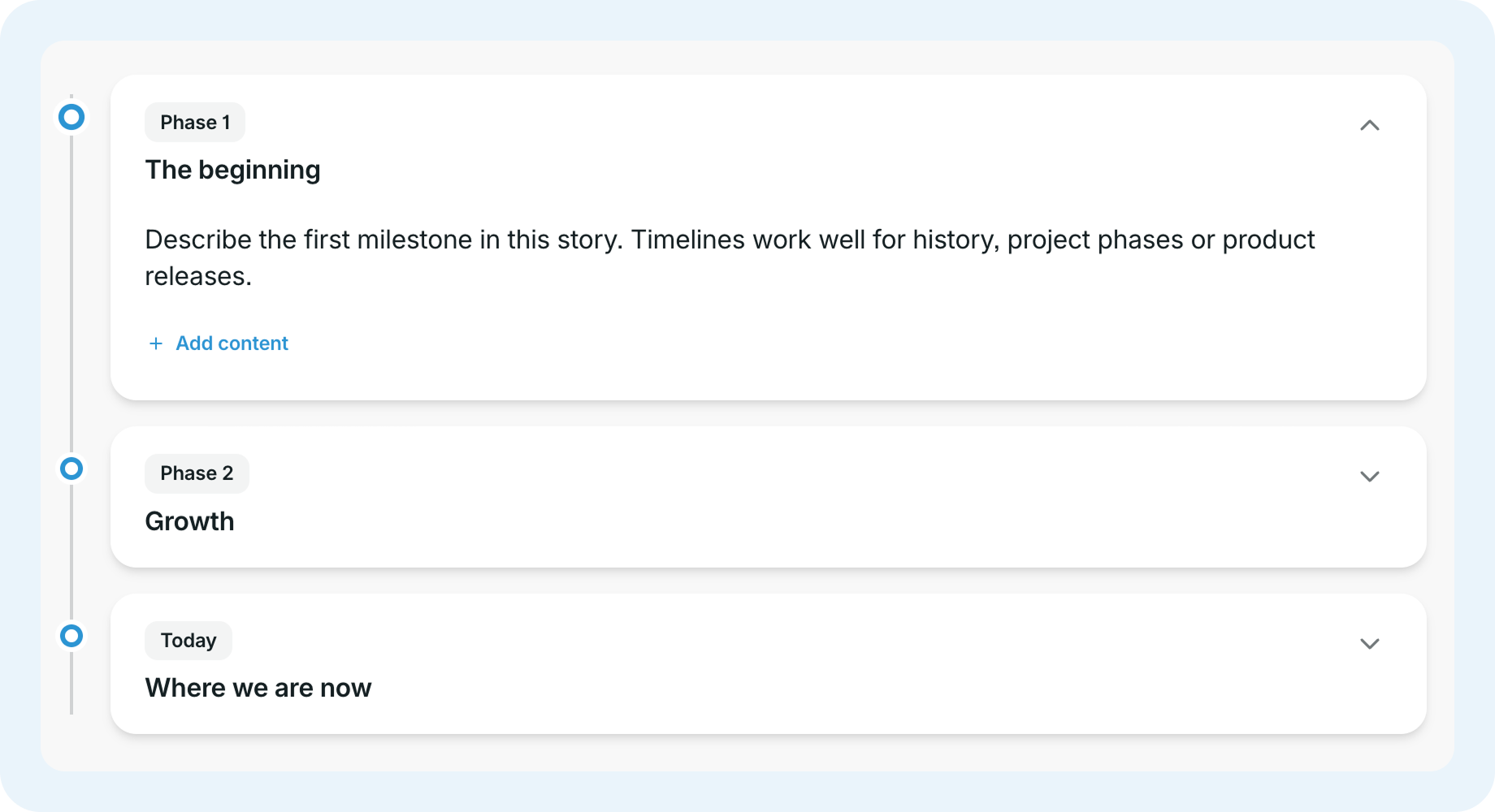
Learn more: How to Use the Timeline Block in GoSkills
Slider
Let learners drag a handle along a scale to explore different levels or scenarios, with the content changing as they move. Slider blocks are useful for comparing risk levels, showing progression, or explaining how recommendations change depending on a situation.
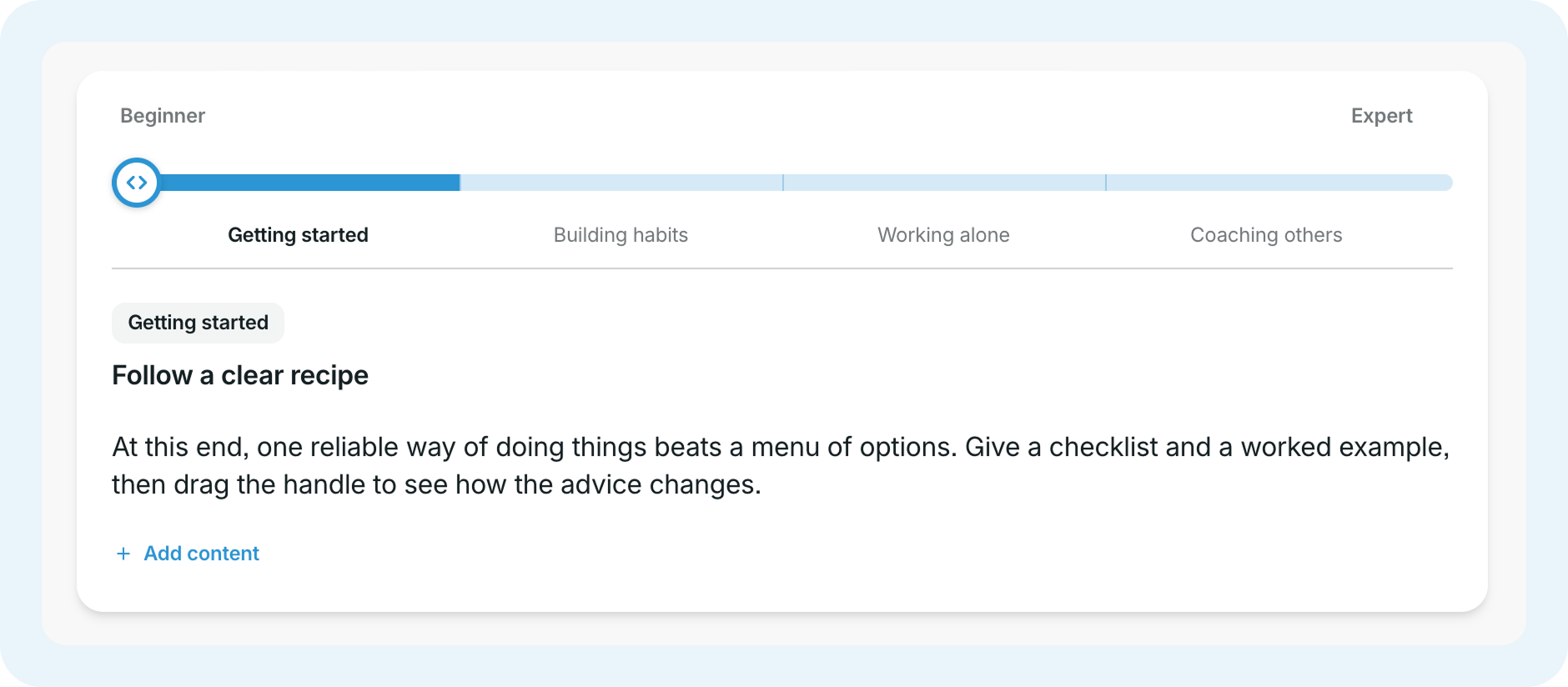
Learn more: How to Use the Slider Block in GoSkills
Step-through
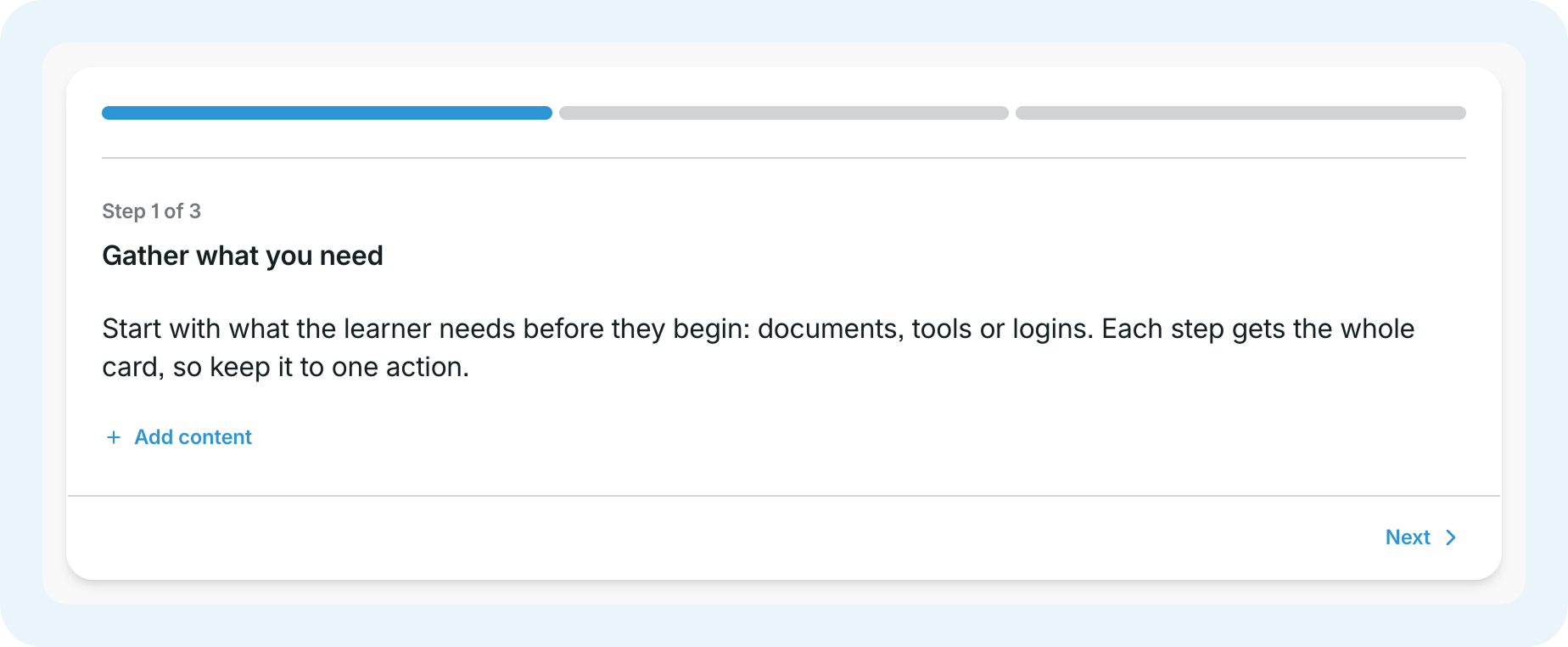
Guide learners through a process one step at a time, with navigation controls to move forward or back. Step-through blocks are ideal for explaining workplace procedures, software tasks, or any process that benefits from clear, sequential instructions.
Learn more: How to Use the Step-through Block in GoSkills
Before/after
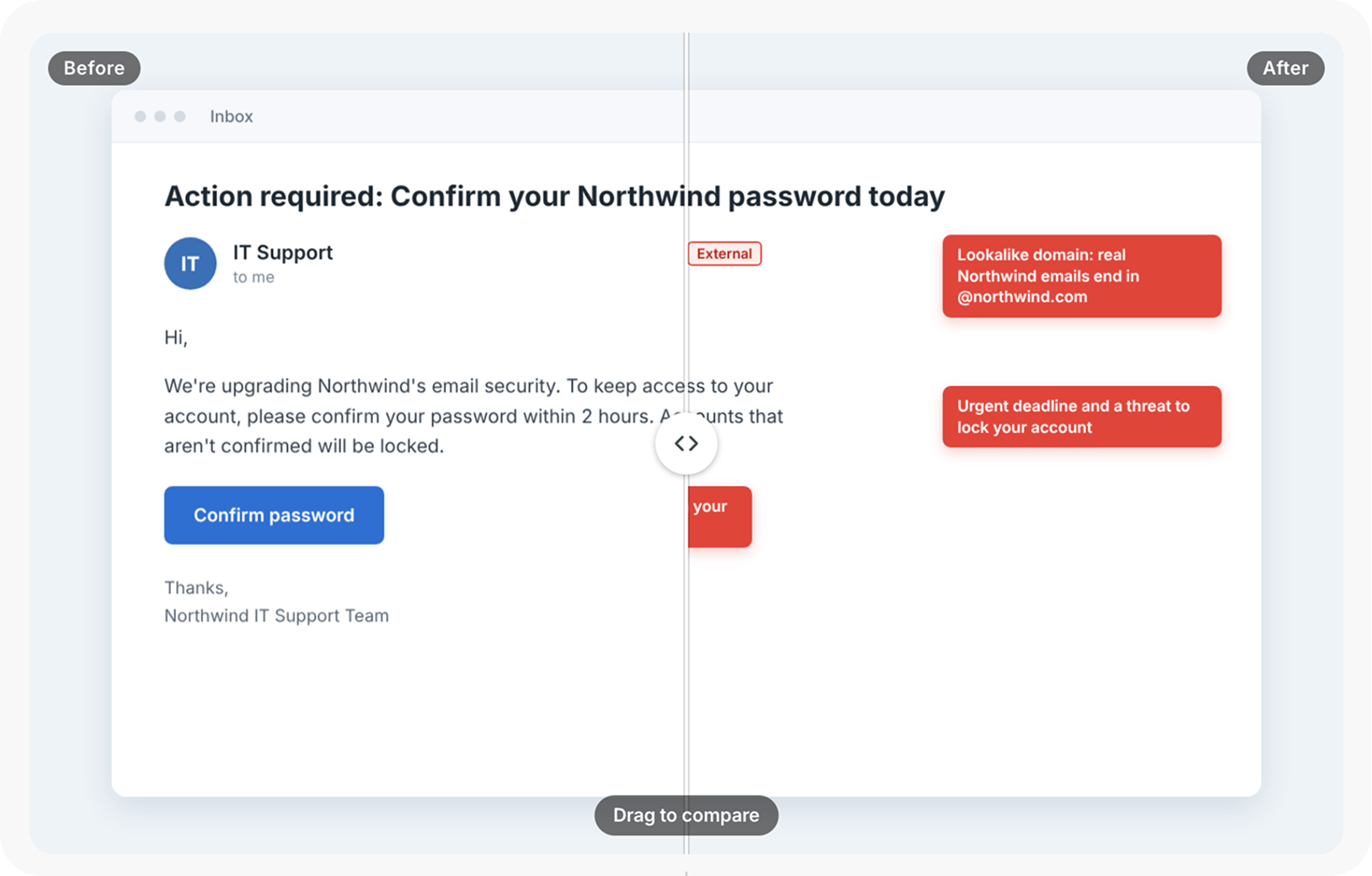
Compare two versions of an image using a draggable divider that reveals one version over the other. Before/after blocks are useful for spotting differences, identifying mistakes, or showing improvements, such as highlighting warning signs in a suspicious email.
Learn more: How to Use the Before/after Block in GoSkills
Uncover
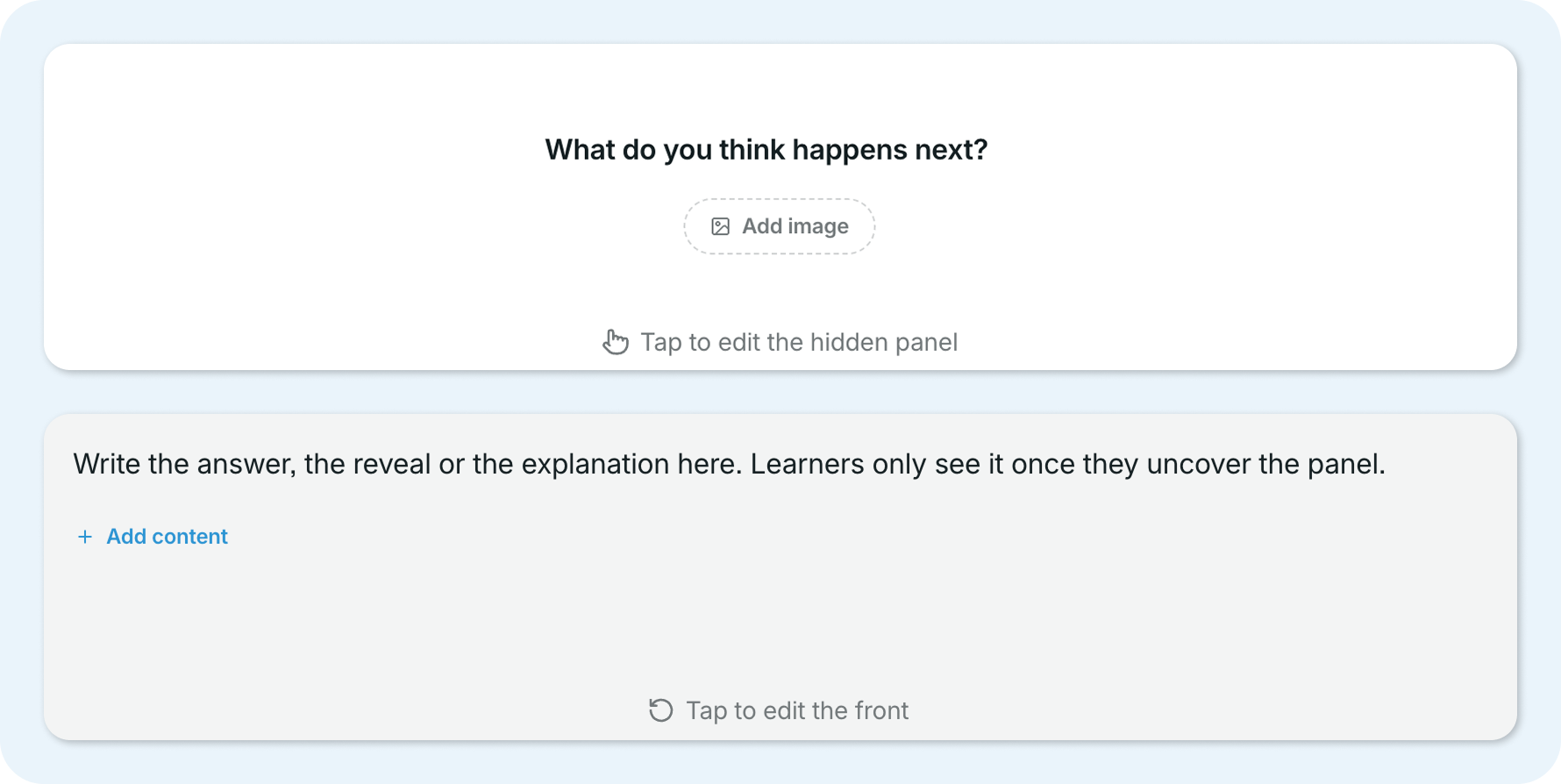
Hide an answer or explanation behind an interactive cover that learners can reveal. Uncover blocks are useful for presenting questions, workplace scenarios, or challenges that encourage learners to think before discovering the answer.
Learn more: How to Use the Uncover Block in GoSkills
Choosing the right interactive block
Think about what you want learners to do. Do they need to recall information, follow a process, compare examples, or uncover an answer?
Each interactive block supports a different learning experience, so choose the one that best fits your content and learning objectives.
Tip: Preview your lesson to see how learners will interact with each block before publishing your course.