
The Step-through block in the GoSkills Course Builder lets you break down a process into clear, manageable steps. Learners move through one step at a time, making it easier to follow instructions without feeling overwhelmed.
It’s especially useful for teaching procedures, explaining workflows, or guiding learners through tasks with multiple steps.
How to add a Step-through block to a lesson
- Open your course in the Course Builder and go to the lesson where you want to add the block.
- Click Add a block, then select Step-through under Interactive.
- Your Step-through block will appear with sample steps that you can customize.
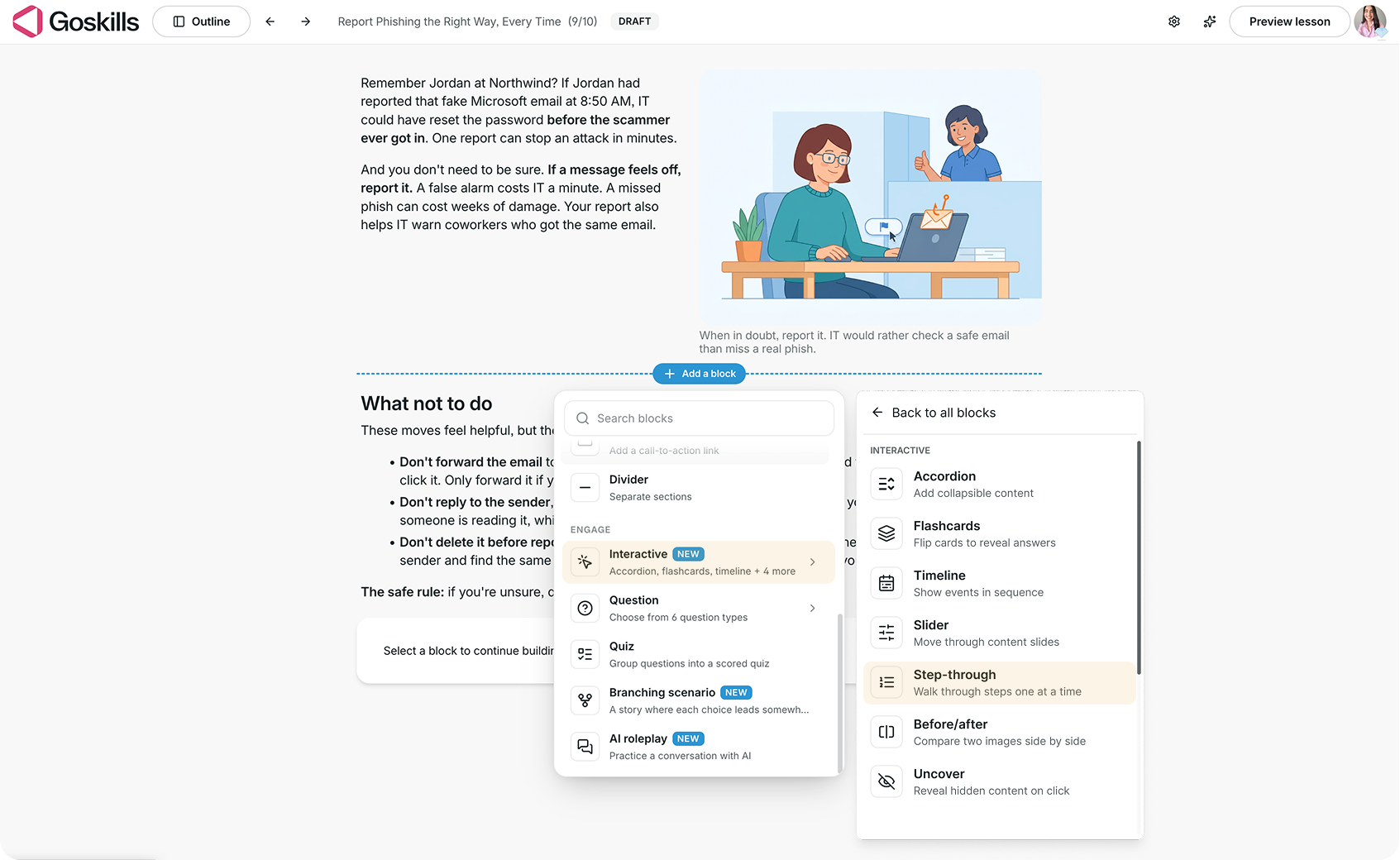
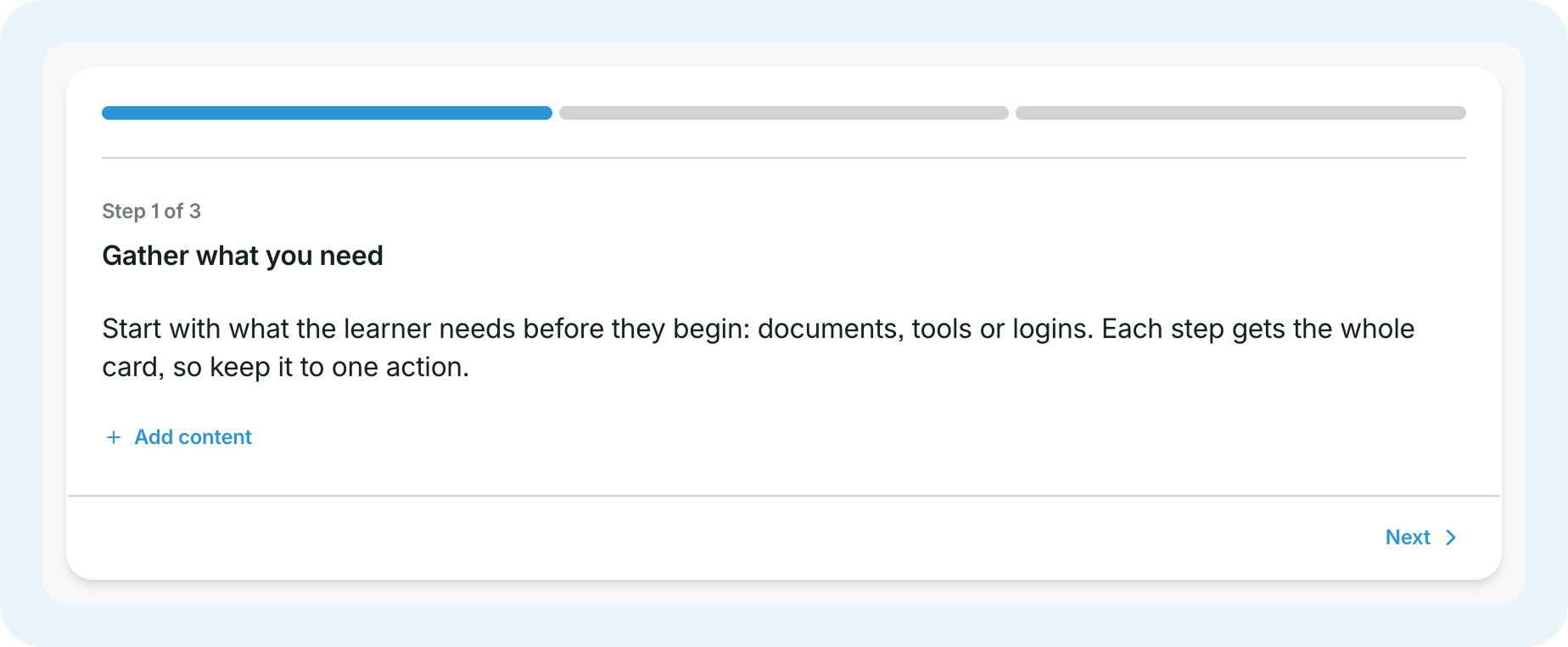
Each step has a title and space for instructions or supporting content.
Add and edit steps
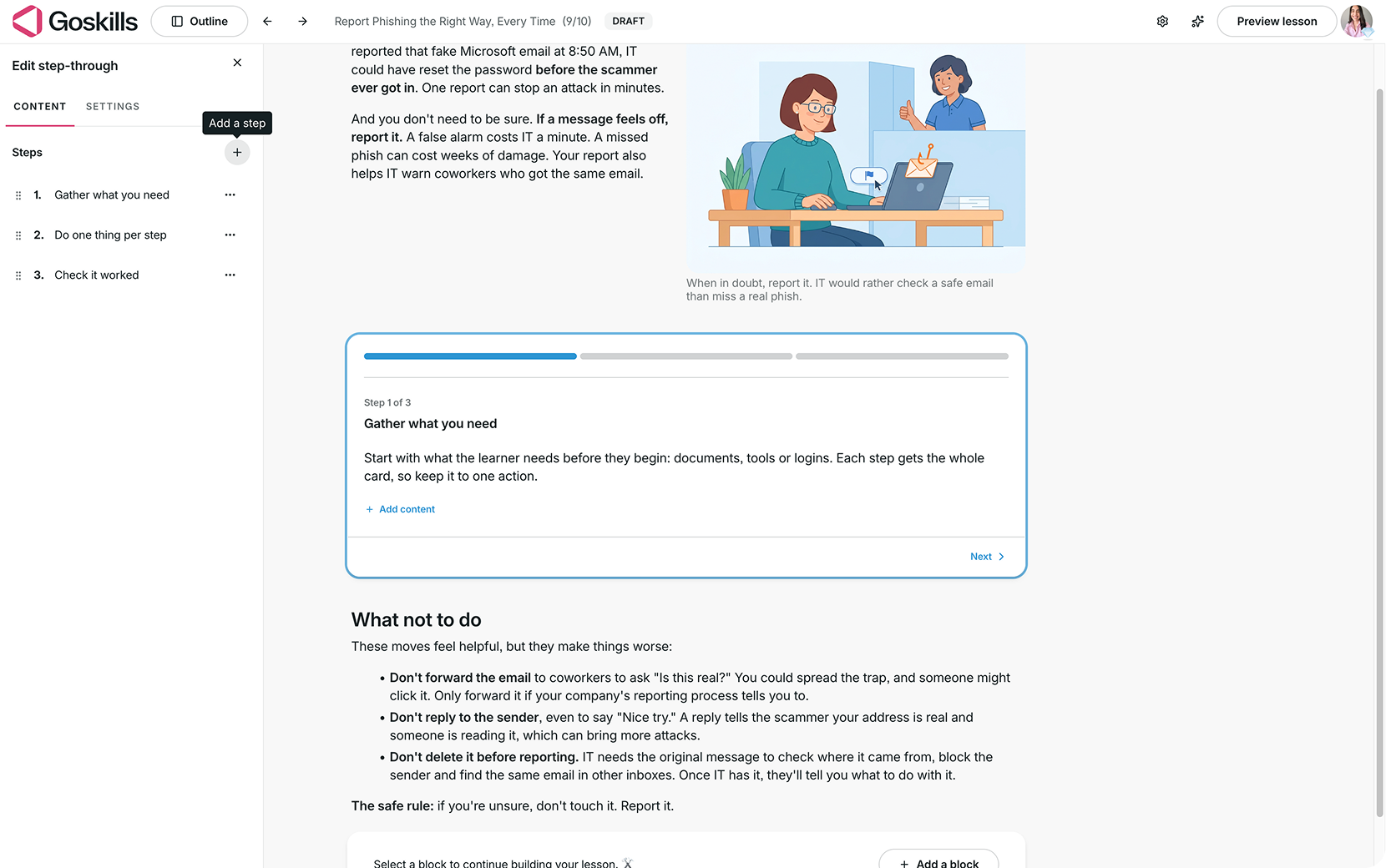
Select your Step-through block and click Edit to open the editor.
From the Content tab, you can:
- Add steps using the + icon next to Steps.
- Edit each step by adding a title and instructions.
- Reorder steps by dragging them into your preferred sequence.
Create a Step-through block with Genie
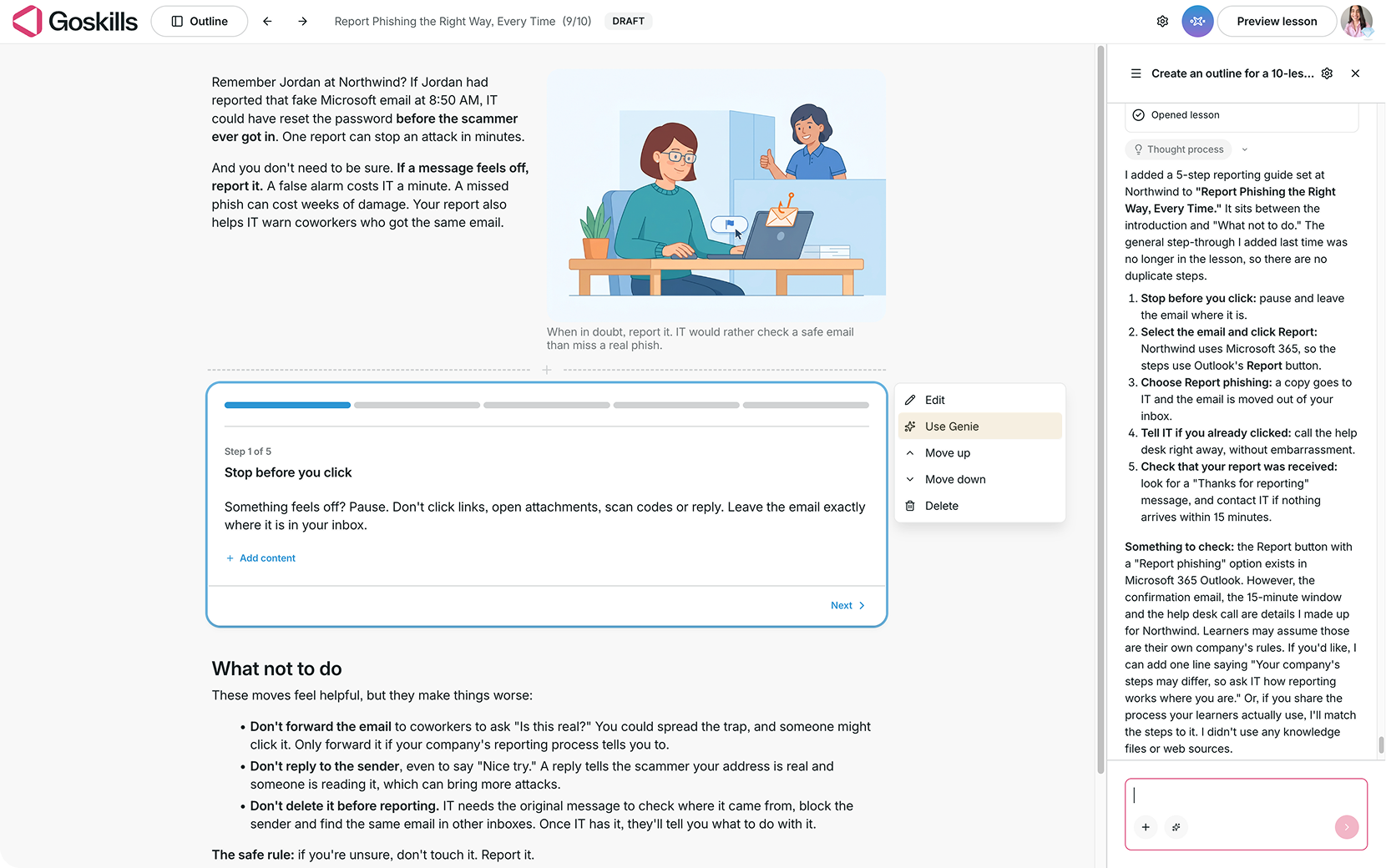
Genie, GoSkills’ AI course creator, can generate a Step-through block for you and may add one automatically when it identifies a step-by-step process that’s a good fit for your lesson.
You can also select a Step-through block, click Use Genie, and ask it to generate steps, such as a guide to reporting a suspicious email. Review and edit the generated content as needed.
Customize the content inside each step
You can edit and format the content within each step to highlight important instructions.
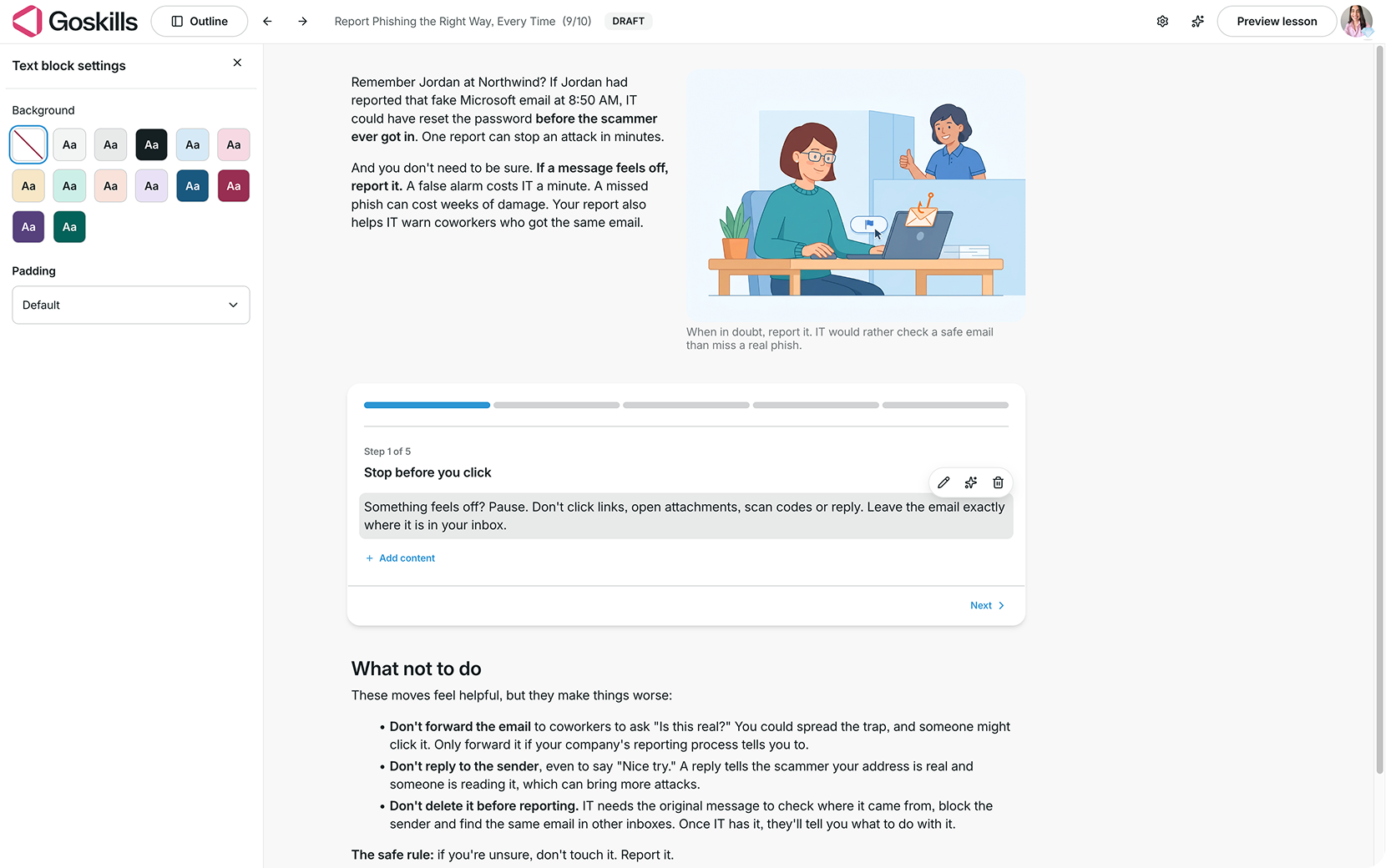
Select a text block, then click the pencil icon to edit it or adjust its settings, including background color and padding.
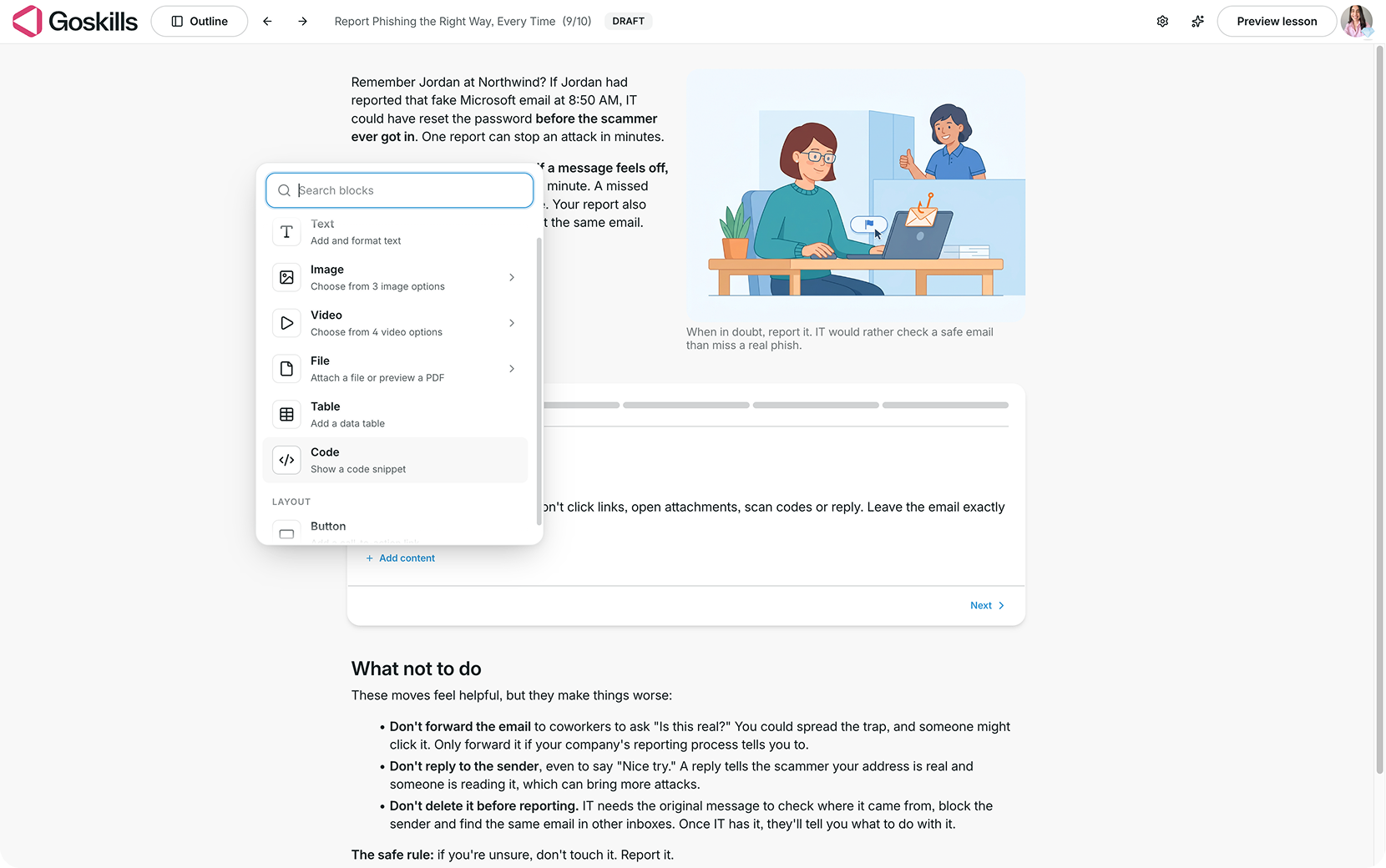
You can also click Add content inside a step to insert images, videos, files, tables, code, and more.
Adjust your Step-through settings
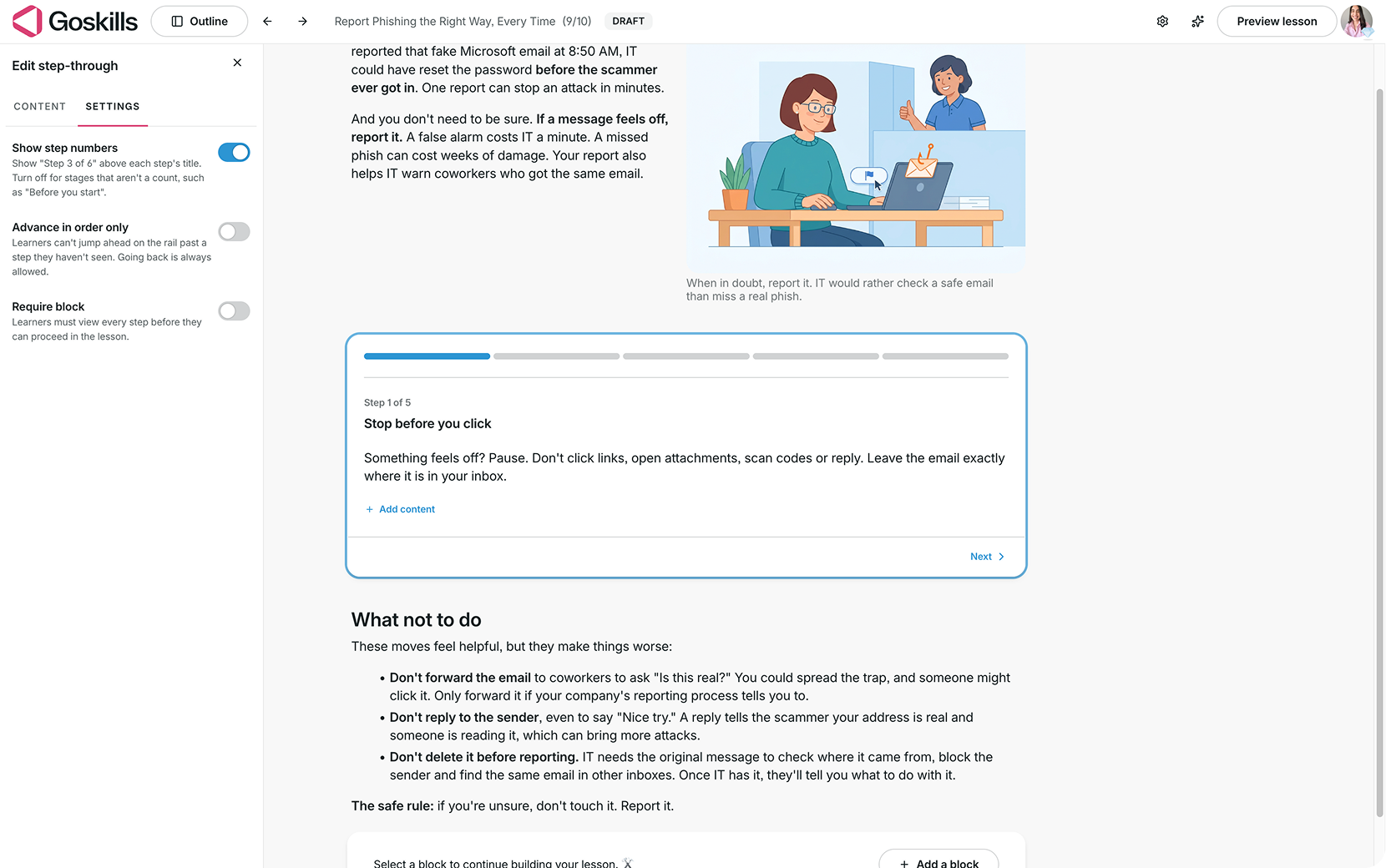
Select your Step-through block, click Edit, and open the Settings tab.
You’ll find the following options:
- Show step numbers: Display the step number above each title (for example, “Step 3 of 6”). Turn this off if you’re presenting stages that don’t need numbering.
- Advance in order only: Require learners to move through steps in sequence without skipping ahead. They can still return to steps they’ve already viewed.
- Require block: Require learners to view every step before they can proceed in the lesson.
What does a Step-through block look like to learners?
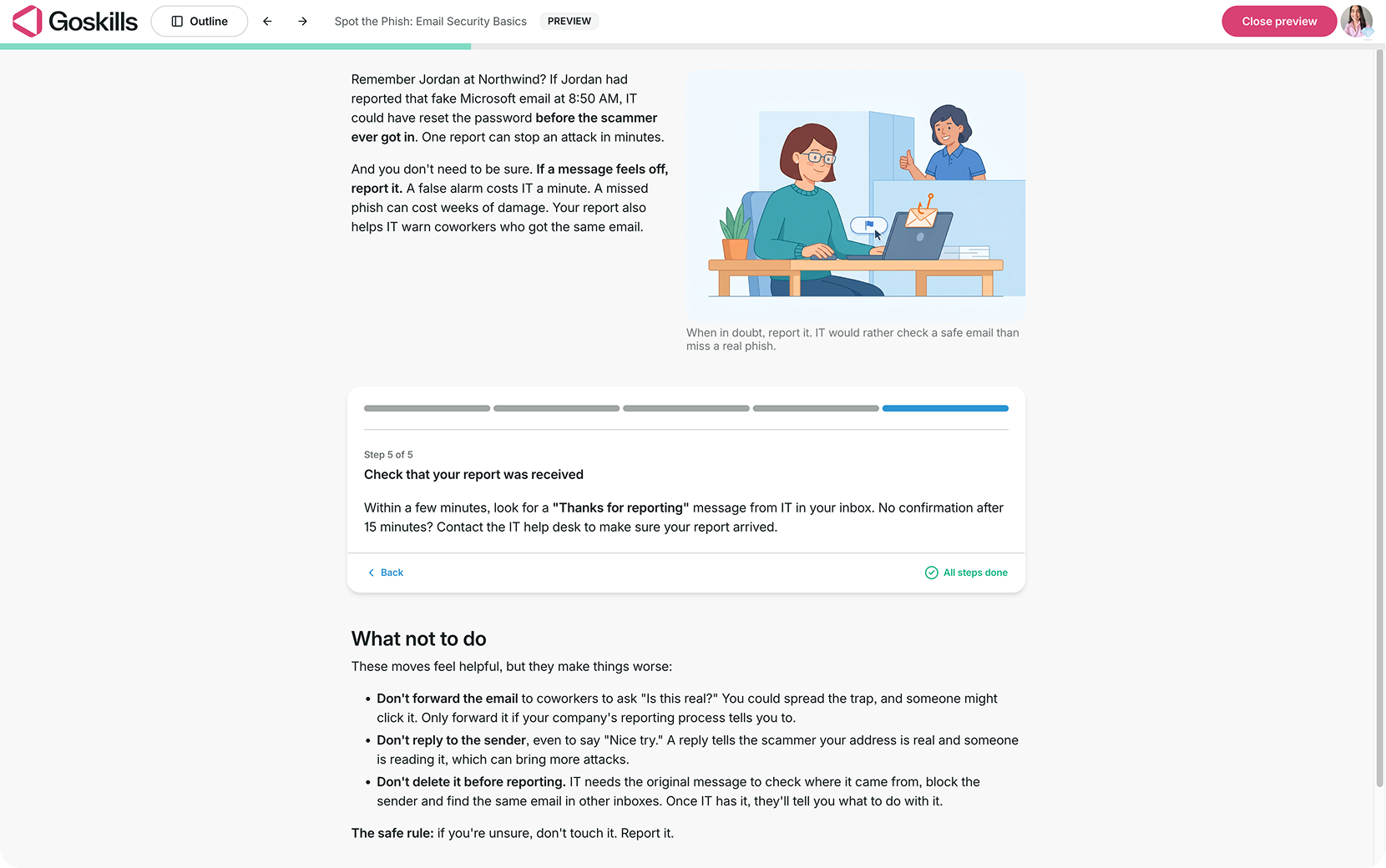
Learners see one step at a time, with a segmented progress bar at the top of the block showing their progress through the sequence. When Show step numbers is enabled, a label such as “Step 3 of 6” appears above the step title.
Learners select Next to move forward and Back to return to an earlier step.
If you’ve turned on Advance in order only, learners can’t skip ahead.
Once learners have viewed every step, they’ll see an All steps done confirmation in place of the Next button.
When should you use a Step-through block?
Step-through blocks work best when learners need to follow a process, complete a task, or understand a procedure in a specific order. Here are a few ways to use them in your courses:
- Compliance training: Guide employees through the steps for reporting a suspected phishing email or workplace incident.
- Software training: Demonstrate how to complete a task in an application, such as submitting an expense report or setting up an account.
- Customer service training: Walk support teams through handling a customer complaint, from gathering information to resolving the issue.
- Workplace safety training: Explain procedures such as completing a pre-use equipment inspection or reporting a safety hazard.
Tip: Focus each step on one clear action or instruction. Use short titles and supporting visuals where helpful so learners can easily follow the process from start to finish.