
The Timeline block in the GoSkills Course Builder lets you present events, milestones, or stages in a sequence. Learners can explore each point on the timeline to reveal more information, making it easier to follow how something unfolds over time.
It’s particularly useful for explaining processes, illustrating historical events, or showing how a project progresses from start to finish.
How to add a Timeline block to a lesson
- Open your course in the Course Builder and go to the lesson where you want to add a timeline.
- Click Add a block, then select Timeline under Interactive.
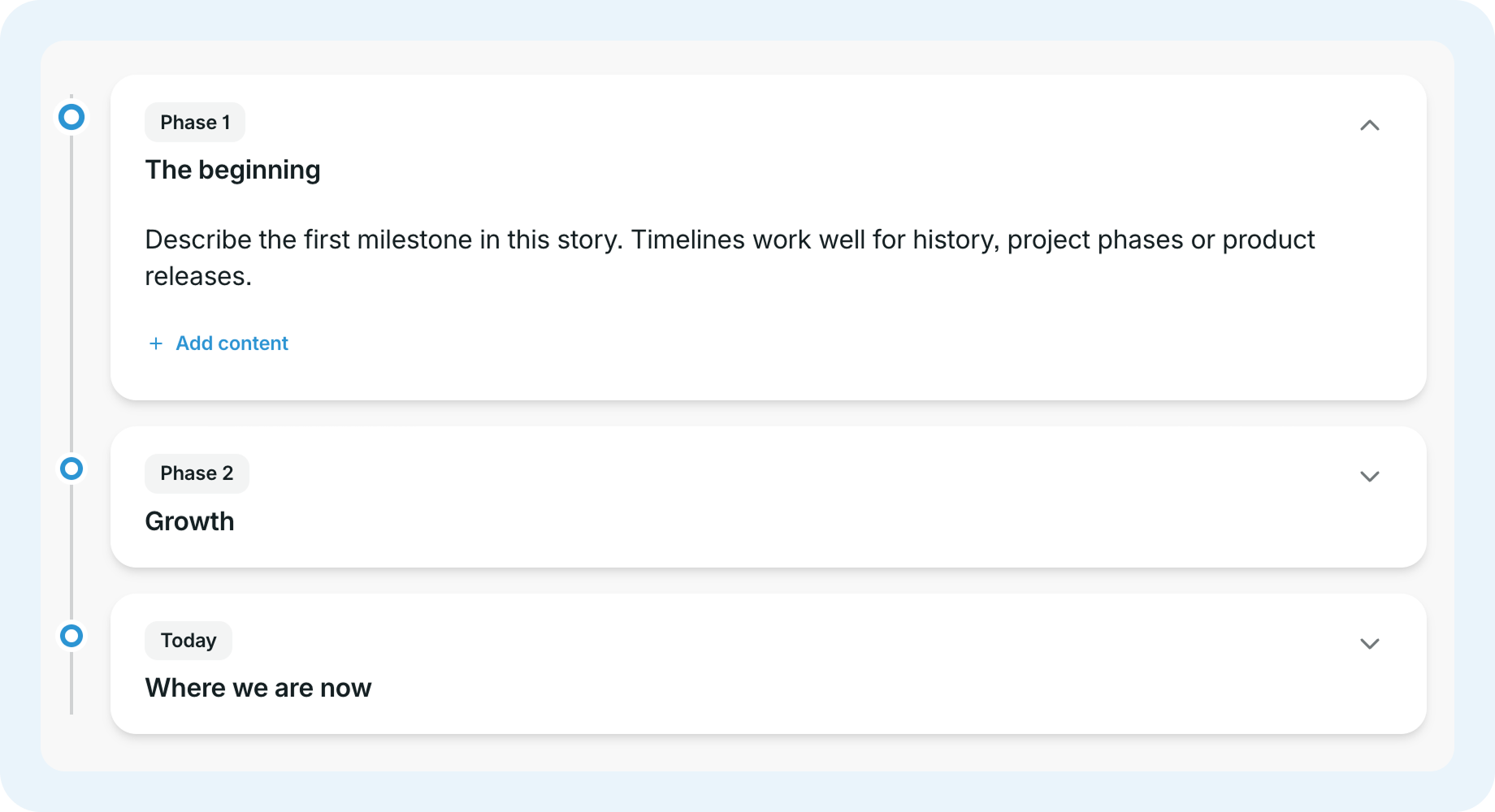
- Your Timeline block will appear with sample events that you can customize.
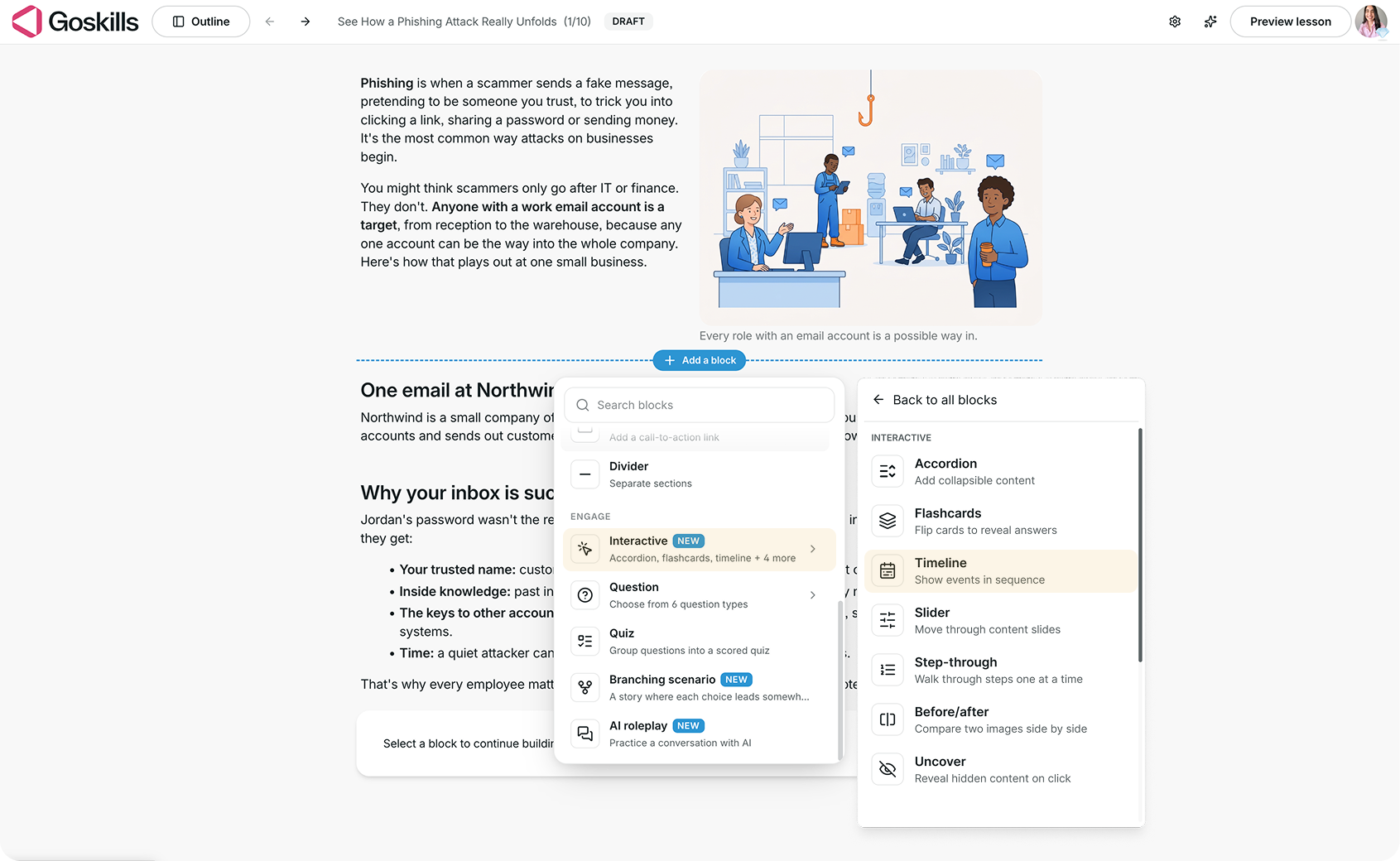
Each event has a label (such as a date or phase), a title, and space for supporting content.
Add and edit events on your timeline
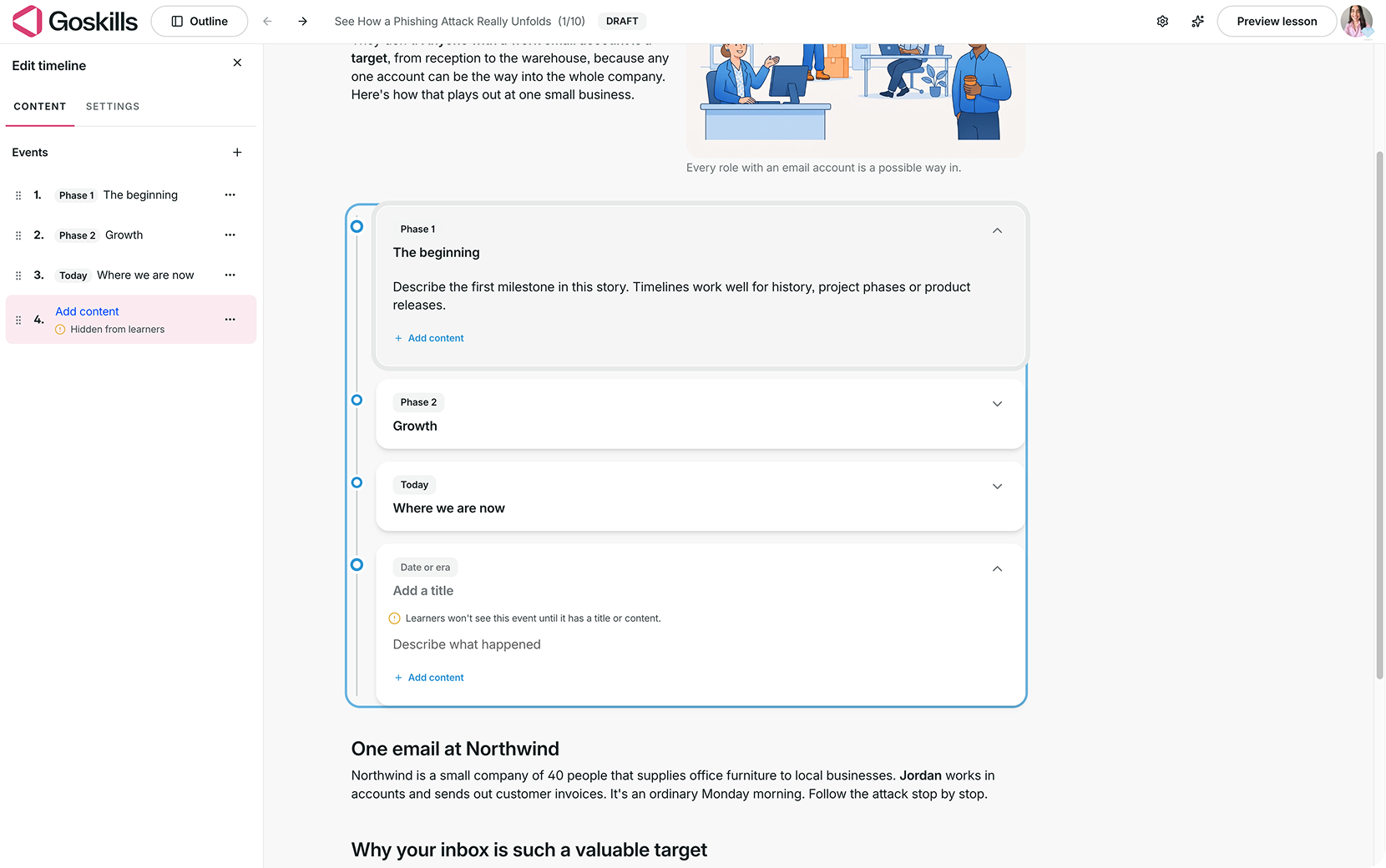
Select your Timeline block and click Edit to open the editor.
From the Content tab, you can:
- Add events using the + icon next to Events.
- Edit each event by adding a label (such as a date or phase), a title, and supporting content.
- Reorder events by dragging them into your preferred sequence.
Timeline labels don’t have to be actual dates. You can also use labels such as “Phase 1,” “Day 3,” or “Week 2.”
Create a timeline with Genie
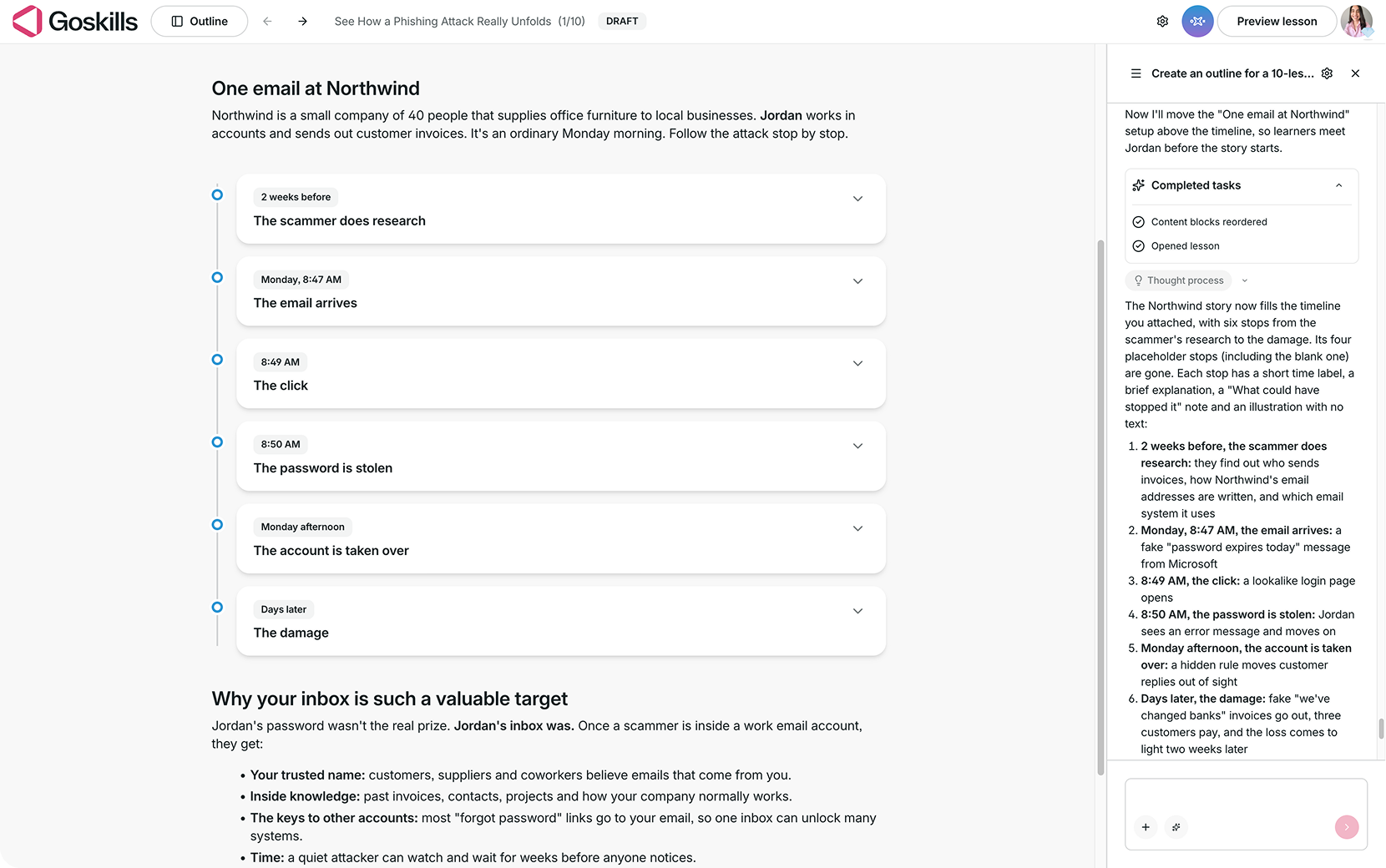
You can use Genie, GoSkills’ AI course creator, to generate a timeline for your lesson.
Select your Timeline block, click Use Genie, and describe the sequence you’d like to create. For example, you could ask Genie to show how a phishing attack unfolds, from the scammer’s initial research to the damage caused by a compromised account.
Genie may also add a Timeline automatically when it identifies a suitable sequence in your lesson. You can review and edit the generated events afterward.
Add and customize content inside a timeline event
Each timeline event can include different types of content to provide additional context, examples, or supporting materials.
Expand an event and click Add content to insert text, images, videos, files, tables, code, and more.
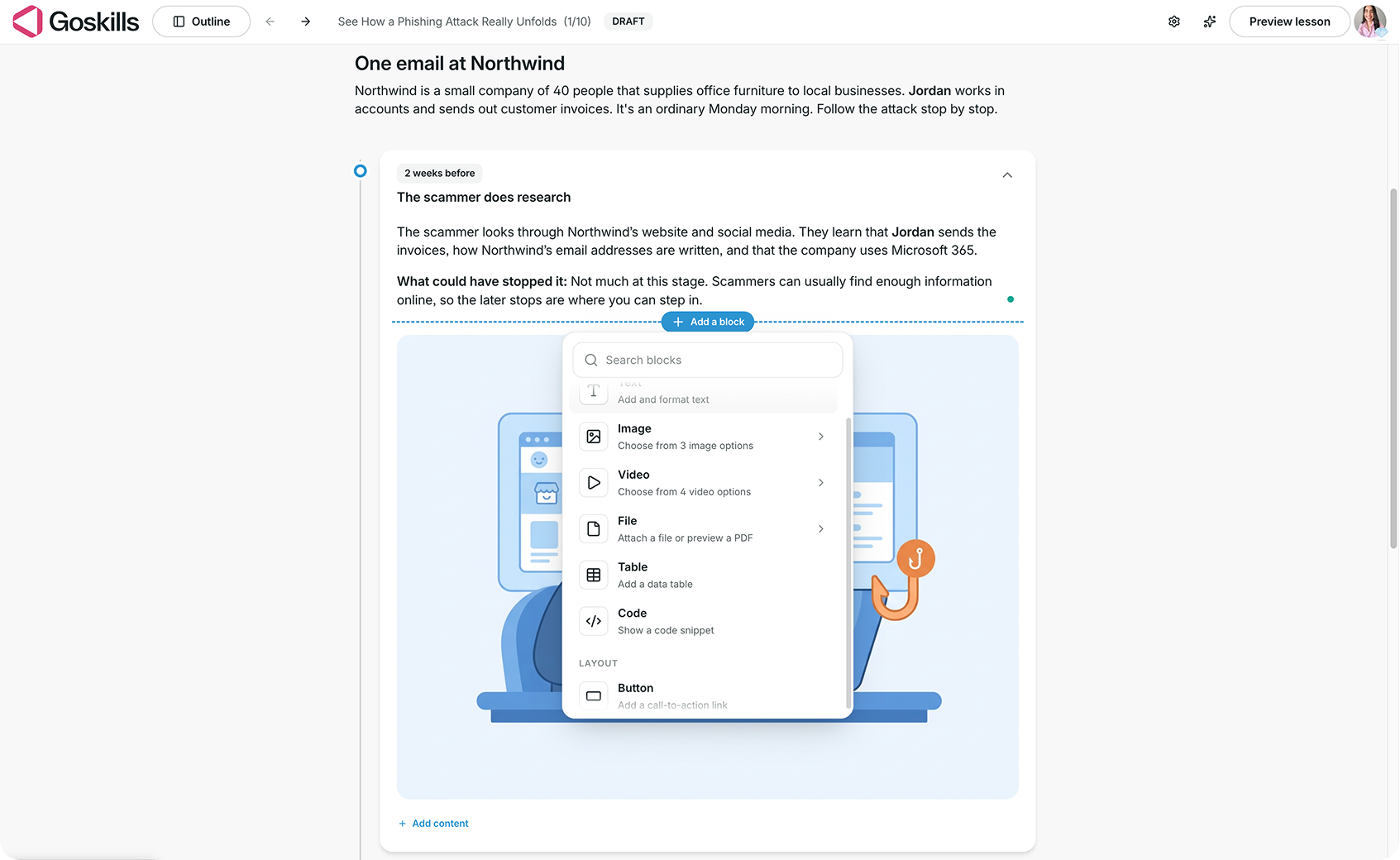
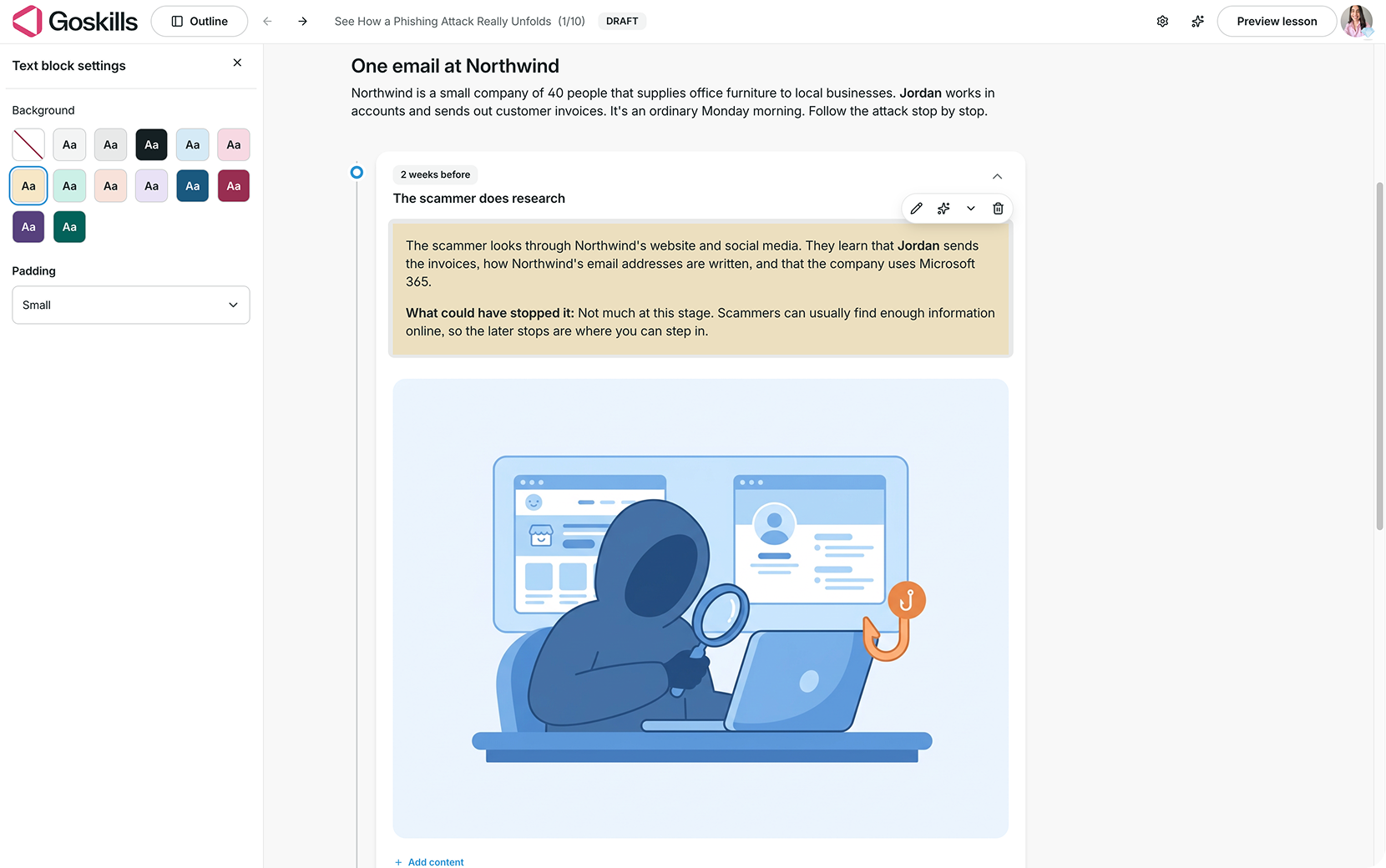
You can also customize individual text blocks within an event. Select the text, then click the pencil icon to edit it or adjust its settings, including background color and padding.
Adjust your Timeline settings
Select your Timeline block, click Edit, and open the Settings tab to customize how your timeline is displayed and how learners interact with it.
You’ll find the following options:
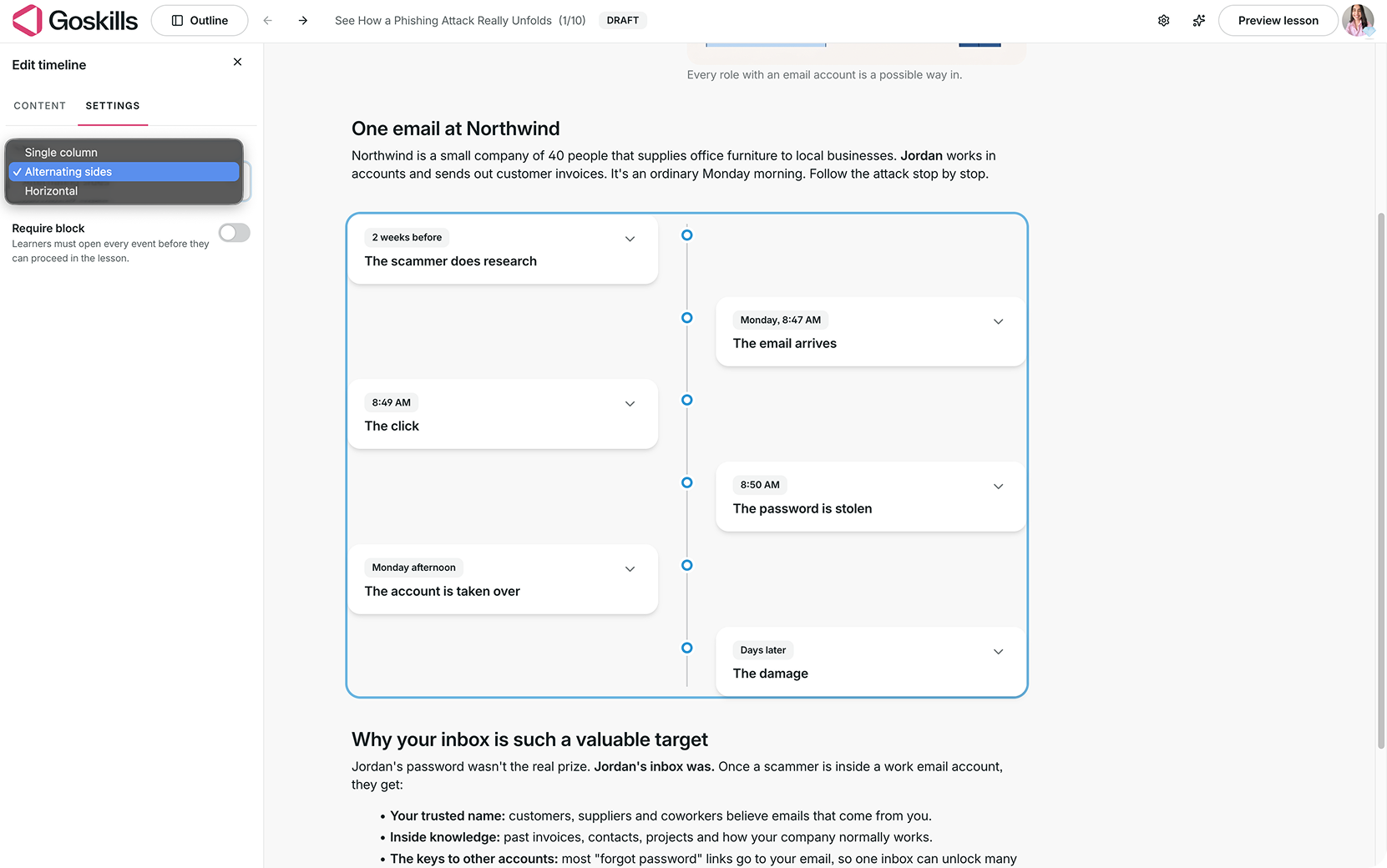
- Layout: Choose between three layouts:
- Single column: Displays events vertically along one side of the timeline. This is the default layout.
- Alternating sides: Displays events on alternating sides of a vertical timeline.
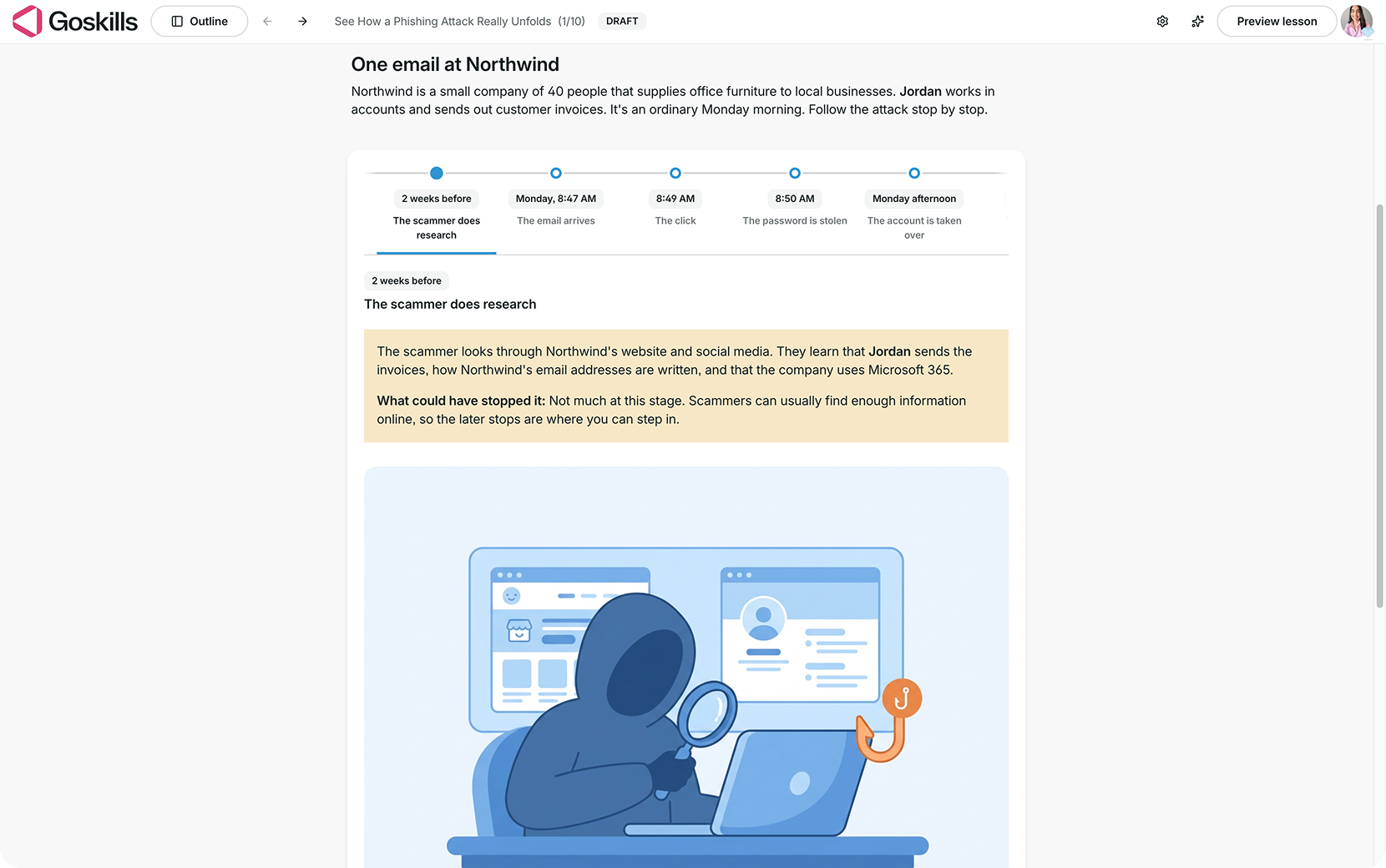
- Horizontal: Displays events along a horizontal timeline, with their content appearing below.
- Require block: Require learners to open every event before they can proceed in the lesson.
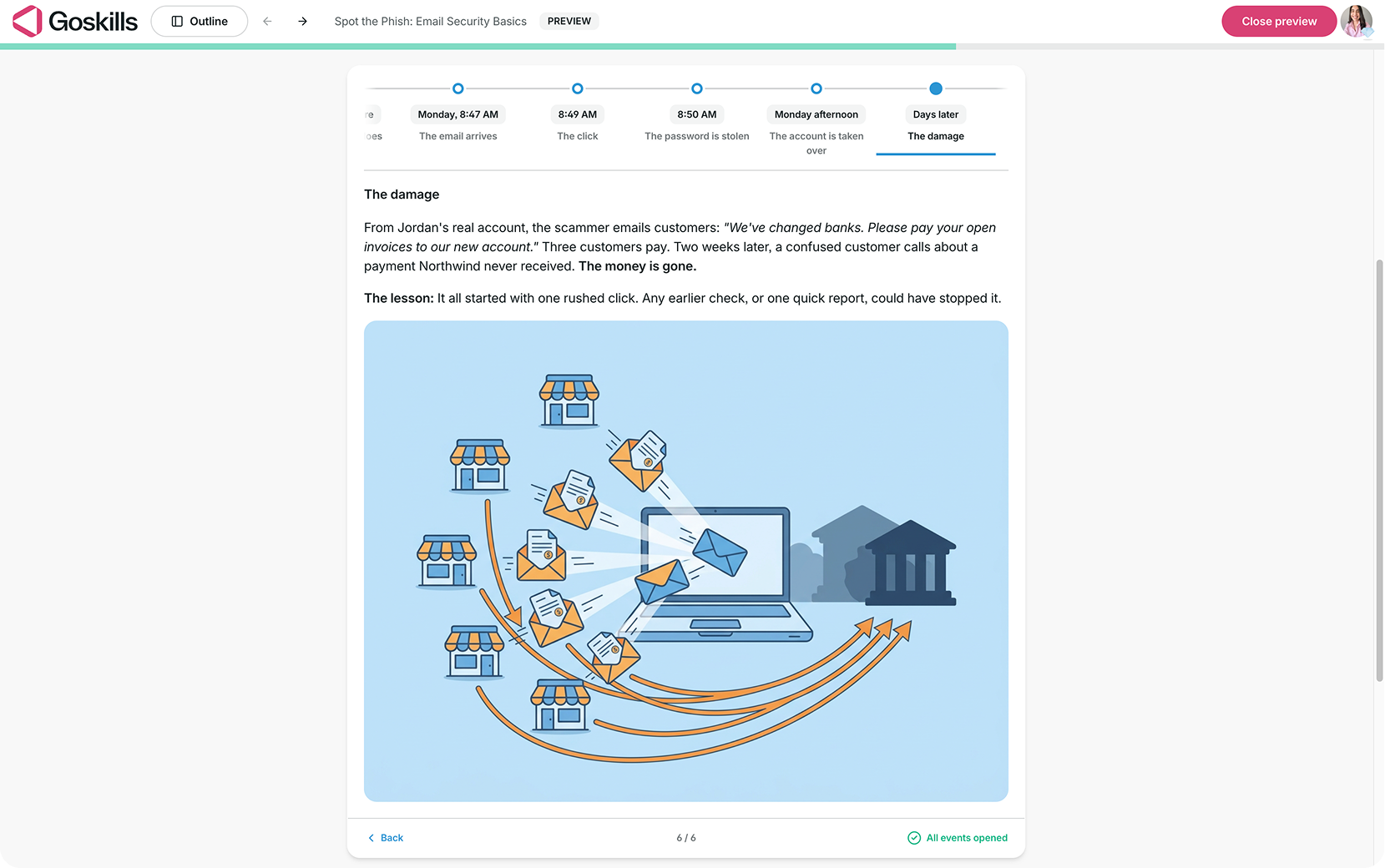
Here’s an example of how the same timeline looks using the Horizontal layout:
What does a Timeline block look like to learners?
Learners explore the timeline by selecting individual events to reveal their content. Depending on the layout you’ve chosen, events appear vertically or horizontally.
As they explore, a progress indicator shows how many events they’ve opened. Once they’ve opened every event, they’ll see an All events opened confirmation.
When should you use a Timeline block?
Timeline blocks work best when learners need to understand the order of events, how something develops over time, or the stages of a larger process. Here are a few ways to use them in your courses:
- Employee onboarding: Map out a new hire’s first 90 days, from their first day to their first performance review.
- Incident response training: Walk learners through the stages of an incident, from initial detection to investigation, resolution, and follow-up.
- Project management training: Illustrate the key phases of a project, from planning and execution to delivery.
- Product training: Show how a product evolves, highlighting important milestones, feature releases, and improvements.
Tip: Give each event a short, descriptive title and keep the sequence focused on a clear story or process. Include enough detail to explain each stage without overwhelming learners.