
The Flashcards block in the GoSkills Course Builder lets you create interactive cards that learners can flip to reveal information on the back. It helps learners review key concepts, memorize important information, and check their understanding as they go.
Each card has two sides: a front with a term, question, or image, and a back with the answer or explanation.
How to add a Flashcards block to a lesson
- Open your course in the Course Builder and go to the lesson where you want to add flashcards.
- Click Add a block, then select Flashcards under Interactive.
- Add your flashcards, entering a term or question on the front of each card. You can also include an image.
- Click Tap to edit the back to flip the card and add the answer or explanation.
- Repeat until you’ve added all your flashcards.
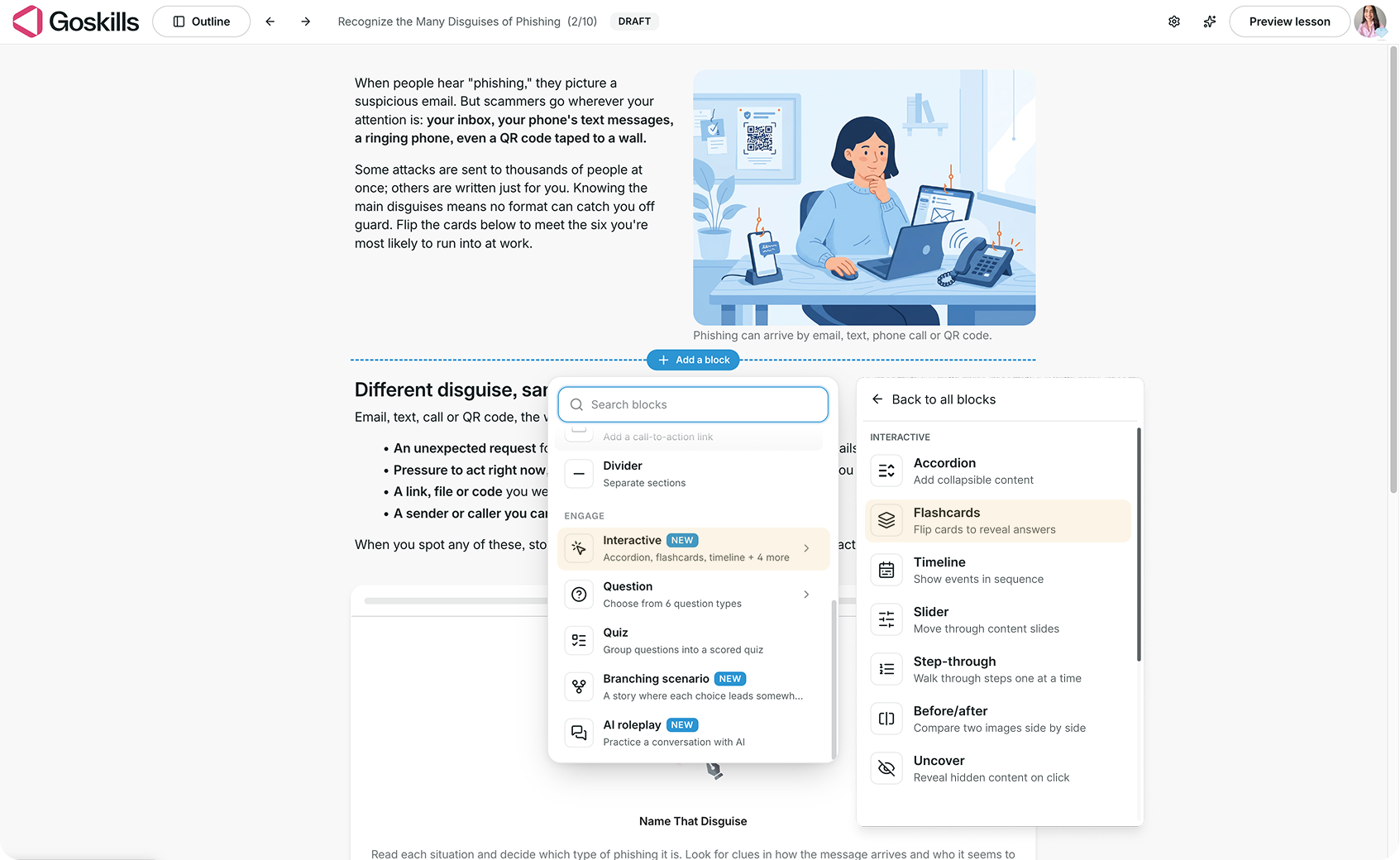
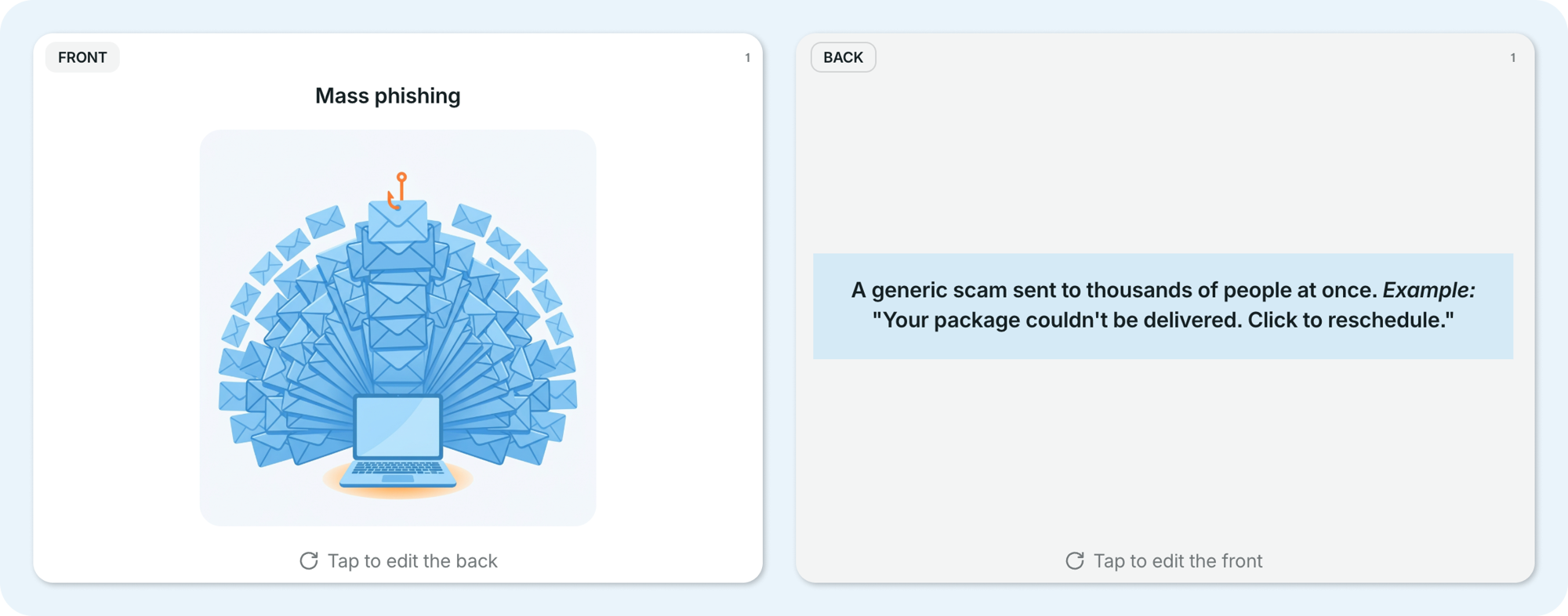
For example, in a cybersecurity awareness course, you could create flashcards introducing different types of phishing attacks. Each card shows the name of an attack on the front, with a short explanation and example on the back.
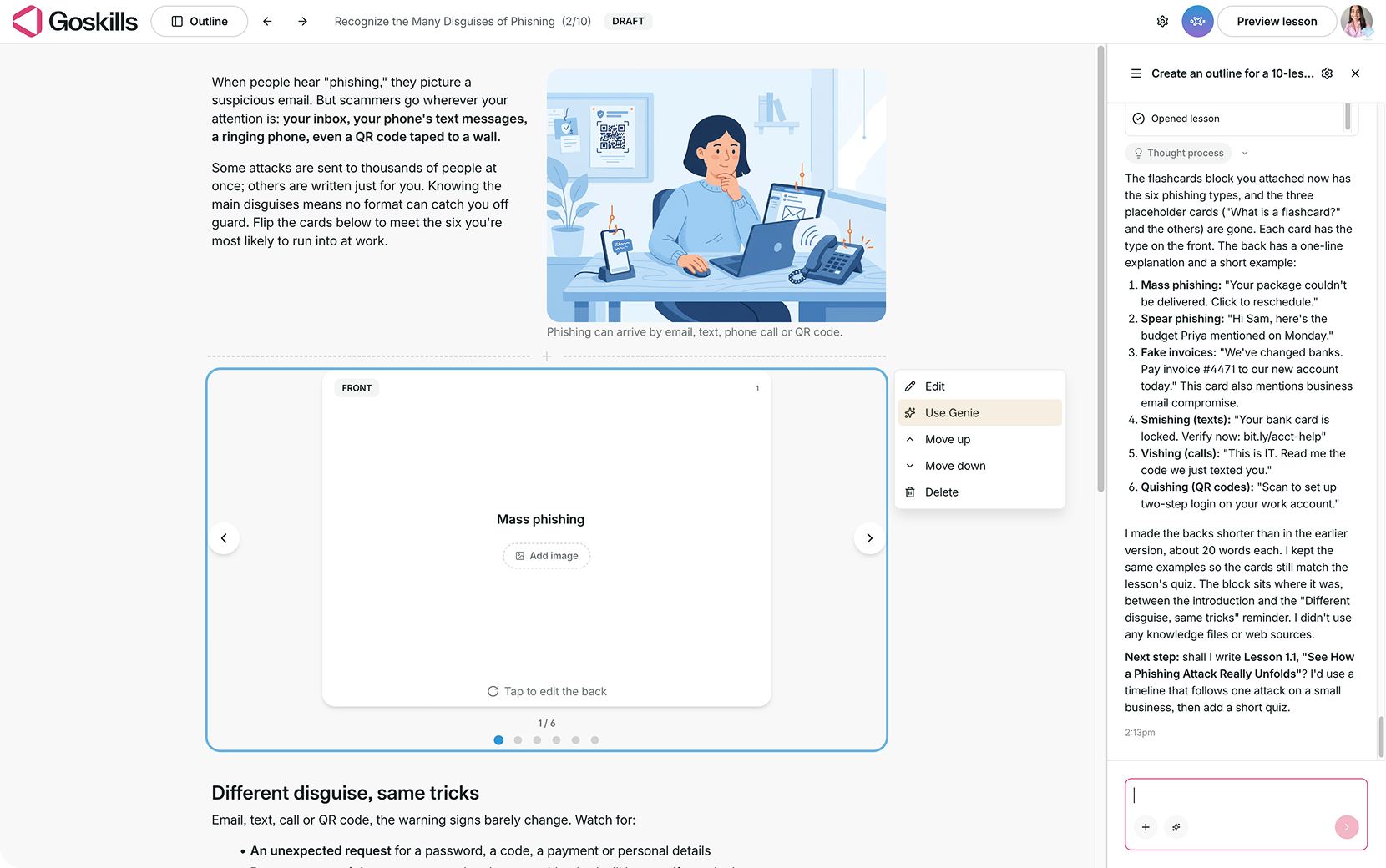
Create flashcards with Genie
You can use Genie, GoSkills’ AI course creator, to generate flashcards for your lesson.
Select your Flashcards block, click Use Genie, and describe the cards you’d like to create. For example, you could ask for six flashcards covering different types of phishing attacks, with a short definition and example for each.
Genie may also add Flashcards automatically when it identifies a good fit for your lesson. You can review and edit the generated cards afterward.
Customize the content on your flashcards
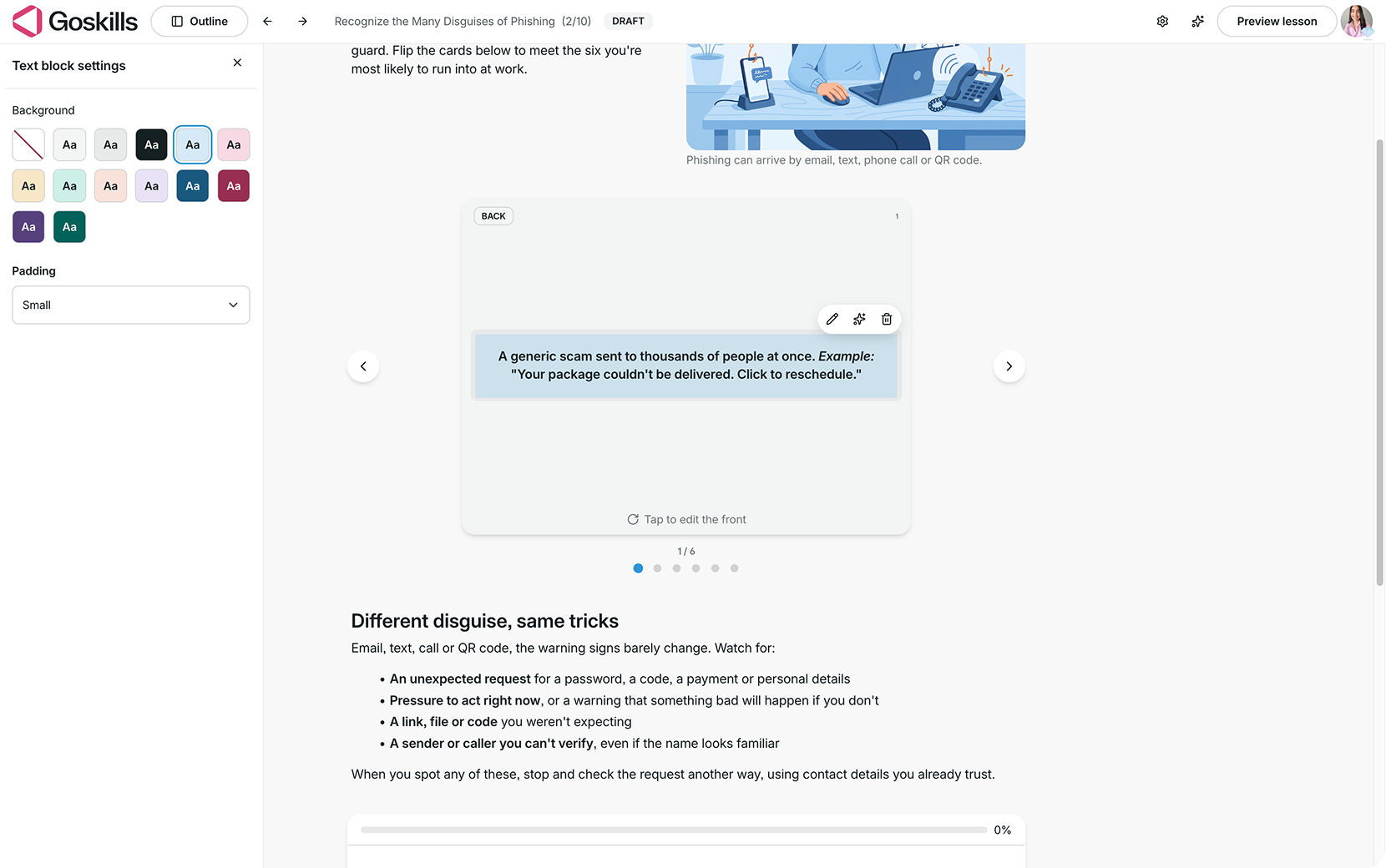
You can customize the content on the back of each card to make important information stand out.
Select the text on the back of a flashcard, then click the pencil icon to edit it. In Text block settings, you can change the background color, adjust the padding, and edit the text and its formatting.
Adjust your Flashcards settings
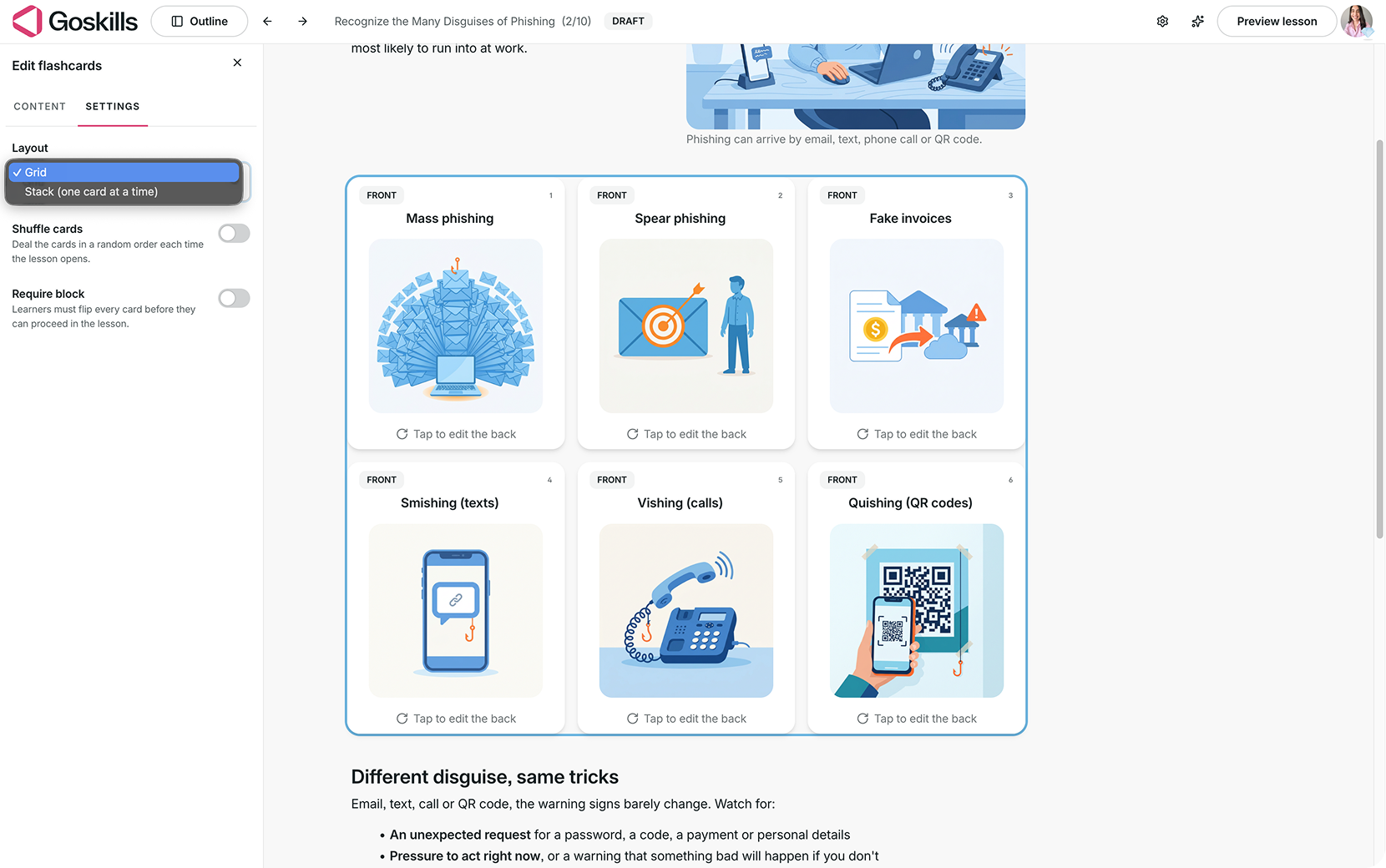
Select your Flashcards block, click Edit, and open the Settings tab to customize how your cards are displayed and how learners interact with them.
You’ll find the following options:
- Layout: Choose between Grid, which displays multiple cards at once, and Stack, which displays one card at a time.
- Shuffle cards: Display the cards in a random order each time the lesson opens.
- Require block: Require learners to flip every card before they can proceed in the lesson.
What does a Flashcards block look like to learners?
Learners flip each card to reveal the answer or explanation on the back. Depending on the layout you choose, they can see one card at a time or multiple cards in a grid.
This gives learners a way to recall information before checking the answer. If Shuffle cards is enabled, the cards appear in a different order each time they open the lesson.
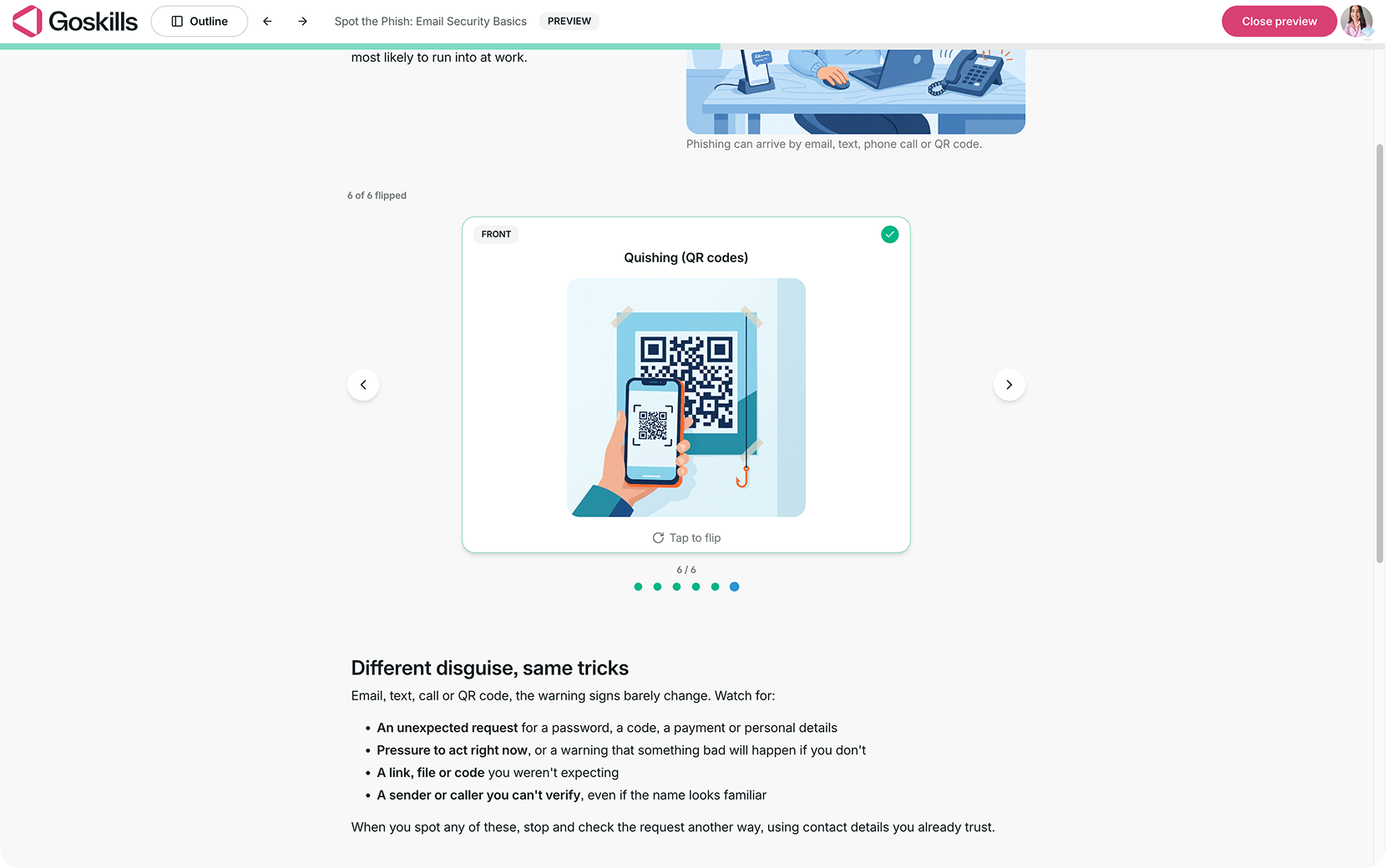
If Require block is enabled, learners must flip every card before they can proceed in the lesson.
When should you use a Flashcards block?
Flashcards work best when learners need to remember information, review key concepts, or practice recalling answers. Here are a few ways to use them in your courses:
- Compliance training: Reinforce important policies, regulations, and procedures that employees need to remember.
- Customer service training: Present common customer questions on the front, with recommended responses on the back.
- Product training: Help learners memorize product features, key benefits, or technical terminology.
- Leadership development: Introduce common workplace situations and reveal useful management or coaching tips.
Tip: Keep the front of each flashcard focused on one term or question, and make the answer on the back clear and concise. This makes it easier for learners to test themselves and remember what they’ve learned.