
The Before/after block in the GoSkills Course Builder lets you compare two versions of an image in one interactive view. Learners drag a divider across the image to reveal one version over the other.
This block works well when you want learners to spot differences, compare examples, or see how something changes from one state to another.
How to add a Before/after block to a lesson
- Open your course in the Course Builder and go to the lesson where you want to add the block.
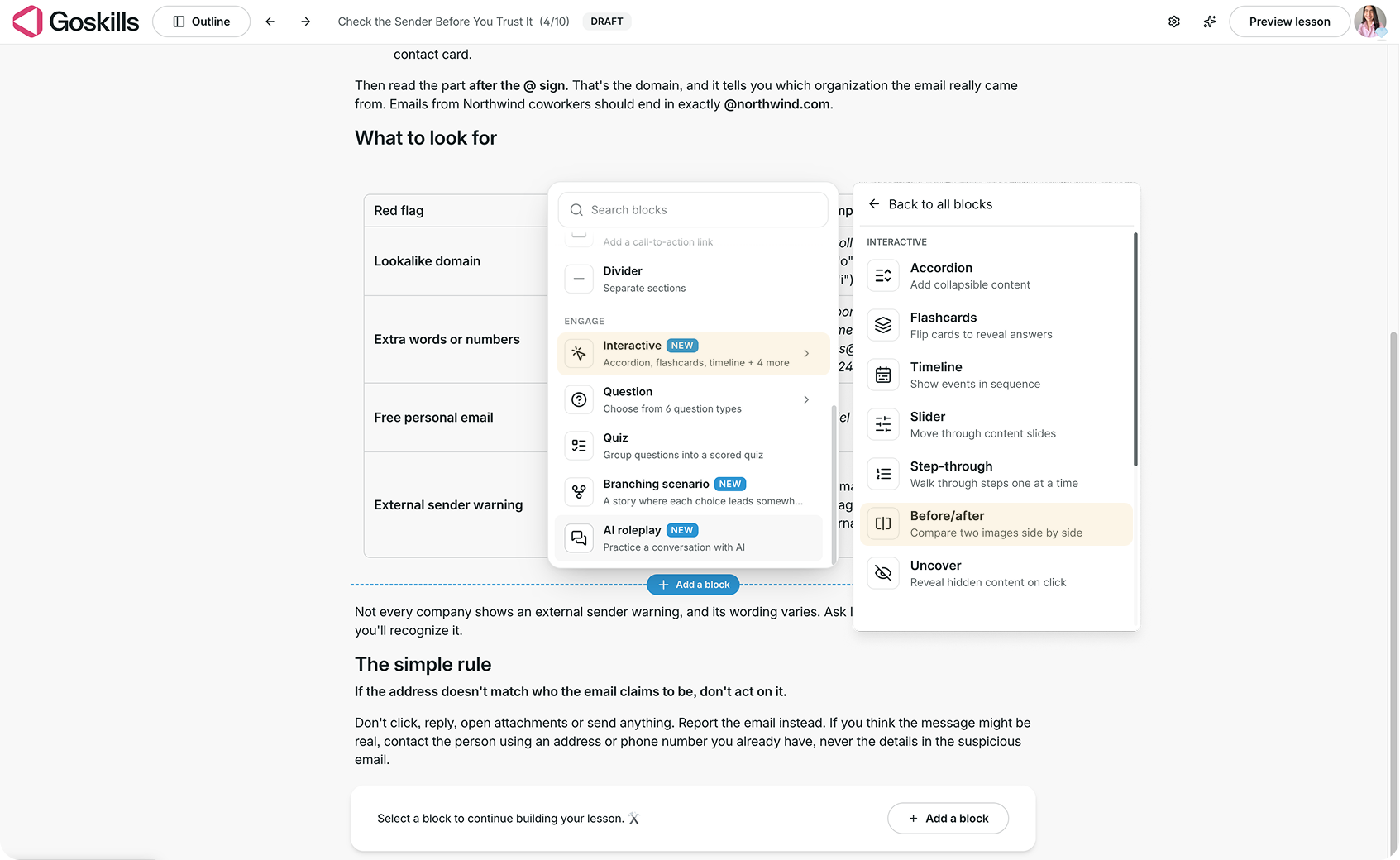
- Click Add a block, then select Before/after under Interactive.
- Select the block and click Edit to start adding your images.
Add your before and after images
When you open the block editor, you’ll see two parts:
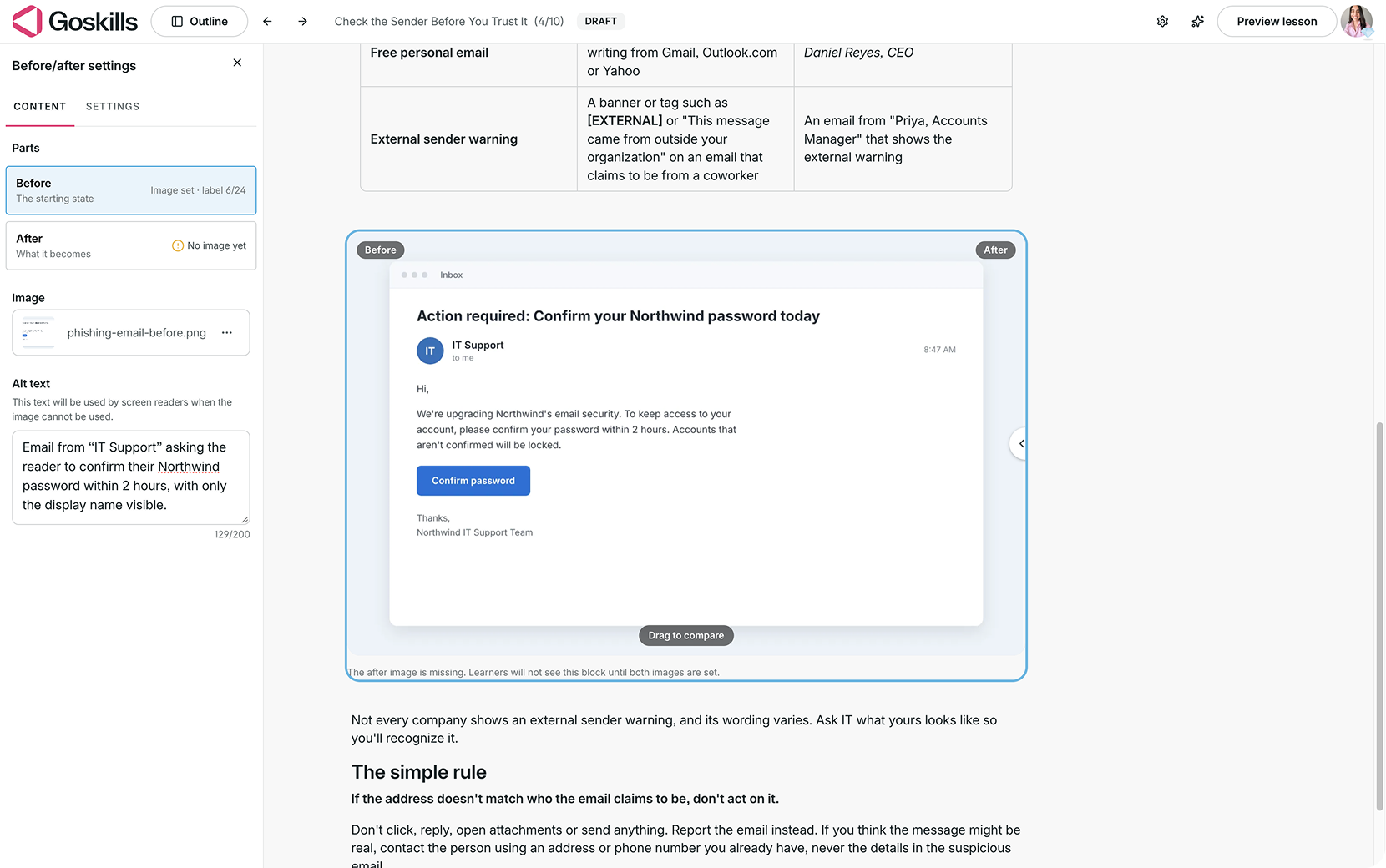
- Before: The original or starting image.
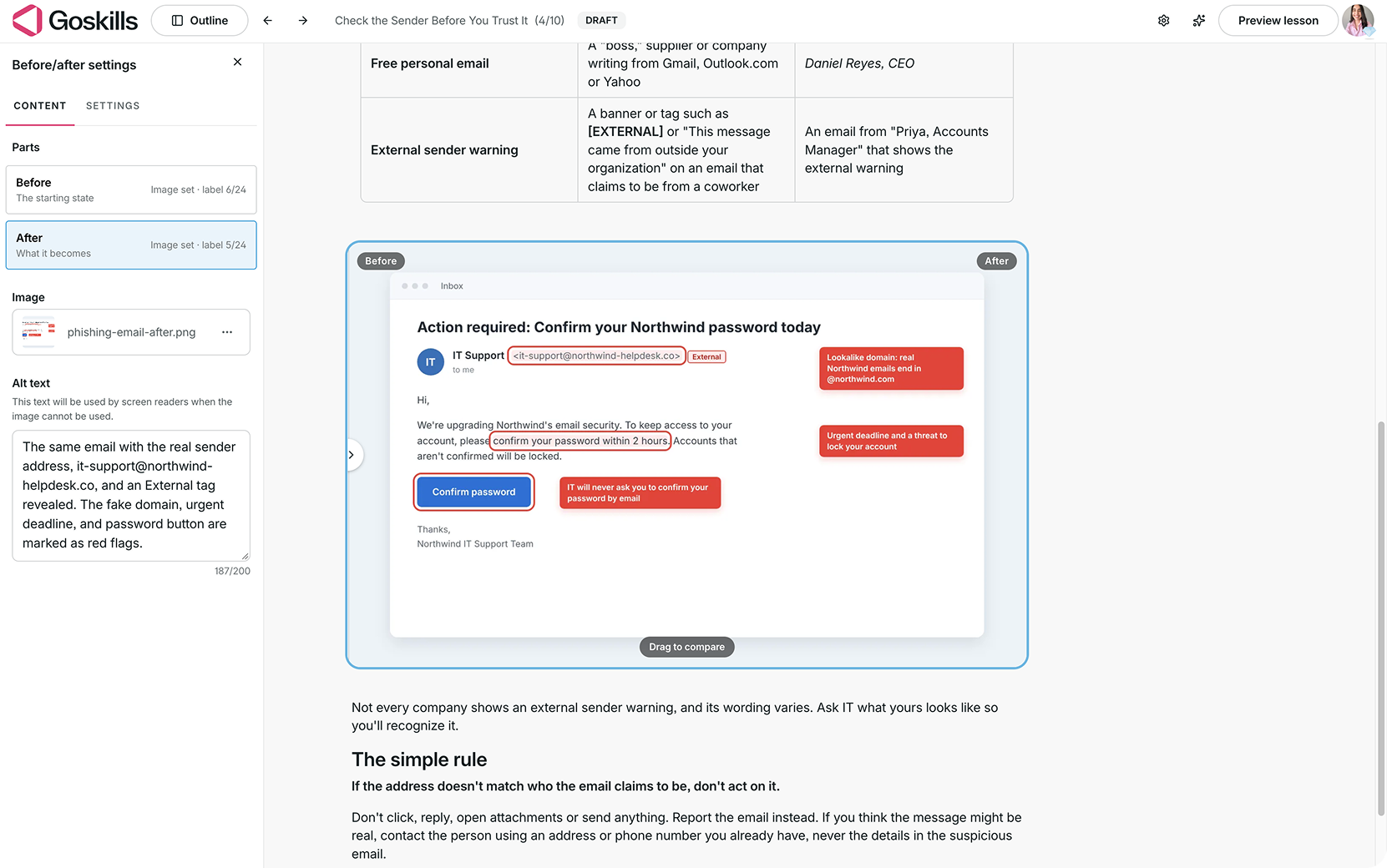
- After: The comparison image, such as an updated or annotated version.
Select Before, upload your first image, and add descriptive alt text for accessibility.
Then select After, upload the second image, and add alt text describing that version.
Note: Learners will not see the block until both images have been added.
Create with Genie: Genie, GoSkills’ AI course creator, can generate a Before/after block when requested or add one automatically when it identifies a good fit for your lesson.
Adjust your Before/after settings
Select your Before/after block, click Edit, and open the Settings tab to customize how the block behaves.
You’ll find the following options:
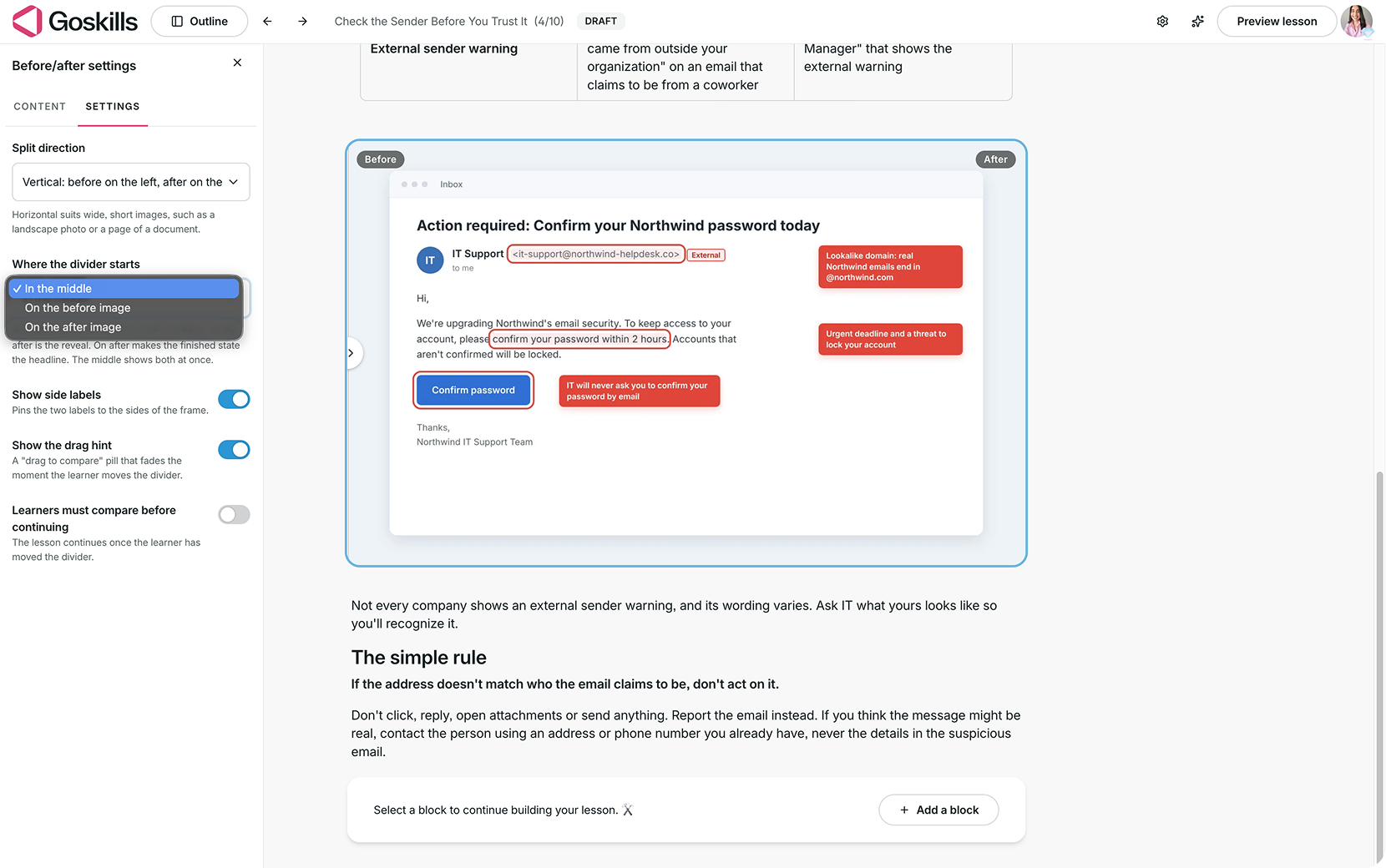
- Split direction: Choose between Vertical, which places the before and after images on the left and right, and Horizontal, which places them at the top and bottom.
- Where the divider starts: Set the divider to begin in the middle, on the before image, or on the after image.
- Show side labels: Display Before and After labels on the block.
- Show the drag hint: Show a Drag to compare hint to help learners understand how to interact with the block.
- Learners must compare before continuing: Require learners to move the divider before proceeding in the lesson.
By default, the divider starts in the middle.
What does a Before/after block look like to learners?
Learners see a single image frame with a draggable divider. They move the divider to compare the two versions of the image.
If Show side labels is turned on, learners see Before and After labels. If Show the drag hint is on, they also see a Drag to compare prompt until they begin interacting.
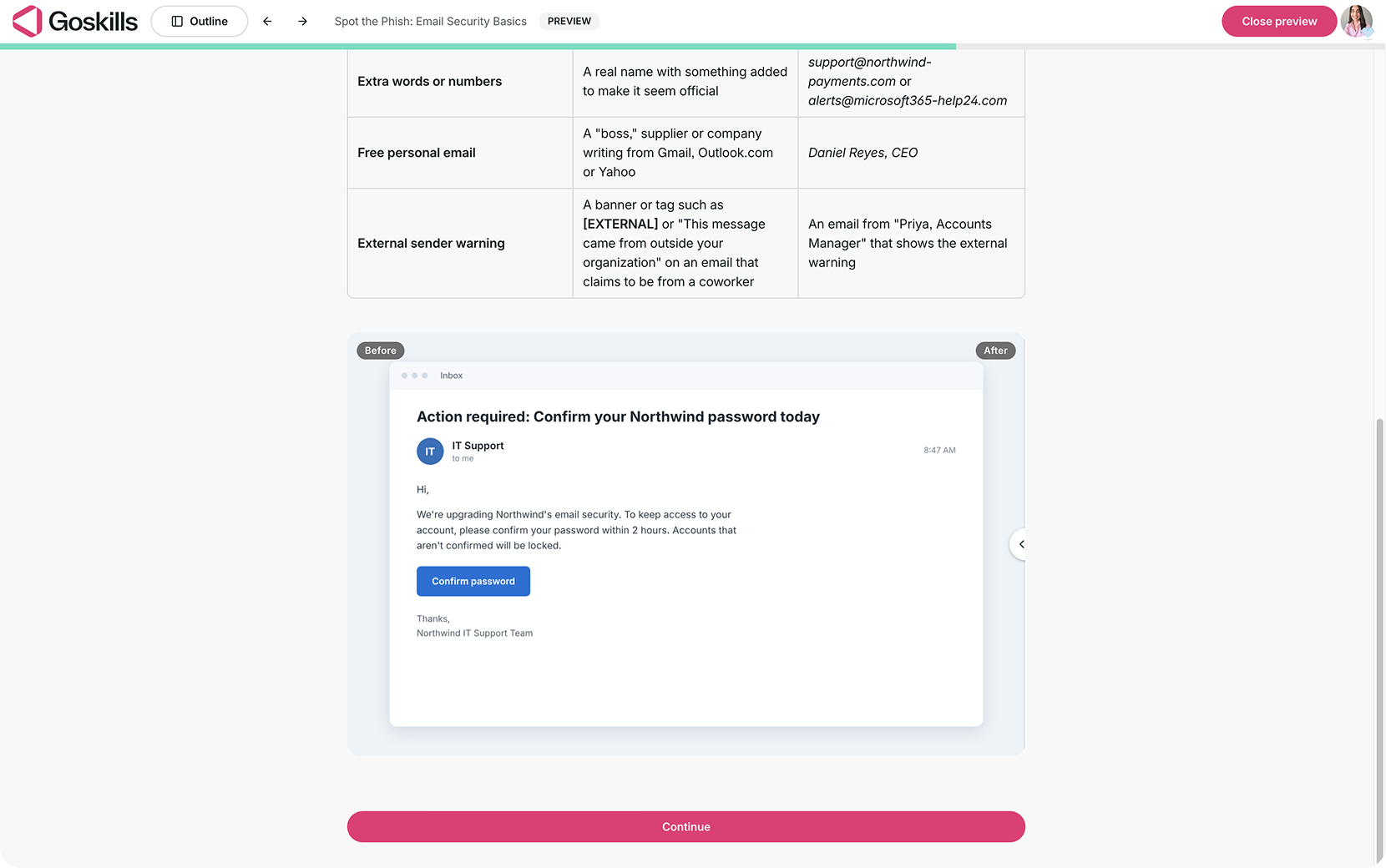
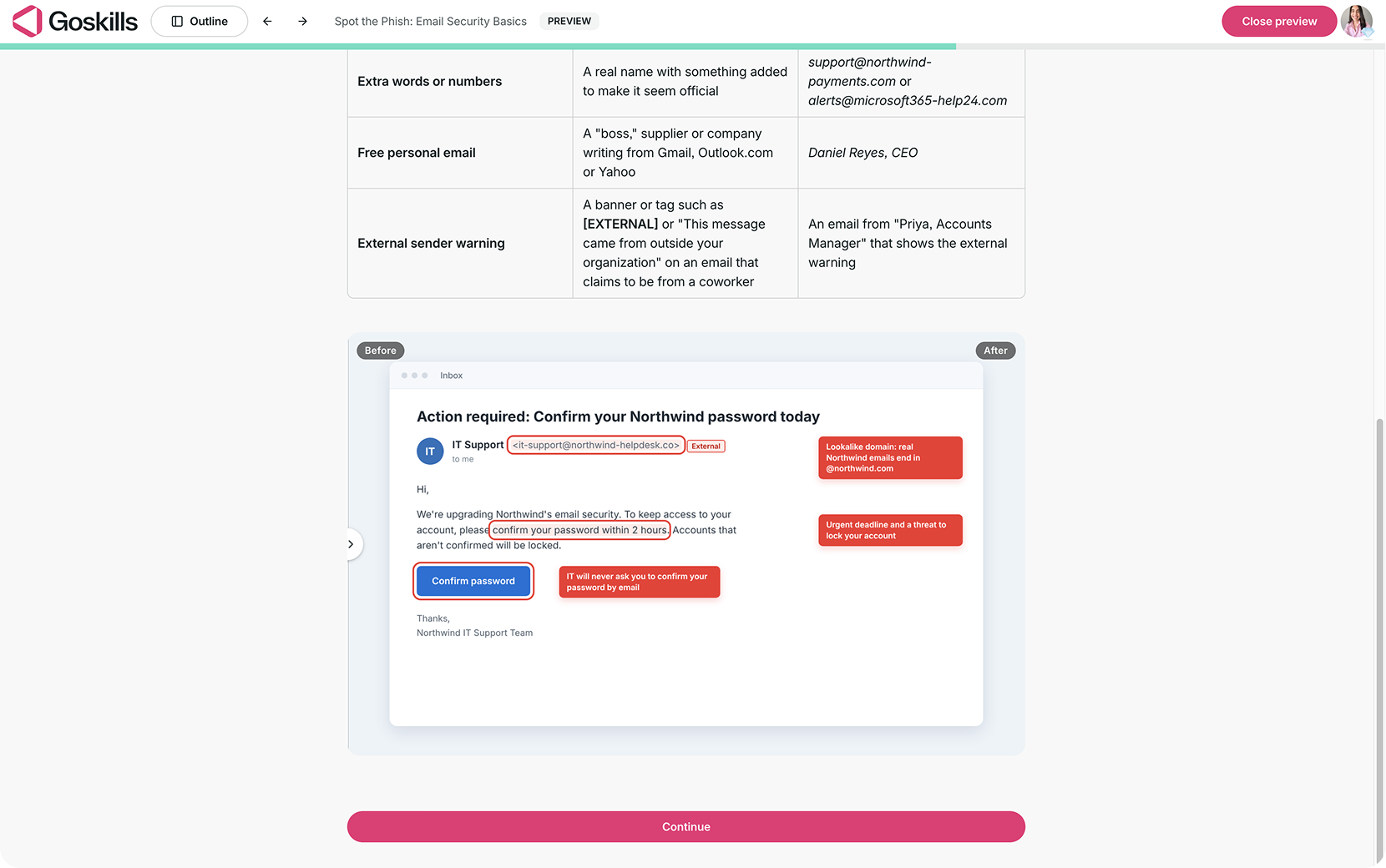
With the vertical split shown here, dragging the divider to the right reveals more of the Before image. Dragging it to the left reveals more of the After image.
If you’ve enabled Learners must compare before continuing, learners need to move the divider before they can proceed in the lesson.
When should you use a Before/after block?
Before/after blocks work best when learners need to compare two visual states and understand what changed. Here are a few ways to use them in your courses:
- Compliance training: Compare a correct example with one that includes compliance issues or warning signs.
- Cybersecurity training: Show a suspicious email before and after red flags are identified.
- Design or branding training: Compare an original version with an updated or corrected version.
- Process training: Show a workspace, document, or setup before and after the proper changes are made.
Tip: Use images that are clearly related and make sure the differences support the learning goal. Add short, descriptive alt text to both versions for accessibility.