
The Branching scenario block in the GoSkills Course Builder turns a lesson into a short, interactive story. Learners read a realistic situation, choose how to respond, and see what happens next based on their choice.
Instead of just reading about the right thing to do, learners get to practice it. They can make mistakes, see the consequences, and try again in a safe space. It’s a great fit for topics where learners need to explore better and worse ways of handling a situation, rather than memorize a single fact.
How a branching scenario works
Each Branching scenario block has a few key parts:
- Setup: A title and a short line of context that sets the scene.
- Story steps: Numbered steps that move the story forward. Each step is either narration that describes what happens or dialogue where a character speaks.
- Learner responses: At any step, you can give learners a few replies to choose from. Each response is rated Best, OK, or Miss and includes short feedback explaining the result.
- Then: A rule on each response that determines where learners go next, creating the different branches.
- Debrief: A closing message that everyone sees at the end, regardless of the path they took.
How to add a Branching scenario block to a lesson
- Open your course in the Course Builder and go to the lesson where you want to add the block.
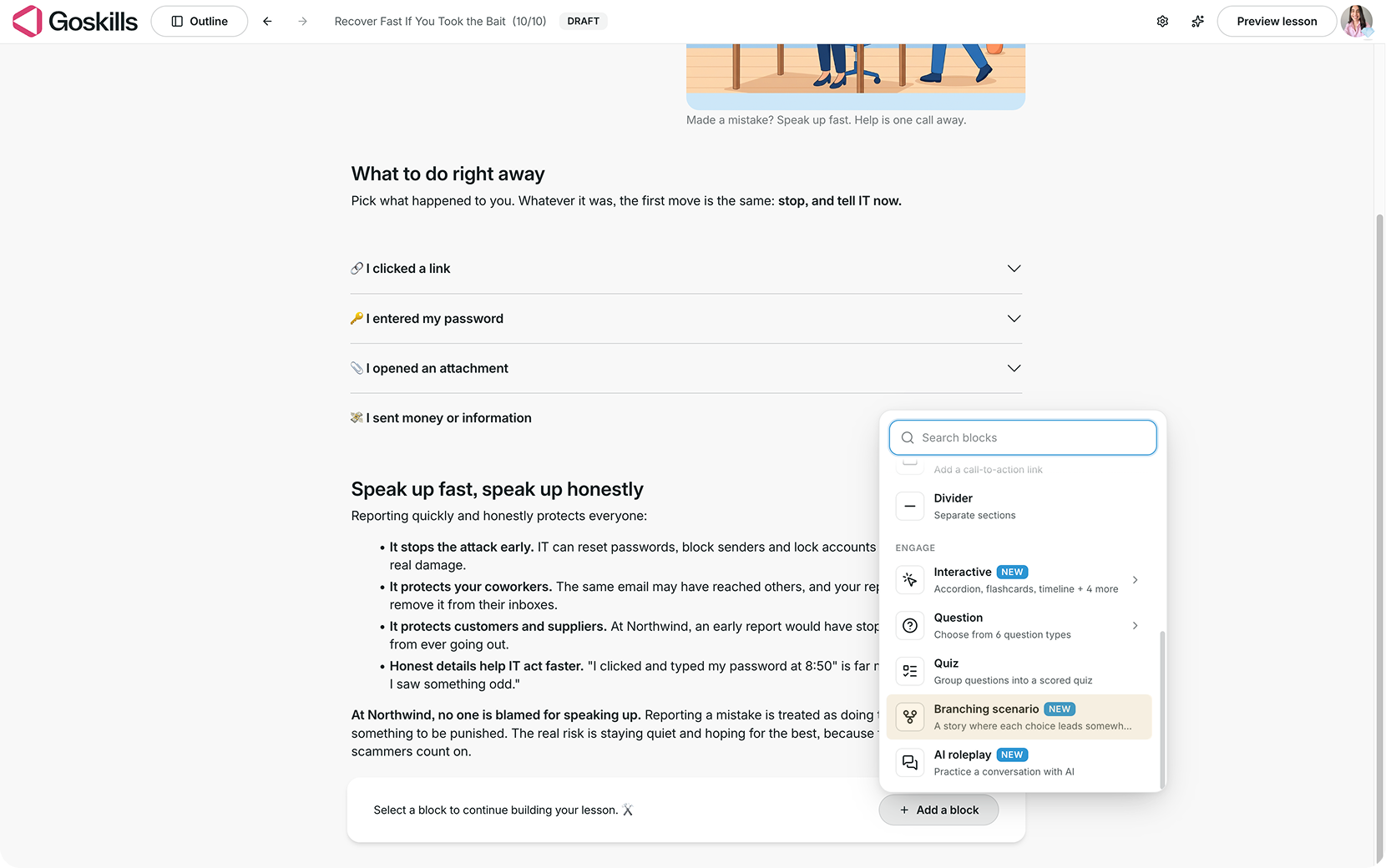
- Click Add a block, then select Branching scenario under Engage.
- Your block will appear with a sample story that you can edit or replace.
Build your story
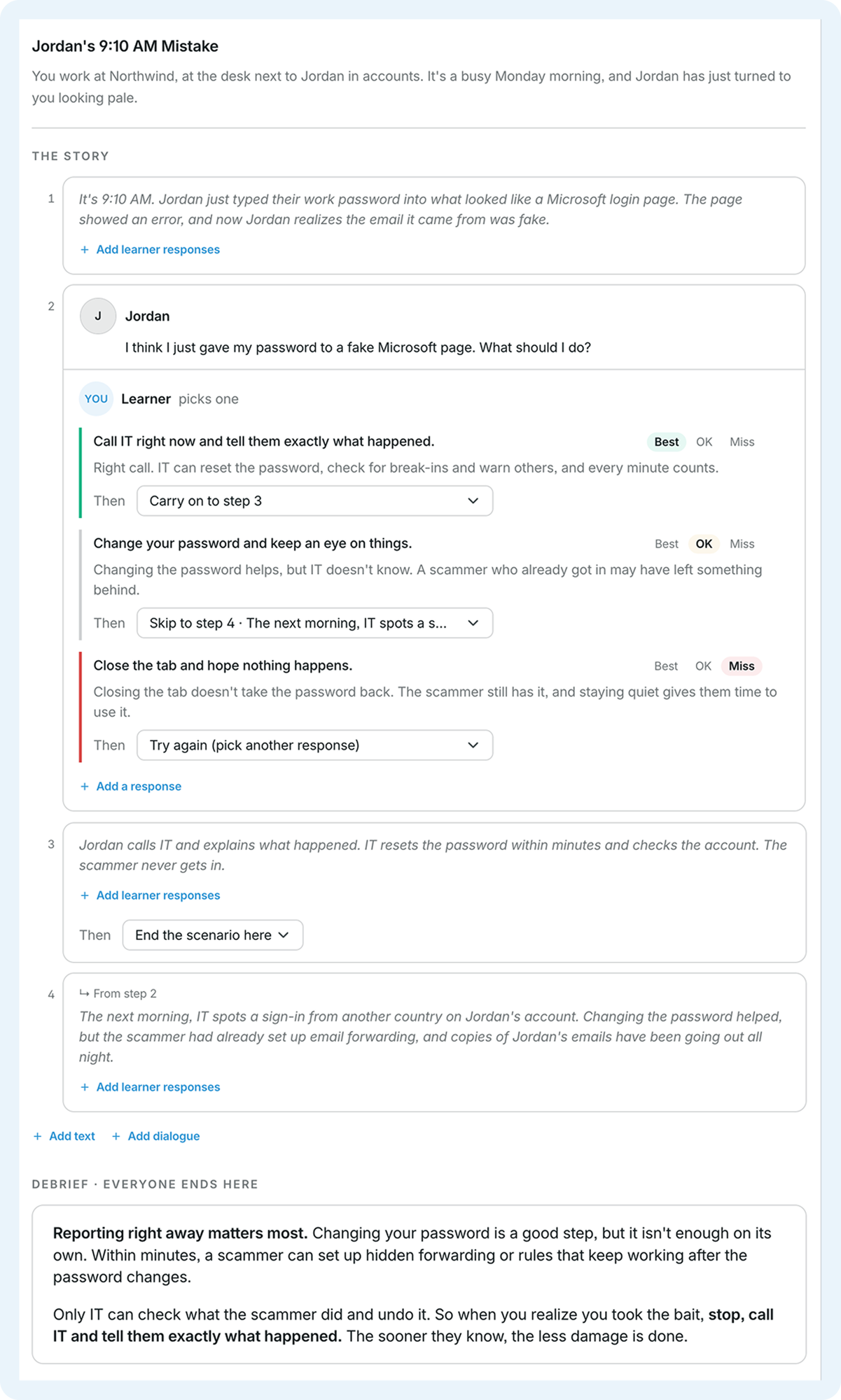
You edit the story directly inside the block, one step at a time.
- Set the scene. Give your scenario a title and a short line of context, such as who the learner is and what’s happening.
- Add story steps. Click Add text for narration or Add dialogue for a character’s line. Dialogue steps show the character’s name and avatar.
- Add learner responses. On any step, click Add learner responses, then Add a response for each option you want learners to choose from.
- Rate each response. Mark it as Best, OK, or Miss, and write a short line of feedback that explains why.
- Choose what happens next. Use the Then menu on each response to determine which path learners take.
- Write the debrief. Wrap up the key lessons at the bottom of the block, under Debrief.
The Then menu controls where each response leads. You can choose to:
- Carry on to step X: Continue to the next part of the story.
- Skip to step X: Jump ahead to a different branch.
- Try again (pick another response): Show the feedback and let learners choose again. This works well for Miss responses.
- End the scenario here: Stop the story and take learners to the debrief.
- Carry on to the debrief: Go straight to the closing message.
Steps that learners reach by skipping ahead are labeled From step X, so you can always see where each branch starts.
Tip: Steps play in order unless you tell them otherwise. If a branch should stop before the next step, set its last step to End the scenario here or Carry on to the debrief. Otherwise, learners may continue into a step that belongs to a different path.
Check your branches with Show as map
When your story has several branches, a map makes it easier to see how they connect. Select your Branching scenario block and click Show as map to turn the story into a flowchart.
The map shows how every step and response connects, from Start to Debrief. You can switch between a Horizontal and Vertical layout, zoom in and out, fit the map to the screen, or open it in full screen. To go back to the regular view, click Show as list.
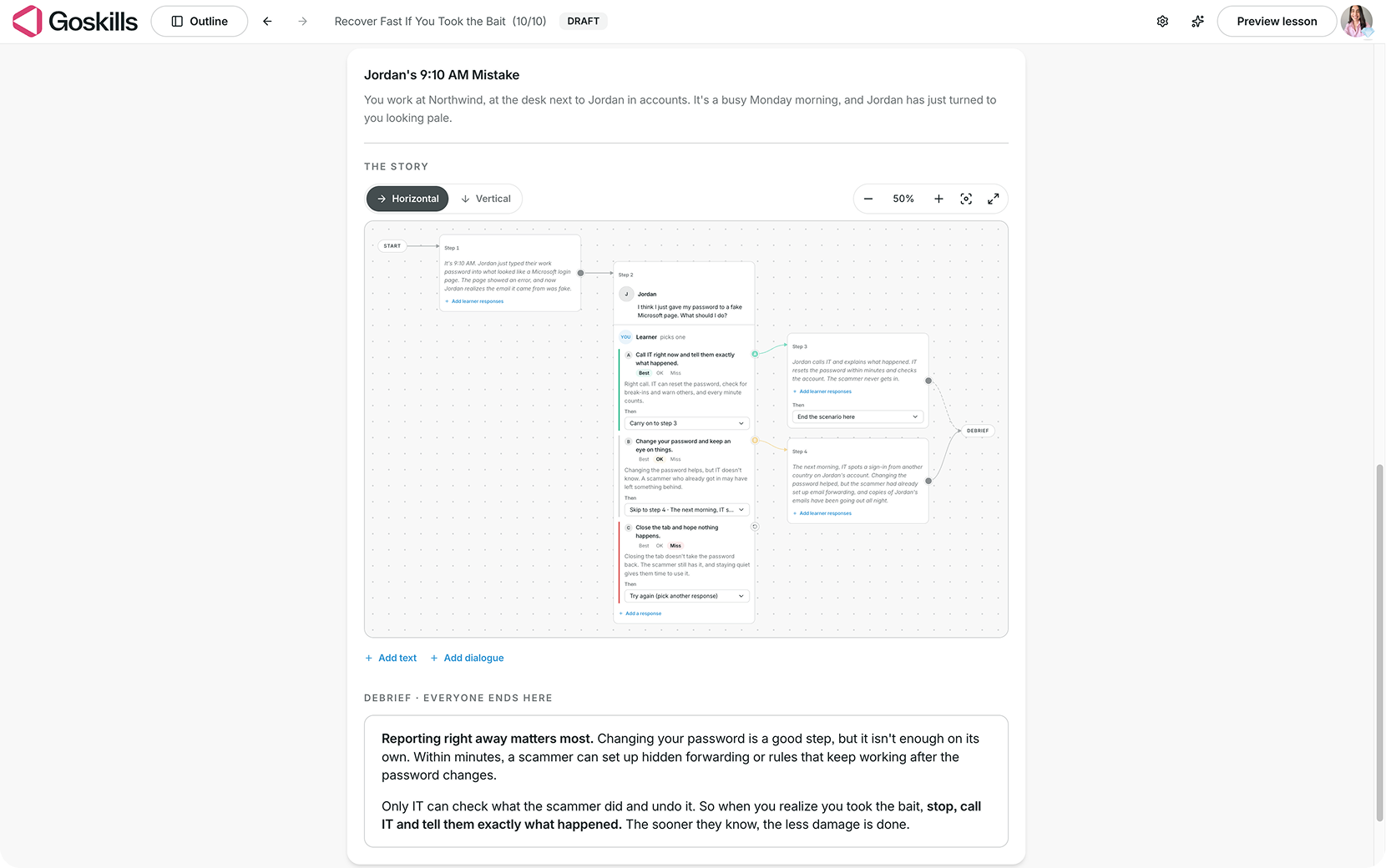
Tip: Check the map before you publish. It’s the quickest way to spot a step that connects to the wrong place.
Prefer to let Genie do it? Genie, GoSkills’ AI course creator, can create a full branching scenario for you, including the steps, responses, ratings, and feedback. Select the block, click Use Genie, and describe the situation you want learners to practice. Genie may also add a Branching scenario automatically when it identifies a good fit for your lesson.
Adjust your Branching scenario settings
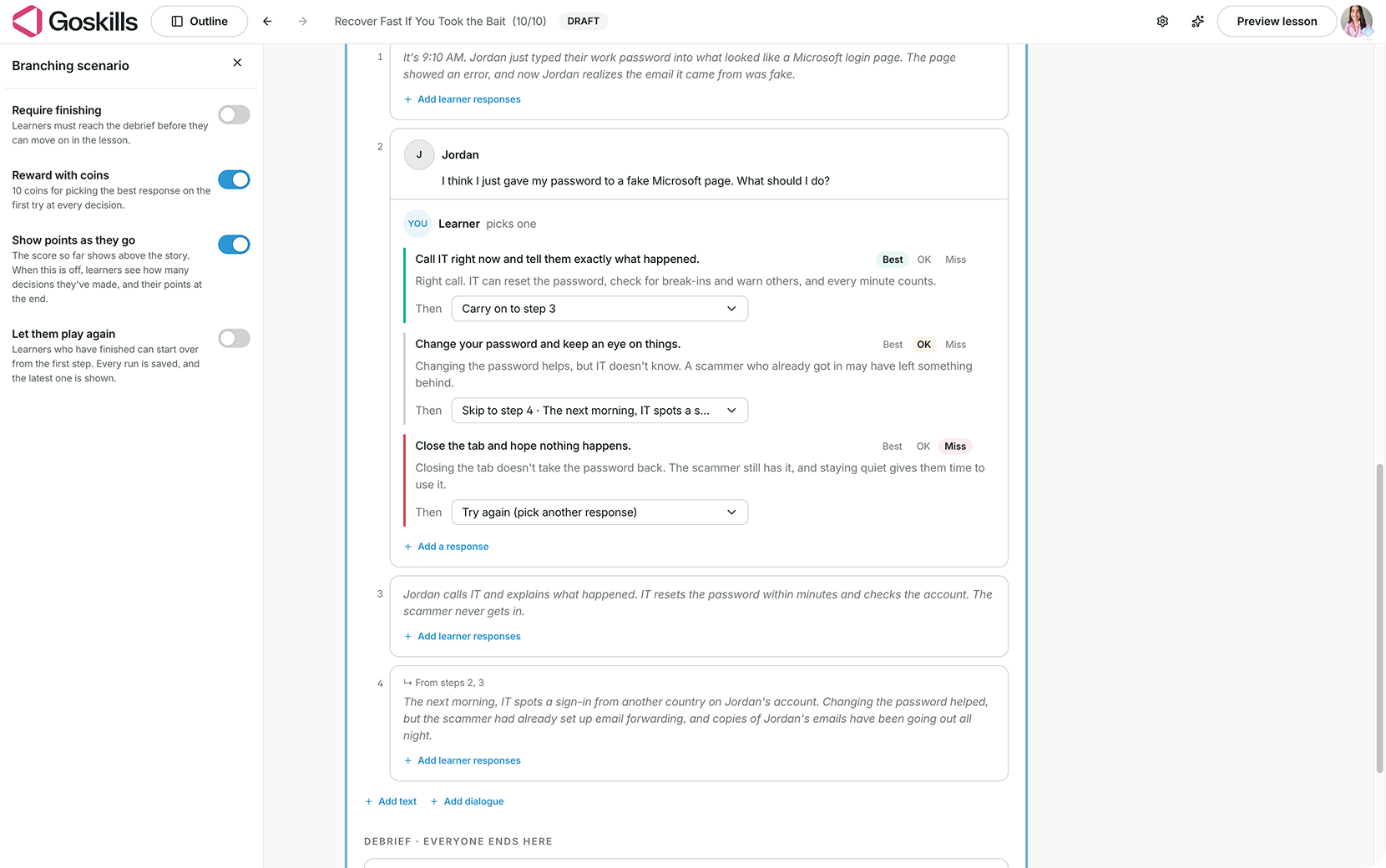
Select your Branching scenario block and click Edit to open its settings. You’ll find four options:
- Require finishing: Learners must reach the debrief before they can move on in the lesson.
- Reward with coins: Learners earn 10 coins for picking the Best response on the first try at every decision.
- Show points as they go: Display the learner’s score above the story as they play. When this is turned off, learners see how many decisions they’ve made, and their points appear at the end.
- Let them play again: Learners who have finished can start over from the first step. Every run is saved, and the latest one is shown.
What does a Branching scenario look like to learners?
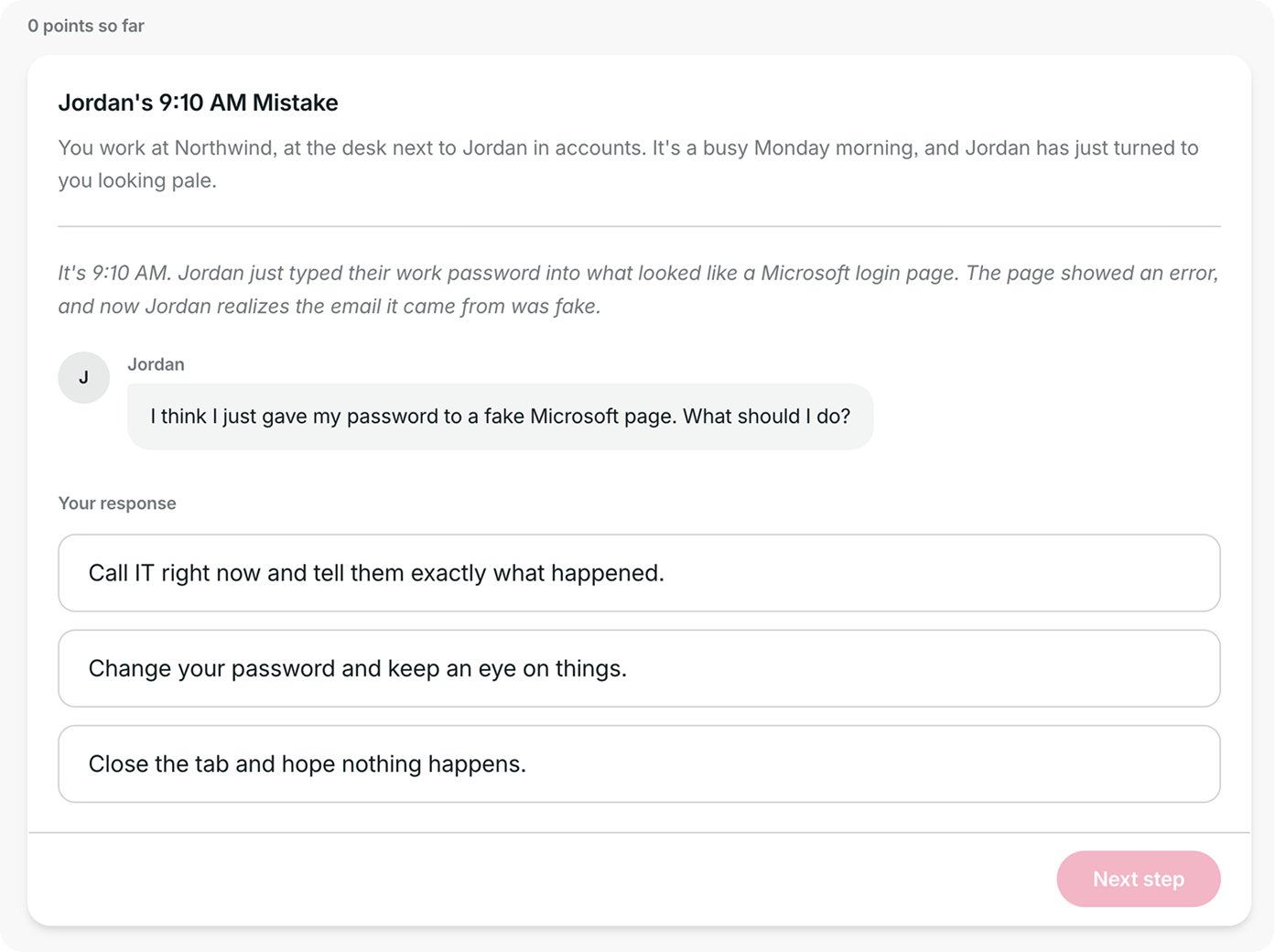
Learners move through the story one step at a time, selecting Next step to continue. Dialogue appears as chat bubbles, making the scenario feel like a real conversation. When they reach a decision, they choose a response under Your response.
For example, in a cybersecurity awareness course, a coworker might admit they’ve just typed their password into a fake login page and ask what to do. Learners choose how to respond.
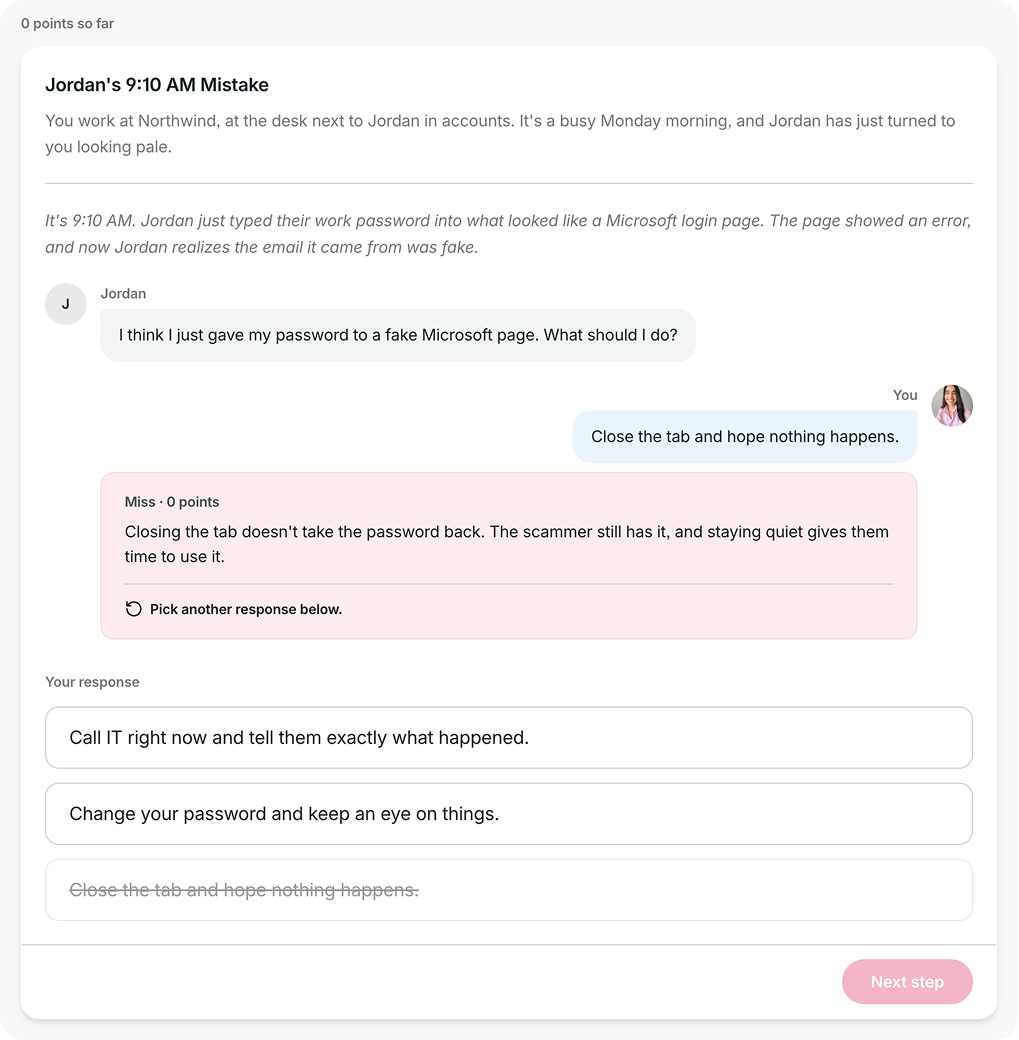
After each choice, learners see color-coded feedback: green for Best, yellow for OK, and red for Miss. If a response is set to Try again, the missed option is crossed out, and learners choose another response.
How points and coins work
- Best on the first try: +2 points
- OK: +1 point
- Miss: 0 points
- Best after a retry: no points, but learners still see the feedback and continue
If Reward with coins is on, learners also earn 10 coins for picking the Best response on the first try at every decision.
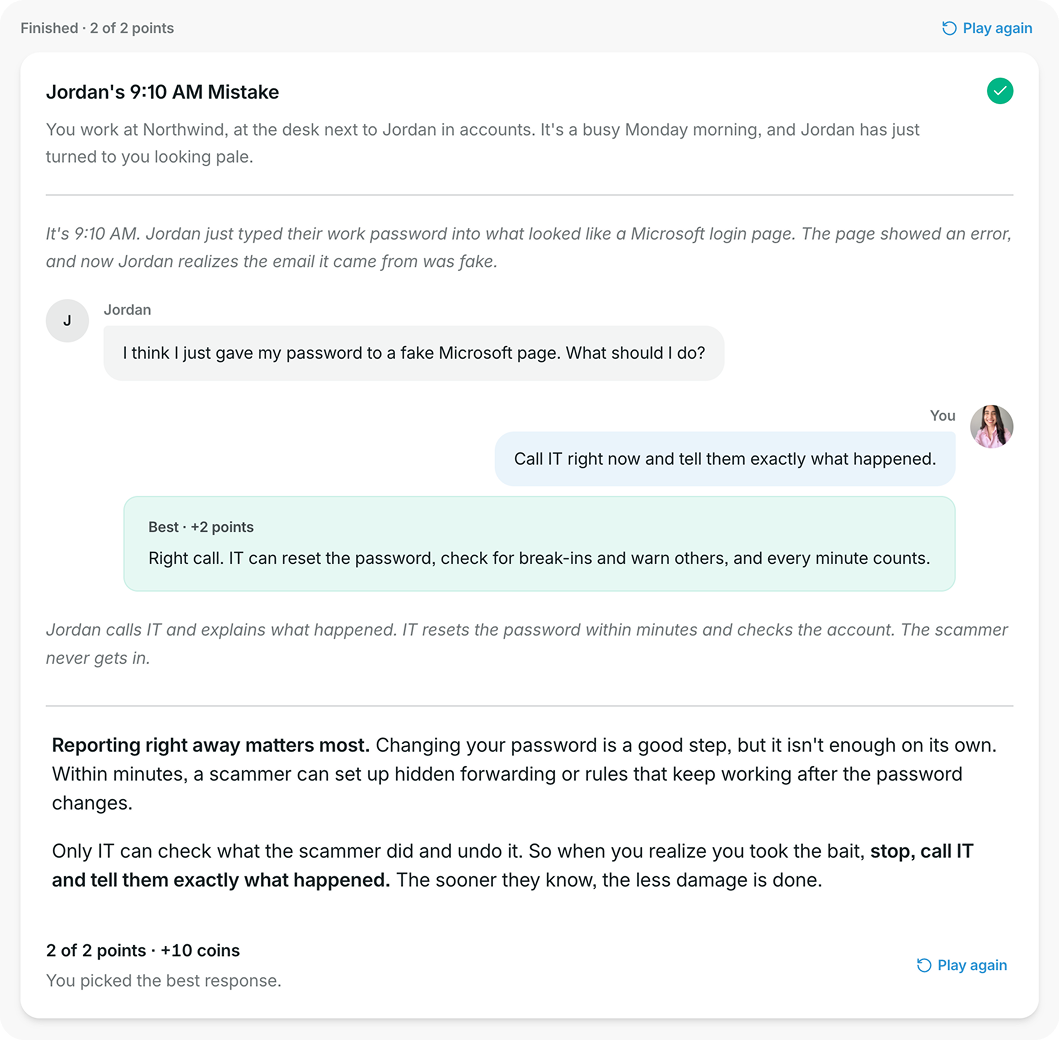
At the end, learners see the debrief, their final score, and a short summary of how they did. A green checkmark shows the block is complete, and the whole conversation stays on screen so they can look back at their choices. If Let them play again is on, they can select Play again to try a different path.
If you’ve turned on Require finishing, learners need to reach the debrief before they can move on in the lesson.
When should you use a Branching scenario block?
Branching scenarios work best when learners need to practice making decisions or handling conversations where their choices affect the outcome. Here are a few ways to use them in your courses:
- Leadership development: Practice tough conversations, such as giving feedback or handling a missed deadline.
- Compliance training: Walk through gray-area decisions, like accepting a gift from a supplier or reporting a policy breach.
- Cybersecurity training: Show what happens when someone reports a mistake right away versus keeping quiet.
- Customer service training: Let support teams practice calming an upset customer, where tone makes all the difference.
Tip: Start small. One or two decision points and a clear debrief are often enough. Make every response realistic, including the Miss options, so learners have to think instead of spotting the obvious answer. Use feedback to explain why a choice works or doesn’t.