
Need fewer licenses on your organization’s plan? You can reduce your license count from the Billing section of your admin dashboard.
When you reduce your number of licenses, the change takes effect at the start of your next billing cycle.
Reduce your license count
- From your admin dashboard, select Billing under Manage.
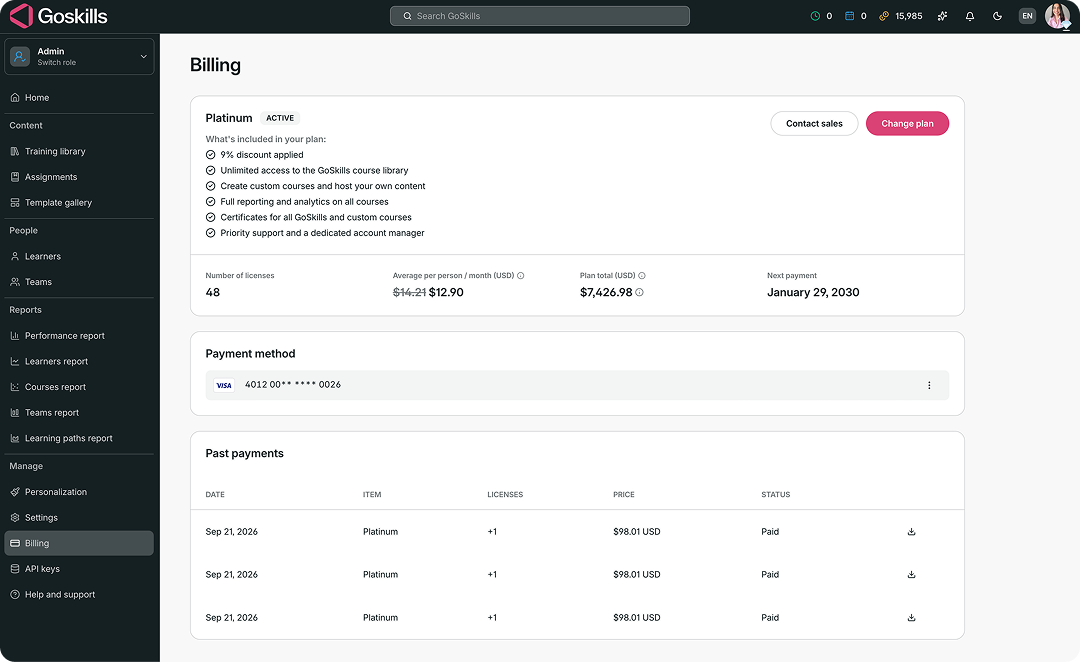
- Select Change plan.
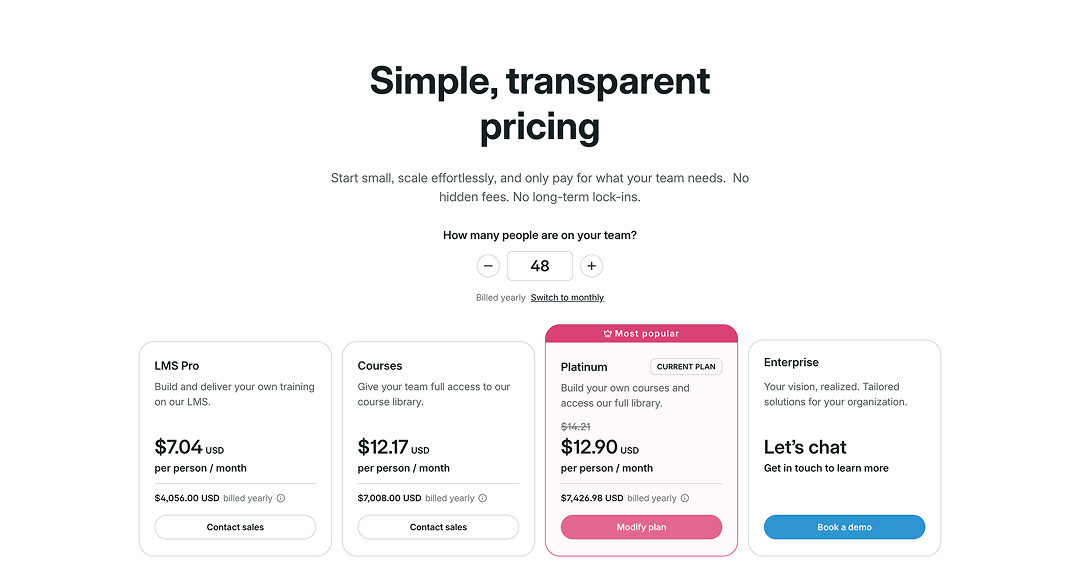
- On the pricing page, find your current plan and select Modify plan.
- Enter the new total number of licenses you want.
If you reduce your license count below the number of licenses currently in use, GoSkills will let you know how many learners would automatically be unassigned a license when the new billing cycle begins.
For example, let’s say your organization has 48 licenses, with 34 currently in use, and you reduce your plan to 30 licenses. Because 34 licenses are currently assigned, 4 learners would automatically be unassigned a license.
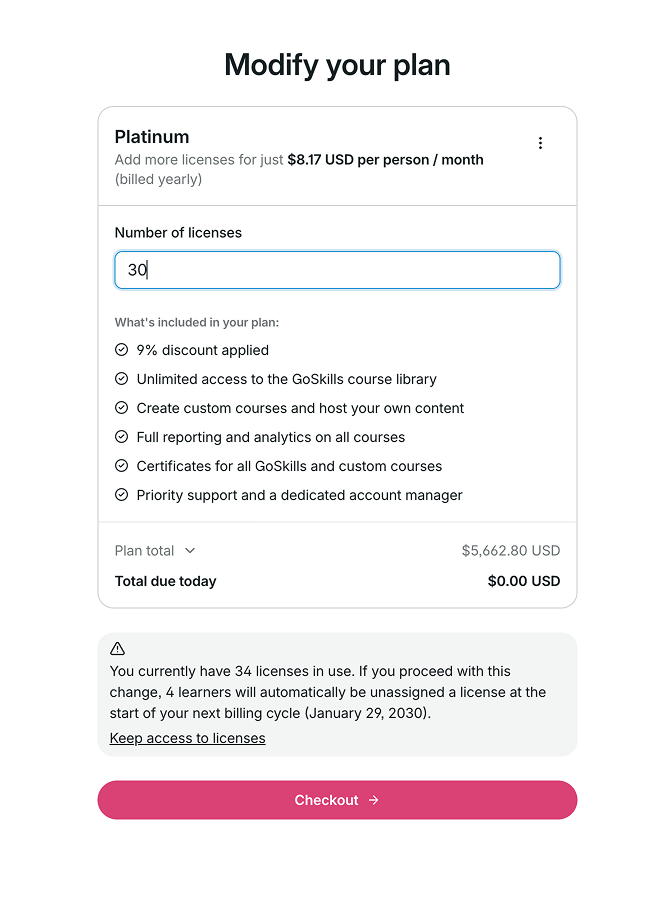
If you want all currently licensed learners to keep their licenses, select Keep access to licenses. Your new license total will be adjusted to the number currently in use. In this example, it would change from 30 to 34.
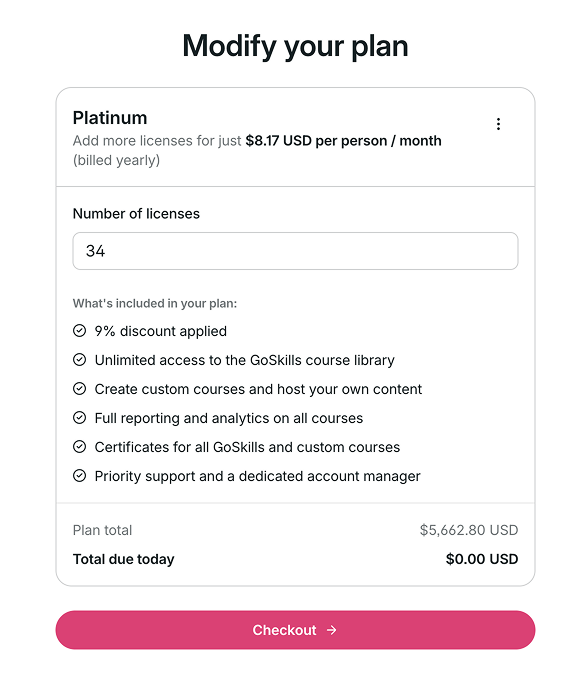
- Select Checkout to review the change. The checkout page shows the new license total and the date the change will take effect.
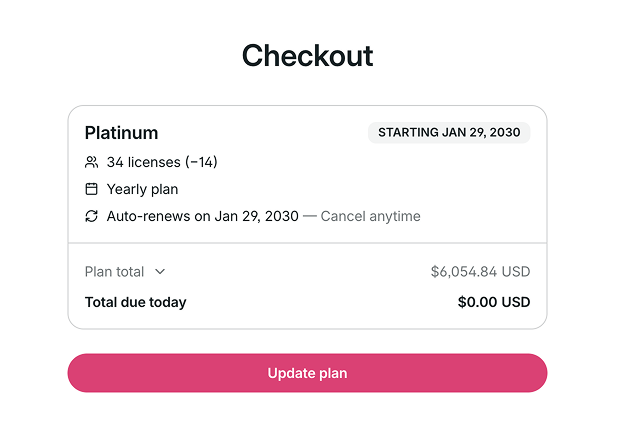
- Select Update plan to confirm the change.
If you have any questions, contact us at support@goskills.com and we’ll be happy to help.