
The Unscramble question block in the GoSkills Course Builder lets you create word puzzles where learners rebuild a word or phrase from shuffled letters. It adds a playful element to your training while helping learners recall important terminology and concepts.
When to use Unscramble questions
Unscramble questions work well when recognizing and remembering specific terms is an important part of learning.
- Employee onboarding: Familiarize learners with company values and internal terminology.
- Product training: Reinforce product names and key features.
- Leadership training: Help learners remember important management and communication concepts.
- Technical training: Reinforce industry-specific vocabulary and abbreviations.
- Language training: Help learners practice vocabulary and spelling.
How to add an Unscramble question
1. Add the question block
In the lesson editor, select Add a block, scroll down to the Engage category, and select Question > Unscramble.
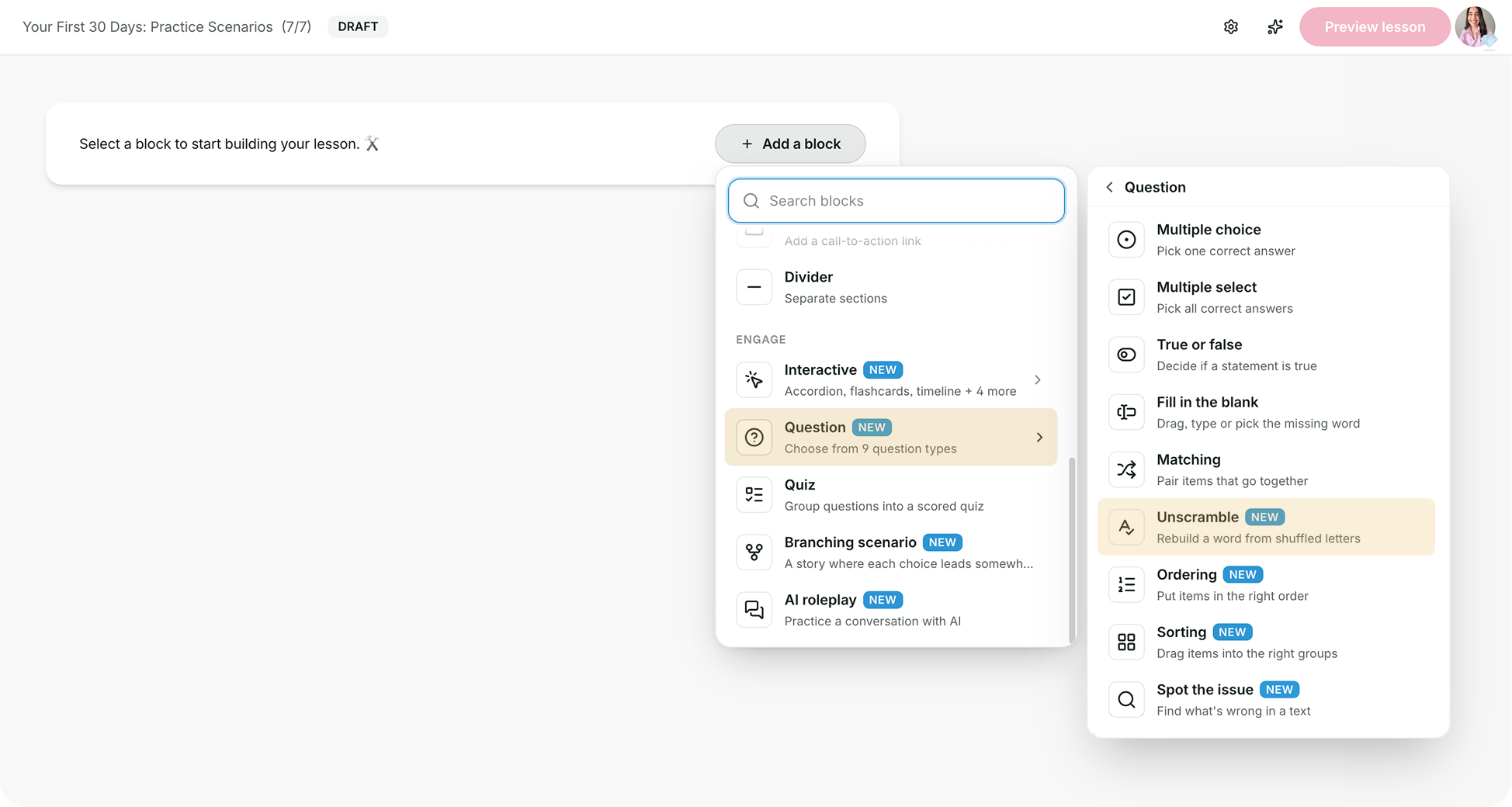
The block will appear with a space for your clue, an optional description, and an answer field.
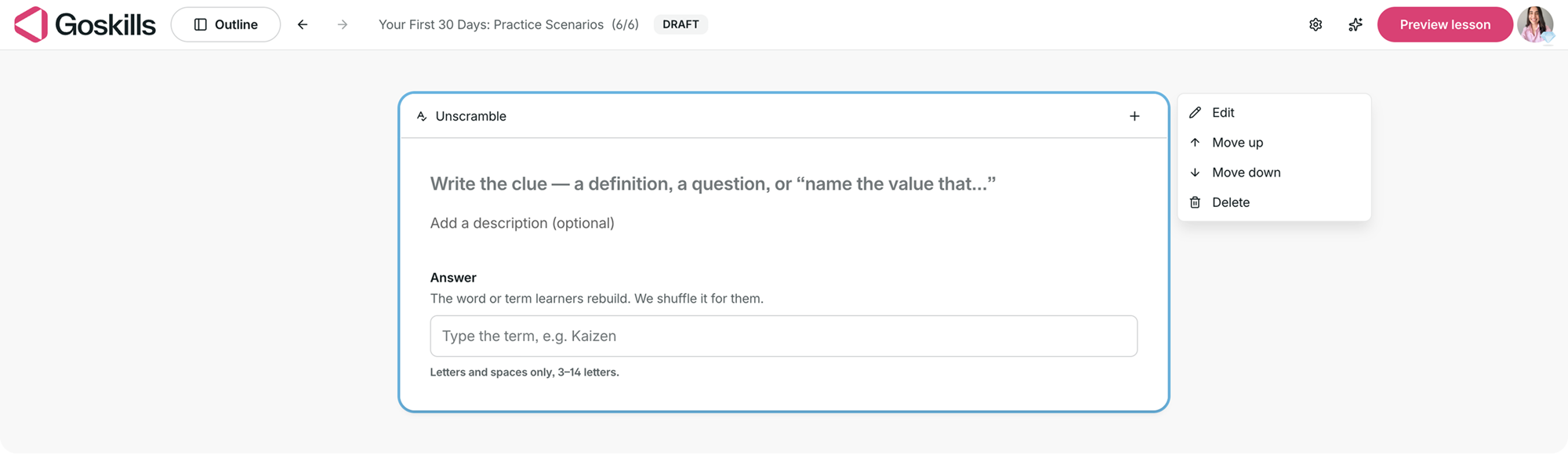
2. Add your clue and answer
- Enter a clue at the top of the block. This could be a definition, a question, or a description of a concept.
- Add a description if you want to provide additional context.
- Enter the word or phrase learners need to rebuild in the Answer field. GoSkills automatically shuffles the letters for you.
Only letters and spaces are supported. Numbers, hyphens, and apostrophes are removed as you type.
Answers need at least three letters. If an answer exceeds 14 letters, you’ll see a warning suggesting a shorter term, but you can still keep your answer.
You can also use phrases containing multiple words. Each word appears as a separate group of letter slots in the learner view.
3. Add an image, hint, or explanation
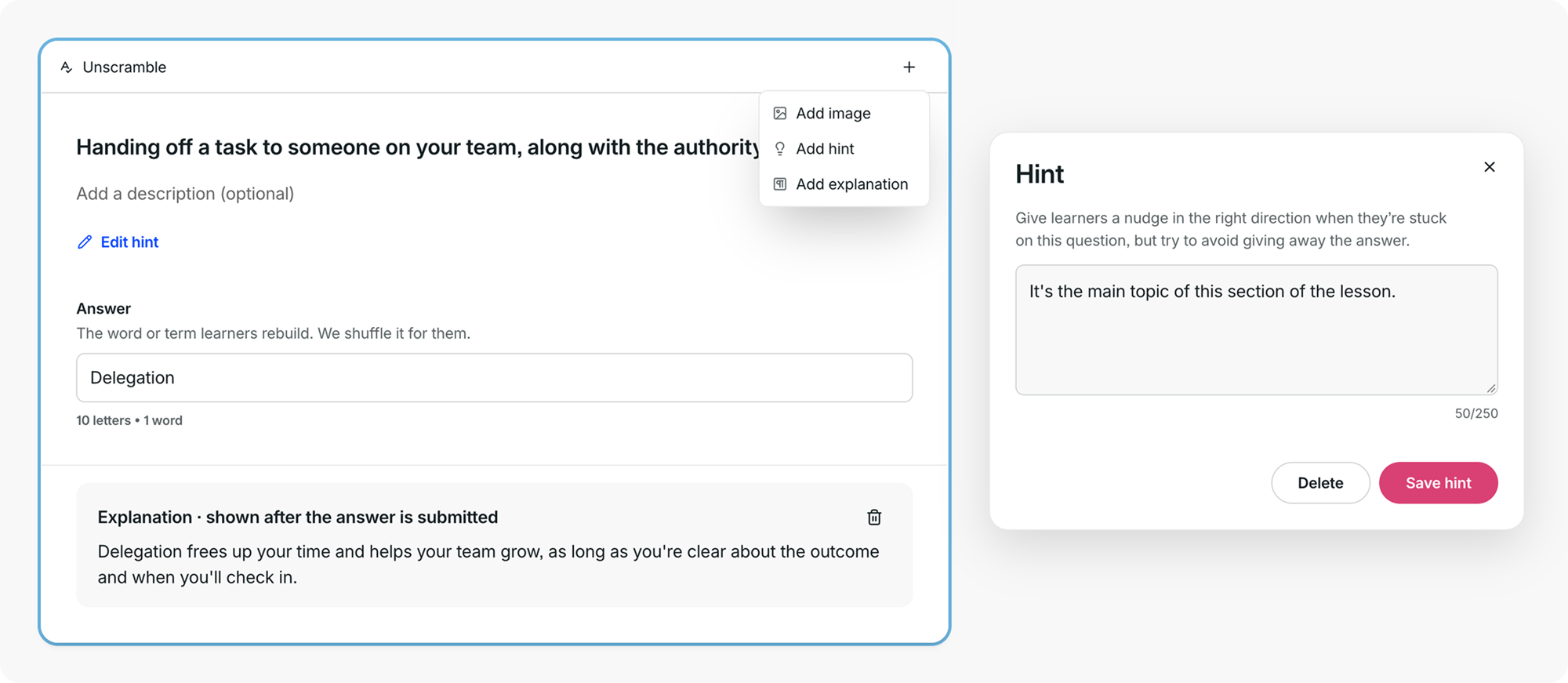
Select the + icon in the top-right corner of the question block to access these options:
- Add image: Include a visual to support your clue.
- Add hint: Give learners a helpful nudge without revealing the answer. Enter your hint (up to 250 characters) and select Save hint. You can update it later using Edit hint.
- Add explanation: Reinforce the meaning or relevance of the term after learners answer correctly or reveal the answer.
Unscramble question settings
Select Edit from the block menu to open the Edit question block panel.
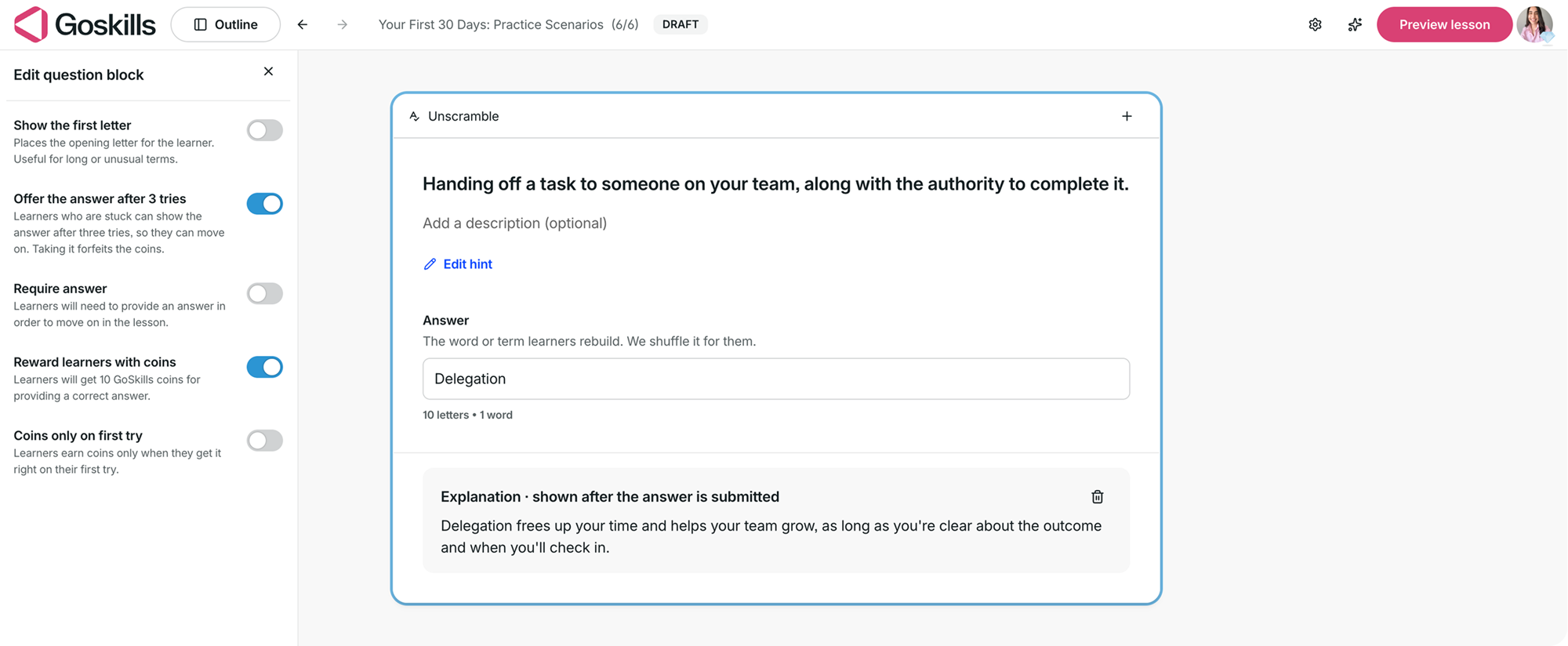
- Show the first letter: Place the first letter of the answer for learners. This is useful for longer or unfamiliar terms.
- Offer the answer after 3 tries: Enabled by default. Allow learners to reveal the correct answer after three incorrect attempts.
- Require answer: Require learners to answer before continuing with the lesson.
- Require correct answer: Require learners to answer correctly or use Show answers to continue. This setting only appears when Require answer is enabled.
- Reward learners with coins: Award 10 GoSkills coins for a correct answer.
- Coins only on first try: Award coins only if learners answer correctly on their first attempt. This setting only appears when Reward learners with coins is enabled.
What learners see
Learners see shuffled letter tiles and empty slots. They can type the letters, select them, or drag them into place. Pressing Backspace removes the last letter entered.
There’s no Submit button. The answer is checked automatically once all letter slots are filled. Answers aren’t case-sensitive.
If the answer is incorrect
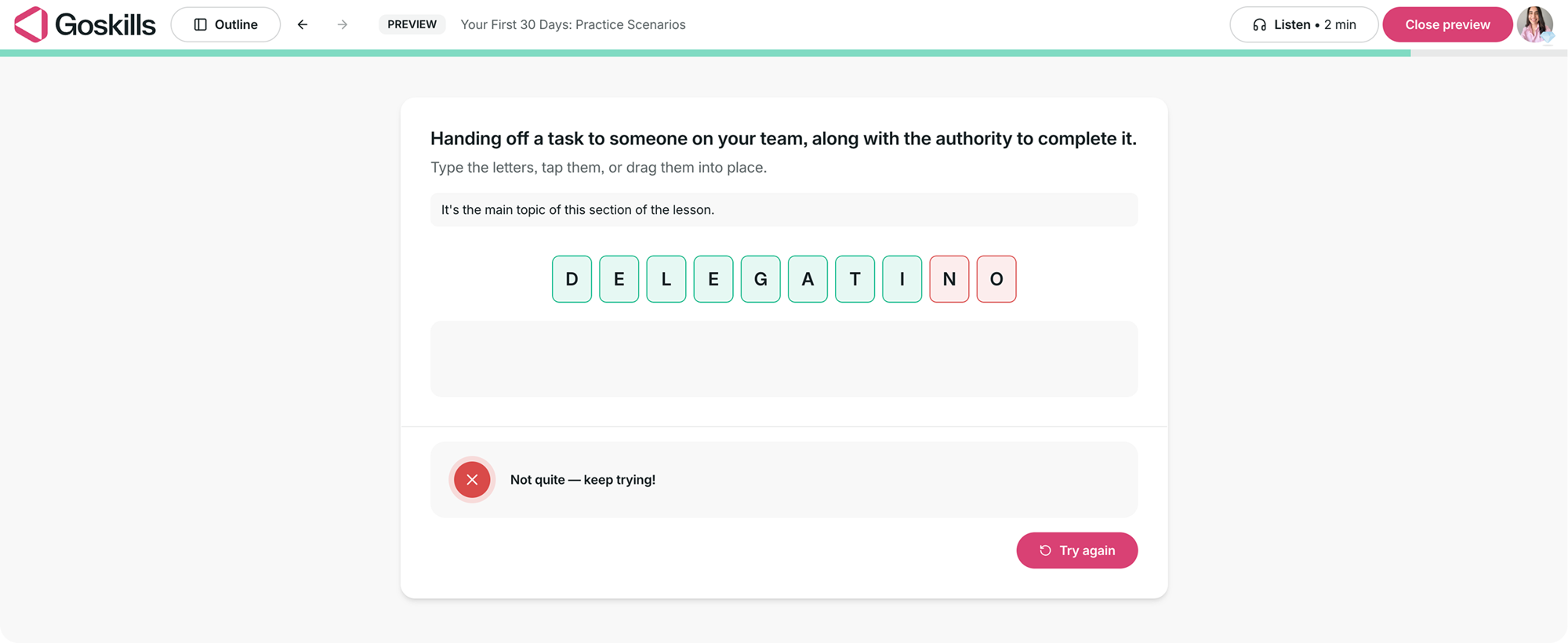
Letters in the correct position turn green and remain locked, while incorrectly placed letters turn red. Learners see a message encouraging them to keep trying.
Selecting Try again returns only the incorrect letters to the letter bank.
If you’ve added a hint, learners can select View hint after an incorrect attempt.
If learners need to reveal the answer
If Offer the answer after 3 tries is enabled, learners can select Show answers after three incorrect attempts.
This reveals the correct answer and displays your explanation, if provided. Learners who use this option don’t earn coins.
If the answer is correct
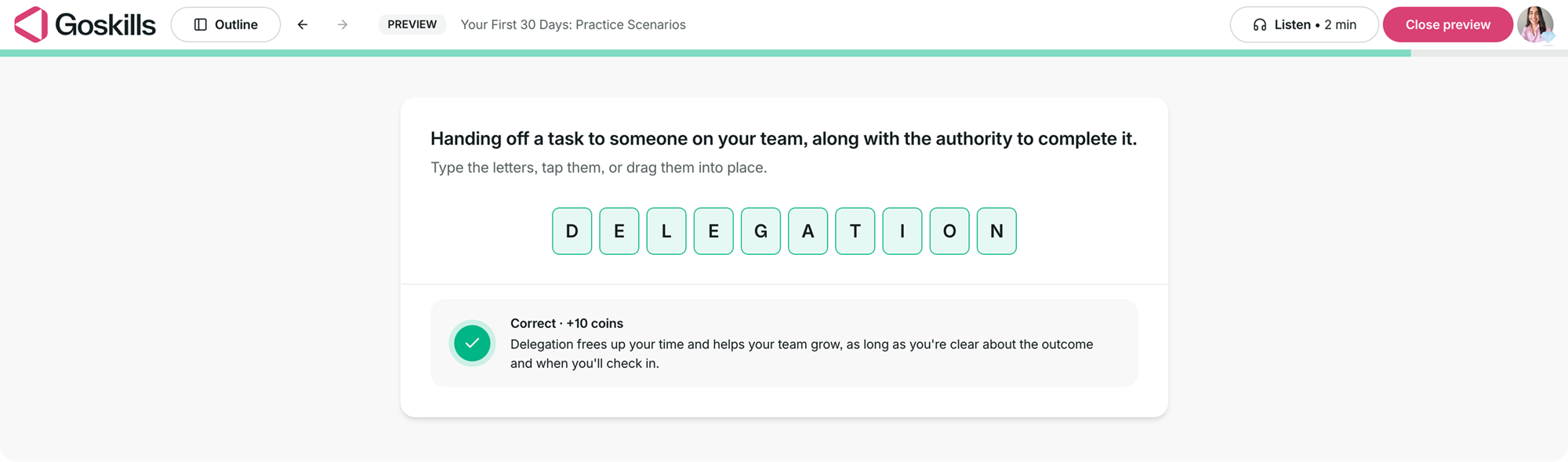
All letters turn green, and learners see Correct, along with your explanation, if provided.
If learners meet the coin reward conditions, they’ll see Correct · +10 coins. Coins can only be earned once per block, and viewing a hint doesn’t cost any coins.
Note: Inside a Quiz block, answers are scored when the entire quiz is submitted, without individual answer locking or the Try again and Show answers options.
Tips for creating effective Unscramble questions
- Choose meaningful terms. Focus on vocabulary that learners need to remember and apply.
- Keep clues clear. Provide enough context for learners to identify the intended word or phrase.
- Keep answers short. Use manageable words or phrases so learners can focus on recalling terminology rather than solving complicated letter puzzles.