
The Multiple select question block in the GoSkills Course Builder asks learners to identify all correct answers from several options. Unlike Multiple choice questions, which have one correct answer, this format helps you assess knowledge when several responses are right.
When to use Multiple select questions
Use Multiple select questions when learners need to recognize several relevant facts, actions, or requirements within a situation.
Here are a few examples:
- Health and safety training: Check whether learners can identify all the protective equipment required for a task.
- Cybersecurity awareness training: Help learners recognize multiple warning signs of a phishing email.
- Leadership training: Check whether managers can identify tasks that are appropriate to delegate.
- Employee onboarding: Reinforce knowledge of the documents or requirements needed to complete onboarding.
- Customer service training: Help learners identify several actions that can de-escalate a difficult customer interaction.
How to add a Multiple select question
1. Add the question block
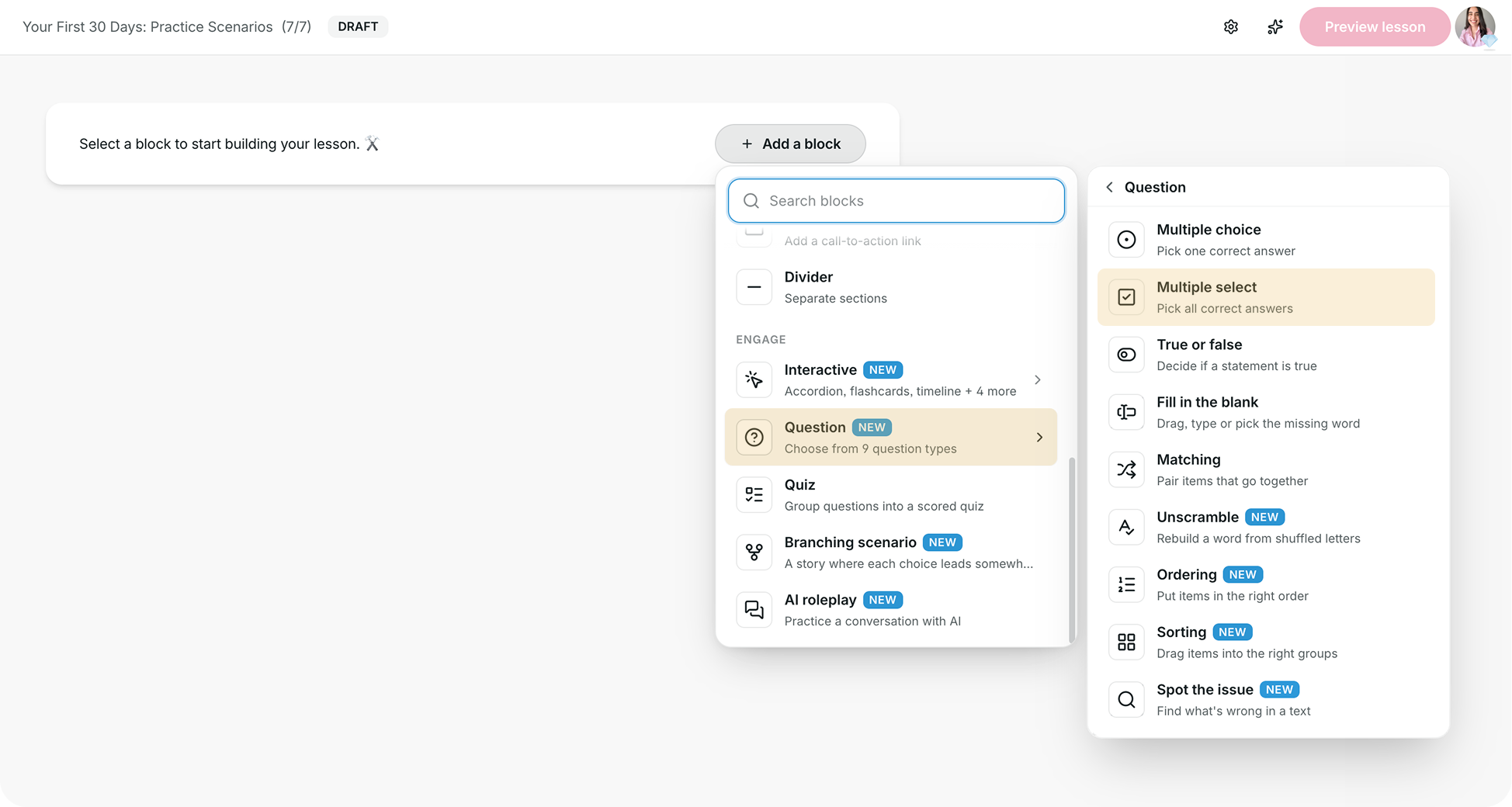
In the lesson editor, select Add a block, scroll down to the Engage category, and select Question > Multiple select.
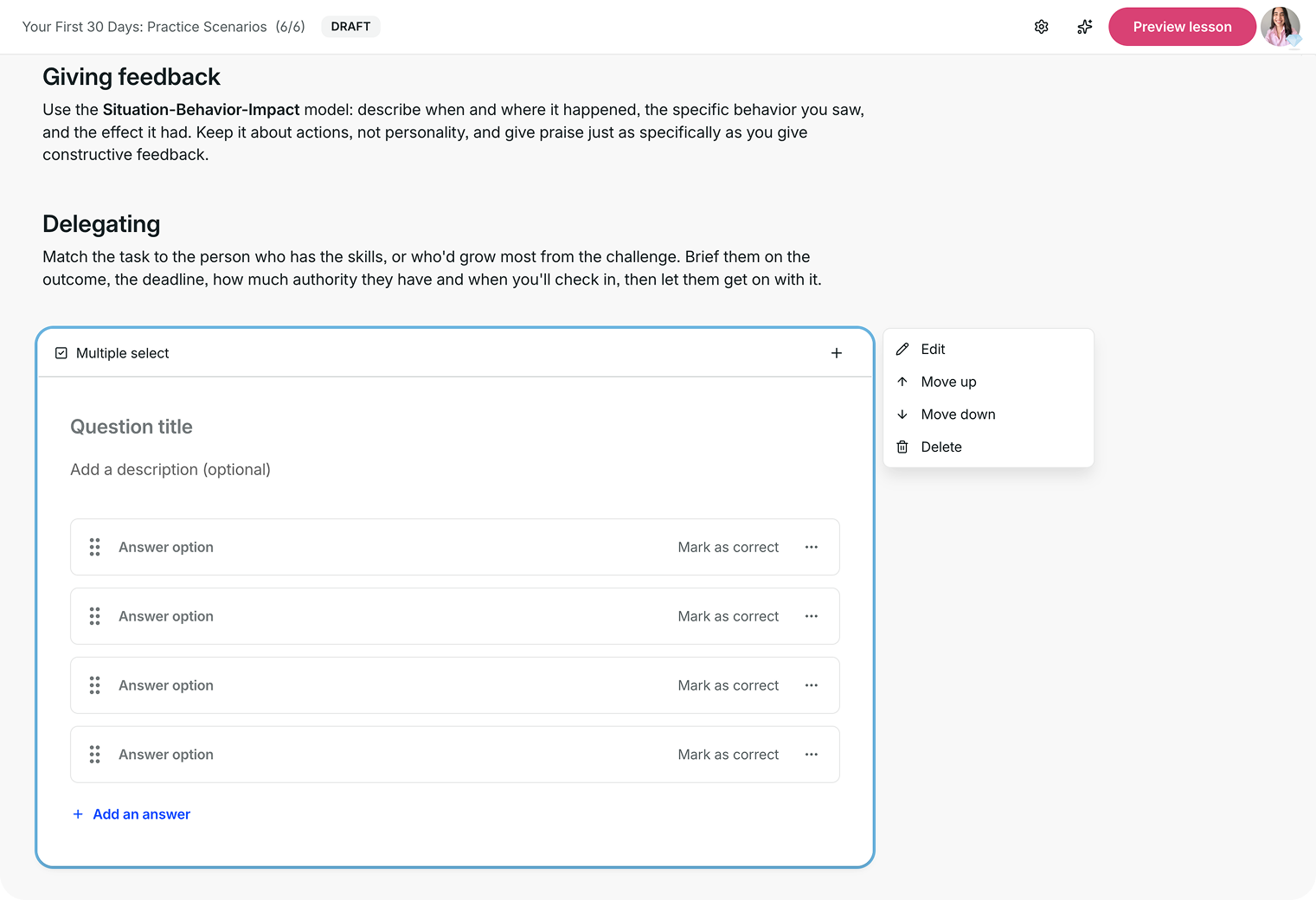
The block will appear with a question title, an optional description, and four answer fields.
2. Add your question and answers
- Enter your question at the top of the block.
- Add a description if you want to provide context or instructions.
- Enter your answer options. Select Add an answer to include more options.
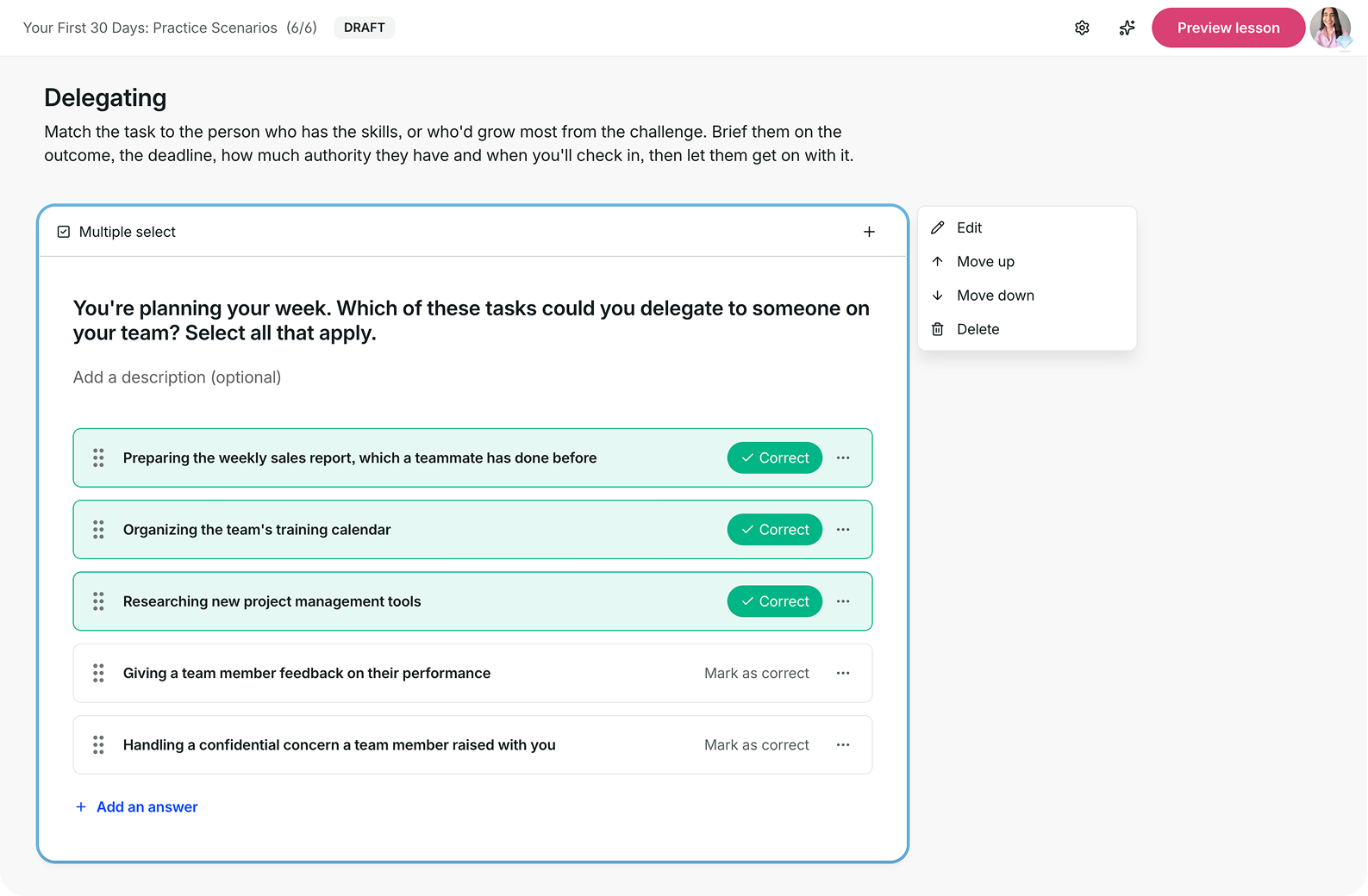
- Select Mark as correct next to each correct answer. These options will turn green and display Correct.
Unlike Multiple choice questions, Multiple select questions don’t have individual answer feedback. Use a hint and an explanation to guide learners instead.
3. Add an image, hint, or explanation
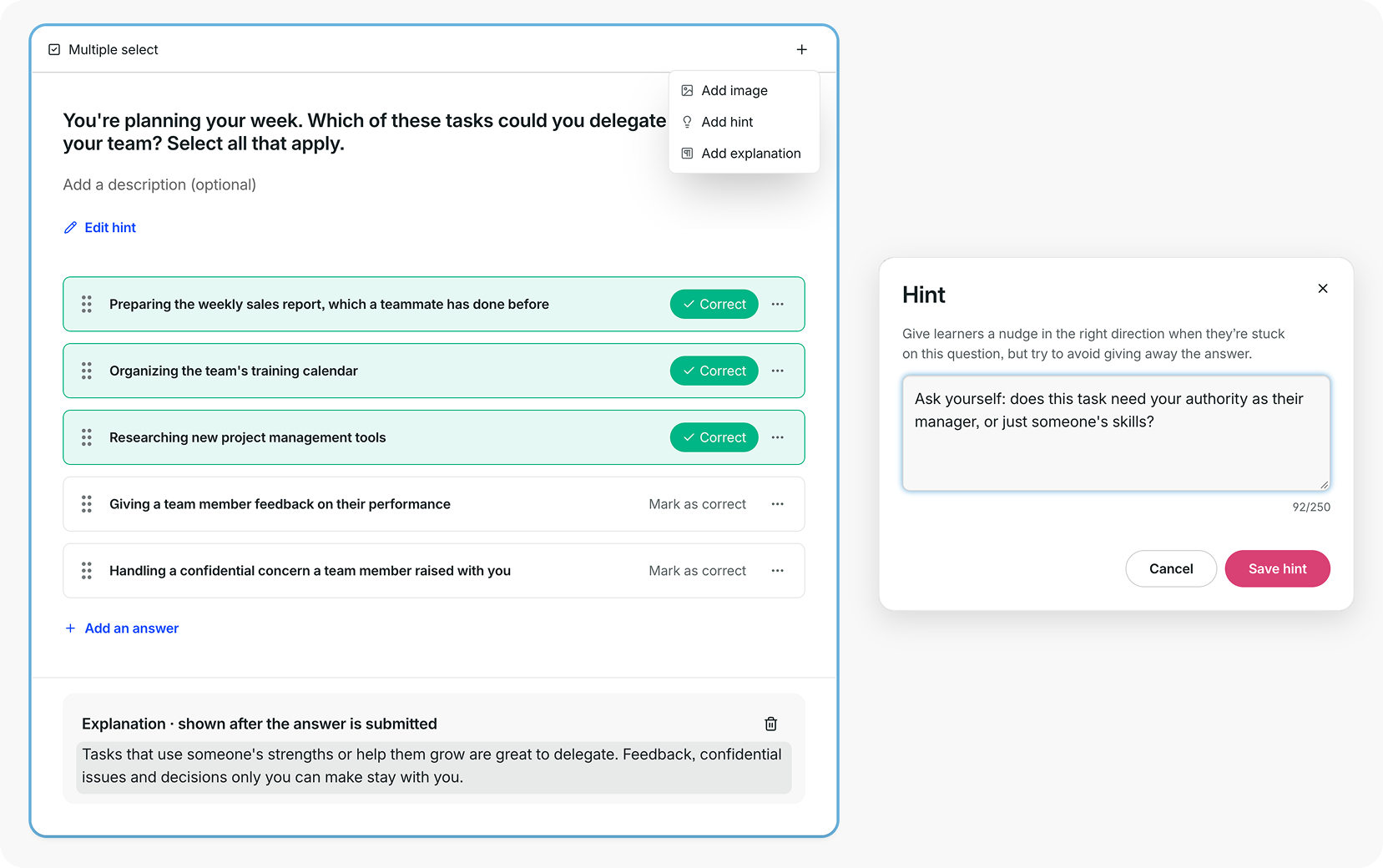
Select the + icon in the top-right corner of the question block to access these options:
- Add image: Include a visual to support your question.
- Add hint: Give learners a clue without revealing the answers. Enter your hint (up to 250 characters) and select Save hint. You can update it later using Edit hint.
- Add explanation: Help learners understand why the correct answers are right. Learners see this explanation after answering correctly.
Multiple select question settings
Select Edit from the block menu to open the Edit question block panel.
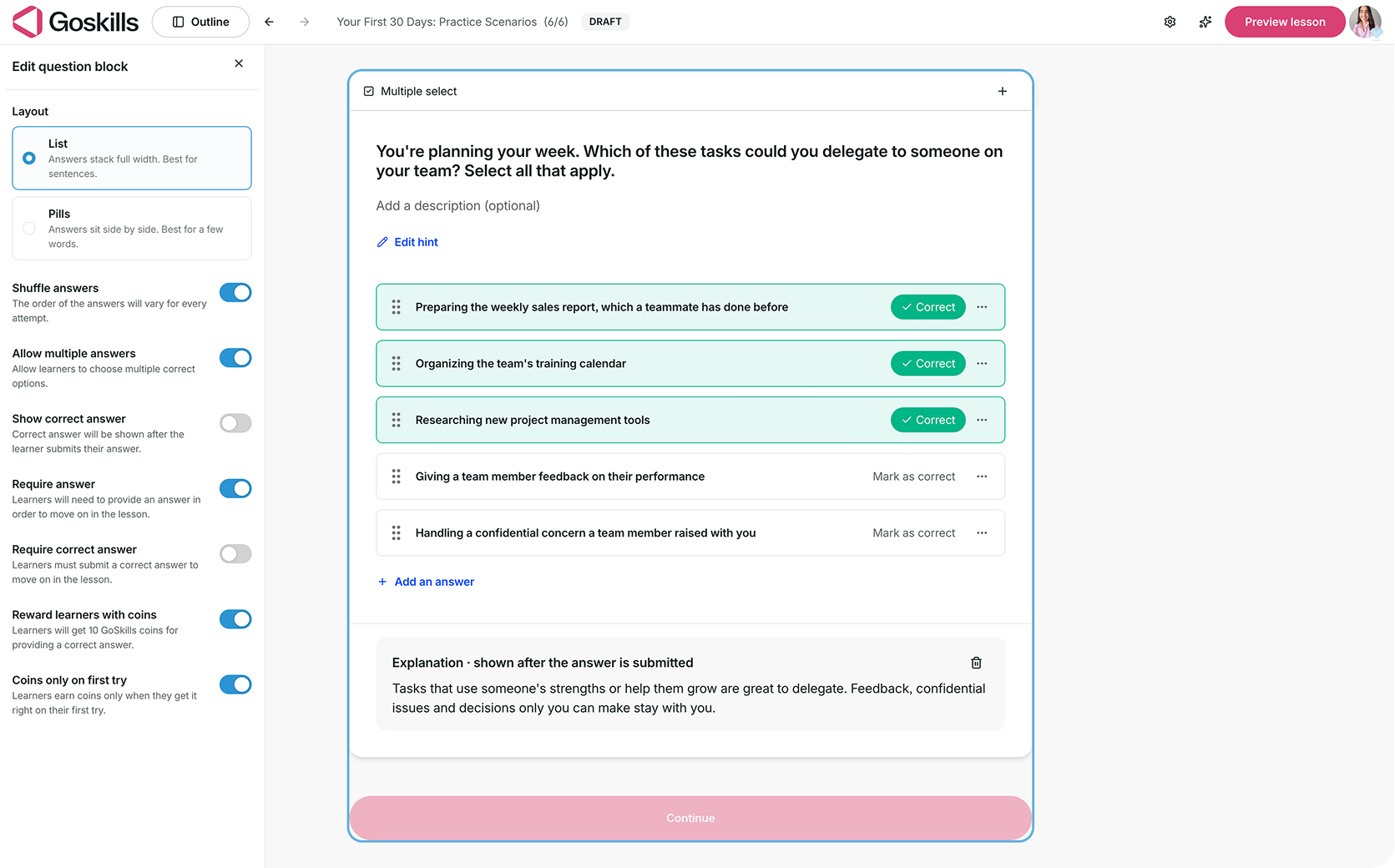
- Layout: Choose List to stack answers vertically or Pills to display them side by side.
- Shuffle answers: Randomize the order of the answer options.
- Allow multiple answers: Allow learners to select multiple answers. This setting is enabled for Multiple select questions.
- Show correct answer: Reveal the correct answers after an incorrect response.
- Require answer: Require learners to submit an answer before continuing. A Continue button appears below the block and remains inactive until they submit an answer.
- Require correct answer: Require learners to answer correctly before continuing. This setting only appears when Require answer is enabled.
- Reward learners with coins: Award 10 GoSkills coins for a correct answer.
- Coins only on first try: Award coins only if learners answer correctly on their first attempt.
What learners see
Learners use the checkboxes to select all the answers they believe are correct and then select Submit.
If the answer is incorrect or partly correct
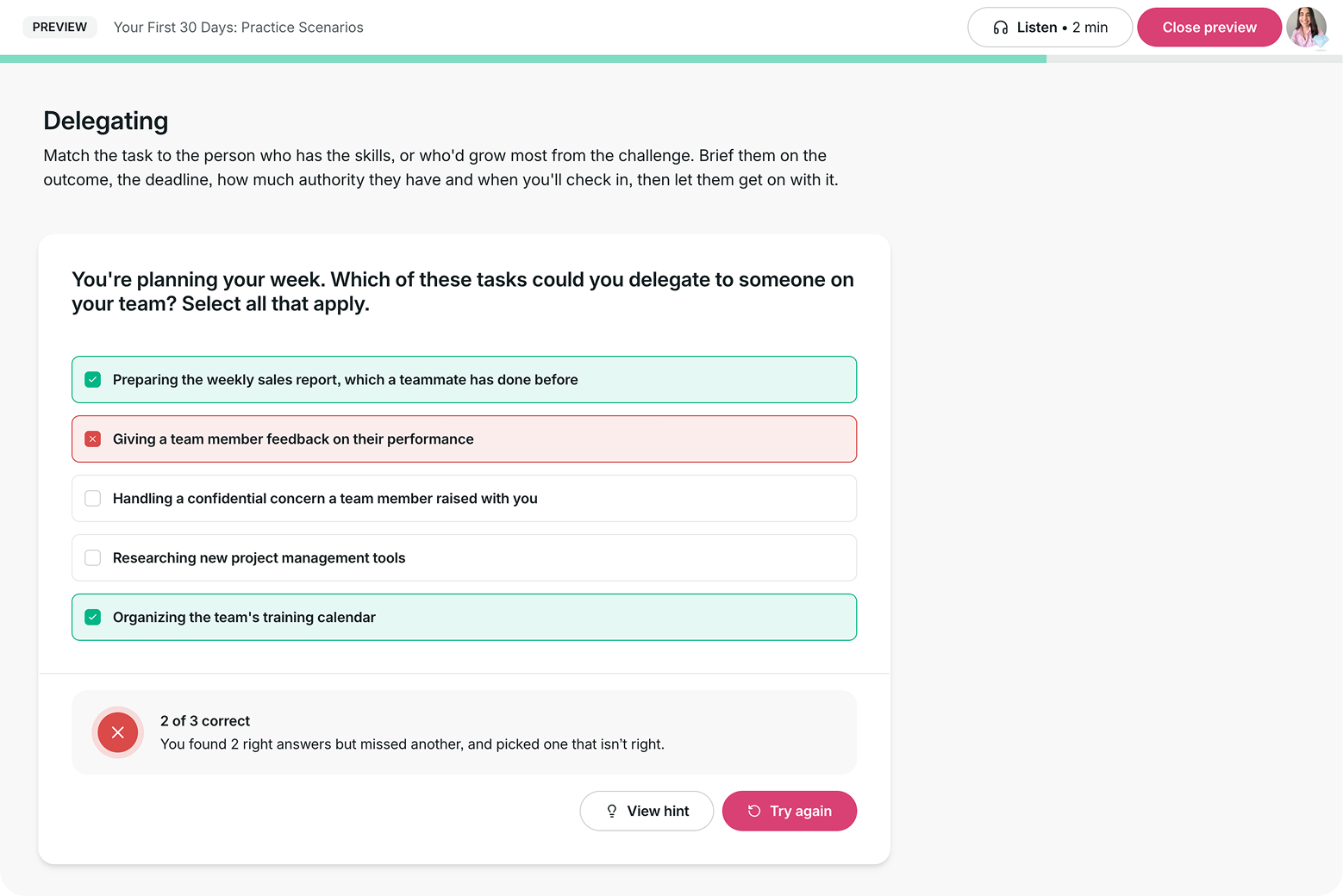
Correctly selected answers turn green and remain locked, while incorrectly selected answers turn red.
Learners see how many correct answers they’ve identified, such as “2 of 3 correct,” along with guidance on what they still need to get right.
Selecting Try again clears incorrect selections while keeping correct ones in place.
If learners need a hint
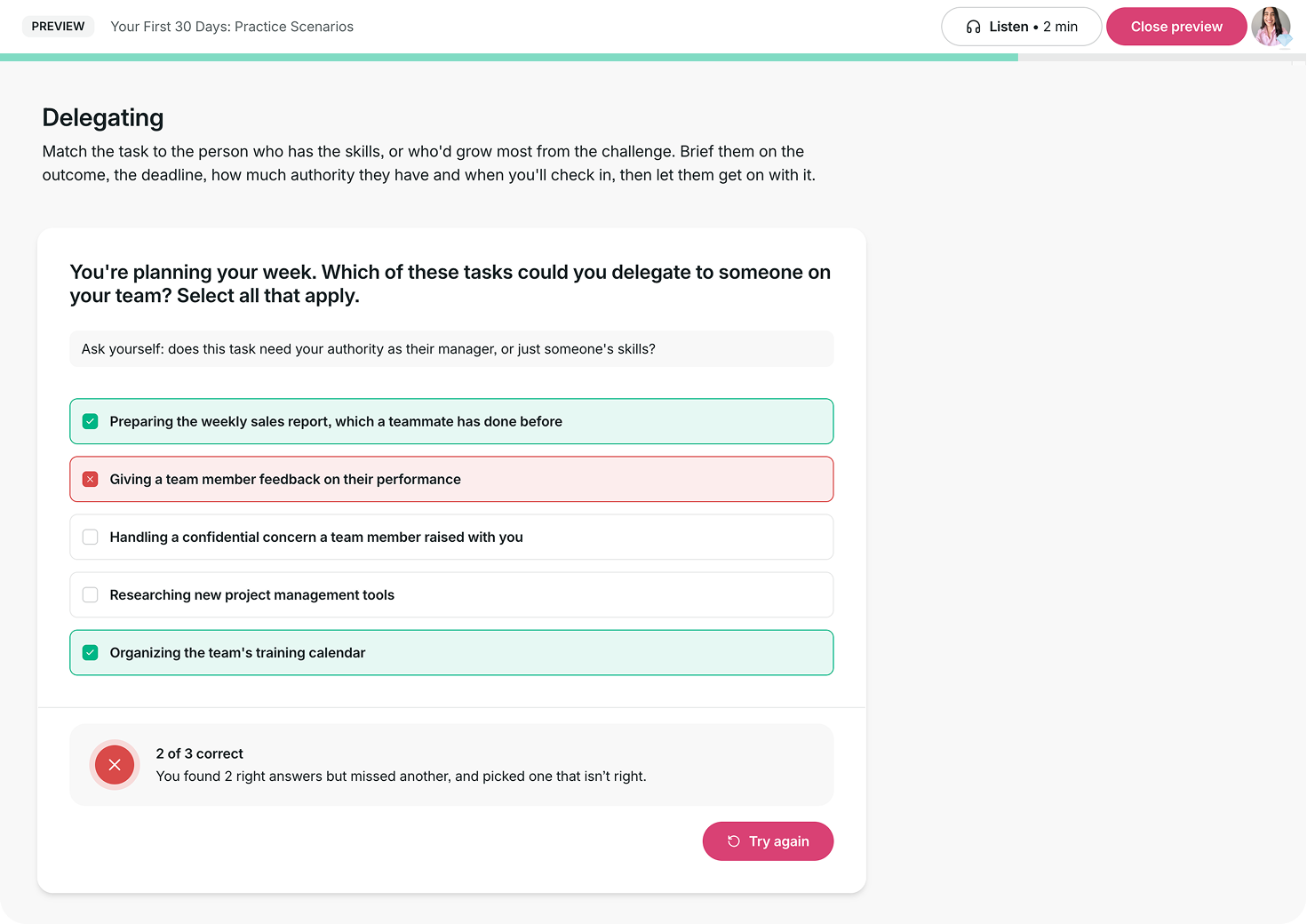
If you’ve added a hint, learners can select View hint after an incorrect attempt. Viewing a hint doesn’t cost any coins.
If the answer is correct
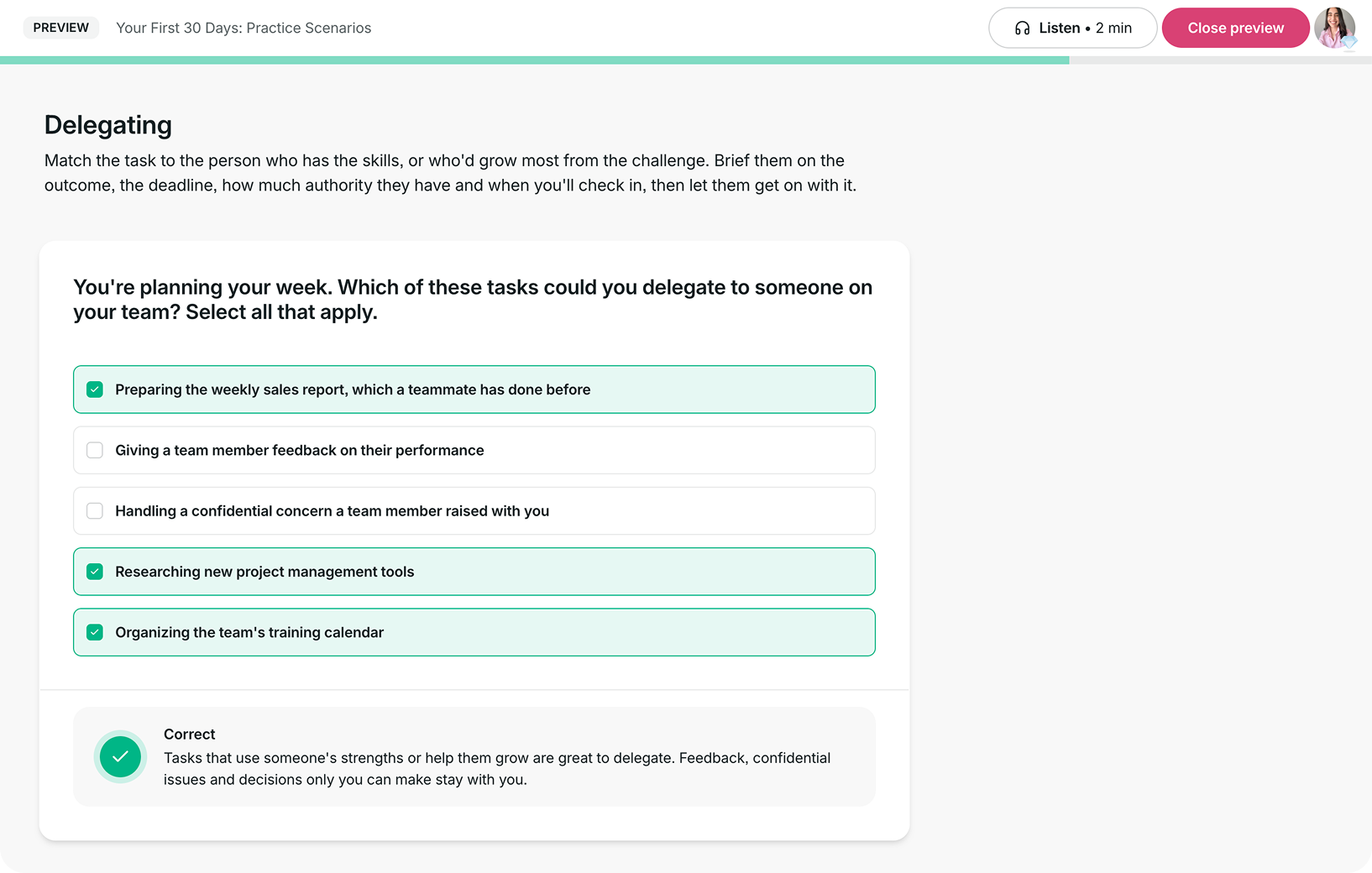
Once learners select all correct answers without selecting any incorrect ones, they see Correct, along with your explanation, if provided.
If learners meet the coin reward conditions, they’ll see Correct · +10 coins. Coins can only be earned once per block.
If Coins only on first try is enabled, learners who need more than one attempt won’t earn coins.
Note: Inside a Quiz block, answers are scored when the entire quiz is submitted, without individual answer locking or the Try again and Show answers options.
Tips for creating effective Multiple select questions
- Make the instructions clear. Include “Select all that apply” so learners know what’s expected.
- Include believable incorrect answers. Give learners a reason to evaluate each option carefully.
- Avoid making every answer correct. Test whether learners can distinguish between relevant and irrelevant options.
- Make the explanation meaningful. Explain what the correct answers have in common and why the other options don’t apply.