
The Sorting question block in the GoSkills Course Builder lets you create activities where learners place items into their correct groups. It helps learners distinguish between categories, apply rules to everyday situations, and learn from immediate feedback.
When to use Sorting questions
Sorting questions work well when learners need to classify information or recognize which category an item or action belongs to.
- Leadership training: Help managers distinguish between tasks they can delegate and responsibilities they should handle themselves.
- Environmental training: Reinforce how to separate recyclable materials from general waste.
- Data security training: Help learners distinguish between public and confidential information.
- Risk management training: Practice classifying risks according to their severity.
- Compliance and policy training: Check whether learners can distinguish between permitted and non-permitted business expenses.
How to add a Sorting question
1. Add the question block
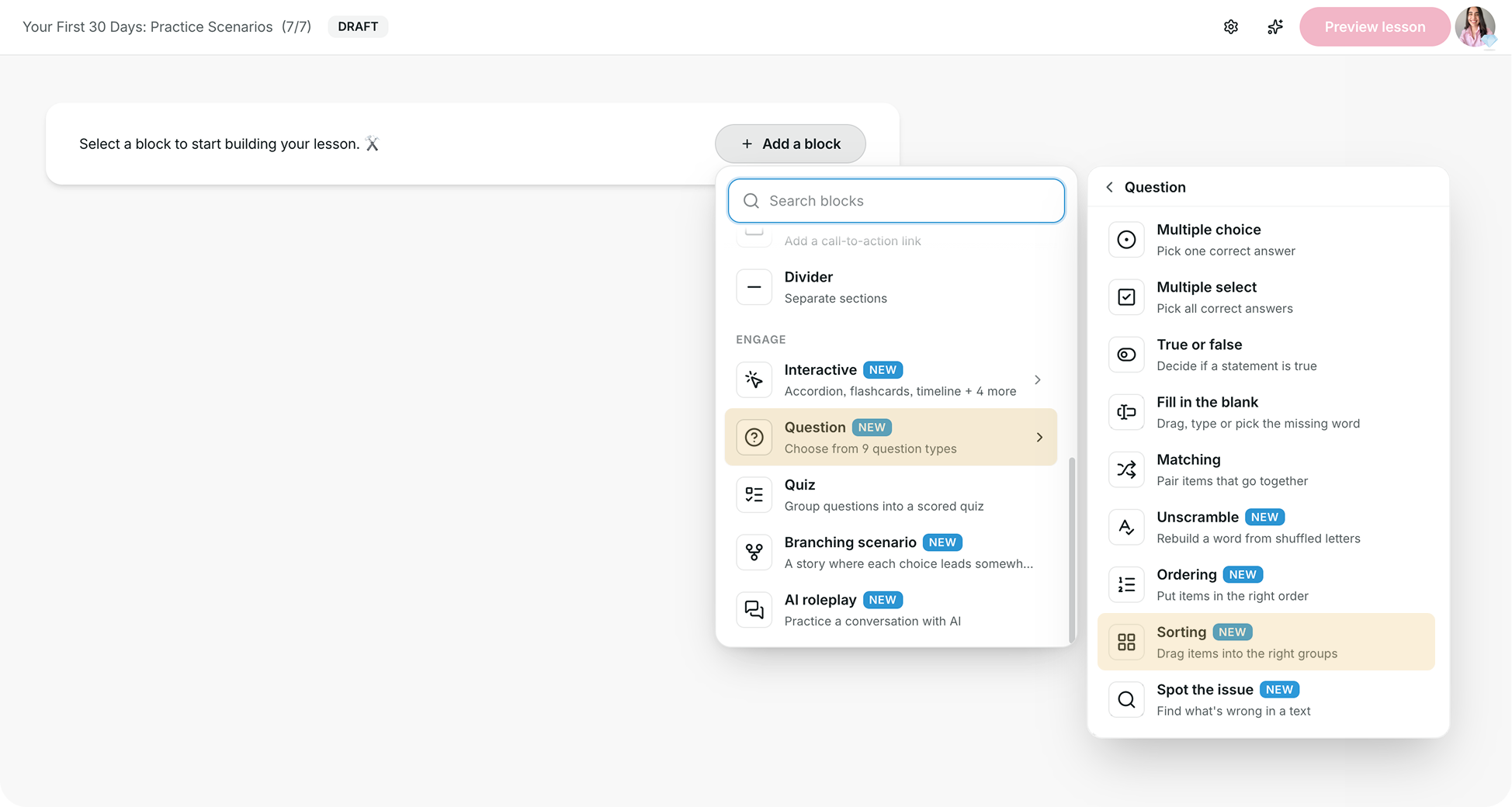
In the lesson editor, select Add a block, scroll down to the Engage category, and select Question > Sorting.
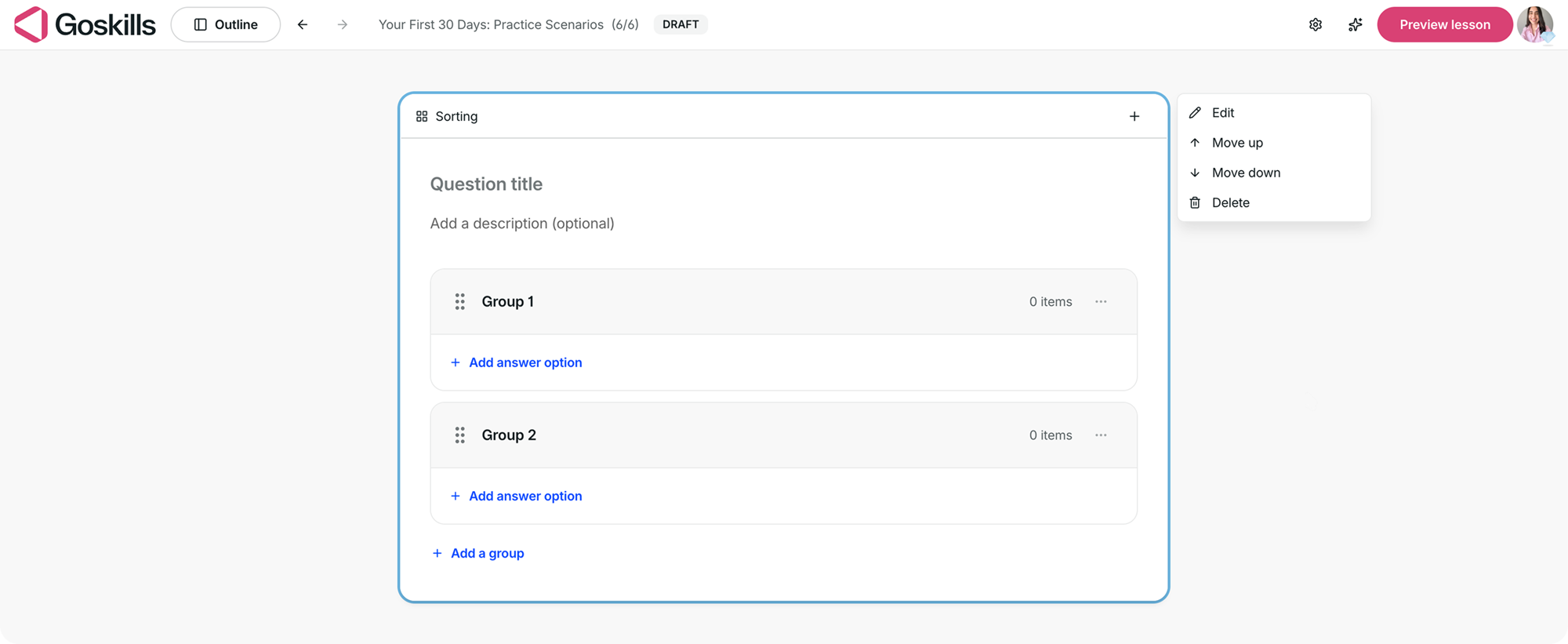
The block will appear with a question title, an optional description, and two empty groups.
2. Create your groups and add items
- Enter your question or activity title at the top of the block.
- Add a description if you want to provide context or instructions.
- Rename Group 1 and Group 2 to reflect your categories. Select Add a group to create more groups. You can have between two and four groups.
- Select Add answer option under each group to enter the items that belong there. Each group displays its current item count.
- Use the group’s ... menu to rename, reorder, or delete it. Keep in mind that deleting a group also deletes its items.
You can leave a group empty on purpose to make the activity more challenging. Learners will need to recognize that none of the items belong in that group.
3. Add feedback for incorrect placements
Each item has an optional field, Add an explanation for a wrong drop (optional), where you can explain why the item belongs in its designated group.
Learners see this feedback if they place the item in an incorrect group.
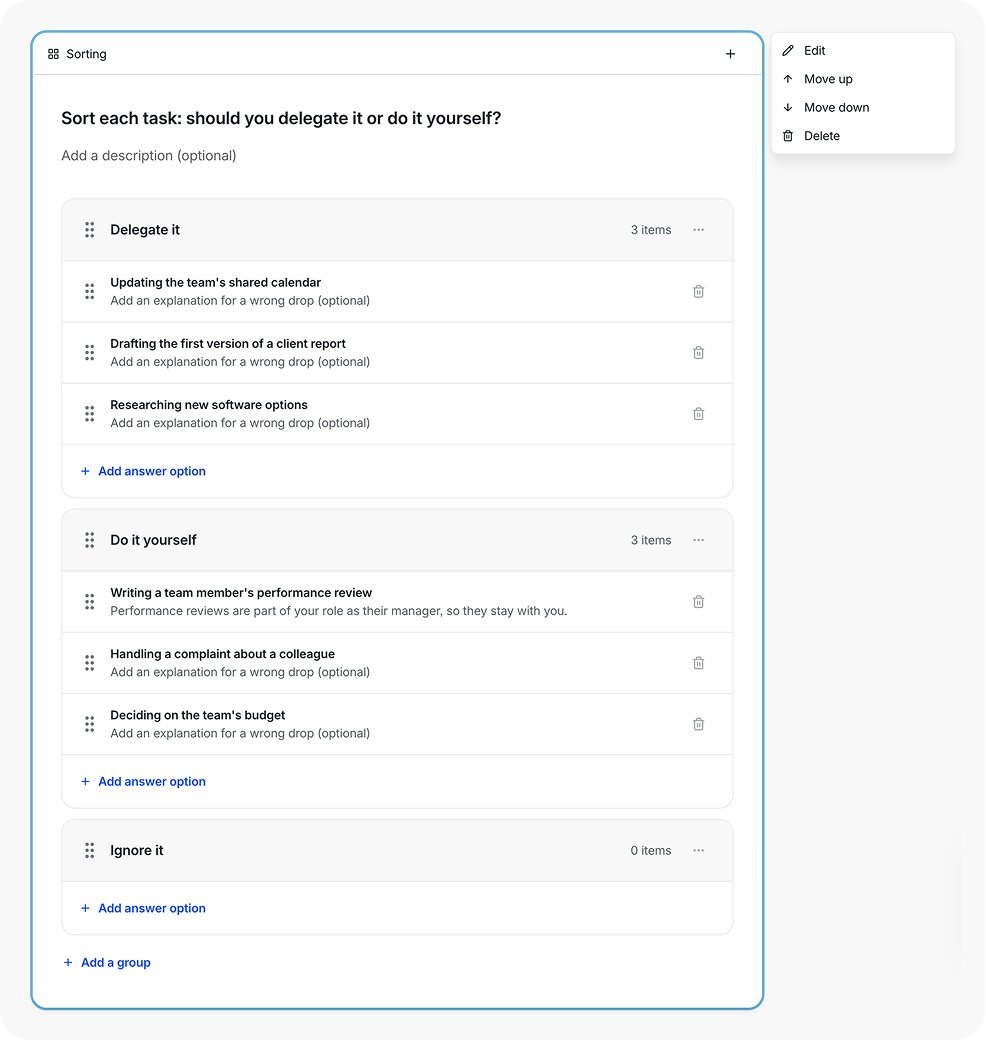
Unlike other question blocks, Sorting doesn’t have a separate hint or overall explanation. Instead, learners receive feedback as they sort each item.
Sorting question settings
Select Edit from the block menu to open the Edit question block panel.
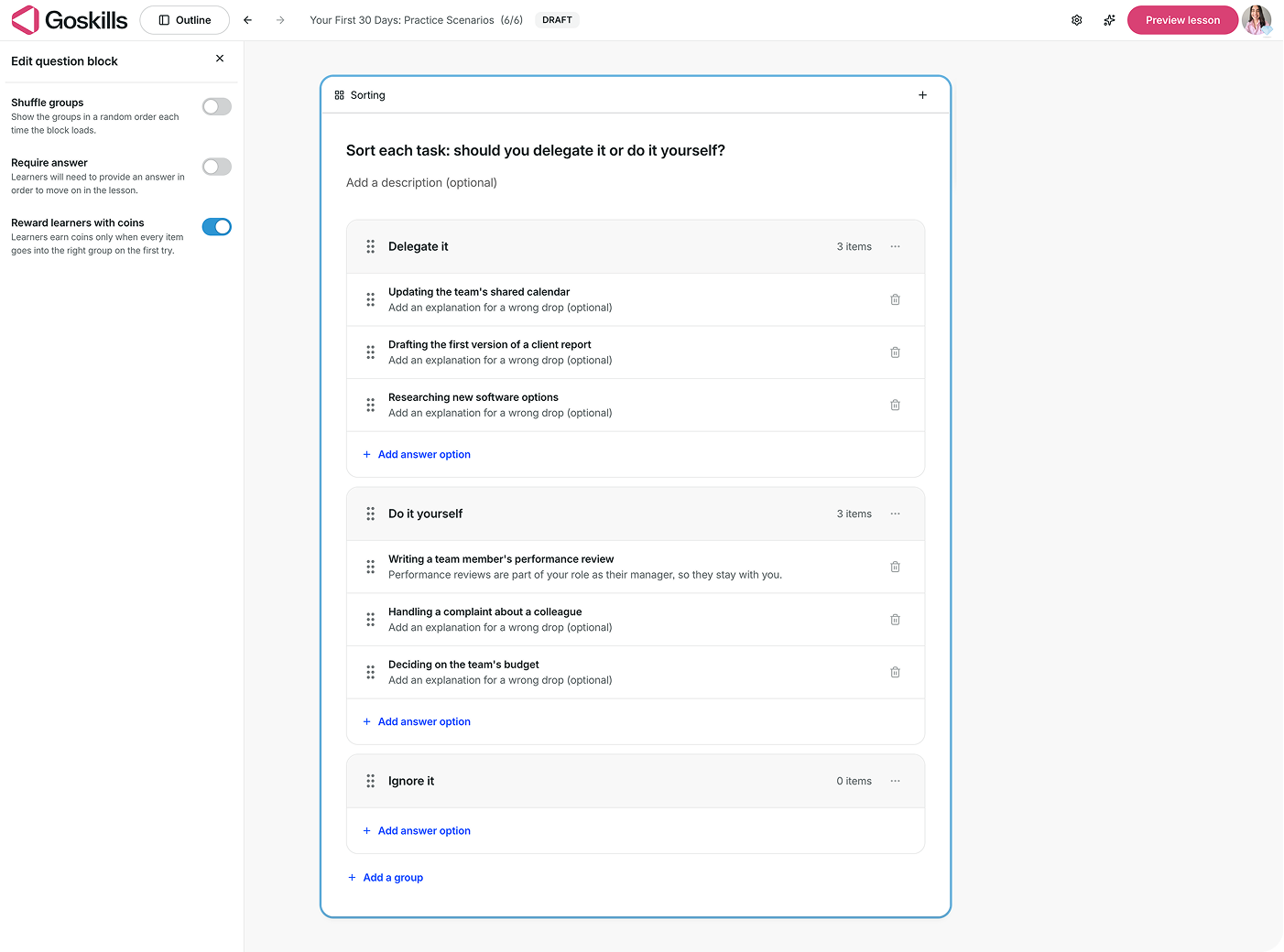
- Shuffle groups: Display the groups in a random order each time the block loads.
- Require answer: Require learners to complete the sorting activity before continuing with the lesson.
- Reward learners with coins: Award 10 GoSkills coins only if learners place every item in the correct group on their first attempt.
Item cards are always shuffled, regardless of whether Shuffle groups is enabled.
What learners see
Learners receive one card at a time, with a counter showing their progress, such as “Card 1 of 6.”
They can drag the card into a group or select the card and then select a group. Each placement is checked immediately, so there’s no Submit button.
If an item is placed in the wrong group
The card returns to its original position, and learners see Not quite, along with your feedback for that item. If you haven’t added feedback, they see “Try another group.”
Learners can then try placing the card in a different group.
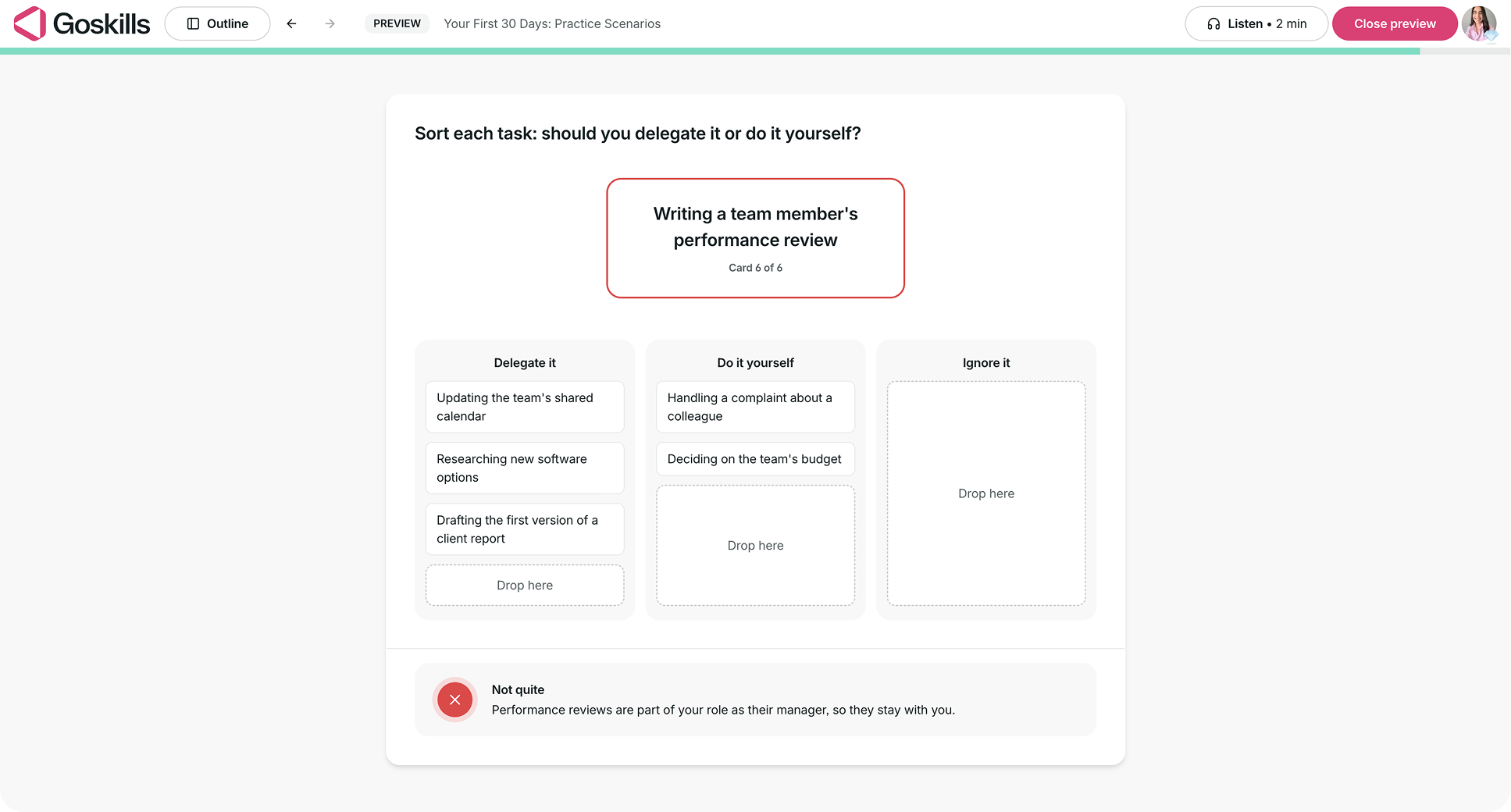
If an item is placed in the correct group
The card moves into the group with a checkmark, and learners move on to the next card.
Once every card is placed correctly, learners see All sorted! Any intentionally empty groups display “Nothing belongs here.”
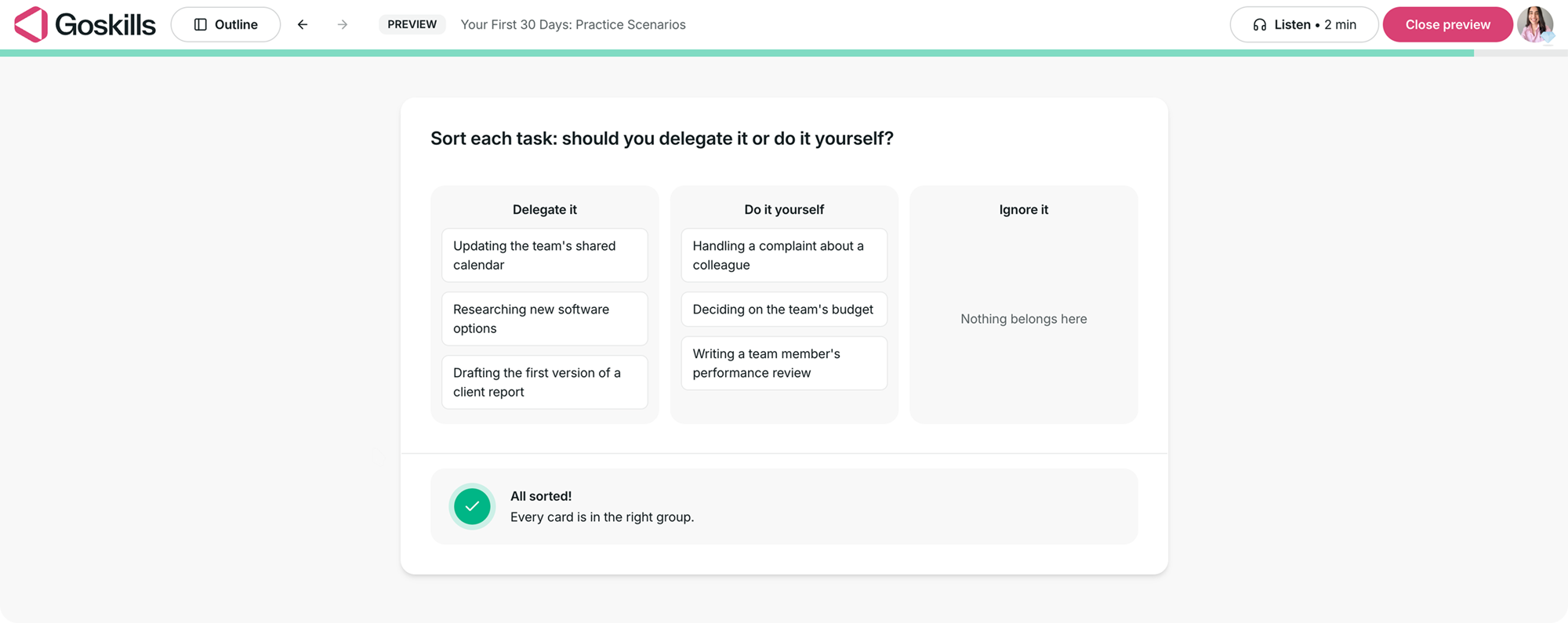
Learners can’t fail a Sorting activity because incorrect placements aren’t accepted. However, they only earn coins if every item is placed correctly on the first try and coin rewards are enabled.
Tips for creating effective Sorting questions
- Use clear group names. Make sure learners understand what each category represents.
- Keep items short. Use concise descriptions that are easy to read on the cards.
- Add meaningful feedback. Focus on items learners are most likely to place in the wrong group.
- Try an empty group. Include a believable category with no matching items to encourage learners to evaluate each option carefully.