
The Fill in the blank question block in the GoSkills Course Builder lets you create activities where learners complete a passage by filling in missing words or phrases. It helps learners recall important information and understand how key terms are used in context.
This block replaces the previous Fill the blanks and Choose the blanks blocks, bringing three ways to answer into a single question block.
When to use Fill in the blank questions
Use this question format when remembering specific words, phrases, or details is an important part of the learning process.
- Compliance and policy training: Reinforce important policy wording, regulatory requirements, and internal guidelines.
- Process training: Help learners remember key details within a procedure or workflow.
- Leadership training: Reinforce management concepts, frameworks, and communication techniques.
- Product training: Help learners recall product names, features, specifications, and benefits.
- Health and safety training: Check whether learners remember essential safety instructions, precautions, and equipment requirements.
How to add a Fill in the blank question
1. Add the question block
In the lesson editor, select Add a block, scroll down to the Engage category, and select Question > Fill in the blank.
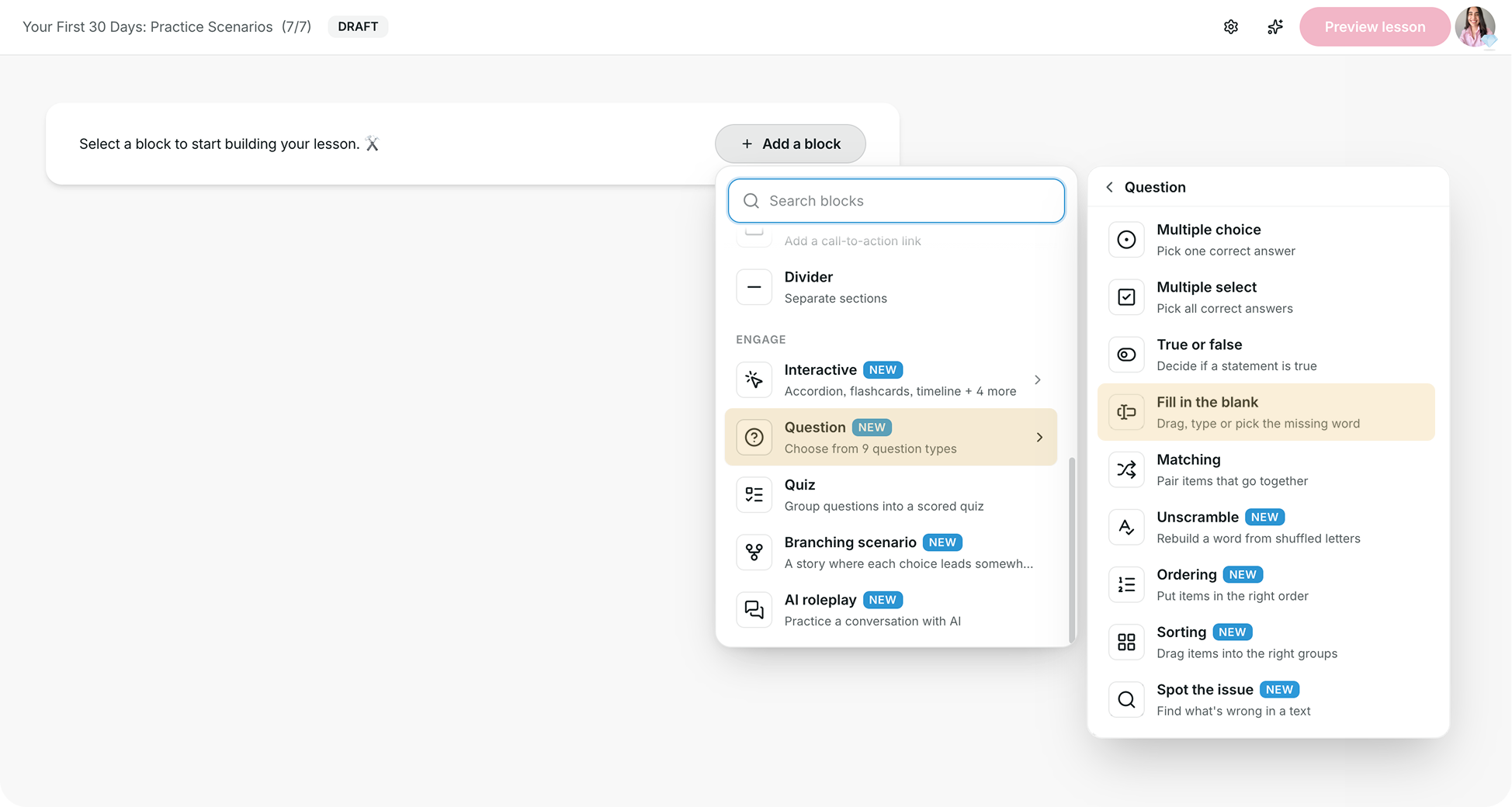
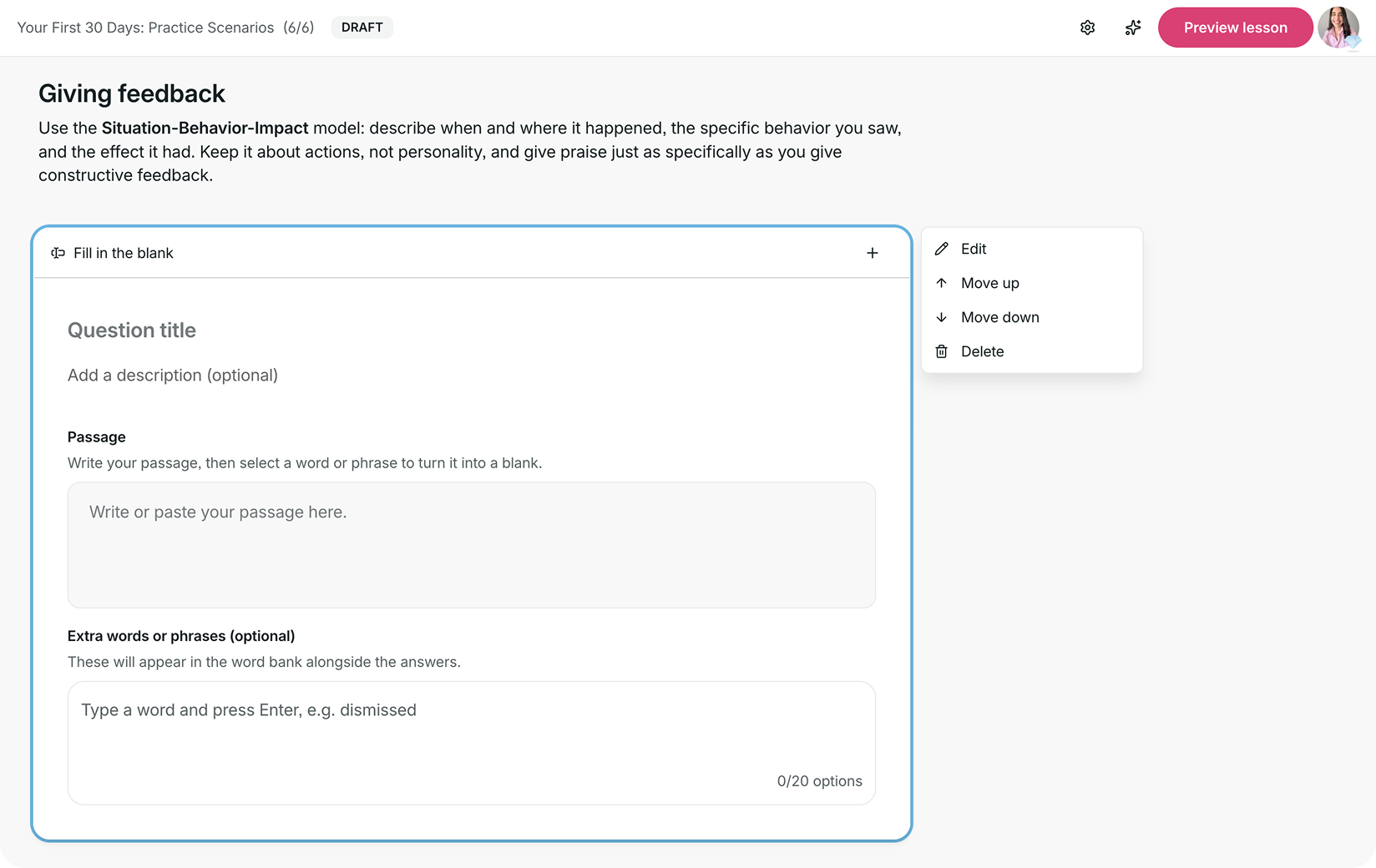
The block will appear with a question title, an optional description, and a space for your passage.
2. Add your passage and create blanks
- Enter your question or activity title at the top of the block.
- Add a description if you want to provide context or instructions.
- Write or paste your complete text in the Passage field (up to 4,000 characters).
- Highlight a word or phrase and select Make a blank.
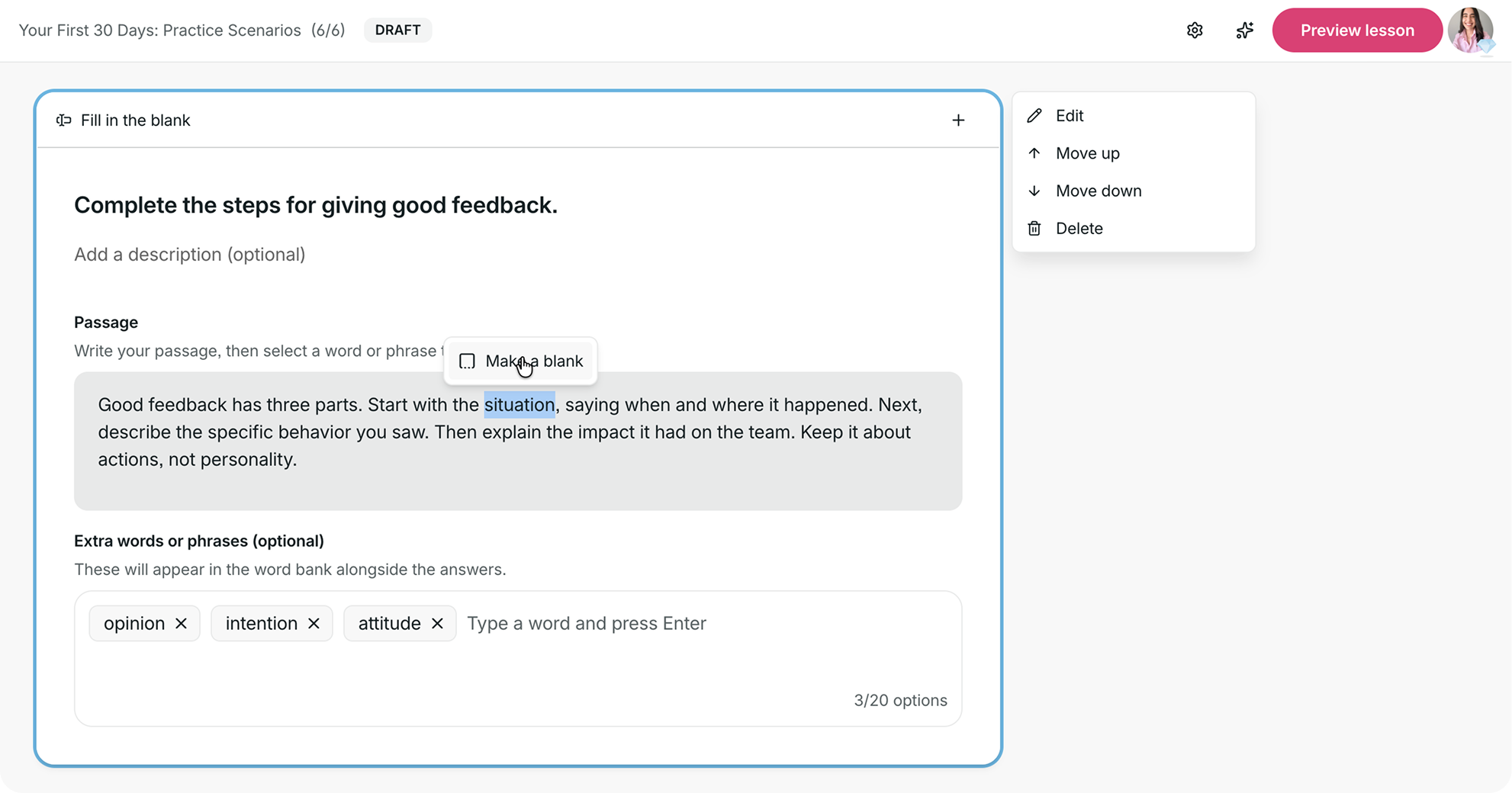
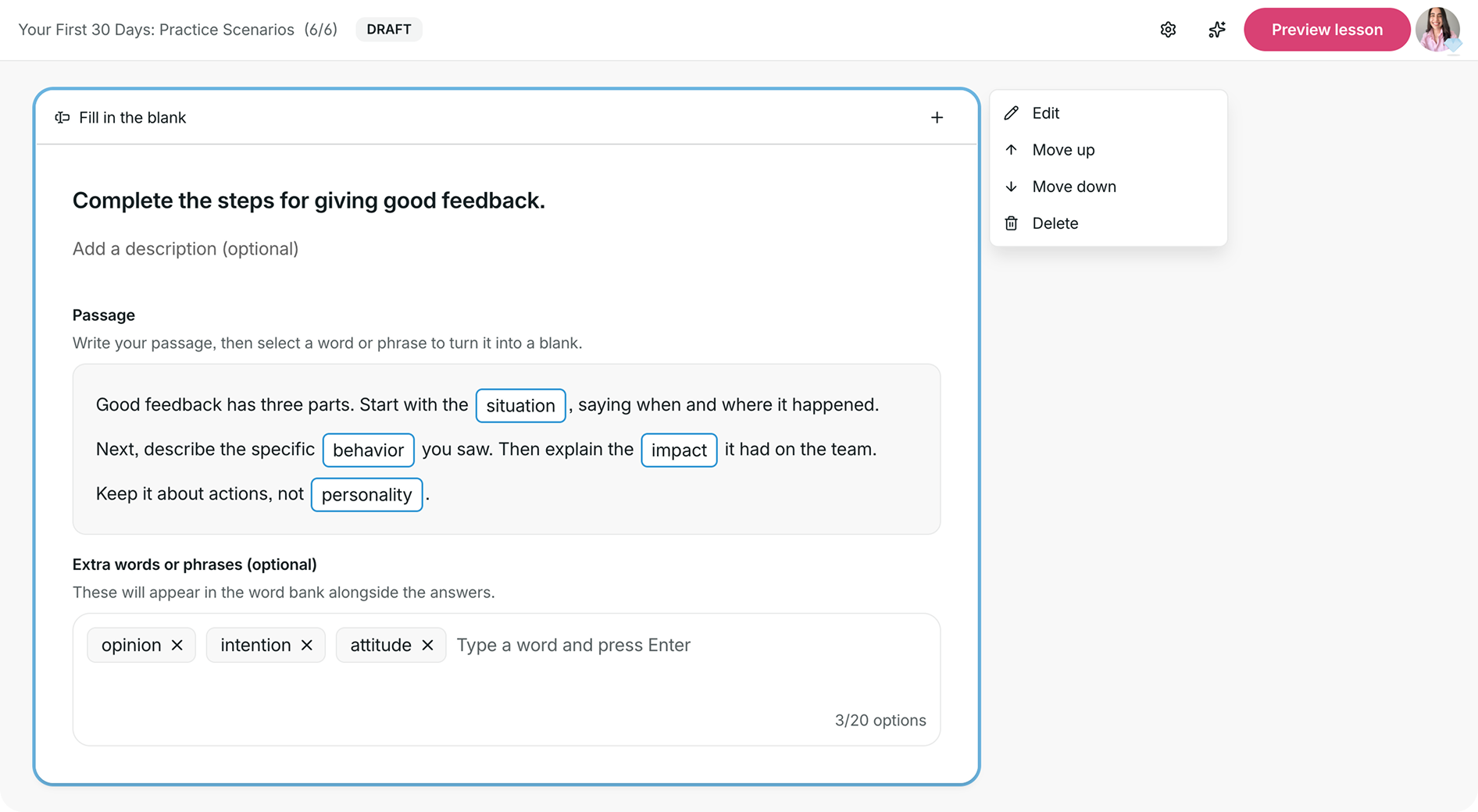
Repeat this process for each word or phrase you want learners to identify. These words will appear with a blue outline in the editor and become blanks in the learner view.
3. Add an image, hint, or explanation
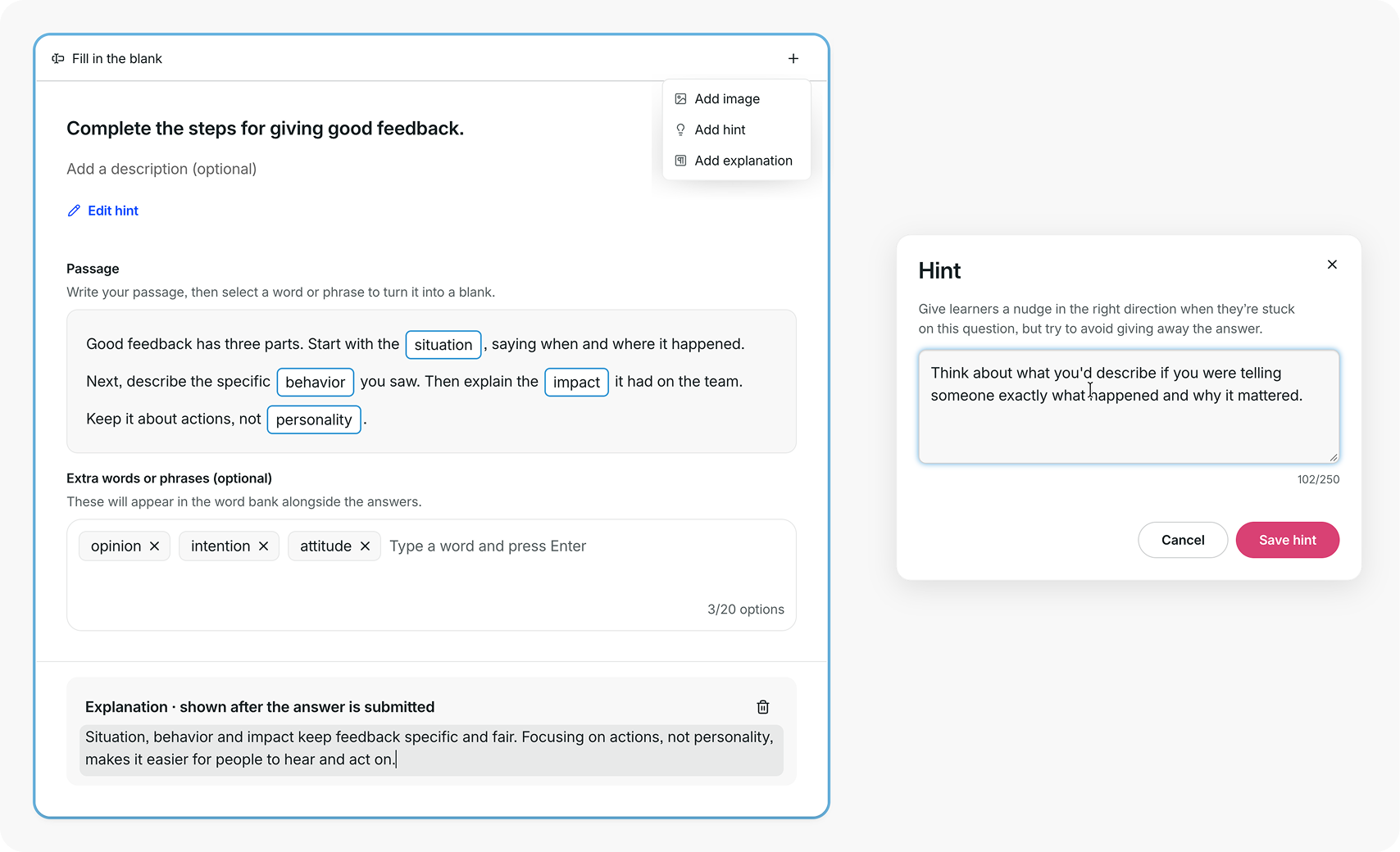
Select the + icon in the top-right corner of the question block to access these options:
- Add image: Include a visual to support your question.
- Add hint: Give learners a clue without revealing the answers. Enter your hint (up to 250 characters) and select Save hint. You can update it later using Edit hint.
- Add explanation: Reinforce the learning point after learners complete the passage correctly or reveal the answers.
Fill in the blank question settings
Select Edit from the block menu to open the Edit question block panel.
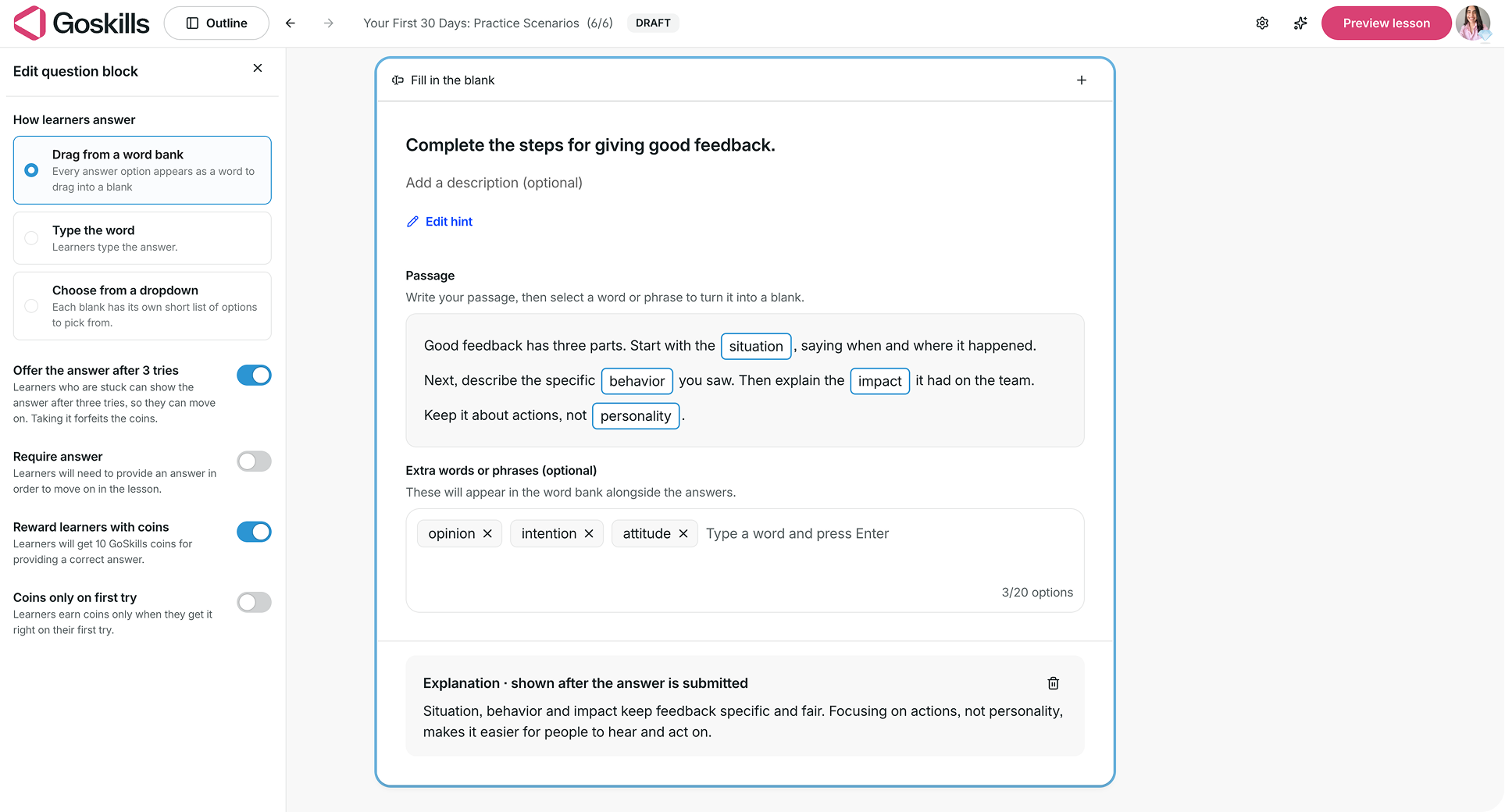
How learners answer
You can choose from three answering methods:
Drag from a word bank (default)
- Learners drag words or phrases into the blanks. They can also select a word and then select a blank.
- The correct answers are automatically included in the word bank.
- To make the activity more challenging, use Extra words or phrases (optional) within the block. Type an incorrect word or phrase and press Enter to add it. You can include up to 20 extra options.
Type the word
- Learners type the missing word or phrase into each blank.
- Select a blank in the passage to open Accepted answers. Use Add another accepted answer to include synonyms or spelling variations, such as “behaviour” for “behavior.” You can add up to 10 accepted answers per blank.
- Answers aren’t case-sensitive, but spelling and punctuation must match an accepted answer exactly.
Choose from a dropdown
- Learners select the missing word or phrase from a dropdown list within each blank.
- Select a blank in the passage to add Wrong options. Each blank requires at least one incorrect option, with a maximum of 10.
- Blanks without incorrect options display a warning icon, and the block displays a MISSING CONTENT badge.
- Dropdown options are shuffled on each attempt.
Note: When using Type the word or Choose from a dropdown, select a blank to edit its options. Select Done when finished or Remove blank to turn it back into regular text.
GoSkills automatically displays instructions for learners based on your selected answering method.
Additional settings
- Offer the answer after 3 tries: Enabled by default. Allow learners to reveal the correct answers after three incorrect attempts.
- Require answer: Require learners to submit an answer before continuing. A Continue button appears below the block and remains inactive until they submit an answer.
- Require correct answer: Require learners to answer correctly or use Show answers to continue. This setting only appears when Require answer is enabled.
- Reward learners with coins: Award 10 GoSkills coins for a correct answer.
- Coins only on first try: Award coins only if learners answer correctly on their first attempt.
What learners see
Learners complete the passage using your selected answering method and then select Submit.
If some answers are incorrect
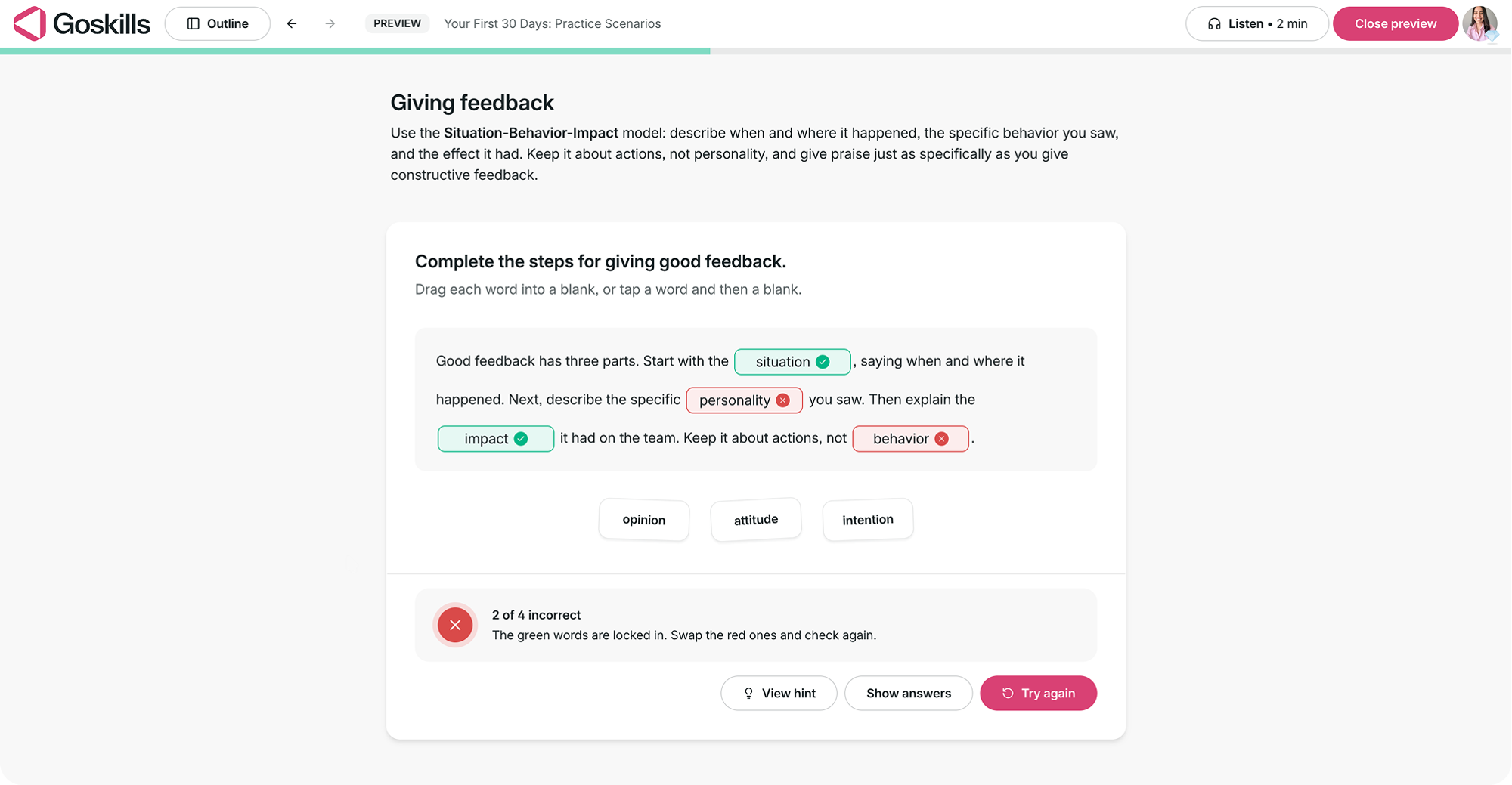
Correct blanks turn green and remain locked, while incorrect or empty blanks turn red. Learners see how many answers are incorrect, such as “2 of 4 incorrect.”
Selecting Try again clears only the incorrect answers. When using a word bank, incorrect words return to the bank.
If you’ve added a hint, learners can select View hint after an incorrect attempt.
If learners need to reveal the answers
If Offer the answer after 3 tries is enabled, learners can select Show answers after three incorrect attempts.
This completes the passage with the correct answers and displays your explanation, if provided. Learners who use this option don’t earn coins.
If all answers are correct
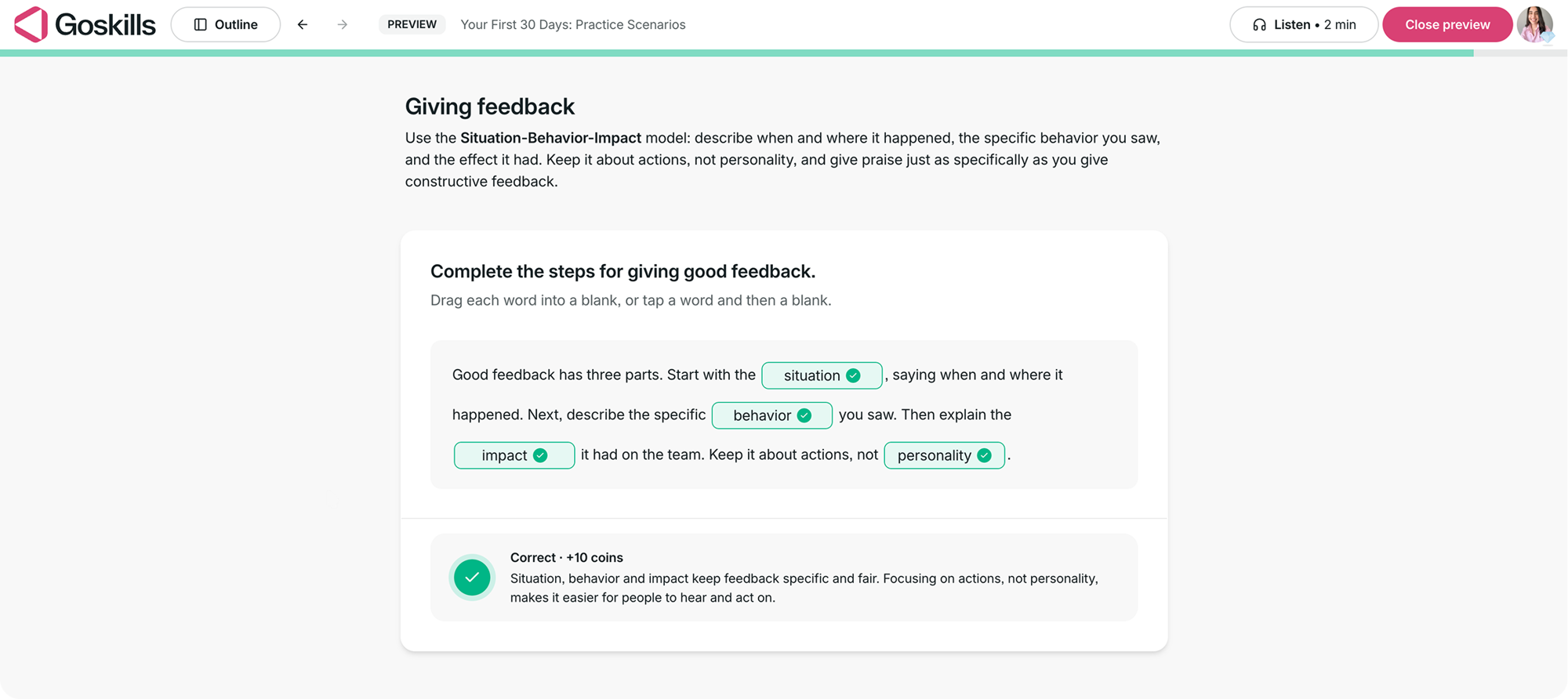
All blanks turn green, and learners see Correct, along with your explanation, if provided.
If learners meet the coin reward conditions, they’ll see Correct · +10 coins. Coins can only be earned once per block, and viewing a hint doesn’t cost any coins.
Note: Inside a Quiz block, answers are scored when the entire quiz is submitted, without individual answer locking or the Try again and Show answers options.
Tips for creating effective Fill in the blank questions
- Focus on key words. Turn important terms into blanks rather than filler words.
- Include believable incorrect options. Encourage learners to think about the context of each blank.
- Account for spelling variations. Add accepted answers when learners type their responses.
- Keep passages short. Focus on the information learners need to remember.