
The Ordering question block in the GoSkills Course Builder lets you create activities where learners arrange items in the correct sequence. It’s particularly useful for teaching processes and procedures where the order of actions matters.
When to use Ordering questions
Use Ordering questions when learners need to understand not only what to do, but also in what order.
- Process training: Reinforce the sequence of steps within a workflow or procedure.
- Health and safety training: Check whether learners know the correct order of actions to follow during an emergency or safety inspection.
- Employee onboarding: Help new hires understand the sequence of tasks within an onboarding process.
- Customer service training: Reinforce the steps for handling customer requests or resolving complaints.
- Project management training: Help learners understand how project stages progress from planning to completion.
How to add an Ordering question
1. Add the question block
In the lesson editor, select Add a block, scroll down to the Engage category, and select Question > Ordering.
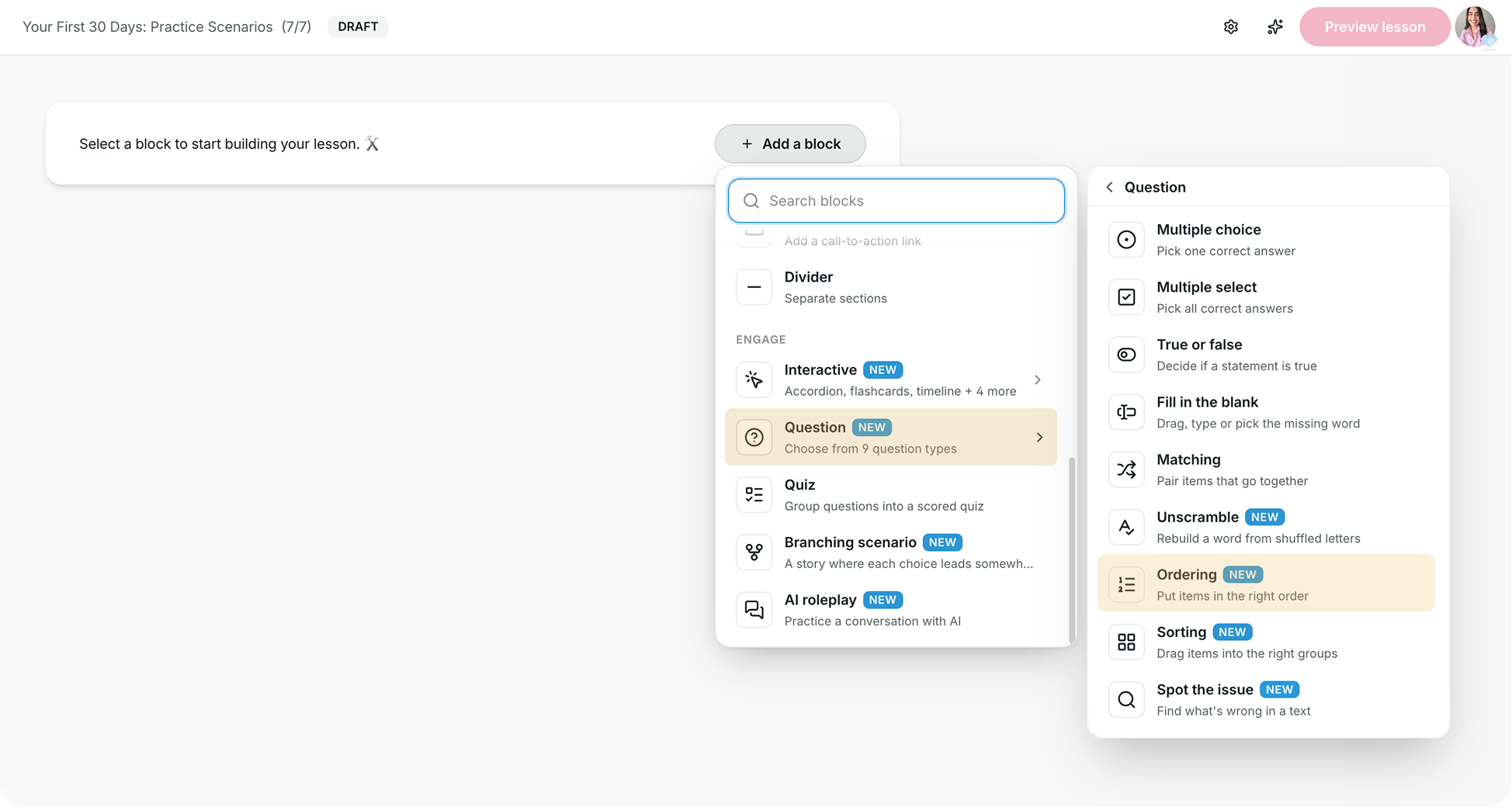
The block will appear with a question title, an optional description, and four numbered items.
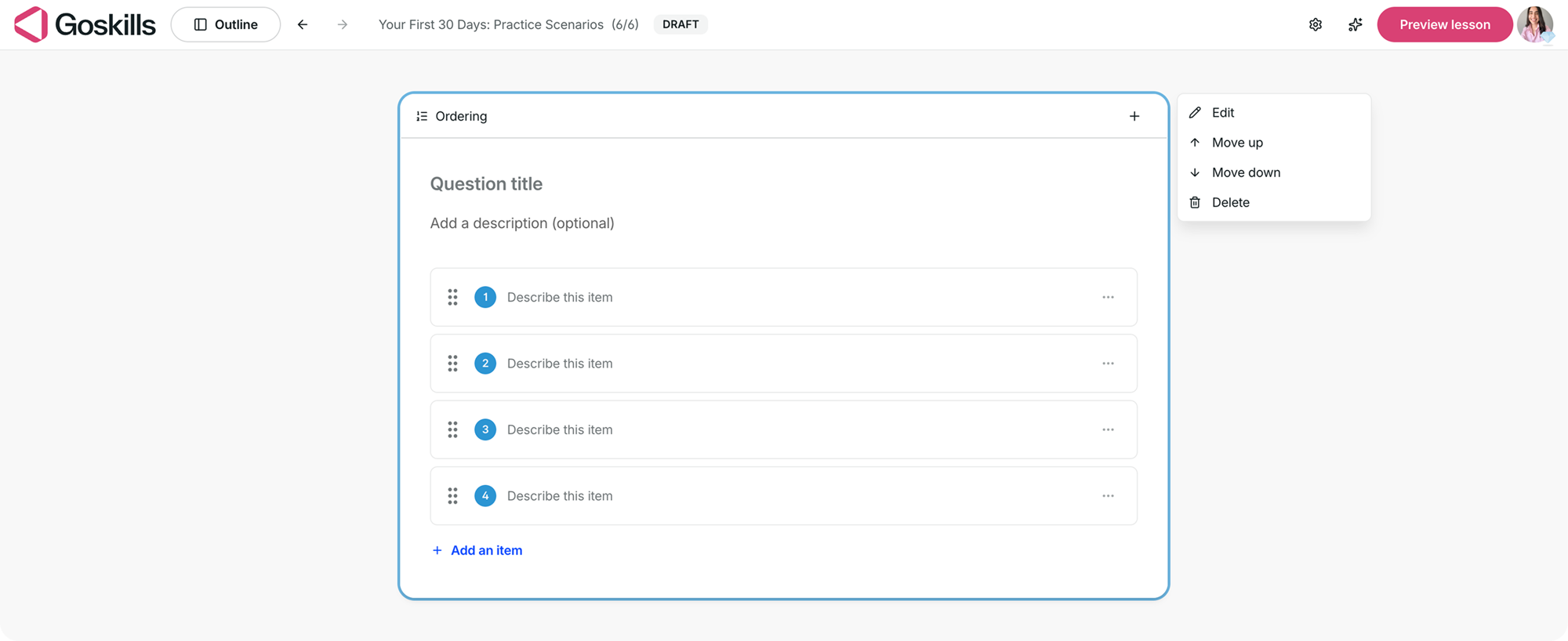
2. Add your items in the correct order
- Enter your question or activity title at the top of the block.
- Add a description if you want to provide context or instructions.
- Enter your items in the correct sequence. Each item can contain up to 120 characters.
- Select Add an item to include more items. You can have between three and eight items per question.
- To reorder items, use the drag handle or select Move up or Move down from the item’s ... menu.
The order you enter in the editor determines the correct answer. GoSkills automatically shuffles the items for learners, so you don’t need to rearrange them yourself.
3. Add an image, hint, or explanation
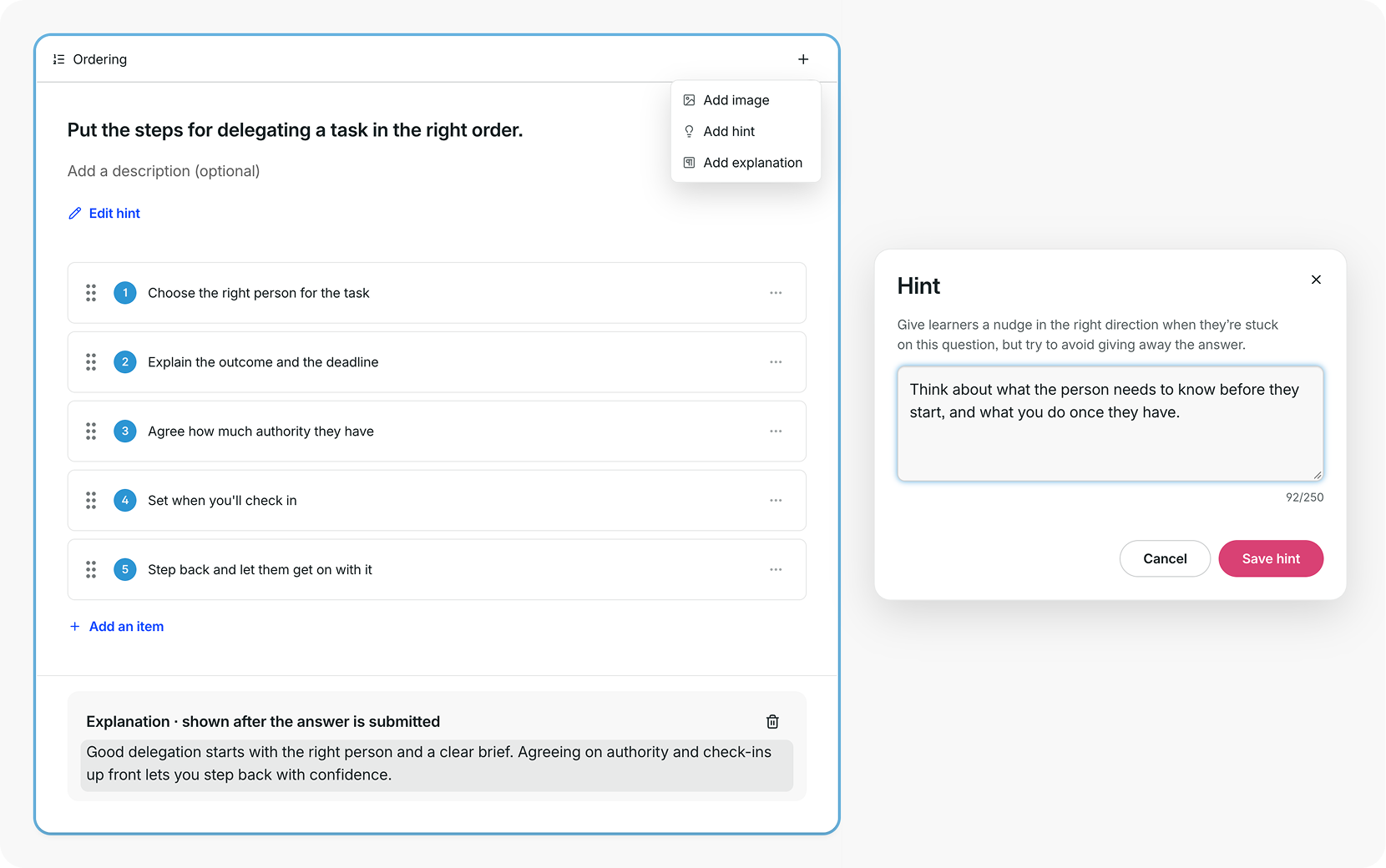
Select the + icon in the top-right corner of the question block to access these options:
- Add image: Include a visual to support your question.
- Add hint: Give learners a helpful nudge without revealing the correct sequence. Enter your hint (up to 250 characters) and select Save hint. You can update it later using Edit hint.
- Add explanation: Explain why the sequence matters or reinforce the process after learners answer correctly or reveal the answer.
Ordering question settings
Select Edit from the block menu to open the Edit question block panel.
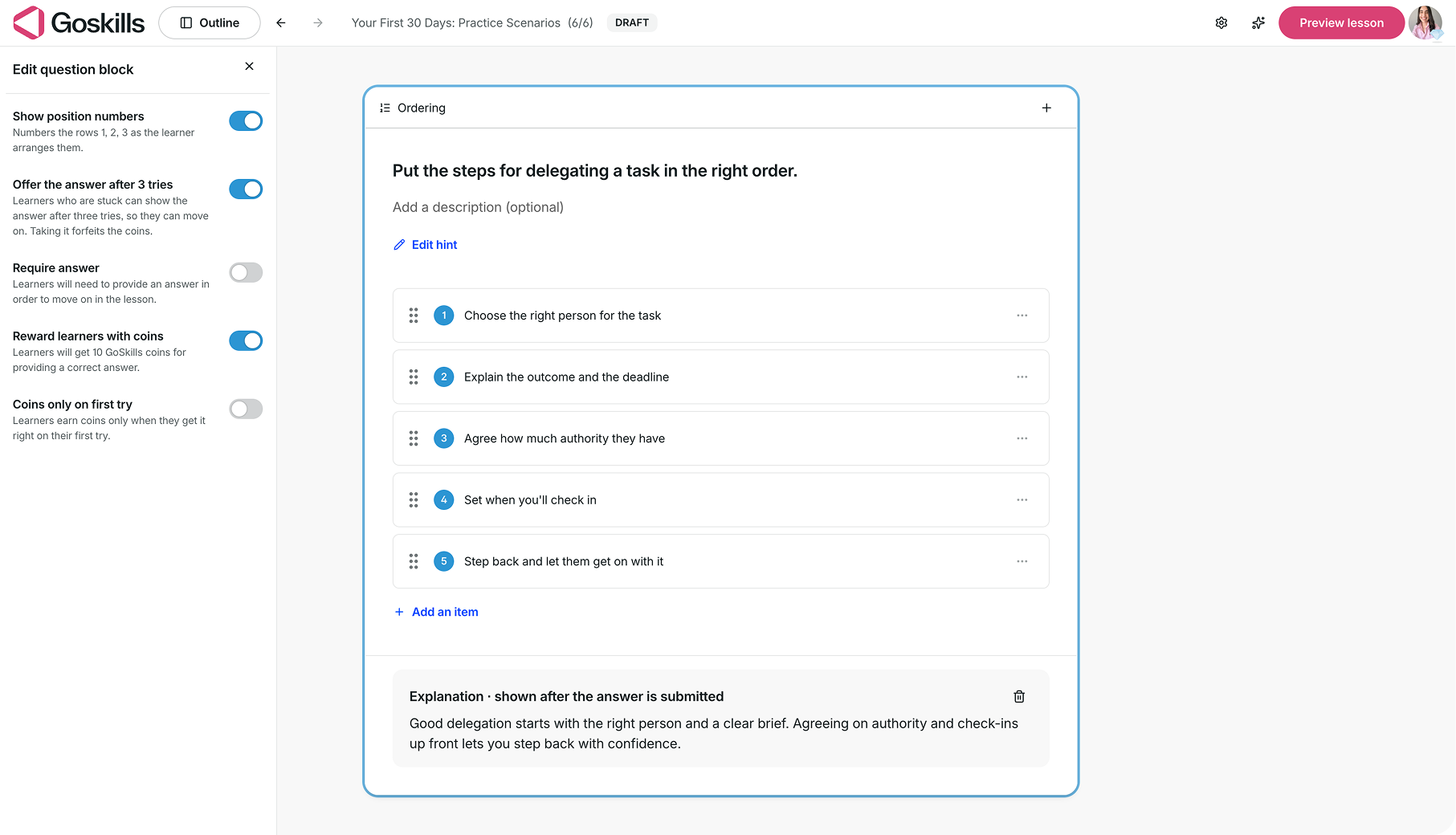
- Show position numbers: Display numbers next to the items as learners arrange them. Enabled by default.
- Offer the answer after 3 tries: Enabled by default. Allow learners to reveal the correct sequence after three incorrect attempts.
- Require answer: Require learners to submit an answer before continuing. A Continue button appears below the block and remains inactive until they submit an answer.
- Require correct answer: Require learners to answer correctly or use Show answers to continue. This setting only appears when Require answer is enabled.
- Reward learners with coins: Award 10 GoSkills coins for a correct answer.
- Coins only on first try: Award coins only if learners answer correctly on their first attempt. This setting only appears when Reward learners with coins is enabled.
What learners see
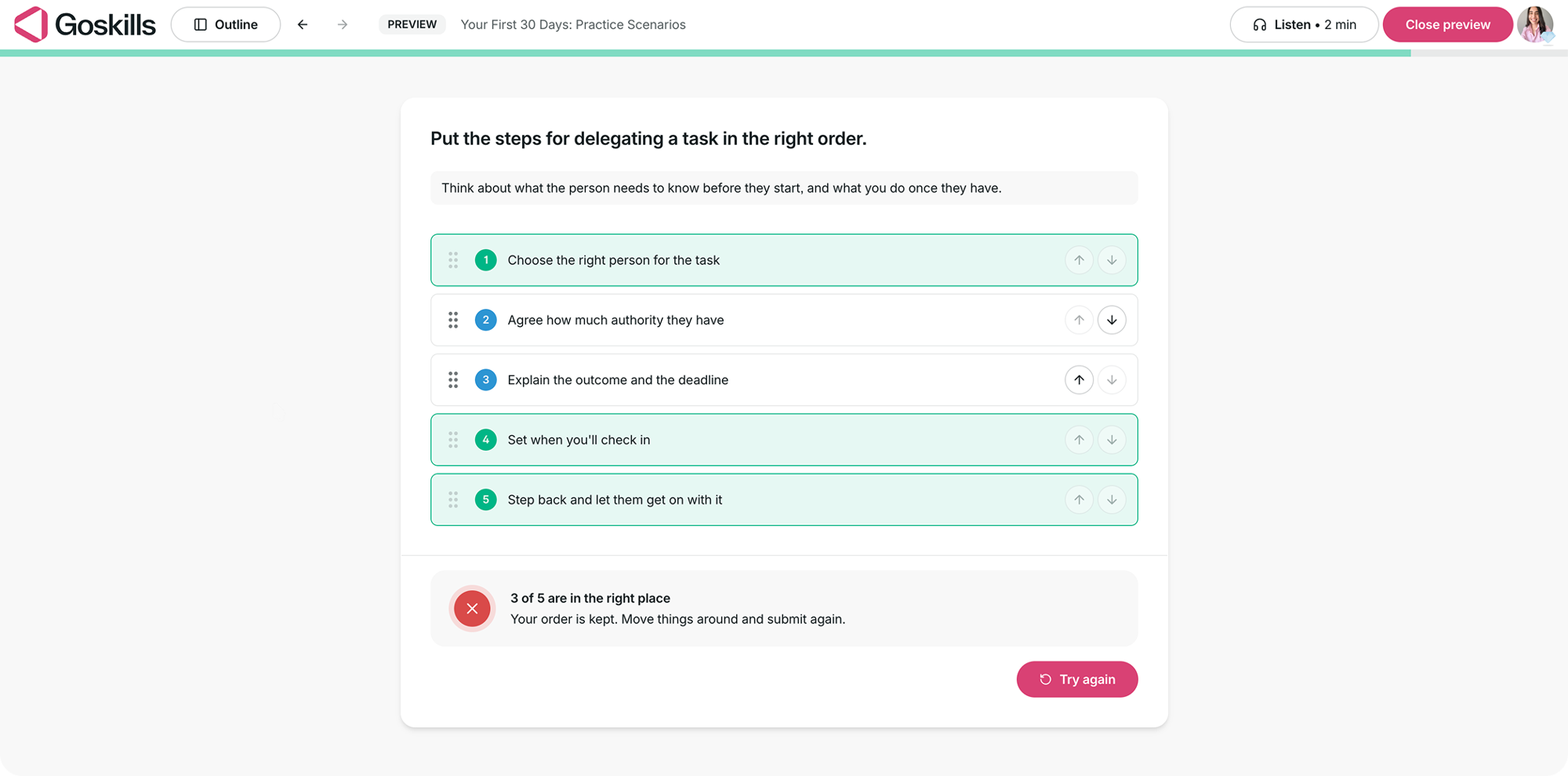
Learners see the items in a shuffled order. They can rearrange them using the drag handles or the up and down arrows next to each item. The arrows also work with keyboard navigation.
The Submit button is active from the start, since the shuffled sequence counts as an answer. However, the initial sequence will never match the correct order.
If some items are in the wrong order
Items in the correct position turn green and remain locked. The remaining items can still be rearranged.
Learners see how many items are correctly positioned, such as “3 of 5 are in the right place.”
Their existing order is preserved, so they only need to rearrange the remaining items and submit again.
If you’ve added a hint, learners can select View hint after an incorrect attempt. The hint appears beneath the question.
If learners need to reveal the answer
If Offer the answer after 3 tries is enabled, learners can select Show answers after three incorrect attempts.
This reveals the correct sequence and displays your explanation, if provided. Learners who use this option don’t earn coins.
If the answer is correct
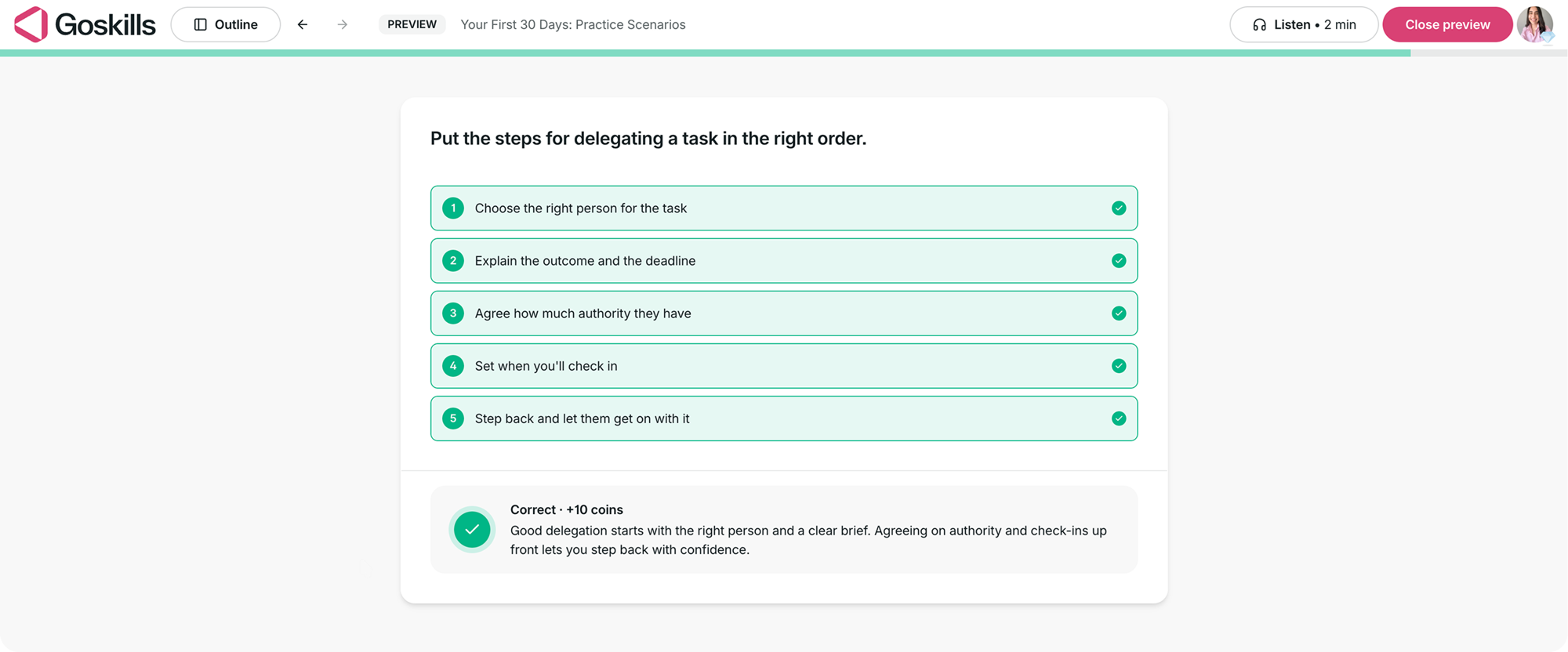
All items turn green, and learners see Correct, along with your explanation, if provided.
If learners meet the coin reward conditions, they’ll see Correct · +10 coins. Coins can only be earned once per block, and viewing a hint doesn’t cost any coins.
Note: Inside a Quiz block, answers are scored when the entire quiz is submitted, without individual answer locking or the Try again and Show answers options.
Tips for creating effective Ordering questions
- Aim for at least four items. Shorter sequences are easier to guess.
- Keep items concise. Make each step short and easy to distinguish from the others.
- Avoid duplicate items. Learners won’t be able to tell which position identical items belong in.
- Use sequences with one clear correct order. Avoid activities where several arrangements could be equally valid.