
The Matching question block in the GoSkills Course Builder allows learners to pair related items by moving answer cards into their corresponding slots. This format helps learners recognize relationships between concepts and understand how different pieces of information connect.
When to use Matching questions
Matching questions are particularly useful when learning involves associating one piece of information with another.
- Key terms and definitions: Help learners associate important terminology with its meaning.
- Compliance and policy training: Reinforce which policies apply to different workplace situations.
- Product training: Help learners connect product features with their corresponding benefits.
- Employee onboarding: Familiarize learners with different roles, departments, and their responsibilities.
- Technical training: Check whether learners can identify the appropriate tools for specific tasks.
How to add a Matching question
1. Add the question block
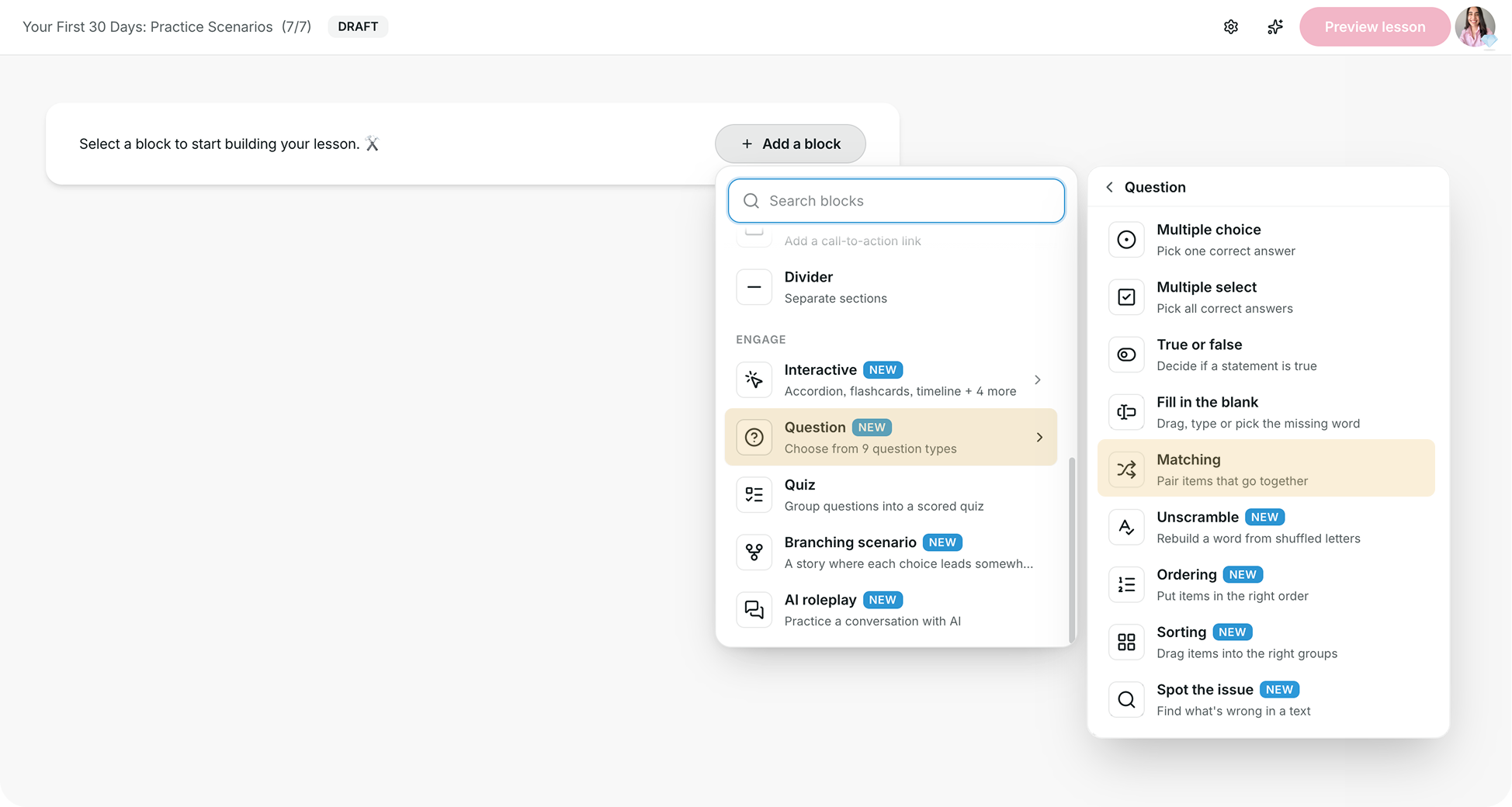
In the lesson editor, select Add a block, scroll down to the Engage category, and select Question > Matching.
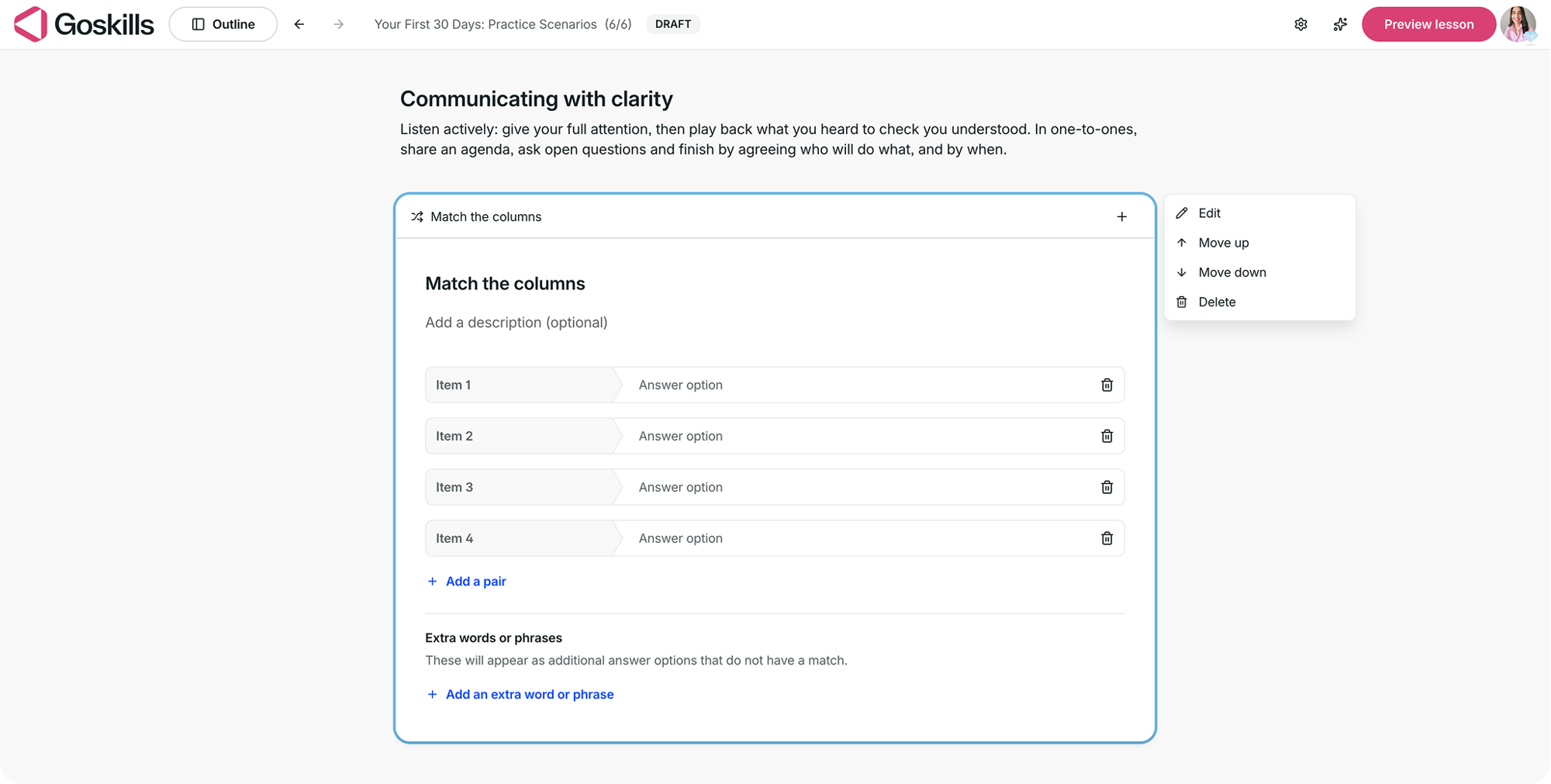
The block will appear with the header Match the columns, a question title, an optional description, and four pairs.
2. Add your matching pairs
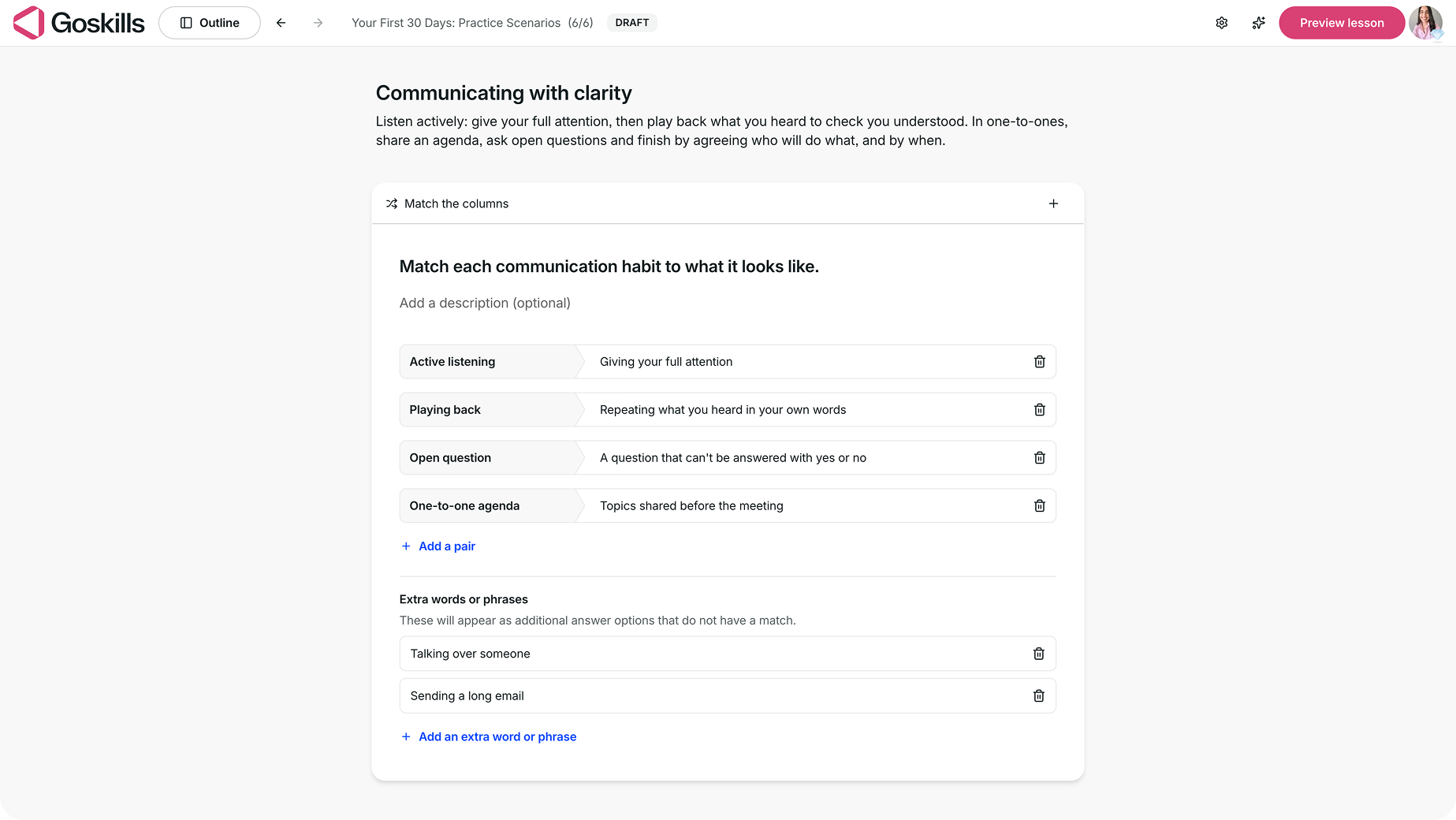
- Enter your question or activity title at the top of the block.
- Add a description if you want to provide context or instructions.
- Enter each term on the left and its corresponding answer on the right. Each can contain up to 200 characters.
- Select Add a pair to include more pairs. You need at least two pairs.
- To remove a pair, select the trash icon next to it.
To make the activity more challenging, include answer options that don’t have a match. Under Extra words or phrases, select Add an extra word or phrase to enter each additional option.
Learners must leave these extra options unused to complete the activity correctly.
3. Add an image, hint, or explanation
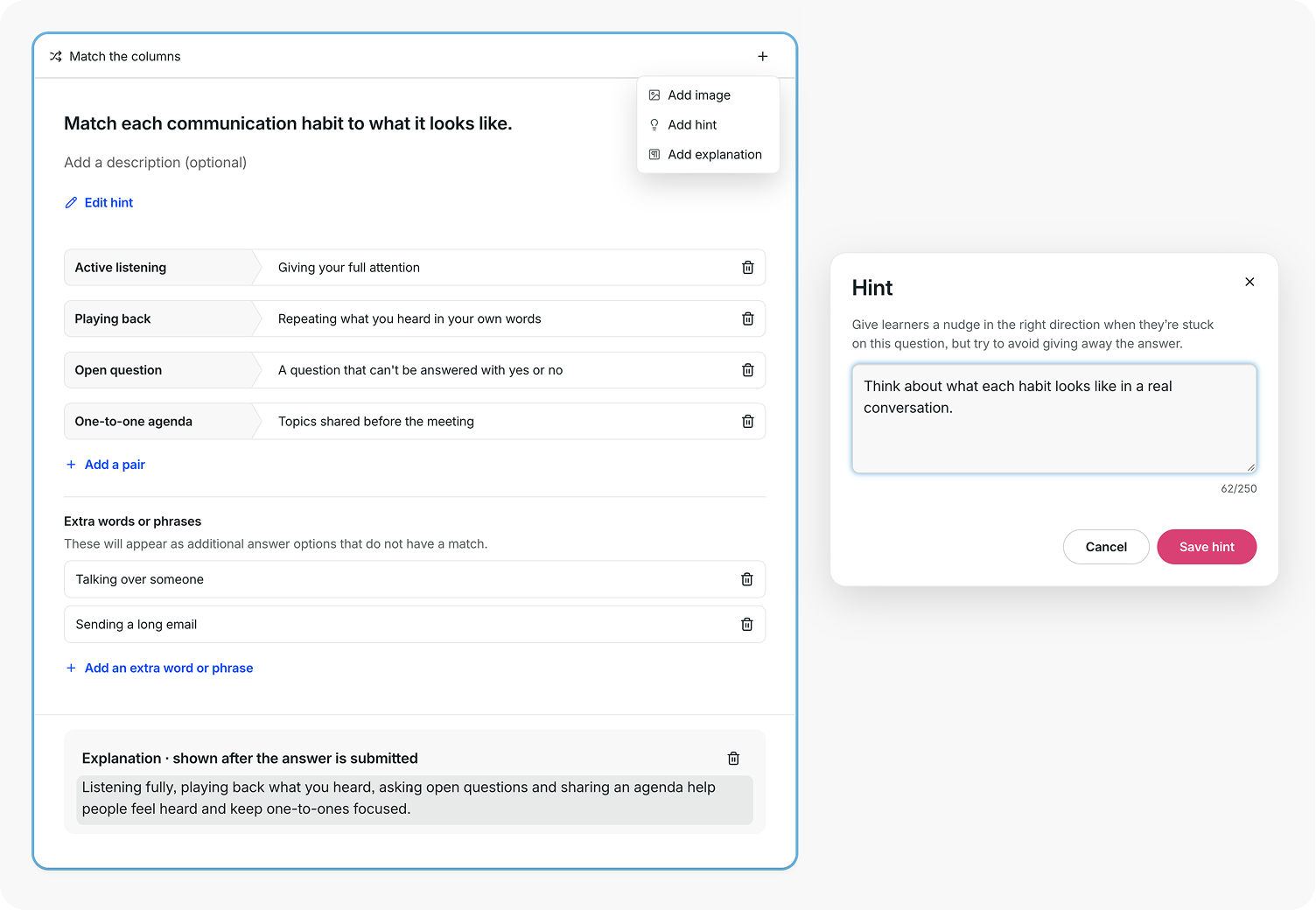
Select the + icon in the top-right corner of the question block to access these options:
- Add image: Include a visual to support your question.
- Add hint: Give learners a clue without revealing the answers. Enter your hint (up to 250 characters) and select Save hint. You can update it later using Edit hint.
- Add explanation: Reinforce the learning point after learners match all pairs correctly or reveal the answers.
Matching question settings
Select Edit from the block menu to open the Edit question block panel.
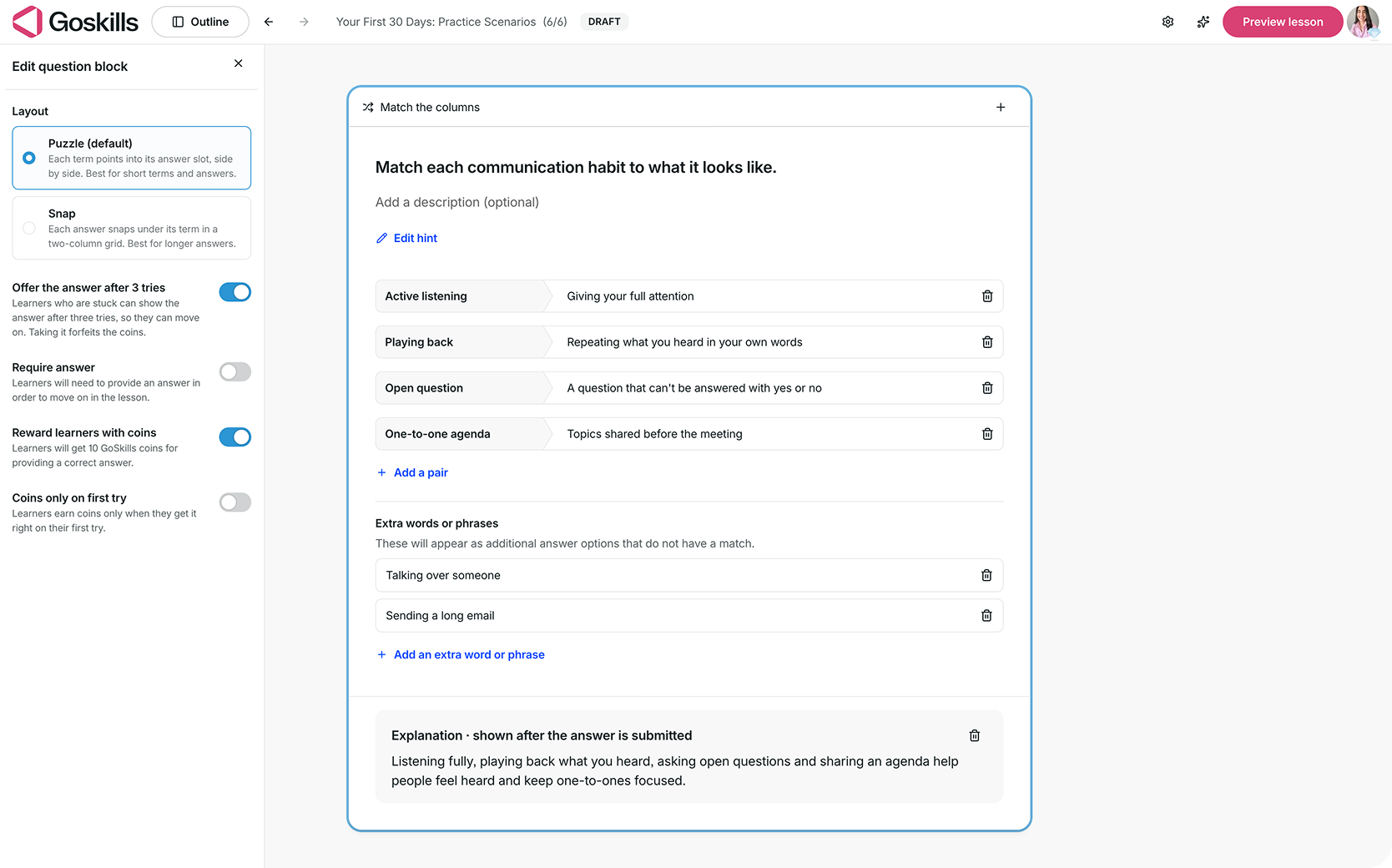
Layout
You can choose between two layouts:
- Puzzle (default): Each term connects to its answer slot side by side, like puzzle pieces. Best for short terms and answers.
- Snap: Each answer fits beneath its corresponding term in a two-column grid. Best for longer answers.
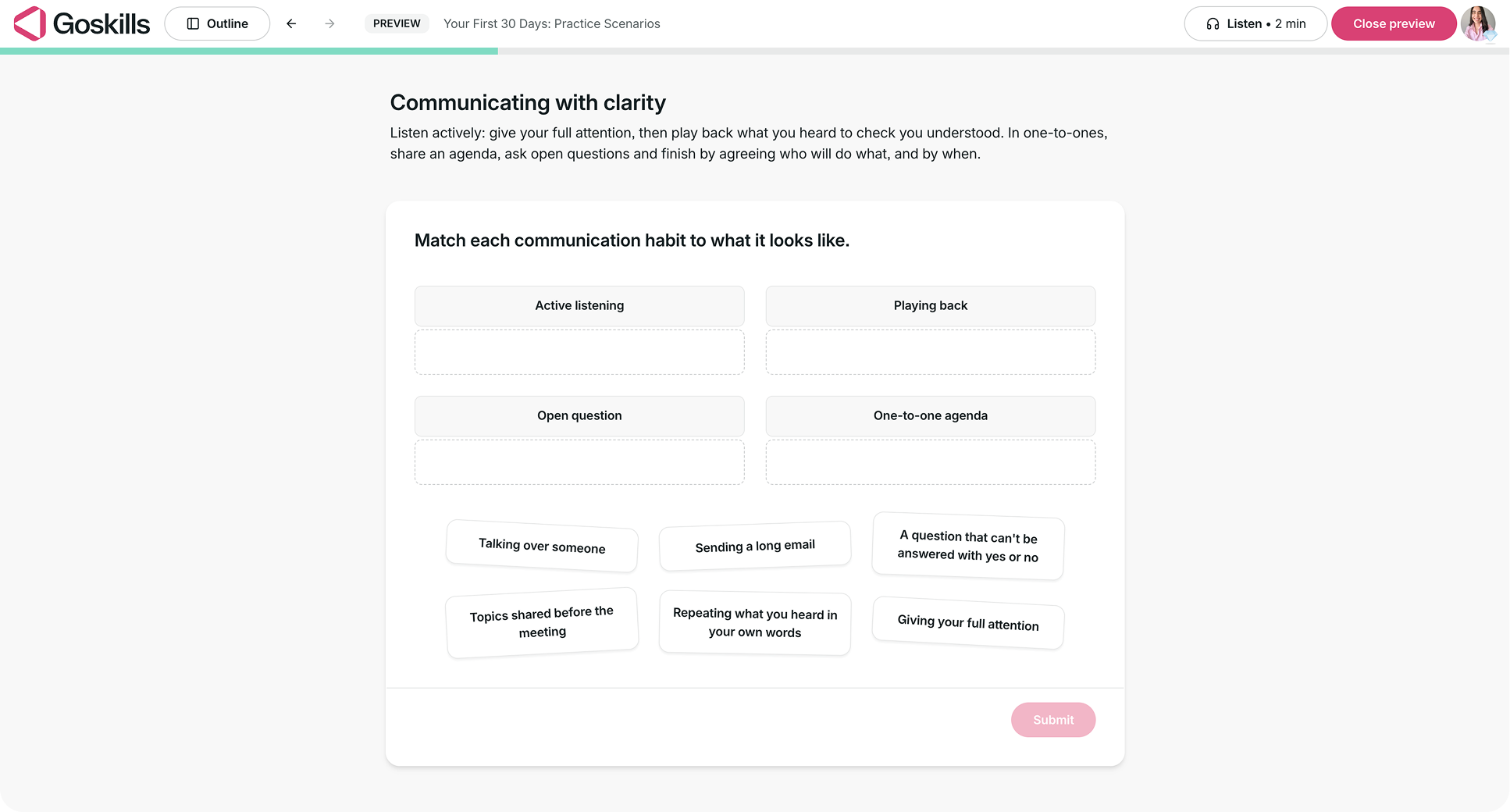
The block looks the same in the editor with either layout. Select Preview lesson to see how it appears to learners.
Here’s an example of the Snap layout:
Additional settings
- Offer the answer after 3 tries: Enabled by default. Allow learners to reveal the correct matches after three incorrect attempts.
- Require answer: Require learners to submit an answer before continuing. A Continue button appears below the block and remains inactive until they submit an answer.
- Require correct answer: Require learners to match all pairs correctly or use Show answers to continue. This setting only appears when Require answer is enabled.
- Reward learners with coins: Award 10 GoSkills coins for a correct answer.
- Coins only on first try: Award coins only if learners answer correctly on their first attempt. This setting only appears when Reward learners with coins is enabled.
Answer cards are always shuffled.
What learners see
Learners drag answer cards into their corresponding slots. They can also select a card and then select a slot.
To remove a card from an unlocked slot, learners can select the X. Once they’ve matched the items, they select Submit.
If some matches are incorrect
Correct pairs turn green and remain locked, while incorrect pairs turn red. Learners see how many pairs they’ve matched correctly, such as “2 of 4 pairs right.”
Selecting Try again returns only the incorrect cards, keeping the correct matches in place.
If you’ve added a hint, learners can select View hint after an incorrect attempt.
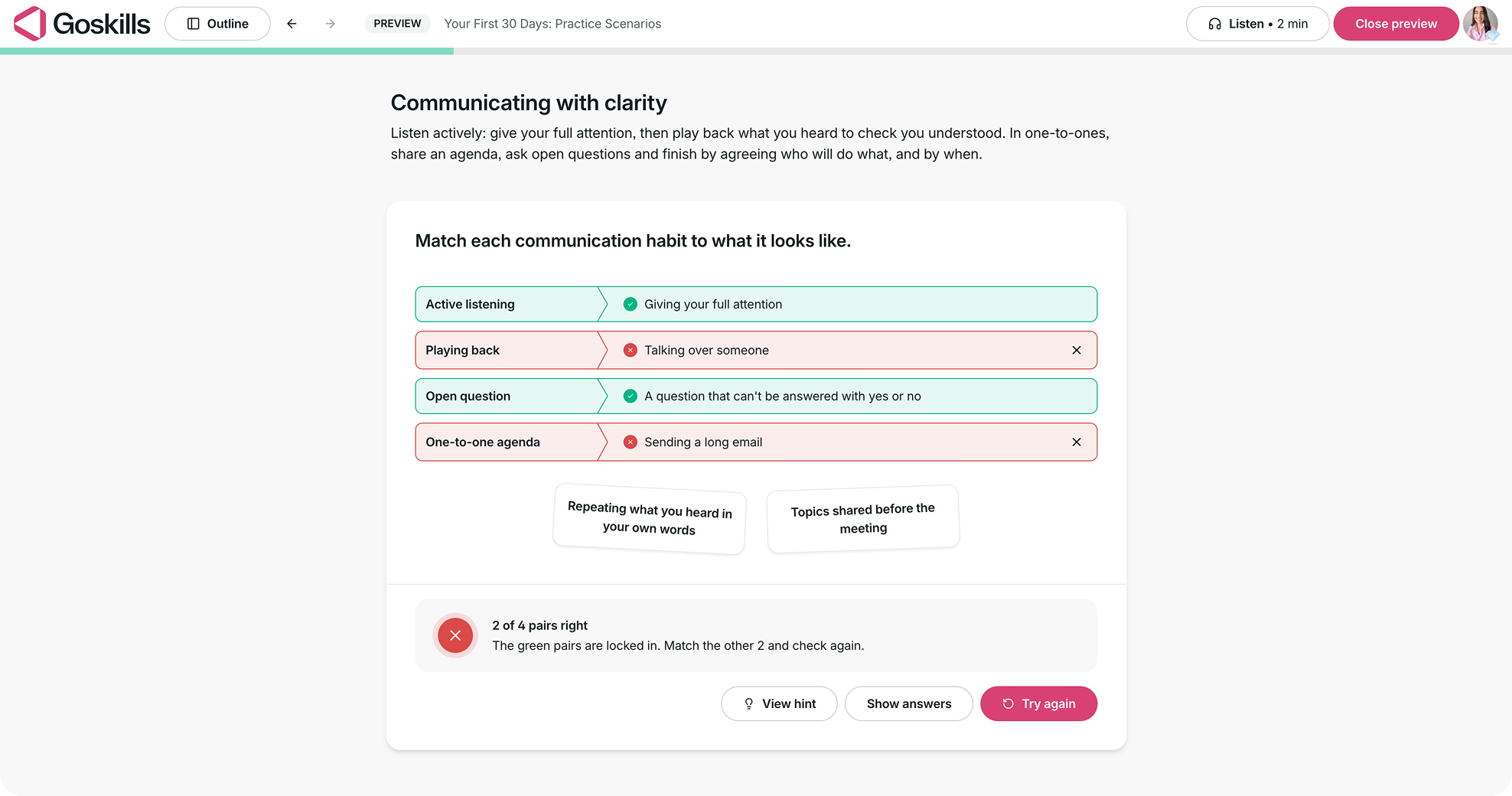
If learners need to reveal the answers
If Offer the answer after 3 tries is enabled, learners can select Show answers after three incorrect attempts.
This reveals the correct matches and displays your explanation, if provided. Learners who use this option don’t earn coins.
If all matches are correct
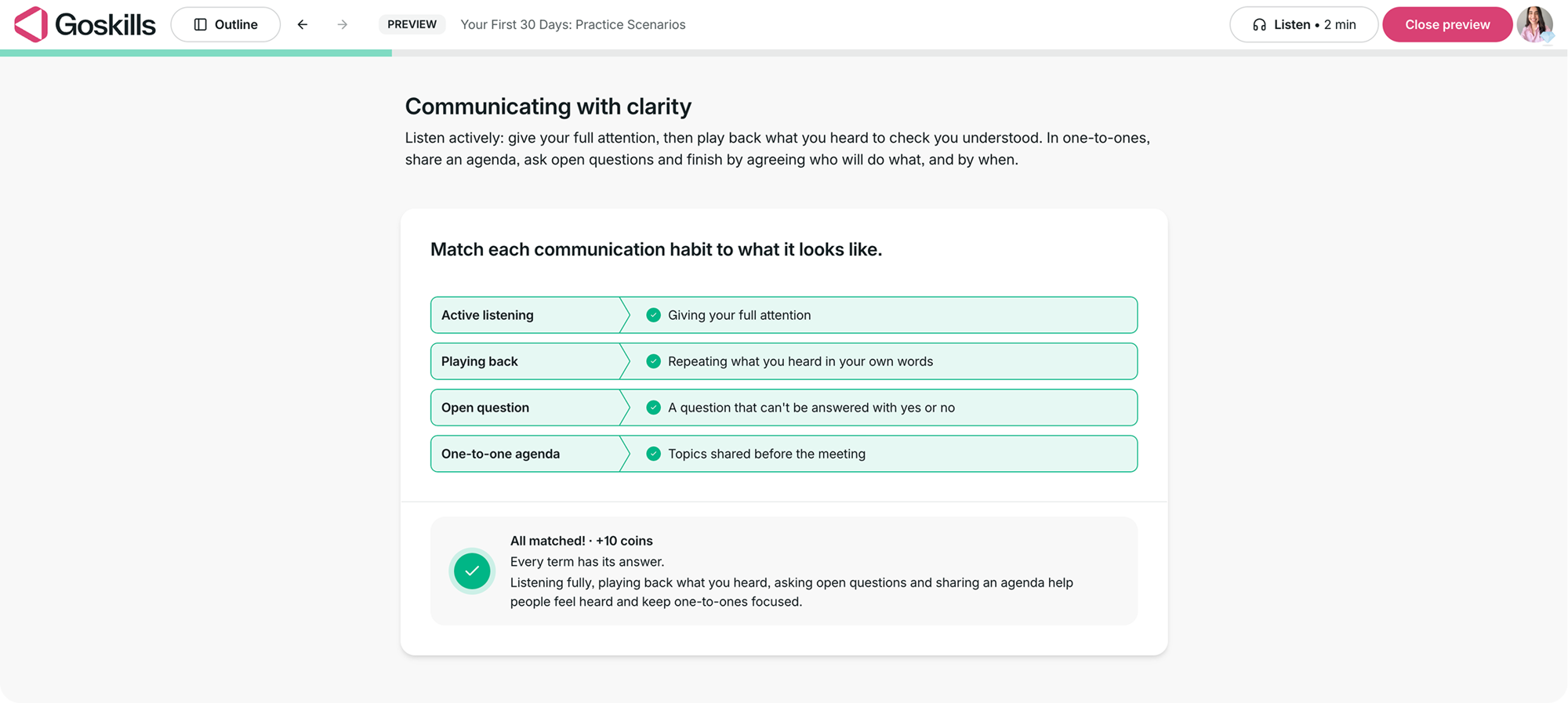
All pairs turn green, and learners see All matched!, along with your explanation, if provided.
If learners meet the coin reward conditions, they’ll see All matched! · +10 coins. Coins can only be earned once per block, and viewing a hint doesn’t cost any coins.
Note: Inside a Quiz block, answers are scored when the entire quiz is submitted, without individual answer locking or the Try again and Show answers options.
Tips for creating effective Matching questions
- Keep pairs concise. Use short terms and answers when working with the Puzzle layout.
- Use Snap for longer answers. Give learners more space to read detailed definitions or descriptions.
- Include believable extra options. Encourage learners to think carefully about each match.
- Avoid ambiguous matches. Make sure each correct answer clearly corresponds to only one term.