The GoSkills navigation helps administrators quickly access the tools, settings, and information they need to manage learning across their organization.
From the navigation, administrators can:
- Switch between available roles
- View learning activity and achievements
- Access the GoSkills AI assistant
- Choose a navigation theme
- Select a preferred language
Depending on your permissions, you may see options for administrators, team administrators, creators, or learners.
Switch between roles
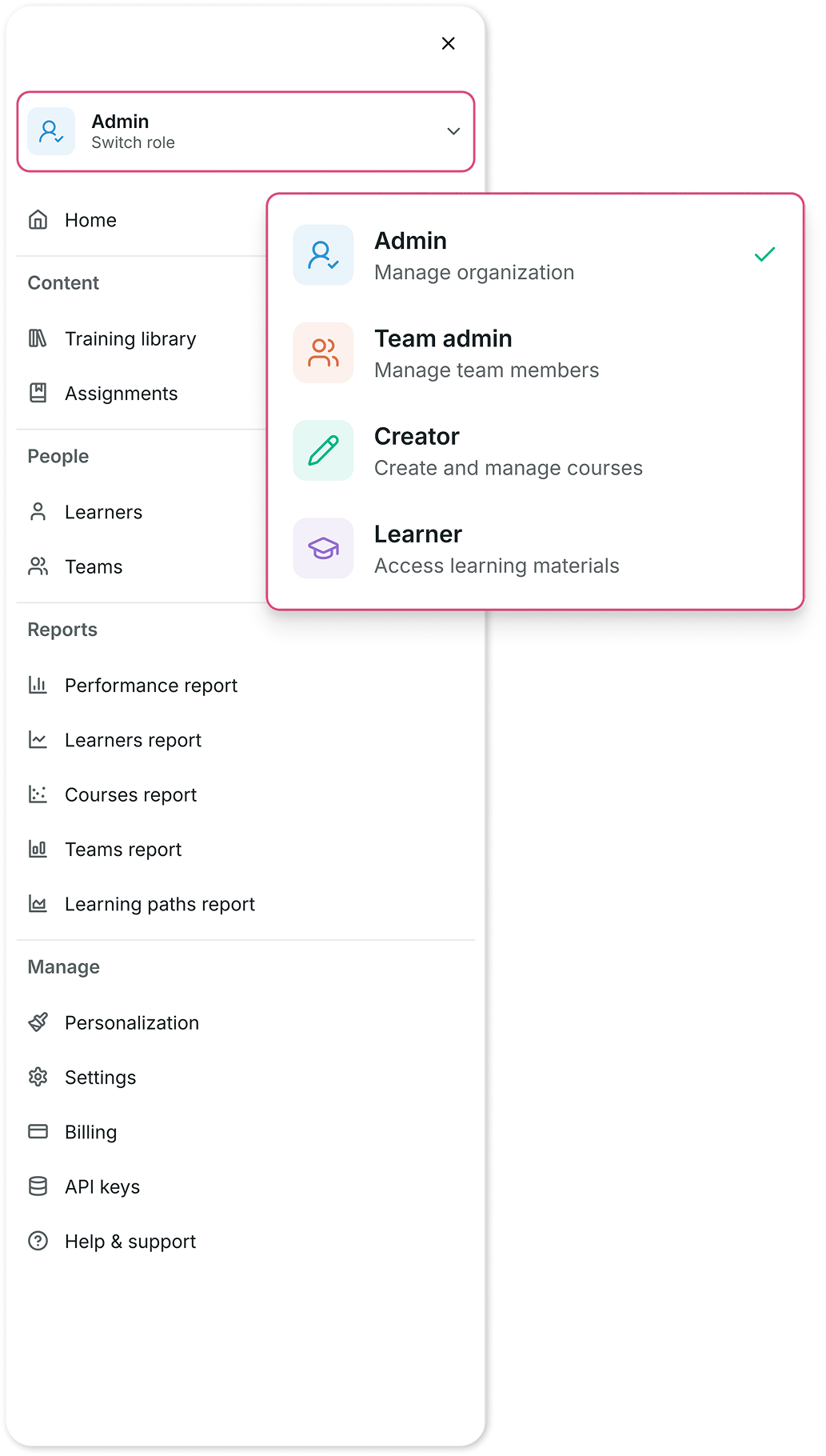
If you have multiple roles in GoSkills, you can switch between them using the role switcher in the navigation menu.
Available roles may include:
- Admin – Manage your organization, learners, assignments, and settings.
- Team Admin – Manage learners and training within assigned teams.
- Creator – Create and manage courses and learning content.
- Learner – Access assigned training and track your learning progress.
The navigation menu will automatically update to show the tools available for your selected role.
Track your learning progress
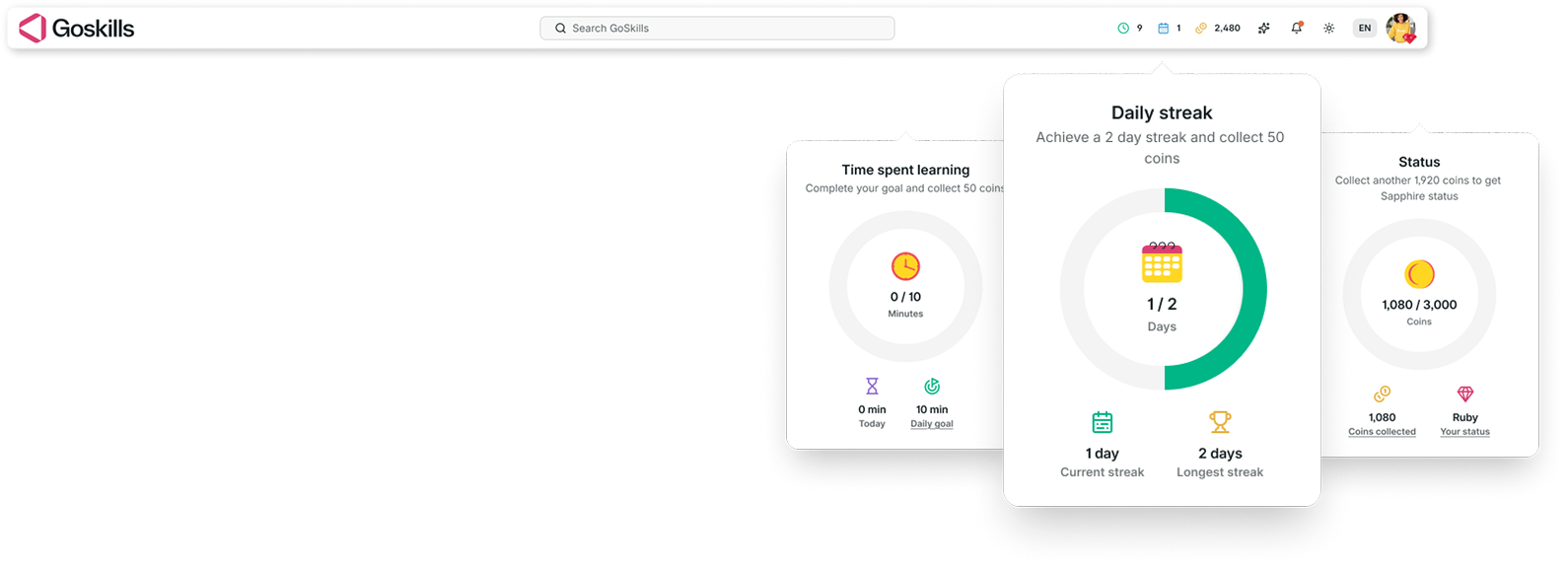
The gamification menu gives you a quick overview of your learning activity and achievements.
From here, you can view:
- Time spent learning
- Daily learning streaks
- Coins earned through course activity
These features help you and your team stay motivated and track learning progress over time.
Use the GoSkills AI assistant
The GoSkills AI assistant can help answer questions about the platform, find features, and guide administrators through common tasks.
Select the AI assistant icon in the navigation bar to get started.
Choose your navigation theme
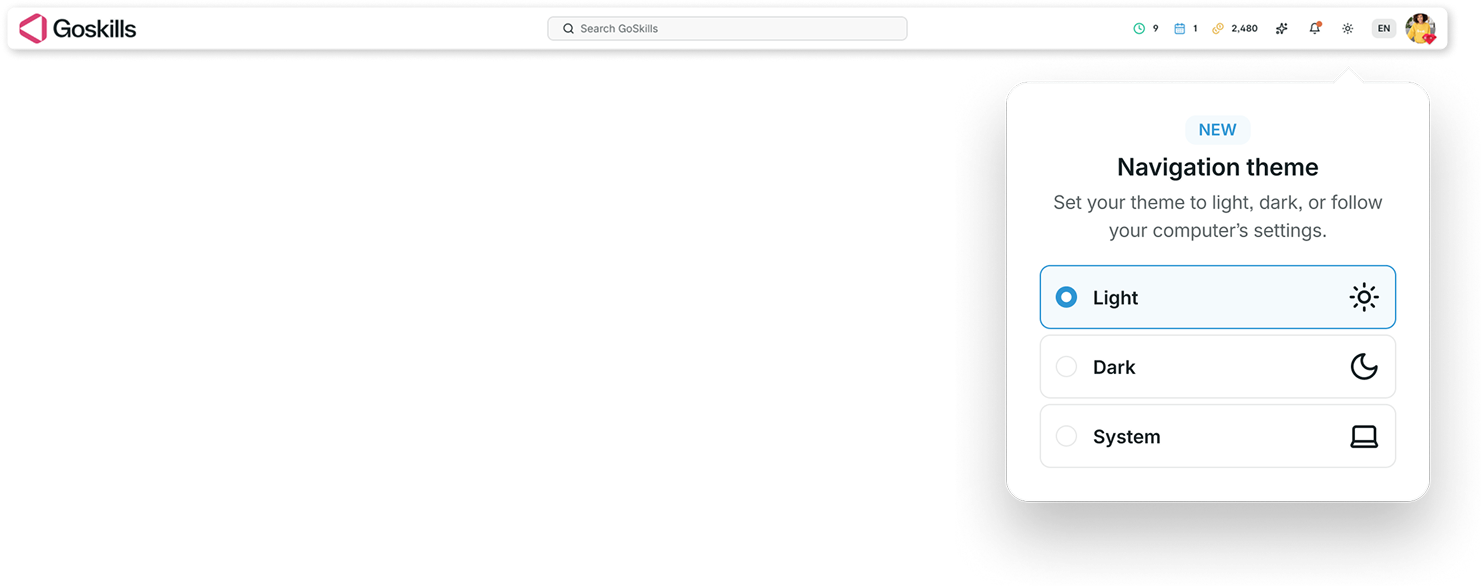
You can customize the appearance of GoSkills by selecting your preferred navigation theme.
Available options include:
- Light – Uses a light-colored interface.
- Dark – Uses a dark-colored interface.
- System – Automatically matches your computer or device settings.
To change your theme, open your profile menu and select your preferred option.
For more information about navigation themes and organization branding, see Customize your navigation theme.
Choose your language
GoSkills supports multiple interface languages and video subtitles.
Select the language menu in the top-right corner of the navigation bar to choose your preferred language.
Changing your language updates navigation labels, menus, subtitles, and other supported interface elements throughout GoSkills.