
Course refreshers help learners revisit important training on a recurring basis. Instead of manually reassigning courses, admins can automatically schedule refresher training and reminders to help keep knowledge current.
Whether you’re delivering compliance training, workplace safety programs, cybersecurity awareness courses, software training, or onboarding, course refreshers help ensure important knowledge stays fresh over time.
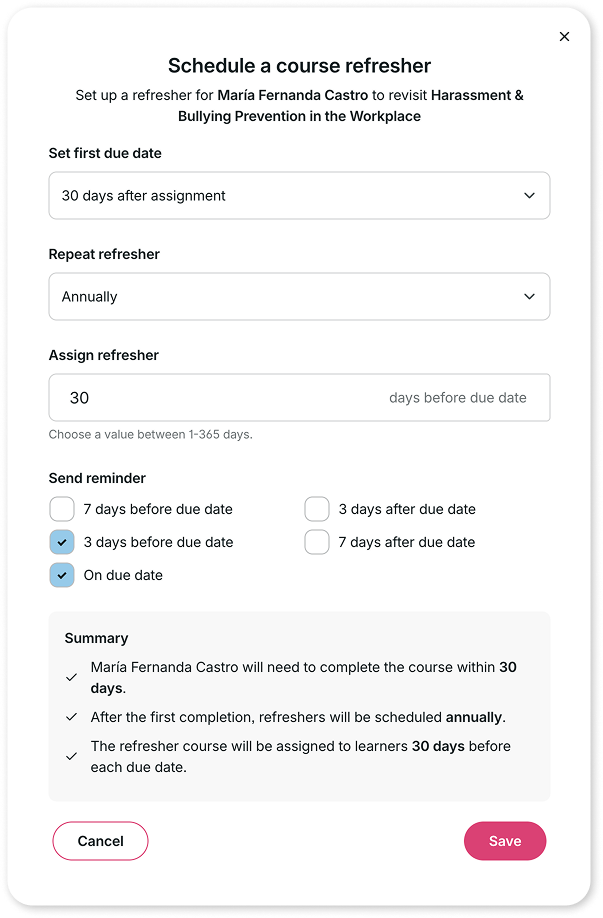
Create a course refresher
To create a course refresher, you’ll first need to assign the course to your learners, whether that’s an individual learner, a team, or your entire organization.
Here are two ways to get started:
Option 1: When creating an assignment
- Go to Assignments.
- Select Create an assignment.
- Search for the course you want to assign.
- Choose whether to assign the course to a learner, a team, or your entire organization.
- Assign the course.
- Once the course has been assigned, locate the assignment and select the three-dot menu (⋯) on the course card.
- Select Manage assignment.
- Select Schedule refresher.
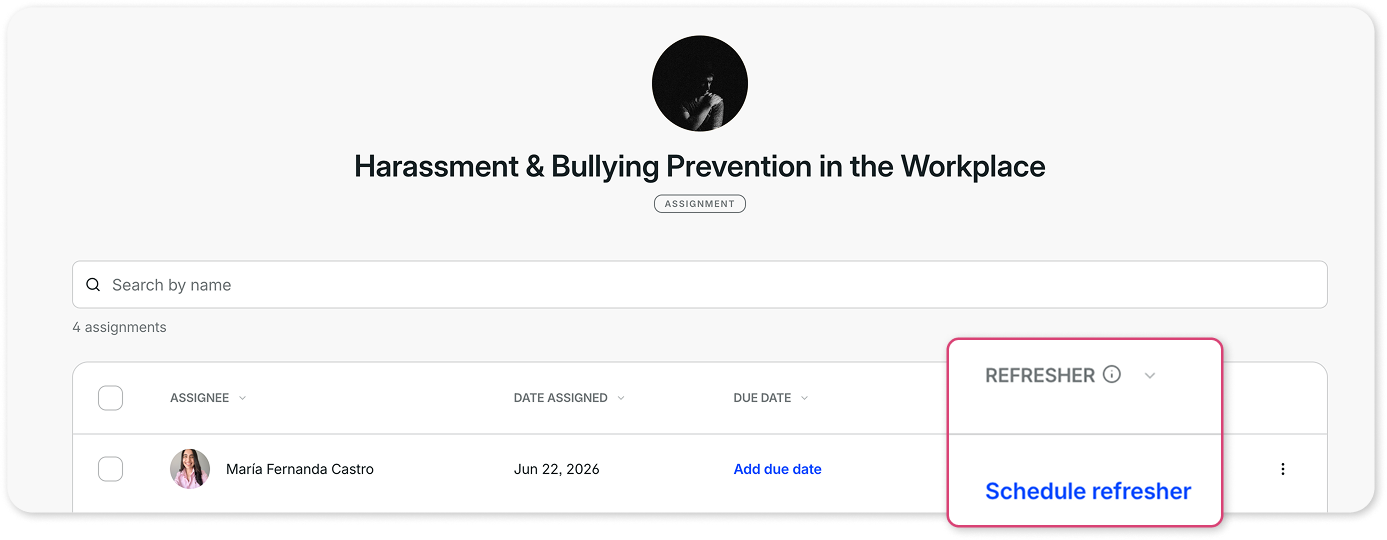
Option 2: From the Training library
- Go to the Training library.
- Find the course you want to assign.
- Select the three-dot menu (⋯).
- Select Assign this course.
- Complete the assignment setup.
- Select Schedule refresher.
Set the first due date
Choose when the learner should complete the course for the first time.
Available options include:
- 7 days after assignment
- 14 days after assignment
- 30 days after assignment
- 60 days after assignment
- 90 days after assignment
- Custom time period
- Custom date
This due date determines when the learner must complete the course before refresher training begins.
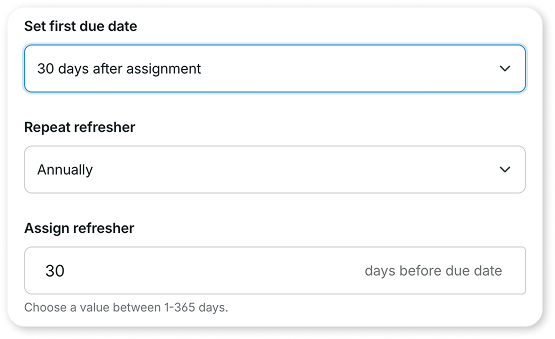
Choose a refresher schedule
Next, select how often learners should retake the course.
Available options include:
- Weekly
- Monthly
- Quarterly
- Twice a year
- Annually
- Every 2 years
- Custom period
- Specific date
After the initial completion, future refresher due dates are calculated from the learner’s course completion date plus the refresher interval you select. If you choose Specific date, the refresher will follow the calendar date you set instead.
Assign refreshers in advance
Choose how many days before the due date the refresher should be assigned.
You can select any value between 1 and 365 days.
Assigning refreshers ahead of time gives learners an opportunity to complete their training before the due date arrives.
Send automatic reminders
Admins can schedule reminder notifications to help learners stay on track.
Available reminder options include:
Before the due date
- 7 days before
- 3 days before
- On the due date
After the due date
- 3 days after
- 7 days after
Select as many reminder options as needed.
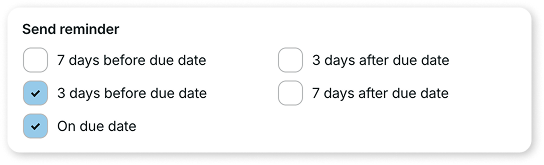
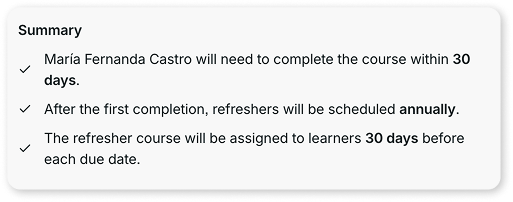
Review the refresher summary
Before saving, review the summary panel to confirm:
- When the learner must complete the course
- How often refresher training will repeat
- When refresher assignments will be issued
Select Save to schedule the refresher.
Need more help?
If you have any questions about setting up course refreshers, please contact our support team at support@goskills.com.