
Learning paths let you combine multiple courses into a structured learning experience, helping learners build skills step by step.
They provide a clear roadmap for learners, break down larger training programs into manageable stages, and make it easier to assign and track training without managing multiple courses separately.
In GoSkills, you can add up to 50 courses to a learning path, choose whether learners must complete them in order, and award a certificate when they finish. Learning paths are ideal for onboarding, leadership development, compliance training, and other skill-building programs.
Create a learning path
- Switch to the Creator role and select Your learning paths from the left navigation menu.
- Select Create a learning path.
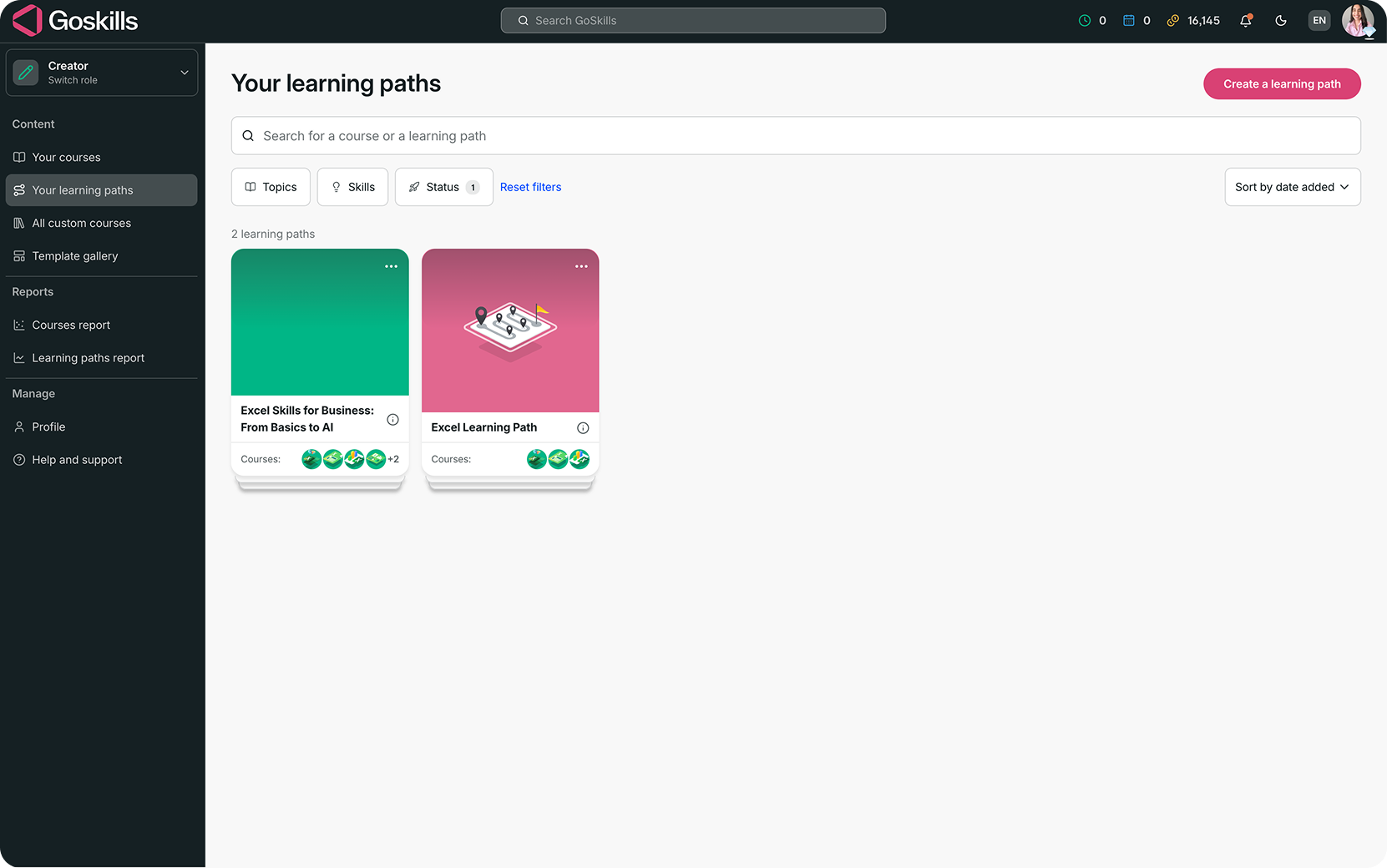
- Give your learning path a name.
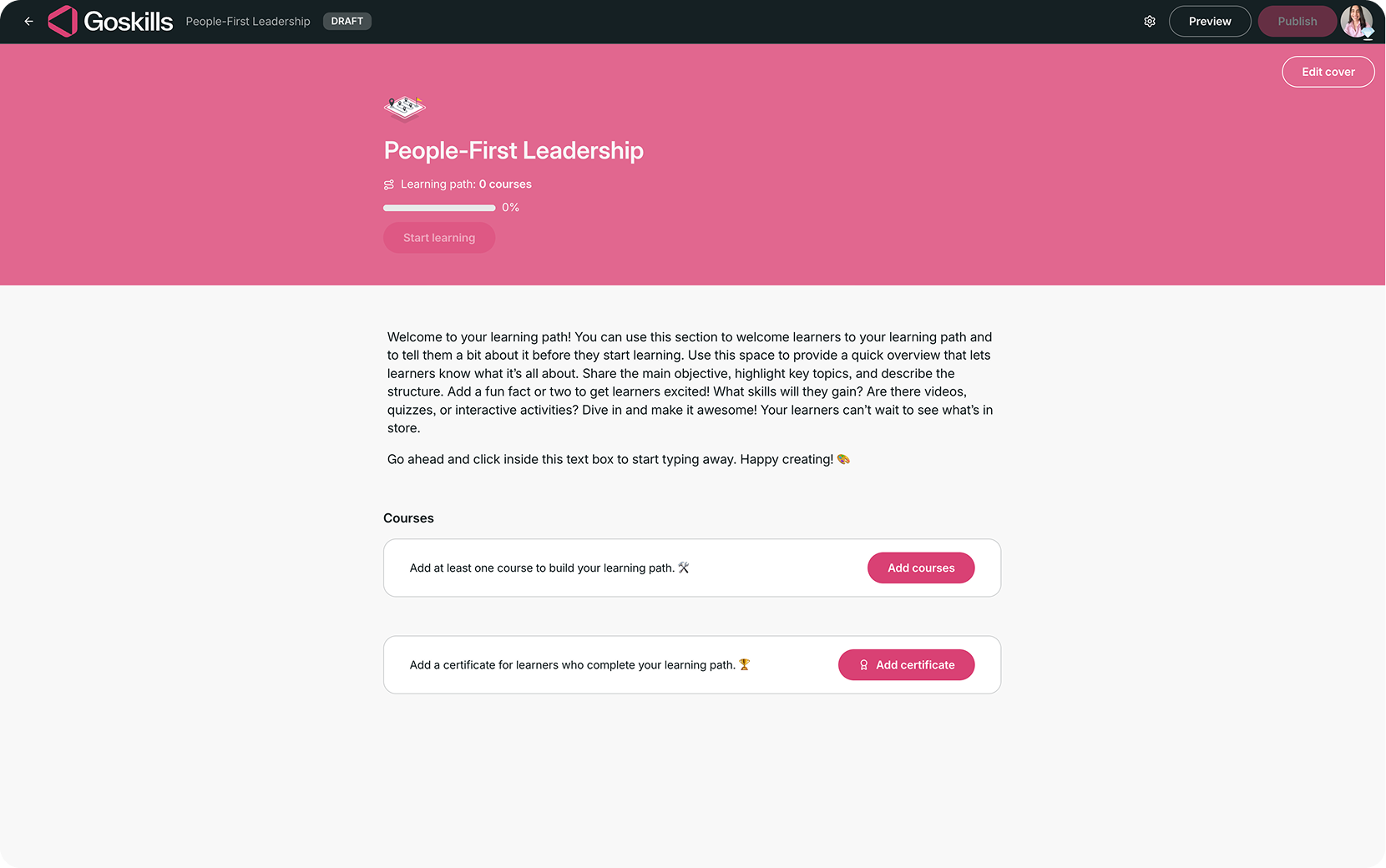
- In the learning path editor, you can:
- Select Edit cover to customize its appearance.
- Add an introduction to welcome learners and explain what they’ll learn.
- Select Add courses to start building your learning path.
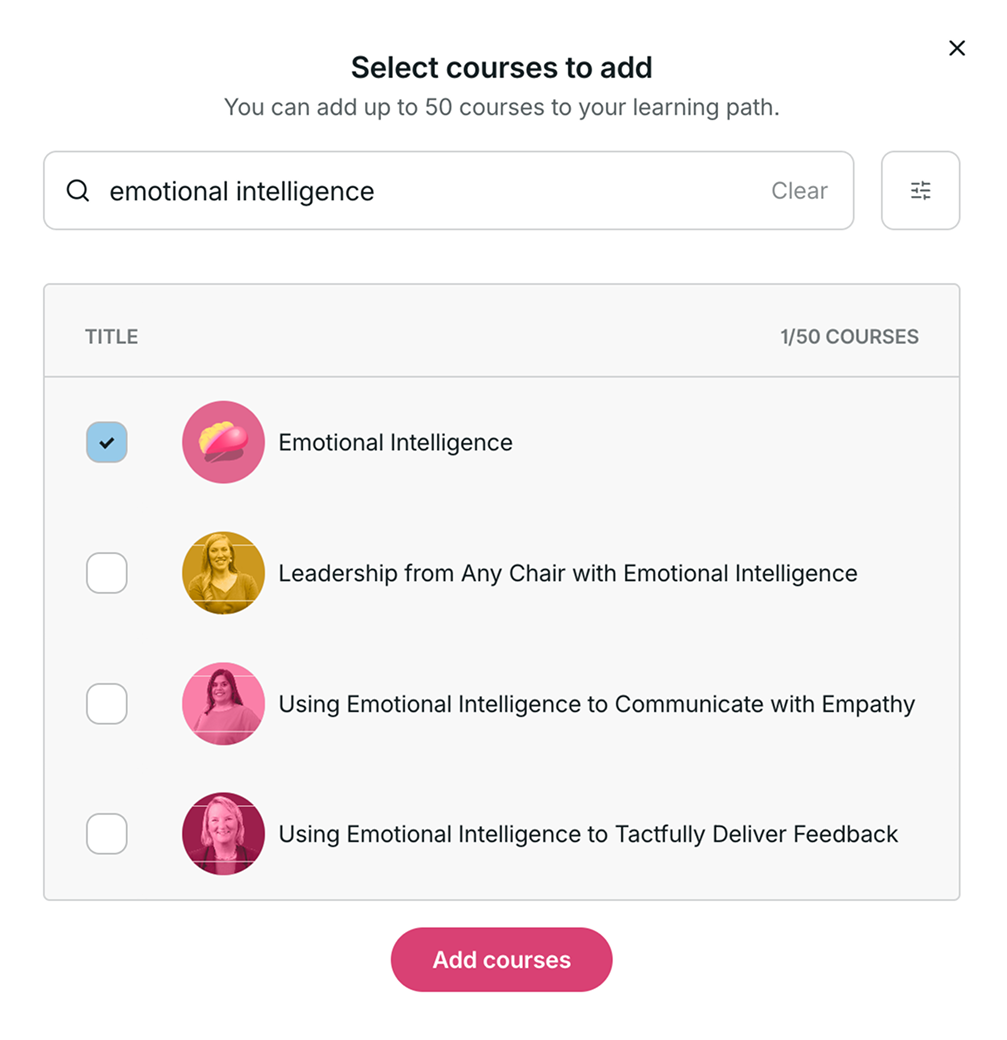
- Search for the courses you want to include and select the checkbox next to each one.
- Select Add courses to confirm your selection.
- Arrange the courses in your preferred order.
Configure your learning path settings
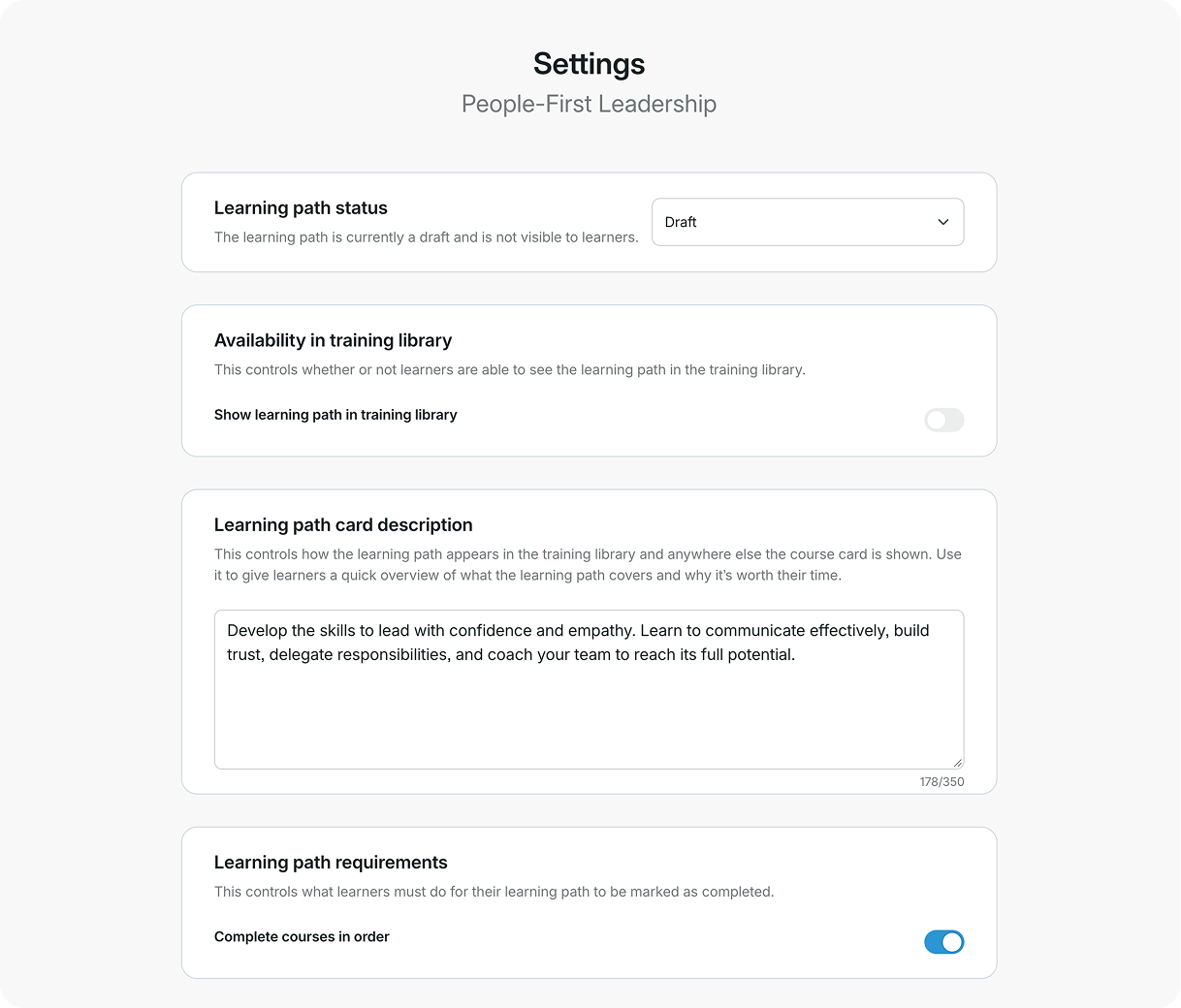
Select the Settings icon in the upper-right corner of the learning path editor.
Here, you can manage settings such as:
- Learning path status: Keep your learning path as a draft while you’re working on it, or publish it when it’s ready.
- Availability in training library: Enable Show learning path in training library to make your published learning path visible to learners.
- Learning path card description: Add a short description explaining what the learning path covers and why learners should take it.
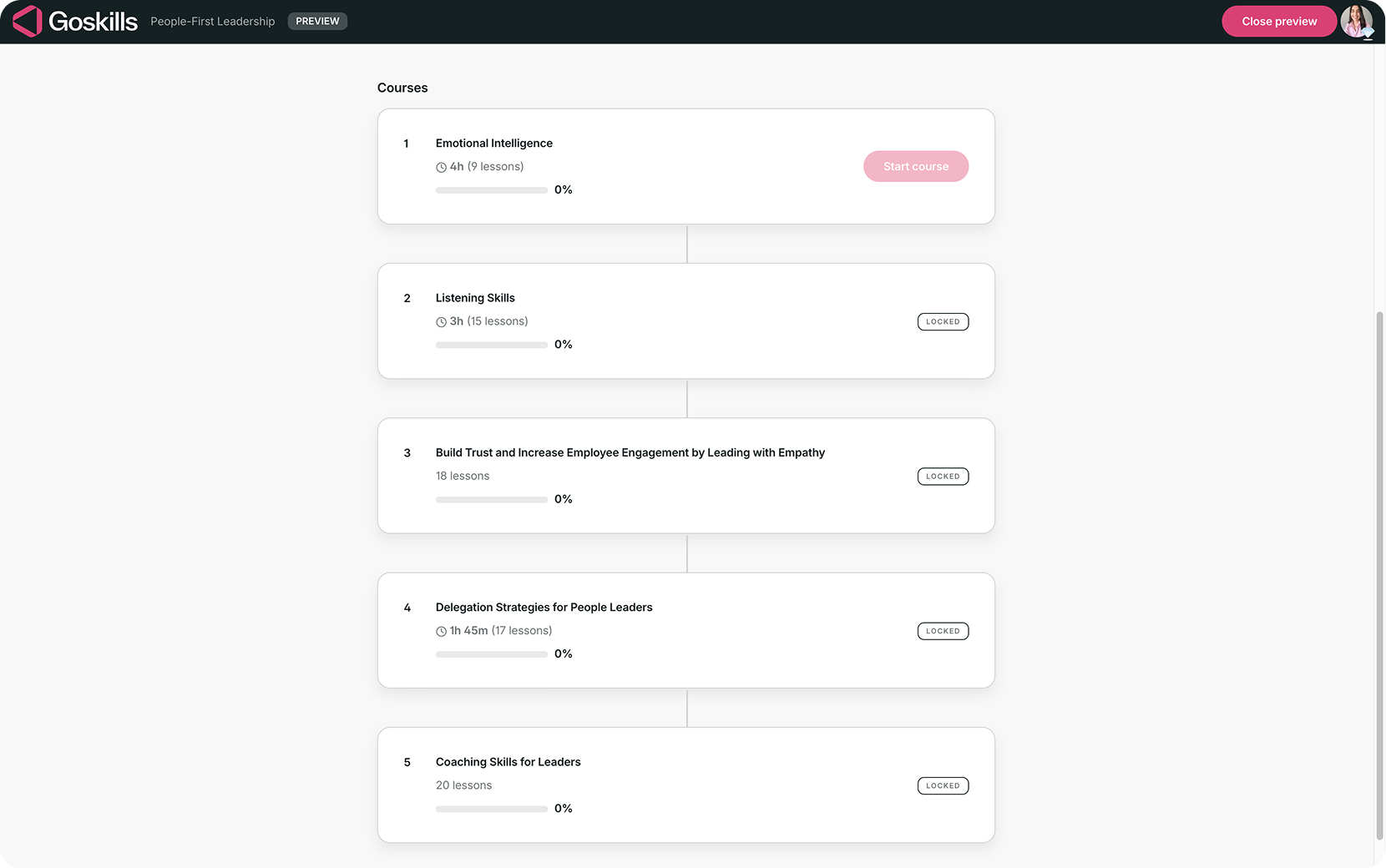
- Learning path requirements: Enable Complete courses in order if learners must finish each course before unlocking the next.
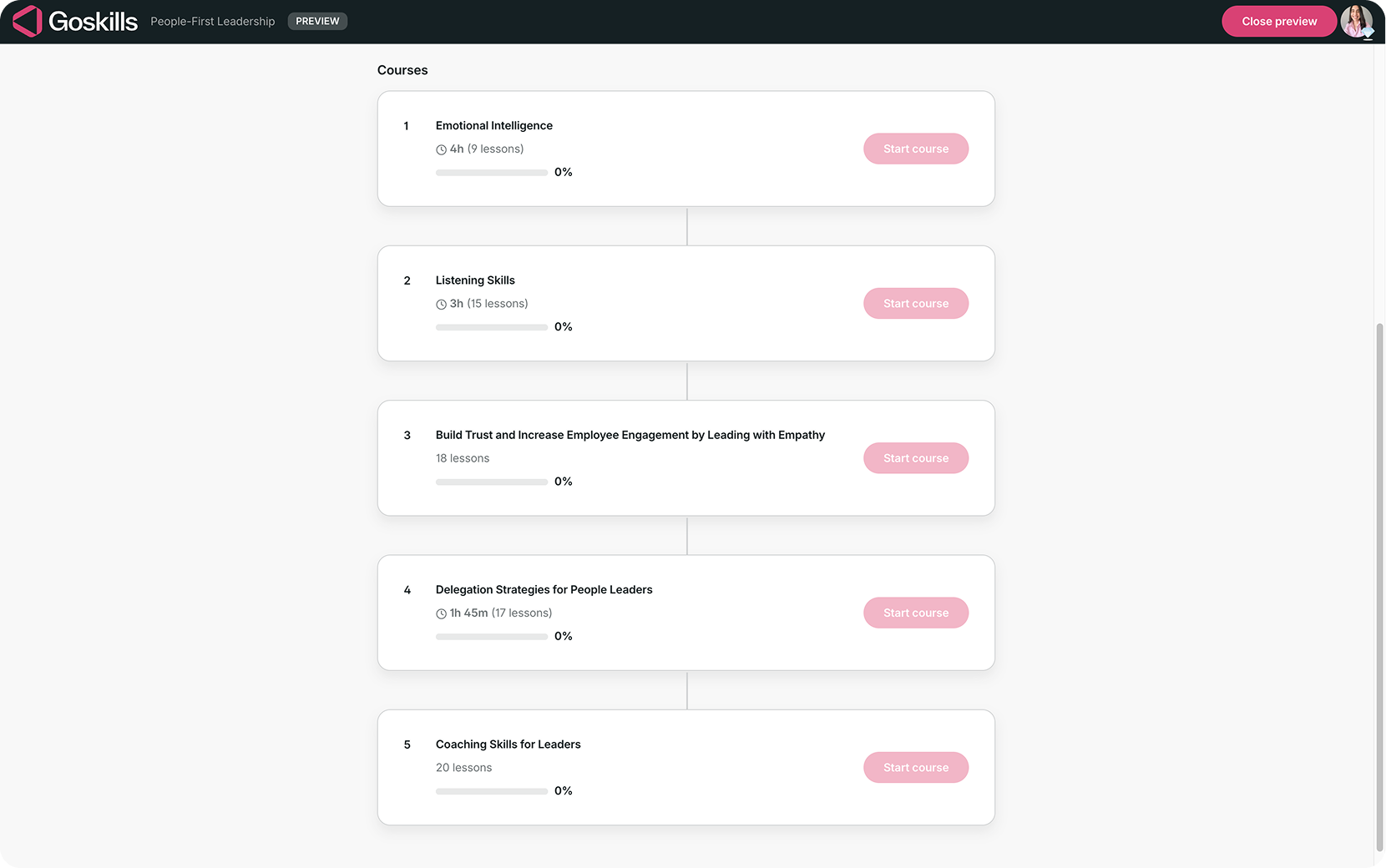
When Complete courses in order is disabled, learners can start any course in the learning path.
When enabled, learners must complete courses sequentially. Courses that aren’t yet available are marked Locked.
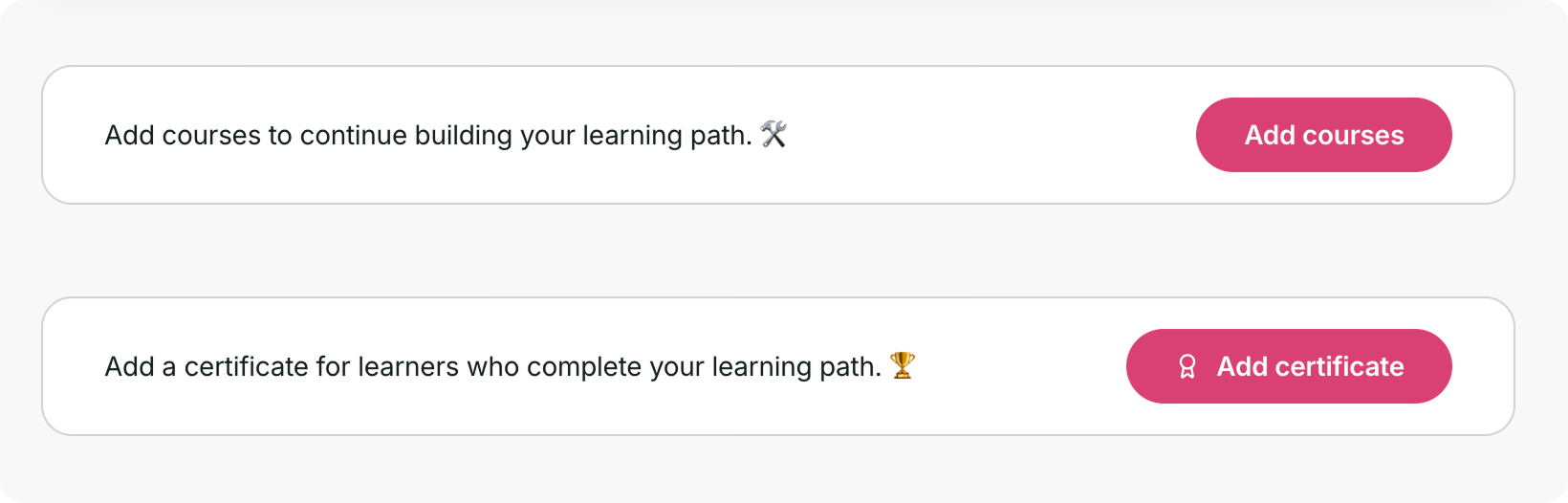
Add a learning path certificate (optional)
You can also award learners a certificate when they complete the entire learning path.
- In the learning path editor, select Add certificate.
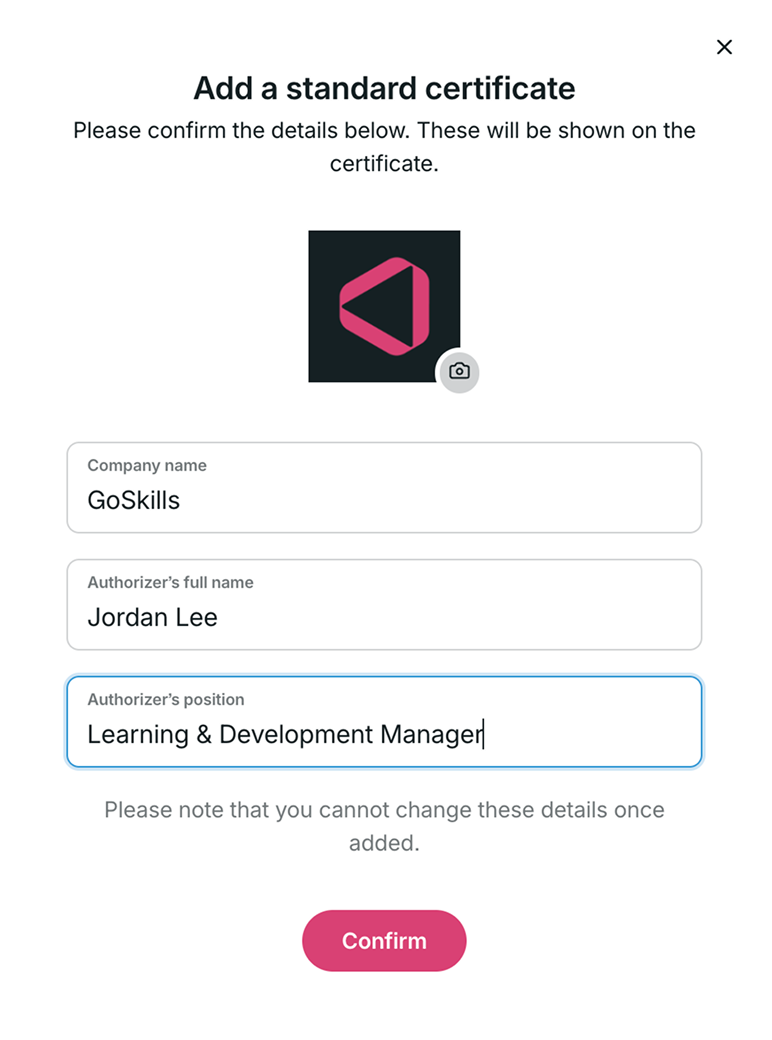
- In the Add a standard certificate window, review or enter:
- Company name and logo
- Authorizer’s full name
- Authorizer’s position
- Select Confirm to add the certificate.
Note: Certificate details cannot be changed once added.
The certificate will appear at the end of your learning path, allowing learners to earn recognition for completing their training.
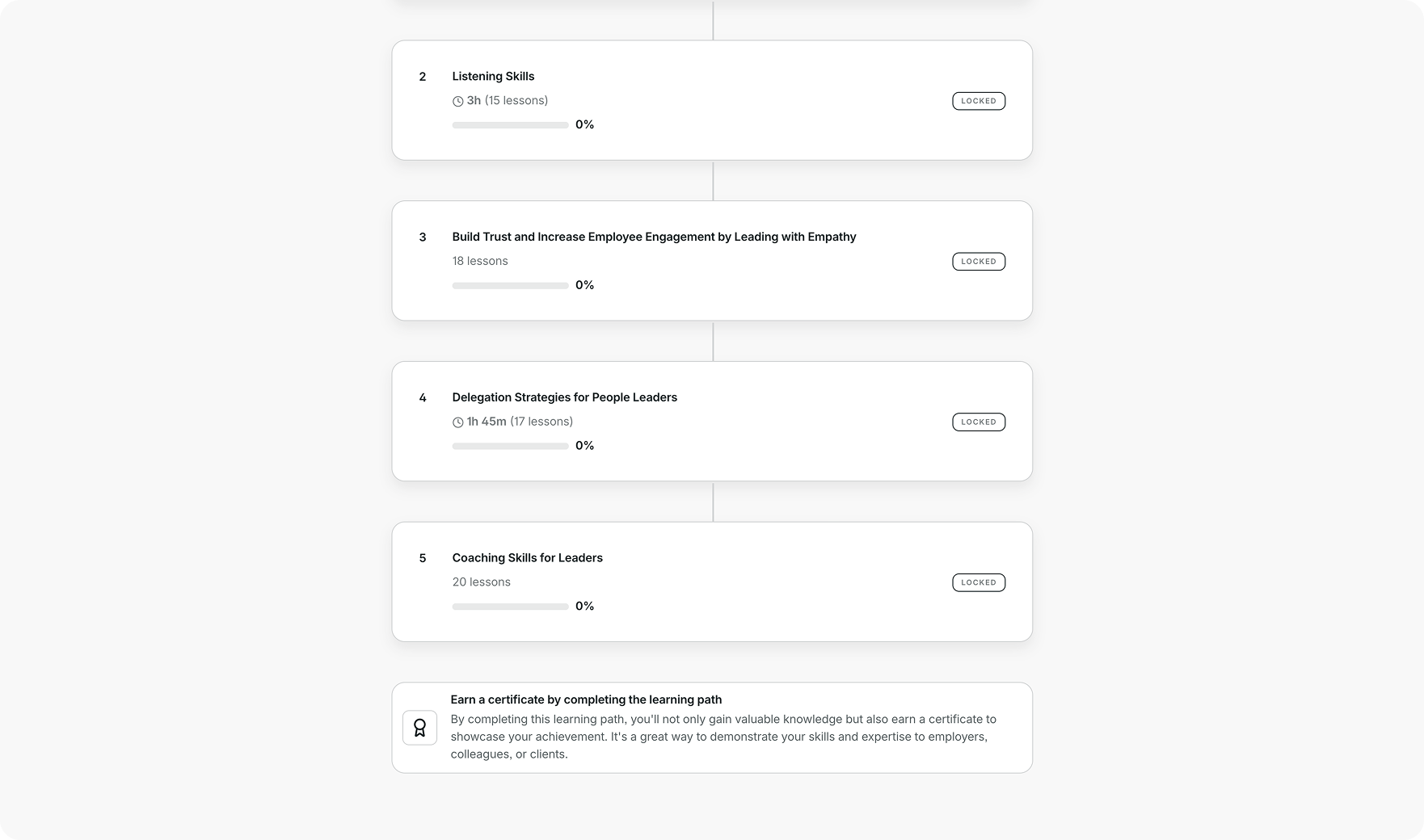
Preview and publish your learning path
- Select Preview in the upper-right corner to see how your learning path will appear to learners.
- Review the course order, completion requirements, and certificate, if you’ve added one.
- Select Close preview to return to the editor.
- When you’re ready, select Publish.
Once published, you can make your learning path available in the training library and assign it to individual learners, teams, or your entire organization.
You can also track learner progress through the Learning Paths report in the GoSkills LMS.