
Sometimes a learner just needs a little more time to complete their courses. 😊
Administrators can grant an individual learner an extension on a course without changing the due date for anyone else assigned to it.
Grant a due date extension
- From the Admin dashboard, go to Learners and select the learner.
- Open the Courses tab.
- Find the course you want to extend.
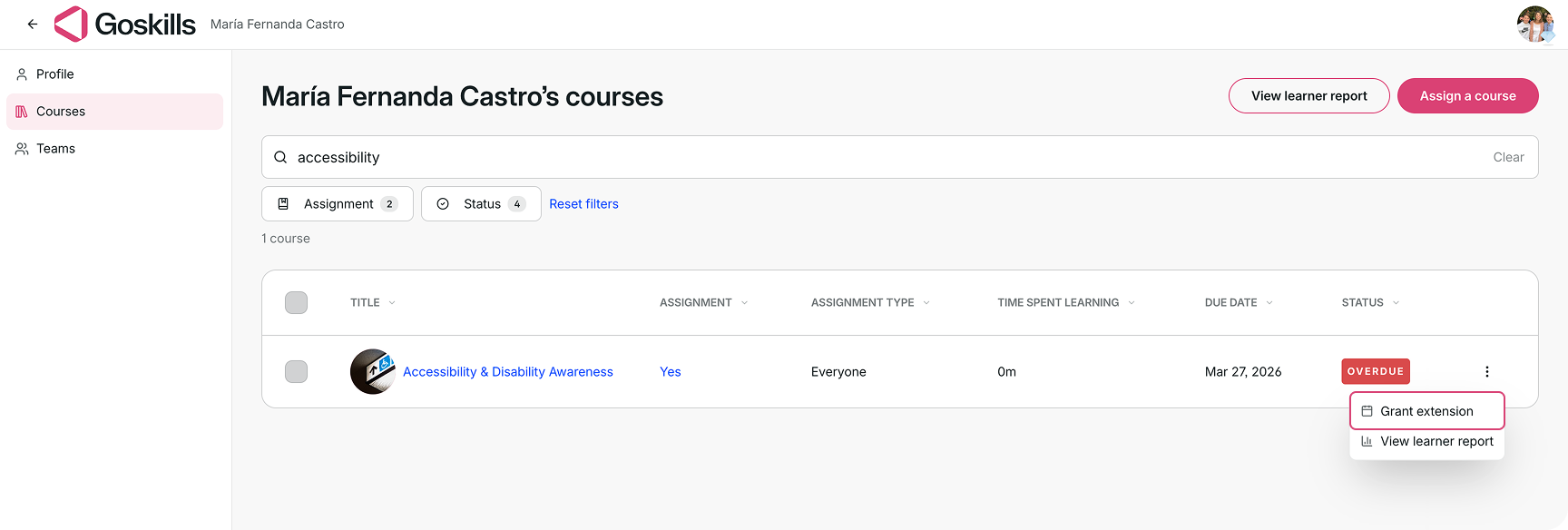
- Click the three dots next to the course and select Grant extension.
In the Grant extension window, enter the extension details:
- Choose the new due date and time.
- Add a reason for the extension.
- Click Grant extension.
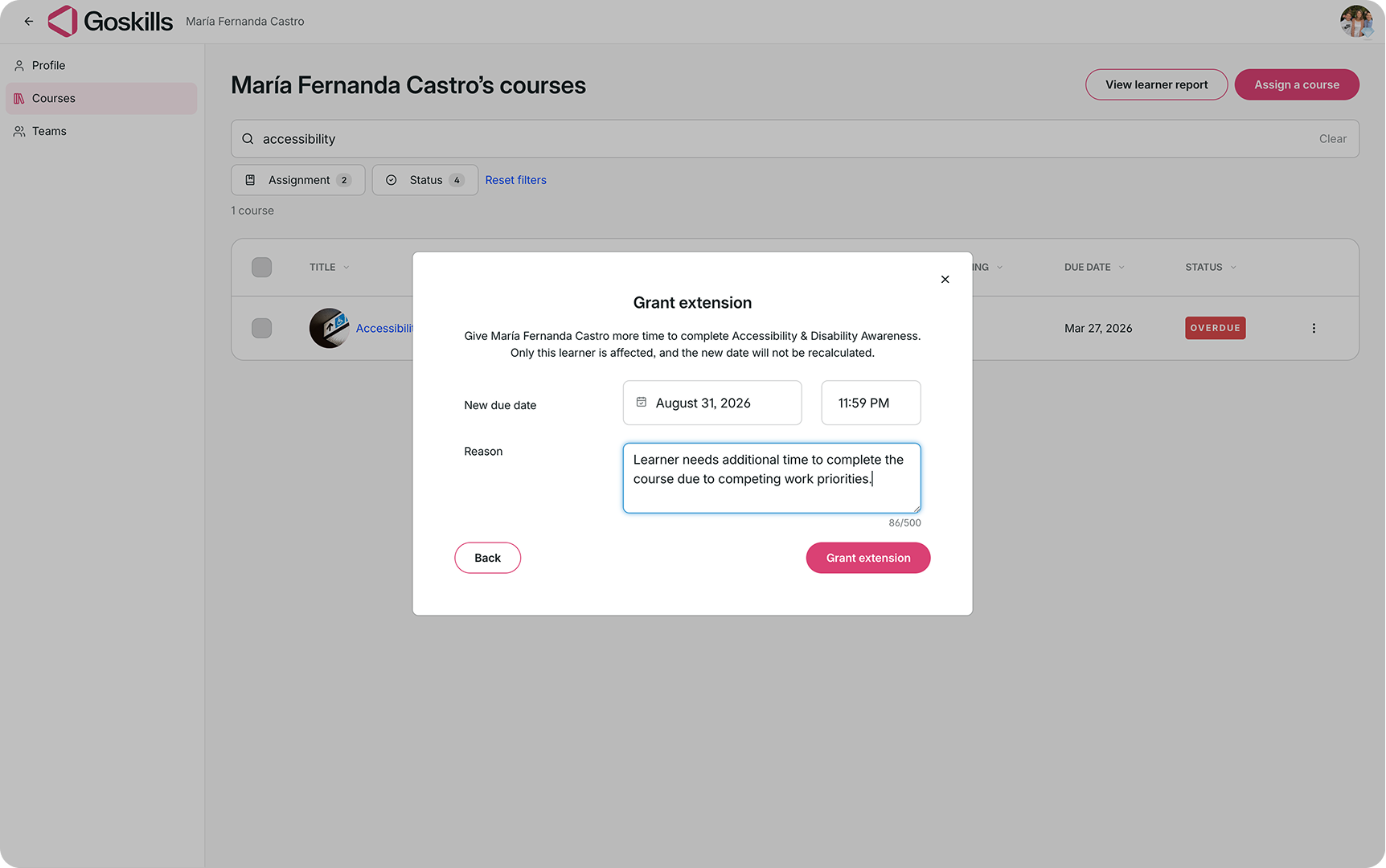
The new due date applies only to that learner and course. It will override the original due date set through the course assignment or a Learning Path that includes the course.
Once the extension is granted, the updated due date will also appear in reporting, and the learner will receive an email letting them know their due date has changed.

Good to know
Due date extensions are currently available for individual courses only.