Once you’ve published a custom course, you can assign it to existing members of your organization or invite new people to join and take the course.
Assign a course to existing members
Use Assign when you want to give people who are already part of your GoSkills organization access to the course.
- Open the published course you want to assign.
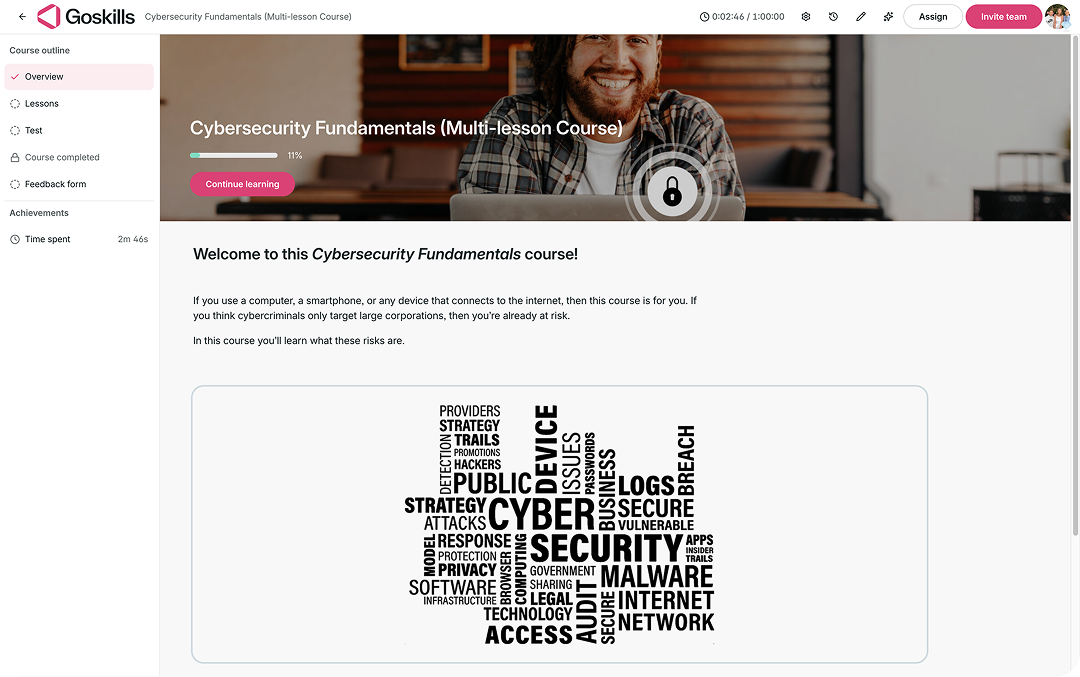
- Select Assign in the top-right corner.
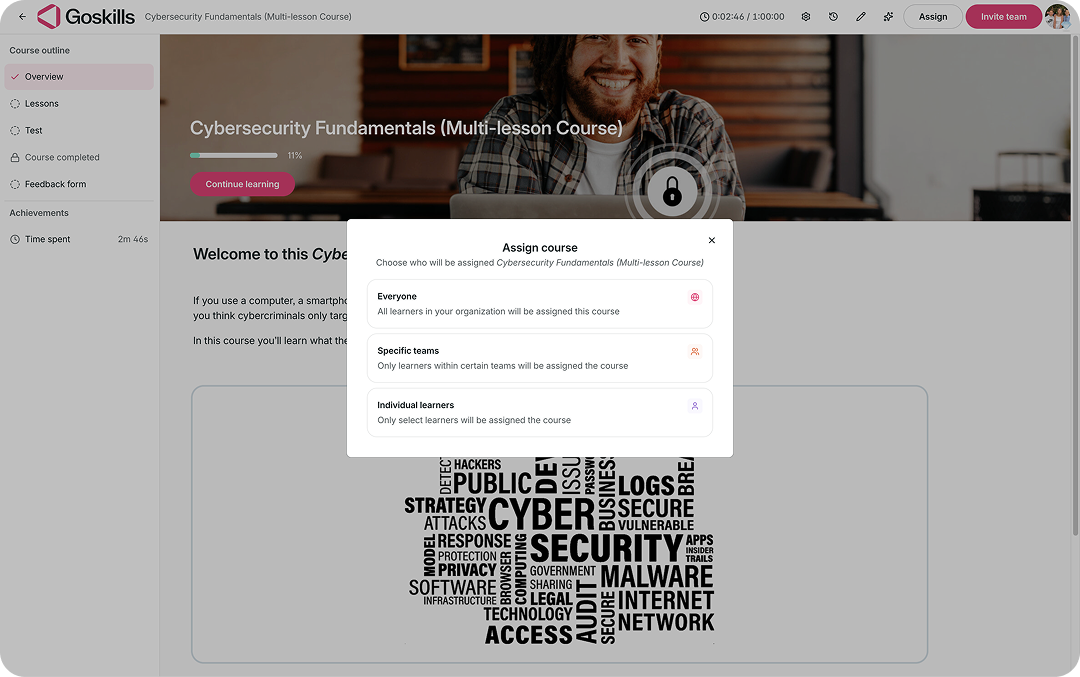
- Choose who you want to assign the course to:
- Everyone: Assign the course to all learners in your organization.
- Specific teams: Assign the course to learners within selected teams.
- Individual learners: Assign the course to selected learners.
- Follow the prompts to select the teams or learners and assign the course.
Invite new people to take a course
If someone hasn’t joined your GoSkills organization yet, select Invite team from the published course.
You can invite people in two ways:
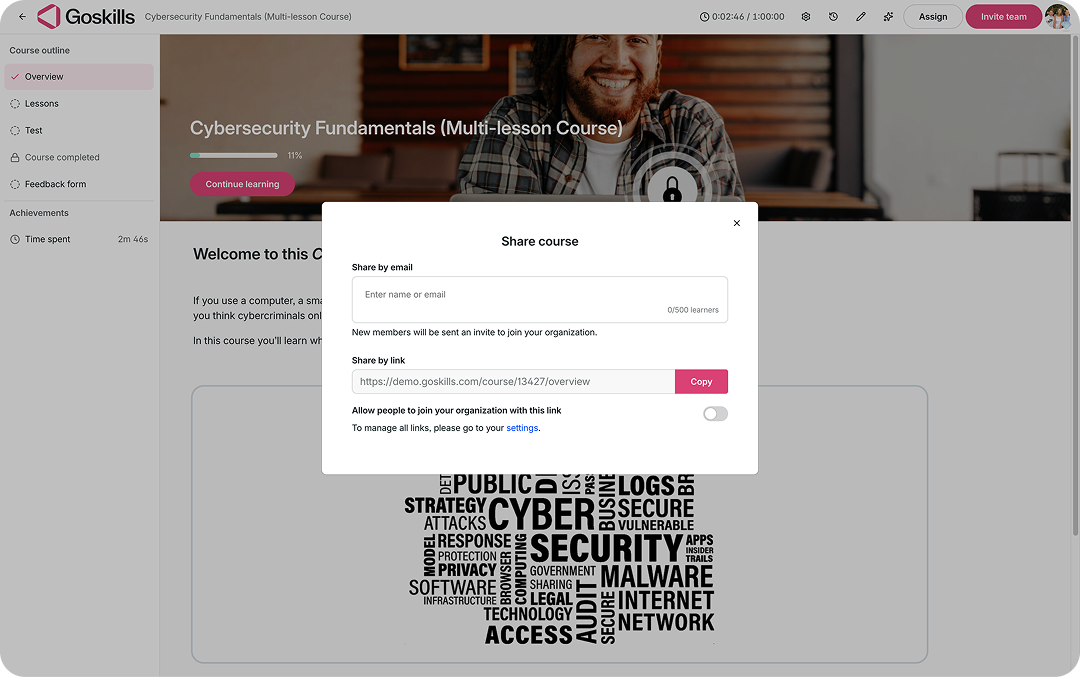
- Share by email: Enter their name or email address. New members will receive an invitation to join your organization.
- Share by link: Copy the course link and share it directly.
When sharing by link, you can also enable Allow people to join your organization with this link if you want recipients to be able to join your organization through the link.
Once they join your organization, they can access the course and start learning.