
GoSkills allows you to create a tailored selection of courses for each team in your organization, alongside your organization-wide training library.
This makes it easy to provide relevant training to specific groups, such as new managers, sales teams, or new hires, without changing the course selection available to everyone else.
Let’s look at how to add courses to a team’s training library and how learners can access them.
How to add courses to a team
- From your Administrator dashboard, go to Teams under the People section.
- Select the team you want to add courses to.
Don’t have a team set up yet? Follow our guide on How to Create a New Team in GoSkills to get started.
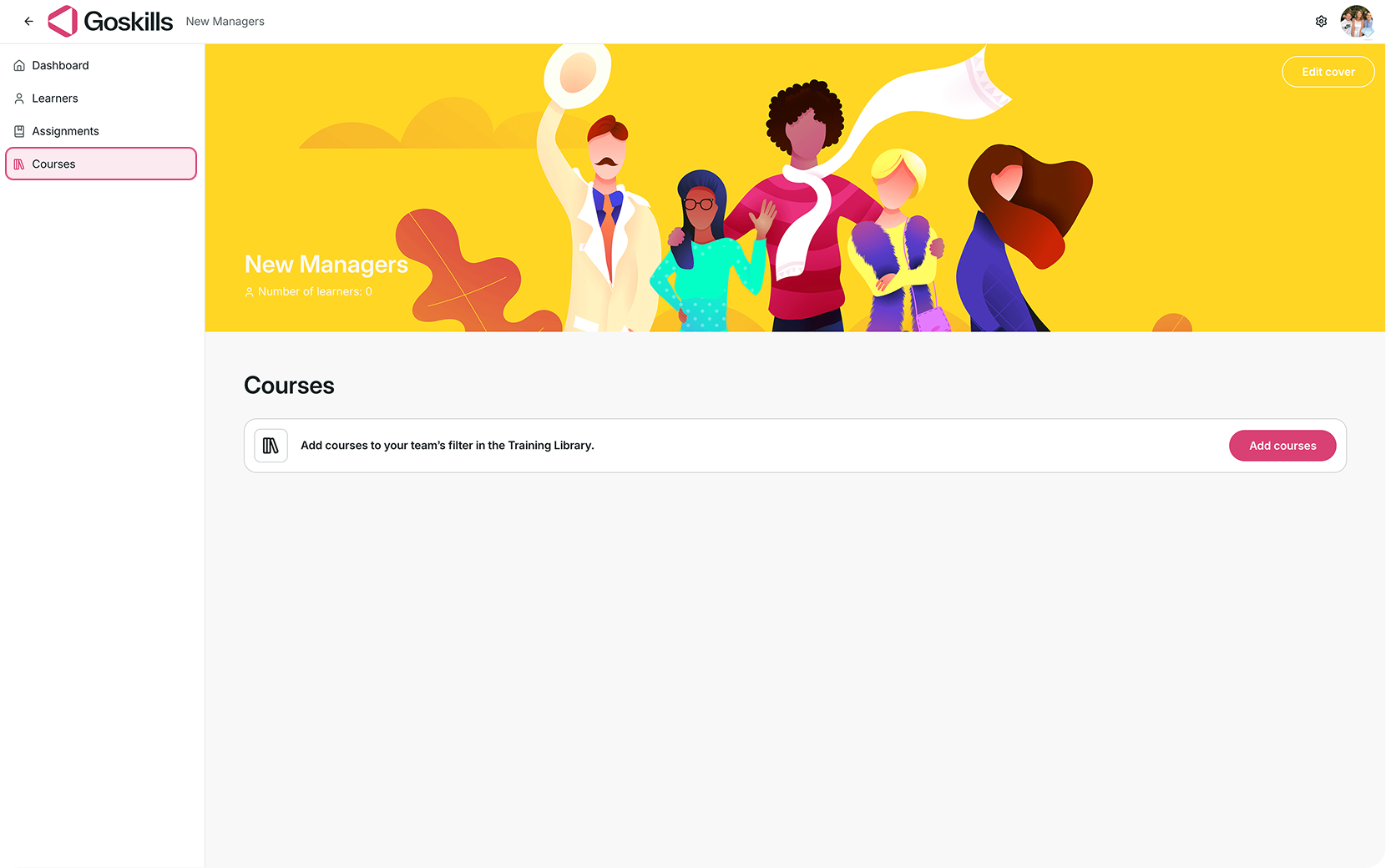
- From your team’s page, select Courses in the left-hand menu.
- Click Add courses to open the course selection window.
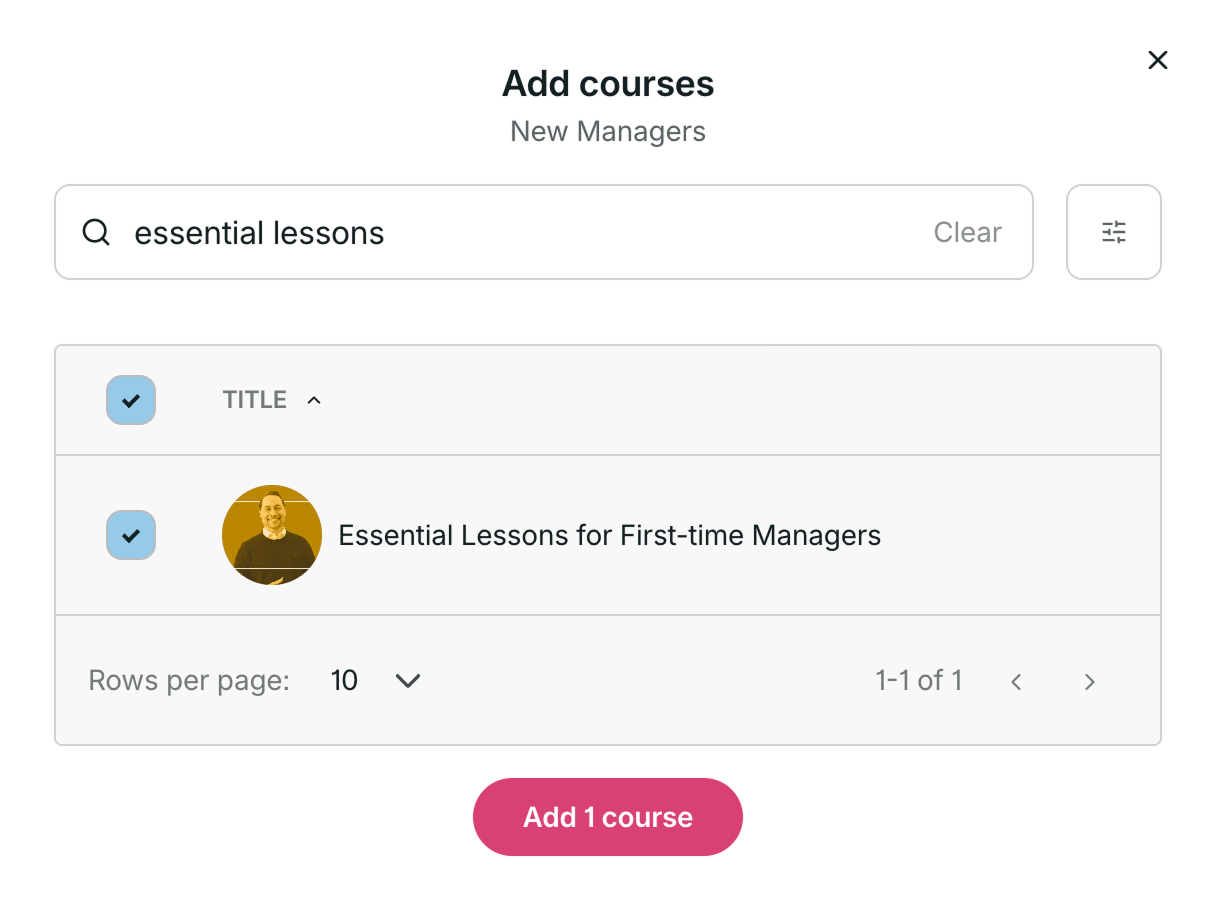
- Search for courses by title or use the available filters to narrow your selection.
- Check the boxes next to the courses you want to include.
- Click Add courses to confirm your selection.
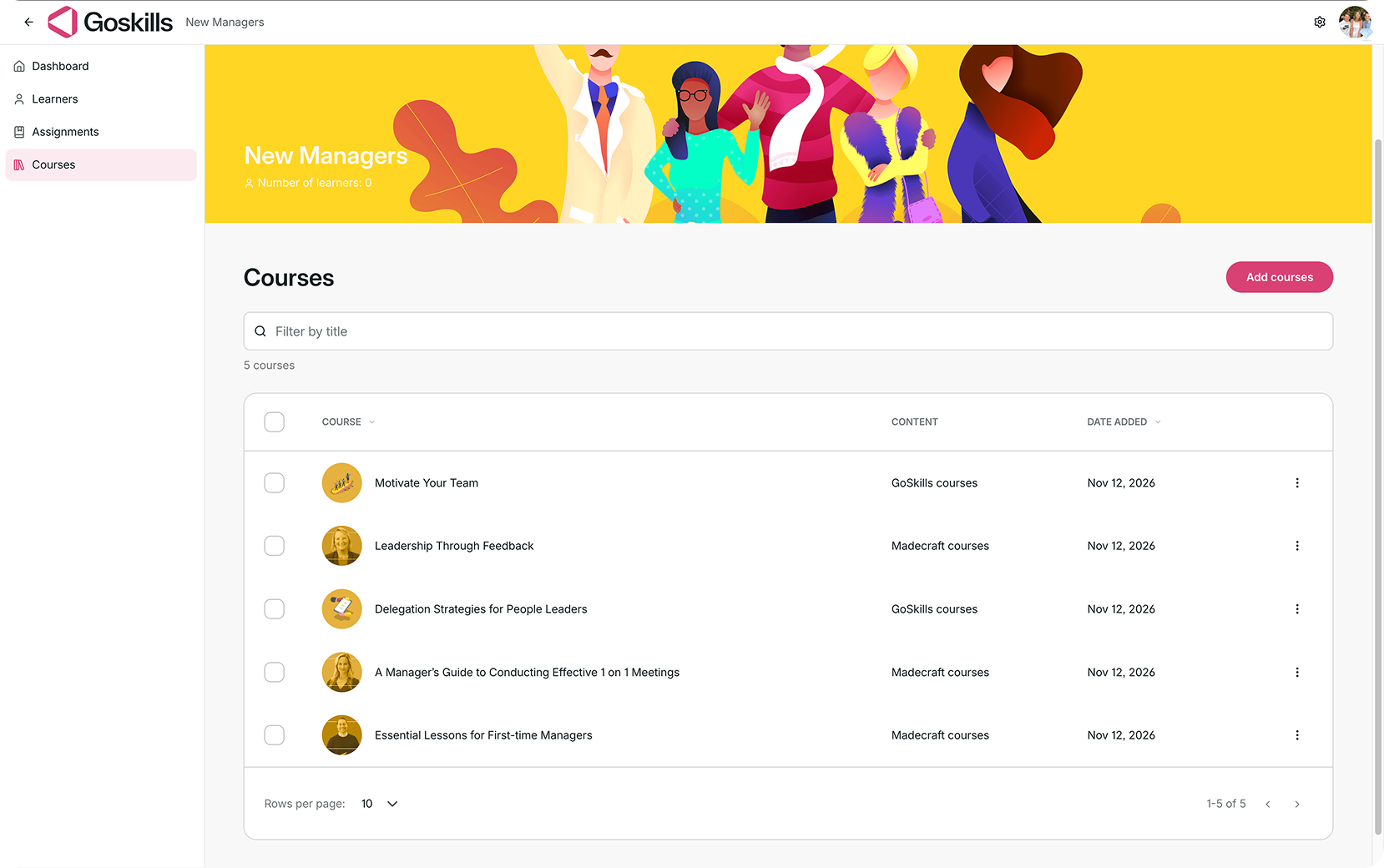
Your selected courses will now appear under the team’s Courses tab.
From here, you can view the courses available to your team and manage your selection as needed.
How learners can access team courses
Once courses have been added to a team, its members can find them in their Training library.
To view team-specific courses:
- From the Learner dashboard, open Training library.
- Click the Teams filter at the top of the page.
- Select your team to display the courses available to its members.
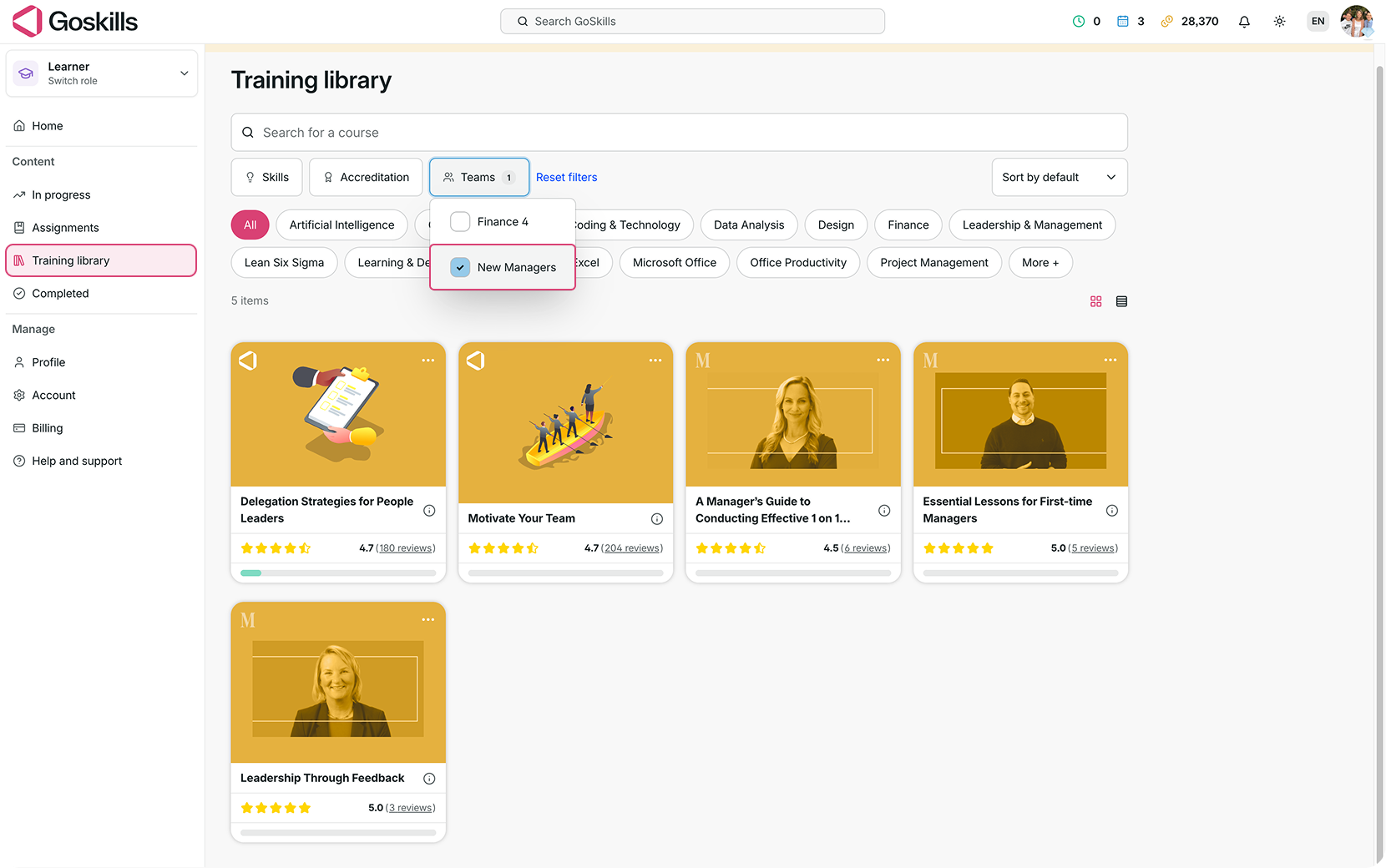
Learners who belong to multiple teams can use the filter to find courses associated with each team.
How team libraries work with organization settings
If you want to hide the organization-wide training library, switch to the Administrator role, go to Settings, and scroll down to the Training library section. Then, enable Hide training library.
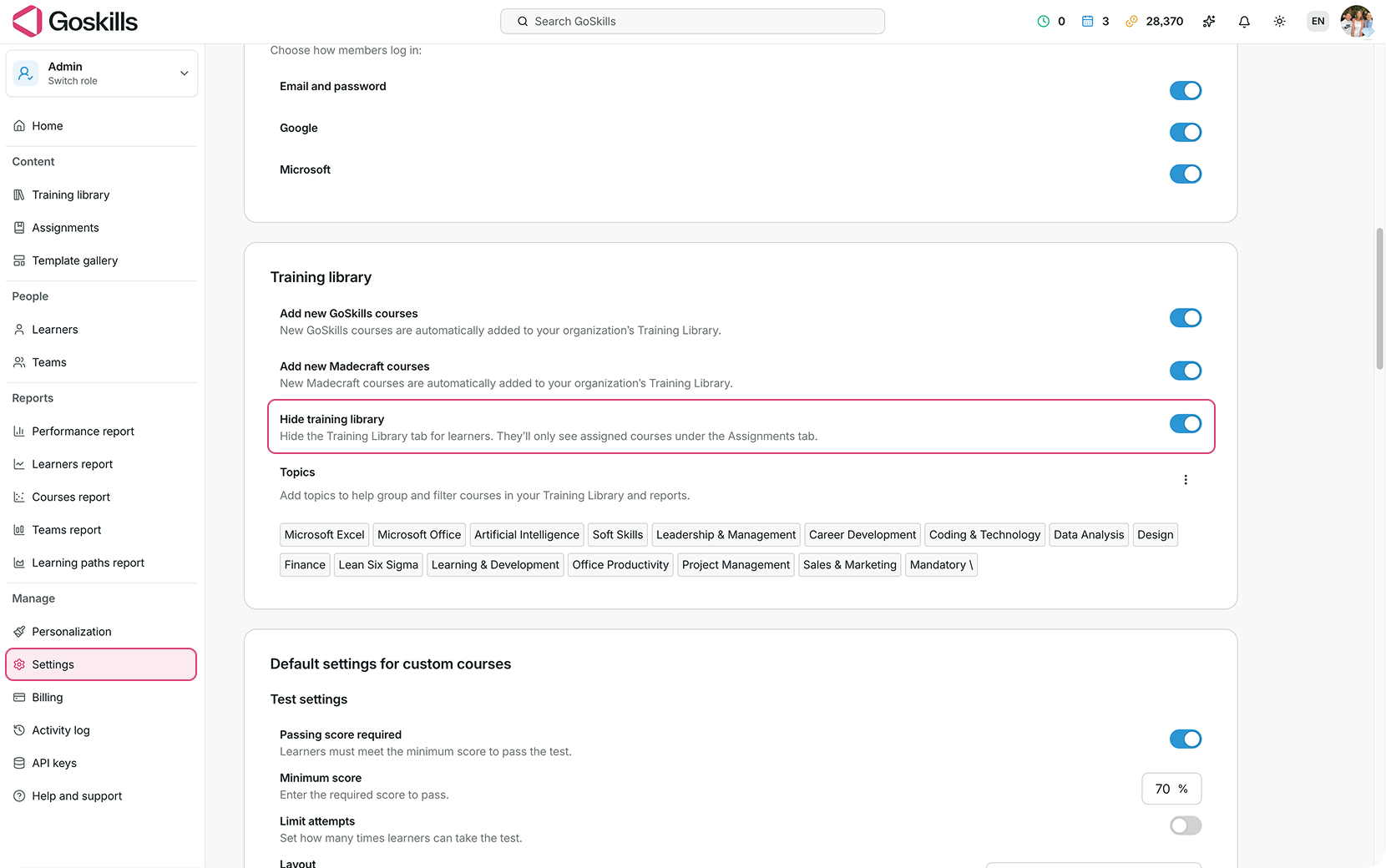
When this setting is enabled, the Training library tab is hidden, and learners can access their assigned courses through the Assignments tab.